
Closing your Apple ID is a significant decision. Unlike deactivating a device or signing out of an account, permanently closing your Apple ID removes access to iCloud, the App Store, Apple Music, iMessage, FaceTime, and other integrated services. Once initiated, the process cannot be undone after 30 days. This guide walks you through each stage with precision, ensuring your personal data is protected, your devices are properly disassociated, and the closure proceeds without complications.
Understanding What Happens When You Close Your Apple ID
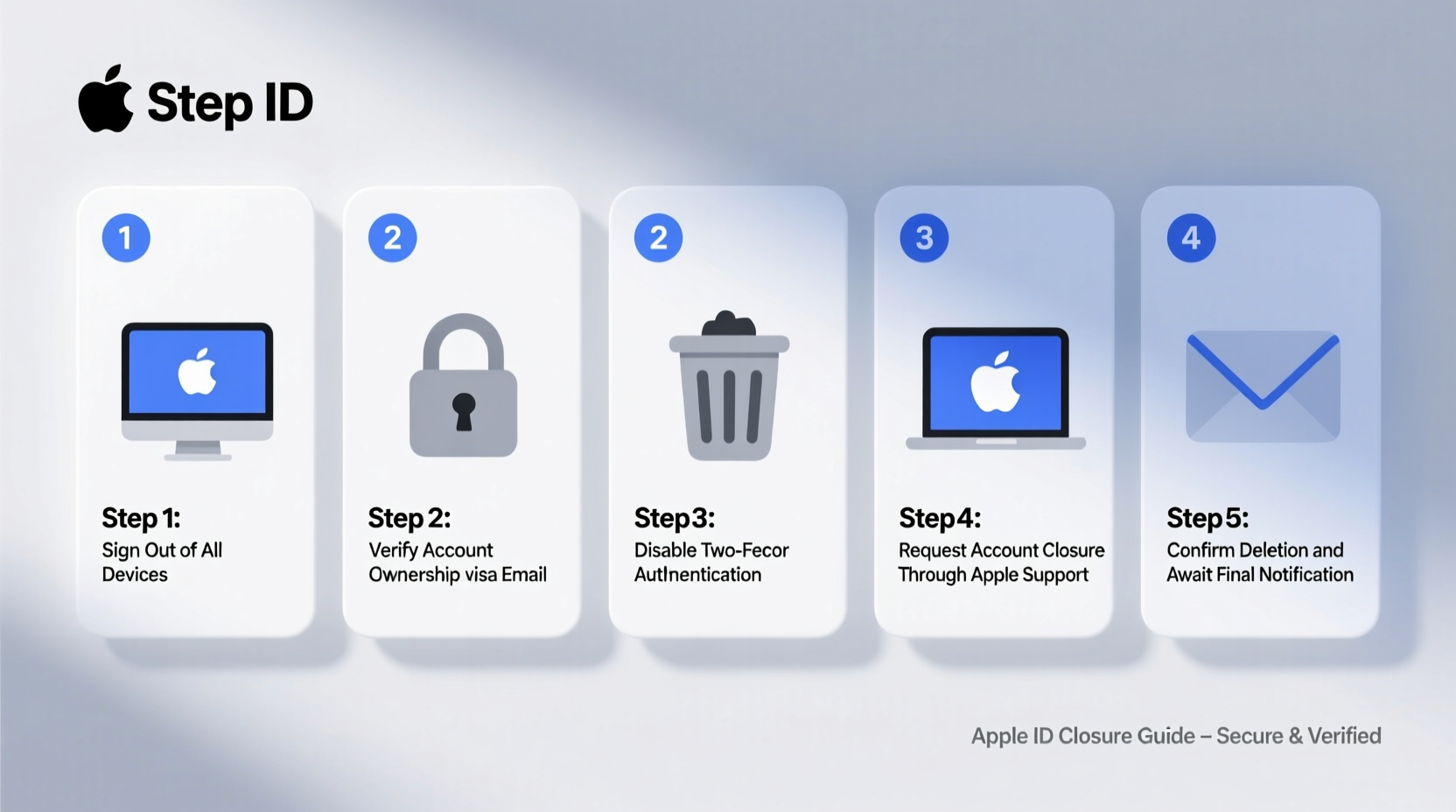
Your Apple ID is the central hub for all Apple services. It stores your contacts, photos, emails, app purchases, payment methods, and device backups. Closing it means you will lose access to all of these unless they are backed up externally. Apple does not automatically delete your data immediately—it places your account in a 30-day grace period during which you can cancel the request. After that, your account and associated data are permanently erased from Apple’s servers.
Important: Even if you no longer use Apple products, keeping your Apple ID active allows you to download previously purchased apps, music, or books. Closing it forfeits those rights.
Step-by-Step Process to Permanently Close Your Apple ID
- Back up all essential data – Export photos, contacts, notes, and reminders. Use third-party cloud storage (Google Drive, Dropbox) or external hard drives.
- Download your data archive – Visit privacy.apple.com and request a copy of your data under Apple’s Data and Privacy tools.
- Remove all devices from your account – Go to Settings > [Your Name] > Devices on each iPhone, iPad, or Mac and sign out. For older devices, use iCloud.com.
- Cancel all subscriptions – This includes Apple Music, iCloud+ plans, Apple News+, and any third-party apps using Apple ID billing.
- Update or remove payment methods – Ensure no automatic charges remain linked to your account.
- Transfer ownership of shared services – If you’re part of a Family Sharing group, leave or transfer leadership to another member.
- Initiate account closure – Visit appleid.apple.com, sign in, go to Account Closure, and follow the prompts.
- Confirm via email – Apple will send a confirmation link; click it to finalize the initiation.
- Wait 30 days – During this time, you can reverse the closure by signing in. After 30 days, deletion is permanent.
Essential Checklist Before Proceeding
- ✅ Backed up photos, messages, and files
- ✅ Downloaded purchase history and receipts
- ✅ Signed out of all Apple devices
- ✅ Cancelled active subscriptions
- ✅ Removed credit cards and payment info
- ✅ Left or transferred Family Sharing membership
- ✅ Disabled two-factor authentication (after removing devices)
- ✅ Requested data export from Apple
- ✅ Notified contacts who may reach you via iMessage or FaceTime
Common Pitfalls and How to Avoid Them
Many users attempt to close their Apple ID without realizing the irreversible consequences. One common mistake is assuming that deleting an iPhone or resetting settings also deletes the Apple ID—this is false. The account remains active unless formally closed through Apple’s official portal.
Another issue arises when users forget about active subscriptions. Even after initiating closure, recurring charges may still appear until manually canceled.
| Do | Don’t |
|---|---|
| Use Apple’s Data and Privacy portal to download your information | Assume your data will be saved after closure |
| Sign out of every device before closure | Leave devices signed in—they’ll become unusable |
| Cancel subscriptions at least one billing cycle before closure | Expect refunds for unused subscription periods |
| Keep a record of your final actions and confirmation emails | Delete confirmation emails—they’re crucial for dispute resolution |
“Closing an Apple ID isn’t just about deleting an account—it’s about digital estate management. Users must treat it like closing a bank account: verify balances, withdraw assets, and confirm closures.” — Daniel Park, Digital Privacy Consultant
Real Example: Sarah’s Account Closure Experience
Sarah had used her Apple ID since 2010. Over the years, she accumulated thousands of photos, dozens of app purchases, and a family subscription to Apple One. When she decided to switch entirely to Android and Google services, she assumed signing out of her iPhone was enough.
Months later, she tried to retrieve old vacation photos stored in iCloud but found she couldn’t log in. She hadn’t realized her account was still active but inaccessible due to forgotten security questions. After contacting Apple Support, she learned she could still recover her account—but only because it wasn’t officially closed.
This time, she followed a structured approach: backed up everything to Google Photos and a hard drive, canceled her Apple One plan, removed all devices, and formally requested closure. She received email confirmations at each stage and kept them archived. Thirty-one days later, she verified the account was gone.
Sarah’s story underscores the importance of preparation. A rushed closure risks permanent data loss.
Frequently Asked Questions
Can I reopen my Apple ID after closing it?
No. Once the 30-day waiting period ends, your Apple ID and all associated data are permanently deleted. You cannot recover purchases, messages, or backups. However, during the 30 days, signing back into any device or clicking the cancellation link in confirmation emails will stop the closure.
Will closing my Apple ID affect my Gmail or other non-Apple accounts?
No. Your Apple ID is independent of Google, Microsoft, or other platforms. However, if you used your Apple ID email (e.g., @icloud.com) as a login for third-party services, update those accounts first to avoid lockouts.
What happens to my iMessages and FaceTime calls after closure?
Once your Apple ID is closed, iMessage and FaceTime are deactivated. Anyone trying to message you via iMessage will see delivery failures. SMS texts (green bubbles) will still work if your phone number remains active. Consider informing frequent contacts in advance.
Final Steps and Ongoing Vigilance
After initiating closure, monitor your inbox for Apple’s confirmation emails. Do not discard them. These serve as proof of action and include instructions to halt the process if needed. Also, check your bank or card statements over the next few weeks to ensure no lingering charges appear.
If you own an Apple Watch, AirPods, or HomePod, ensure they are unpaired and reset before account closure. Devices tied to a deleted Apple ID may become non-functional or locked.
Finally, consider creating a brief digital will—a document listing key accounts, closure dates, and backup locations. Future you—or a trusted contact—may need this information.




 浙公网安备
33010002000092号
浙公网安备
33010002000092号 浙B2-20120091-4
Comments
No comments yet. Why don't you start the discussion?