
Many modern Bluetooth speakers come equipped with a TF (microSD) card slot, allowing you to play music directly without relying on a phone or streaming service. This feature is ideal for outdoor adventures, areas with poor connectivity, or when you want to preserve your device’s battery. While the process may seem straightforward, users often encounter issues like unsupported file formats, improper insertion, or difficulty navigating playback controls. This guide walks you through every essential step—from choosing the right TF card to troubleshooting common problems—so you can enjoy seamless, offline audio anytime, anywhere.
Understanding TF Card Compatibility
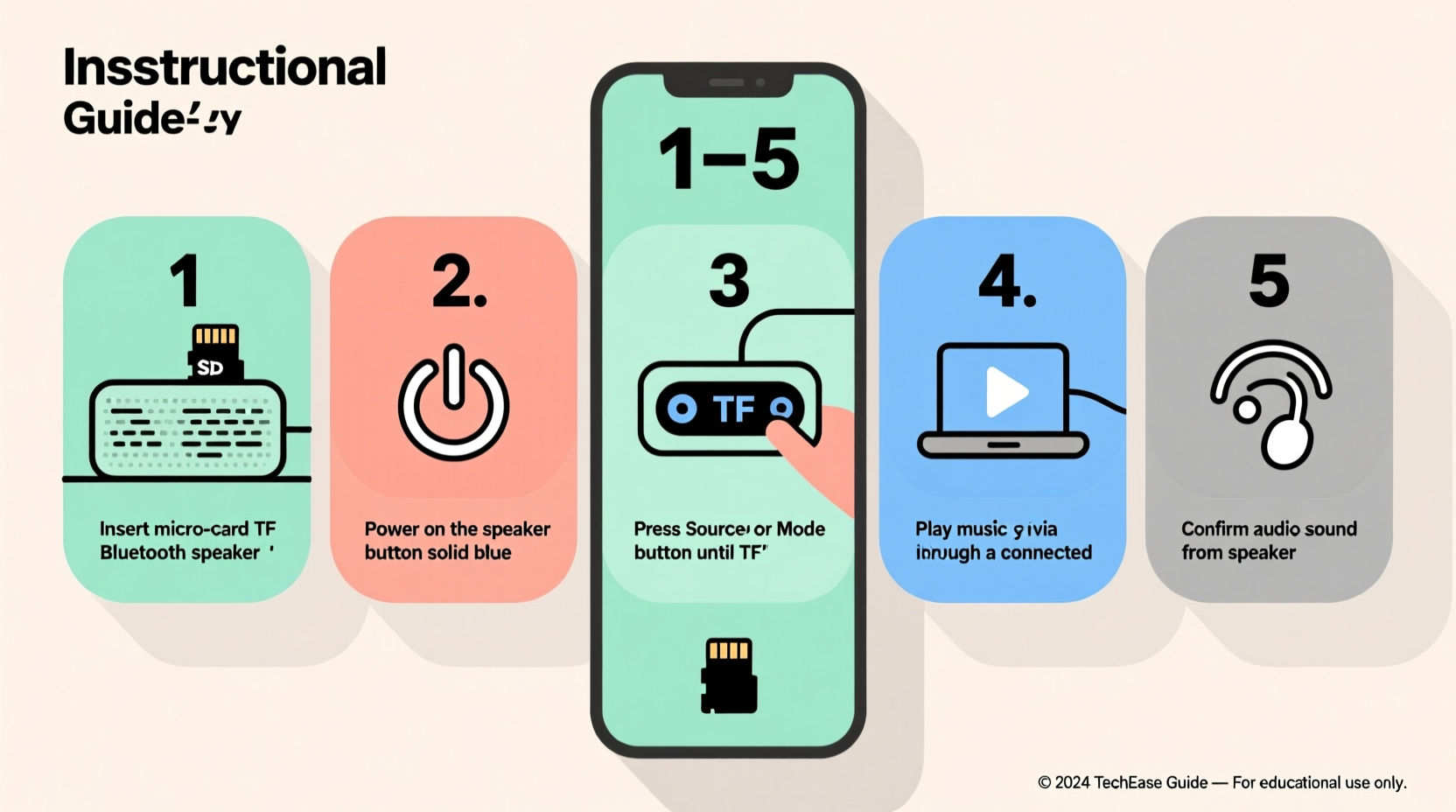
Not all Bluetooth speakers support every type of TF card. Before inserting a card, confirm your speaker’s specifications. Most models support cards up to 32GB or 64GB, using the FAT32 file system. Larger capacity cards (128GB or more) formatted as exFAT may not be recognized unless explicitly supported.
Audio format compatibility is equally important. The most widely supported formats are MP3 and WMA. FLAC, WAV, or AAC files may not play on budget or older models. Always check your speaker’s user manual for a list of accepted formats.
Step-by-Step Guide to Playing Music from a TF Card
- Choose the Right TF Card: Use a Class 10 microSD card with at least 16GB capacity. Higher speed classes (UHS-I) improve read performance but aren’t critical for standard audio playback.
- Format the Card: Insert the card into a computer via adapter. Back up any data, then format it to FAT32. On Windows, right-click the drive > Format > Choose FAT32. On macOS, use Disk Utility and select MS-DOS (FAT).
- Transfer Your Music: Copy MP3 or WMA files directly into the root directory. Avoid nested folders if your speaker has limited navigation. Name files clearly (e.g., “01_Beach_Vibes.mp3”) to make selection easier.
- Safely Eject and Insert: Eject the card properly from your computer. Locate the TF card slot on your speaker—usually under a rubber flap—and insert the card gently with the label facing up.
- Power On and Switch Mode: Turn on the speaker. Press the “Mode” or “Source” button until the display (if available) shows “TF,” “SD,” or a card icon. Some models auto-detect and start playing.
- Control Playback: Use the “Play/Pause,” “Next,” and “Previous” buttons on the speaker. Volume can typically be adjusted independently while in TF mode.
Do’s and Don’ts When Using a TF Card
| Do’s | Don’ts |
|---|---|
| Use high-quality, branded TF cards from SanDisk, Samsung, or Kingston | Don’t exceed the maximum card size listed in your speaker’s manual |
| Keep music files in MP3 format (320kbps recommended for quality) | Don’t store non-audio files like documents or apps on the card |
| Eject the card safely after use to prevent data corruption | Don’t remove the card while the speaker is powered on |
| Label your card with a small piece of tape to avoid mix-ups | Don’t expose the card to moisture, magnets, or extreme temperatures |
Real-World Example: A Weekend Camping Trip
Jamal planned a three-day camping trip with friends. He brought his portable Bluetooth speaker but realized his phone had weak signal and limited battery. Instead of relying on streaming, he preloaded a 32GB TF card with playlists: acoustic sets for morning coffee, upbeat tracks for hiking, and ambient sounds for nighttime relaxation. After formatting the card and copying 120 songs in MP3 format, he inserted it into his Anker SoundCore speaker. Throughout the weekend, they enjoyed uninterrupted music without draining Jamal’s phone. The TF card proved reliable, surviving minor drops and exposure to dust—all because he followed proper setup steps.
“Using a TF card transforms a Bluetooth speaker from a dependent device into a self-contained music hub. It’s especially valuable in remote locations.” — Daniel Reyes, Audio Equipment Technician
Troubleshooting Common Issues
Even with careful preparation, playback problems can occur. Here’s how to resolve them quickly:
- No Sound or Silence: Ensure the card is fully inserted and recognized. Check if the speaker displays “No Card” or “Error.” Try reformatting the card or testing it in another device.
- Files Not Detected: Verify that songs are in a supported format. Convert FLAC or ALAC files to MP3 using free tools like Audacity or VLC. Avoid special characters in file names.
- Speaker Won’t Power On with Card Inserted: Remove the card and restart the speaker. Some units short-circuit if the card is misaligned. Reinsert carefully.
- Random Skipping or Glitches: This may indicate a corrupted file or low-quality card. Replace the card or re-copy the music from a trusted source.
Frequently Asked Questions
Can I use a 128GB TF card in my Bluetooth speaker?
Only if your speaker specifically supports it. Most entry-level models cap at 32GB. Check the product manual or manufacturer’s website for exact limits. Even if the card fits physically, the file system (exFAT vs. FAT32) might not be compatible.
Why does my speaker only play some songs from the card?
This usually points to incompatible audio formats. Convert all files to MP3 at 128kbps or higher. Also, ensure filenames don’t include symbols like \"#\", \"%\", or \"/\", which some firmware can’t process.
Is it safe to leave the TF card in the speaker long-term?
Yes, as long as the environment is dry and temperature-stable. However, remove the card during extended storage to reduce wear on the internal connector and prevent accidental damage during transport.
Maximizing Performance and Longevity
To get the most out of your TF card and speaker combination, adopt a few best practices. First, maintain a clean file structure—organize tracks into numbered sequences rather than folders if your speaker lacks folder navigation. Second, periodically back up your music library to avoid data loss. Third, clean the TF card slot gently with compressed air every few months to remove dust buildup.
Battery efficiency improves when using a TF card since the speaker doesn’t maintain a Bluetooth connection. You can gain up to 30% more playback time compared to streaming from a phone. This makes TF mode ideal for long outings where charging isn’t an option.
“Offline playback via TF card isn’t just convenient—it’s a power-saving strategy that extends real-world usability.” — Lina Park, Portable Audio Engineer
Final Checklist Before You Go
- ✅ Confirmed TF card size and format compatibility
- ✅ Formatted card as FAT32
- ✅ Converted all music to MP3 or WMA
- ✅ Transferred files to root directory
- ✅ Tested playback with one song before full deployment
- ✅ Safely ejected card and inserted into speaker
- ✅ Switched speaker to TF/SD mode successfully
Conclusion
Playing music from a TF card on your Bluetooth speaker combines convenience, reliability, and energy efficiency. Whether you're hosting a backyard gathering, hiking off-grid, or simply avoiding data usage, this method gives you full control over your audio experience. By selecting the right card, formatting it correctly, and organizing your music wisely, you eliminate dependency on smartphones and networks. Now that you have the complete process at your fingertips, prepare your next playlist, insert the card, and let the music play—anywhere, anytime.




 浙公网安备
33010002000092号
浙公网安备
33010002000092号 浙B2-20120091-4
Comments
No comments yet. Why don't you start the discussion?