
Over time, smartphones accumulate apps, widgets, and shortcuts that clutter the home screen. What once felt intuitive becomes overwhelming—icons buried across multiple pages, duplicate folders, or essential tools lost in a sea of unused downloads. A disorganized interface doesn’t just look messy; it slows you down. Restoring and reorganizing your home screen isn’t about aesthetics alone—it’s a functional upgrade. With a few deliberate steps, you can reclaim control, reduce decision fatigue, and make your device work more efficiently for your daily routine.
Assess Your Current App Layout
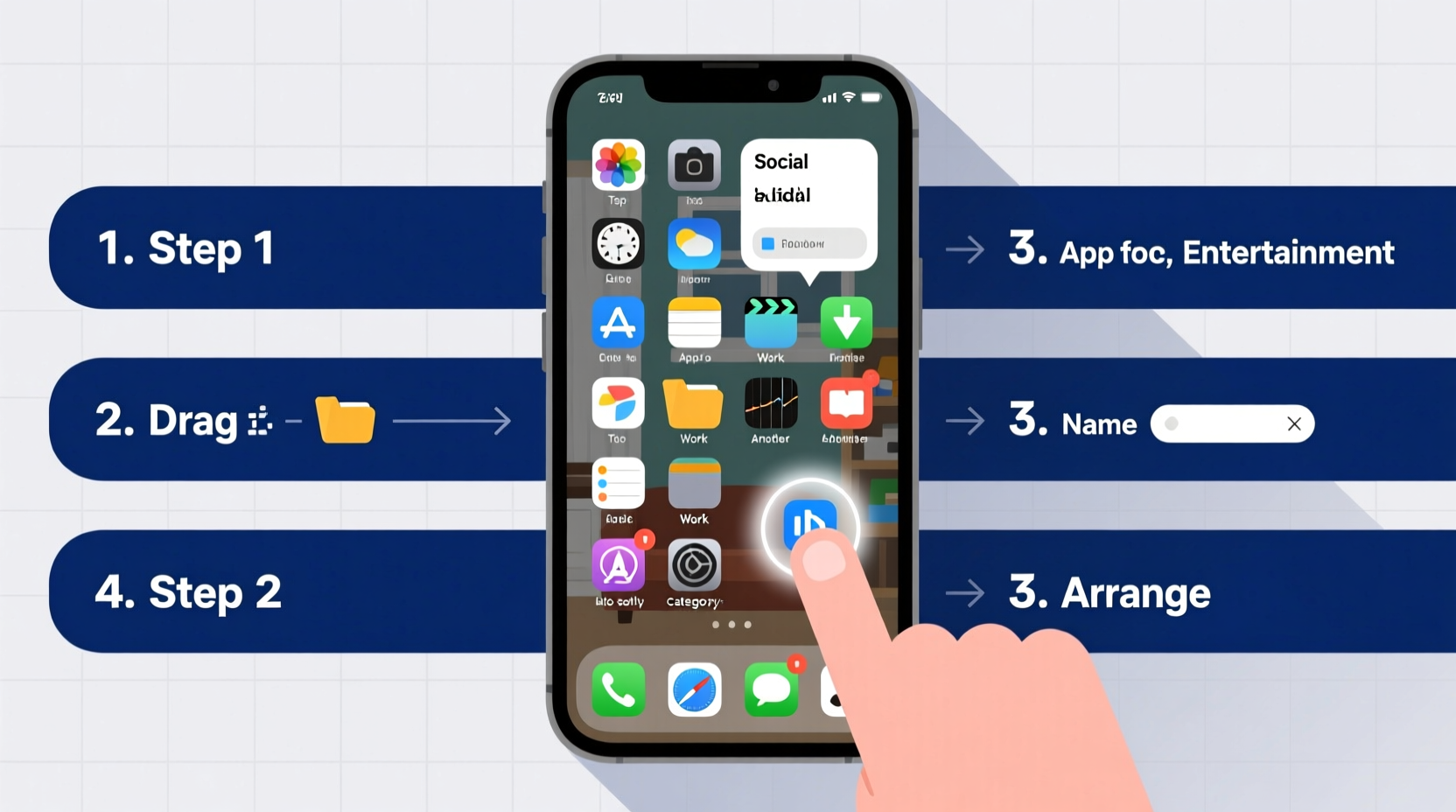
Before making changes, take stock of what’s currently on your device. Open each home screen page and scroll through all app folders. Ask yourself: Which apps do I use daily? Which haven’t I opened in weeks? This audit helps identify patterns in usage and reveals redundancies.
Consider tracking app usage over 48 hours. Use built-in digital wellbeing tools (like Screen Time on iOS or Digital Wellbeing on Android) to see which apps consume most of your attention. You might be surprised how many sit idle despite occupying prime real estate.
Restore Missing or Hidden Apps
Apps don’t vanish without cause—they’re often misplaced during updates, accidental drags, or sync issues with cloud backups. If an app seems missing after a device reset or software update, follow this restoration process:
- Check the App Library (iOS): On iPhones, swipe left past your last home screen to access the App Library. All installed apps appear here automatically, grouped alphabetically or by category.
- Search Function: Swipe down on any home screen and type the app name. If it appears, long-press and select “Add to Home Screen.”
- Google Play Store / App Store: Search for the app. If already installed, the download button will change to an icon indicating it’s present—tap to open or restore its shortcut.
- Sync Settings (Android): Go to Settings > Google > Manage your devices. Ensure app syncing is enabled across devices under “Backup & Sync.”
- iCloud Restore (iOS): If restoring from backup, ensure “Apps” are included in iCloud settings before erasing and resetting.
If an app was deleted entirely, reinstall it using your account credentials. Most purchases and downloads are tied to your Apple ID or Google account, allowing one-tap reinstalls.
Create a Logical App Organization System
Effective organization follows user behavior, not arbitrary categories. Start by grouping apps into functional zones based on how and when you use them.
| Category | Purpose | Example Apps |
|---|---|---|
| Essential Tools | Daily-use utilities | Phone, Messages, Camera, Calendar, Clock |
| Communication | Social and messaging | WhatsApp, Instagram, Email, Slack |
| Productivity | Work and planning | Notes, Tasks, Docs, Cloud Storage |
| Entertainment | Leisure and media | Spotify, YouTube, Games, Kindle |
| Finance & Security | Money and privacy | Banking, Password Manager, Authenticator |
Place high-frequency apps on the first home screen. Reserve secondary screens for situational tools (e.g., travel apps, workout trackers). Avoid overloading folders—six to eight apps per folder maintains usability.
“Organization isn’t about perfection—it’s about reducing friction between intention and action.” — Dr. Lena Torres, Human-Computer Interaction Researcher
Step-by-Step Reorganization Process
Follow this timeline to complete a full home screen overhaul in under 30 minutes:
- Day 1 – Audit (5 min): Review all apps. Uninstall unused ones. Note frequently used tools.
- Step 2 – Group (10 min): Drag similar apps together to form temporary clusters on one screen.
- Step 3 – Folder Creation (7 min): Long-press a cluster and select “New Folder.” Name clearly (e.g., “Travel,” “Finance”).
- Step 4 – Prioritize Placement (5 min): Move essential apps to the bottom dock and first home screen. Keep no more than 10 icons visible per page.
- Step 5 – Widget Optimization (3 min): Add only one or two functional widgets (e.g., calendar, weather). Remove decorative ones.
- Step 6 – Final Test (5 min): Use the phone as usual for a short task. Can you reach key apps in two taps or fewer?
Real Example: From Chaos to Clarity
Sarah, a freelance designer, found herself wasting time unlocking her phone and swiping through three screens just to open her note-taking app. Her home screen had 47 apps, including duplicates from beta tests and old banking tools she no longer used. After following the restoration steps, she uninstalled 22 apps, created six labeled folders, and placed her core creative suite—Photoshop Express, Dropbox, and Notion—in the dock. Within a week, she reported saving nearly 15 minutes per day in navigation time. “It feels like my phone finally works *with* me,” she said.
Common Mistakes to Avoid
- Over-folding: Creating too many folders defeats the purpose. If you need a folder inside a folder, simplify the structure.
- Ignoring Accessibility: Place critical apps within thumb reach, especially if using one hand.
- Skipping Backup: Before major changes, back up your device so you can revert if needed.
- Forgetting Widgets: Large widgets dominate space. Resize them to compact formats or remove entirely if rarely glanced at.
Frequently Asked Questions
Why did my apps disappear after updating my phone?
Software updates sometimes reset home screen layouts, especially if there was a system migration (e.g., iOS 16 to 17). Apps aren’t deleted—they’re moved to the App Library or second home screen. Use search or manually drag them back.
How do I get an app back on the home screen if it’s only in the App Drawer?
On Android, long-press the app in the App Drawer and drag it to the home screen. On iPhone, find it via search, then tap and hold the result and choose “Add to Home Screen.”
Should I keep apps on the lock screen?
Limited lock screen access can be helpful (e.g., flashlight, camera), but avoid clutter. Only allow immediate-use tools. Disable unnecessary shortcuts in Settings > Home Screen (iOS) or Apps & notifications > Shortcut settings (Android).
Final Checklist Before You Finish
- ✅ Deleted unused apps
- Reduced visual noise and improved performance.
- ✅ Restored missing shortcuts
- All essential apps are accessible from home or dock.
- ✅ Created clear folders
- Each has a specific function and logical name.
- ✅ Positioned high-use apps upfront
- No more digging through pages.
- ✅ Tested navigation flow
- Core tasks require minimal taps.
Take Control of Your Digital Space
Your home screen is the gateway to everything you do on your phone. Treating it as a dynamic workspace—not a dumping ground—transforms how you interact with technology. The effort invested in restoring and organizing pays dividends in focus, speed, and mental clarity. Don’t wait for clutter to accumulate again. Set a monthly reminder to review your layout. Small adjustments prevent future overload. Now that your home screen reflects your priorities, experience how much smoother your day becomes—one tap at a time.




 浙公网安备
33010002000092号
浙公网安备
33010002000092号 浙B2-20120091-4
Comments
No comments yet. Why don't you start the discussion?