
Amazon Fire Stick is one of the most popular streaming devices, offering seamless access to thousands of movies, shows, and apps. But like any electronic device, it can occasionally freeze or become unresponsive—especially during software updates, overheating, or memory overload. When this happens, the immediate instinct is to use the remote to restart it. What if your remote is missing, broken, or out of battery? Fortunately, you don’t need the physical remote to reset your Fire Stick. This comprehensive guide walks you through multiple reliable methods to reset a frozen Fire Stick without the remote, ensuring you regain control and restore functionality quickly.
Why Your Fire Stick Might Freeze
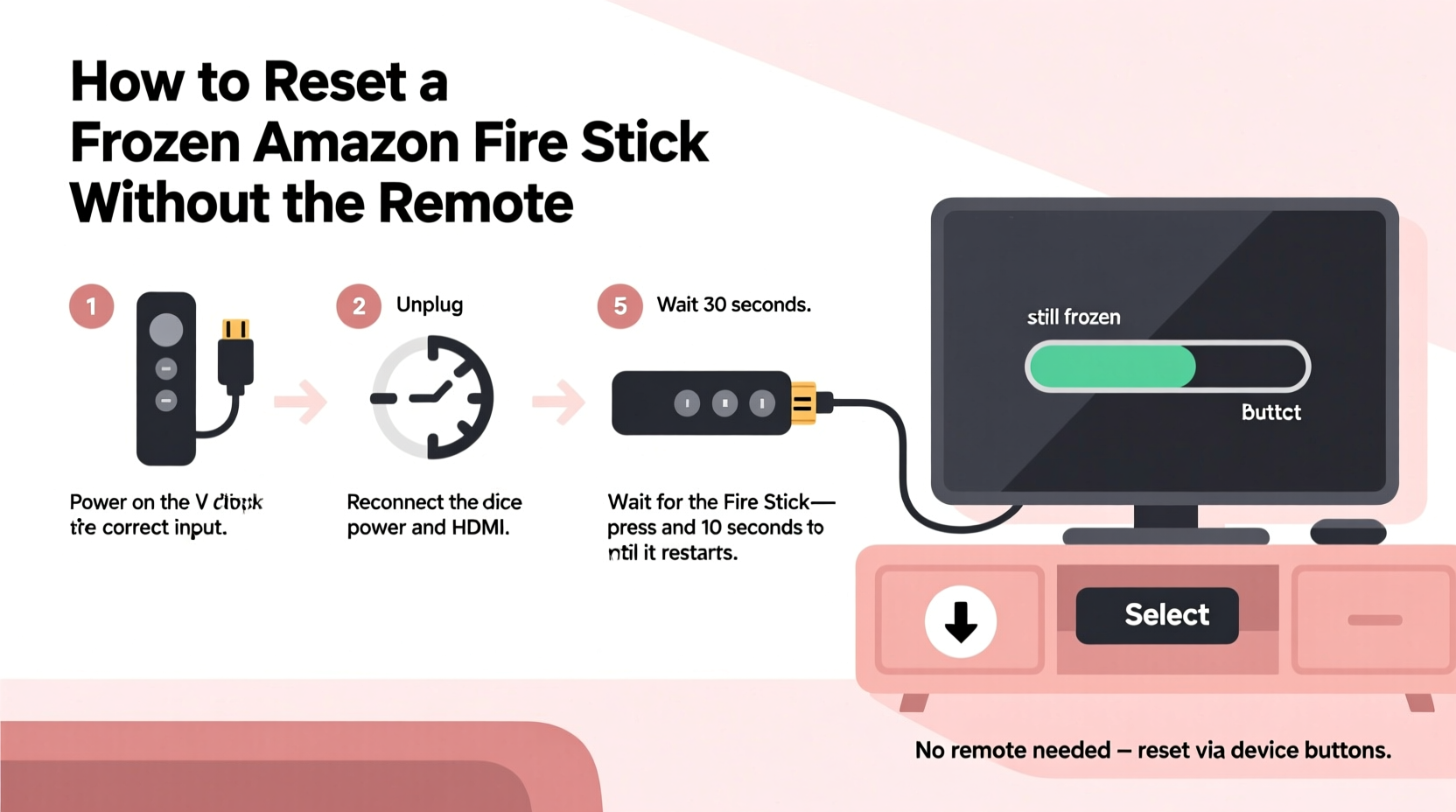
A frozen Fire Stick screen—whether stuck on the home menu, a loading spinner, or a black screen—is more common than users realize. Several factors contribute to this issue:
- Overheating: Poor ventilation or extended usage can cause the device to overheat and freeze.
- Software Glitches: Bugs in the operating system or app conflicts may trigger unresponsiveness.
- Full Cache Memory: Accumulated temporary data from apps can slow down performance.
- Power Supply Issues: Using an underpowered USB adapter or unstable power source affects stability.
- Wi-Fi Interference: Constant network drops can cause the interface to hang during streaming.
While a hard reset often resolves these issues, doing so without a working remote requires alternative approaches. The good news: Amazon provides several workarounds that don’t rely on the physical controller.
Method 1: Use the Amazon Fire TV Remote App (Mobile Reset)
The easiest way to regain control of a frozen Fire Stick without a physical remote is by installing the official Amazon Fire TV Remote App on your smartphone. Available for both iOS and Android, this app turns your phone into a full-function remote via Wi-Fi.
- Download “Fire TV Remote” from the App Store (iOS) or Google Play (Android).
- Ensure your phone and Fire Stick are connected to the same Wi-Fi network.
- Open the app and follow the pairing instructions. You’ll be prompted to enter a short code displayed on your TV screen.
- If the screen is frozen but still displaying the home menu, the code should appear normally.
- Once paired, use the app’s navigation buttons to move around. Tap the \"Menu\" button (three horizontal lines), then select Settings > My Fire TV > Restart.
If the Fire Stick interface is completely frozen and unresponsive, the app may not register inputs immediately. In such cases, proceed to a forced hardware reset as described in later sections.
“Using the Fire TV Remote App is nearly as effective as the physical remote. It’s a must-have tool for every Fire Stick owner.” — David Lin, Smart Home Technology Analyst at TechPulse Weekly
Method 2: Force Restart Using the Power Cable (Hard Reset)
When no input method works—including the mobile app—a force restart via the power supply is the most reliable solution. This method simulates a hard shutdown, similar to holding down the power button on a computer.
This process does not require any remote or network connection. It relies solely on disconnecting and reconnecting power to trigger a reboot.
Step-by-Step Timeline for Force Restart
- Unplug the power cable from either the wall outlet or the USB port on your TV.
- Wait for 30 seconds. This ensures all residual power drains from the device and clears temporary memory.
- Reconnect the power cable firmly to the power source.
- Wait 1–2 minutes for the Fire Stick to boot up. The Amazon logo will appear, followed by the home screen.
This method clears RAM, resets active processes, and often resolves minor software hiccups causing the freeze. It’s safe and won’t erase your installed apps or settings.
Method 3: Factory Reset Without a Remote (Using ADB and Computer)
If the Fire Stick remains unresponsive after a force restart, a factory reset may be necessary. While this erases all data—including login credentials and preferences—it can fix deeper software corruption. This advanced method uses Android Debug Bridge (ADB), a command-line tool that communicates directly with the Fire Stick.
Note: This requires a Windows, Mac, or Linux computer and basic technical comfort. Ensure your Fire Stick and computer are on the same Wi-Fi network.
Prerequisites
- Computer with internet access
- USB-C to USB-A cable (for some models; optional)
- Enable ADB debugging on Fire Stick (must have done previously)
⚠️ Important: ADB must have been enabled *before* the device froze. If not, skip to Method 4 below.
Steps to Factory Reset via ADB
- Download and install ADB Tools on your computer (available from Android developer sites).
- Open command prompt or terminal and type:
adb connect [FIRESTICK_IP_ADDRESS]:5555 - Press Enter. If connected, the Fire Stick will display a confirmation popup (though you can’t accept it visually).
- Type:
adb shell reboot recovery - The device will reboot into recovery mode and initiate a factory reset.
This method is powerful but limited by prior setup. Most average users won’t have ADB enabled, making it less practical unless you’re tech-savvy and prepared in advance.
Method 4: Physical Button Reset (For Supported Models)
Some newer Fire Stick models, particularly the Fire Stick 4K Max, include a small recessed reset button on the device body. While not standard across all versions, if your model has it, this is the fastest non-remote reset option.
- Locate the tiny pinhole button on the side or end of the Fire Stick.
- Use a paperclip or SIM ejector tool to press and hold the button for 15–20 seconds.
- Release when the LED blinks rapidly or the screen goes black.
- Wait for the device to restart automatically.
This triggers a soft reset. If the system responds, navigate to Settings > System > Reset to perform a full factory reset if needed.
| Fire Stick Model | Has Physical Reset Button? | ADB Access Possible? |
|---|---|---|
| Fire Stick (1st–3rd Gen) | No | Yes (if enabled) |
| Fire Stick 4K | No | Yes (if enabled) |
| Fire Stick 4K Max | Yes | Yes (if enabled) |
| Fire TV Cube | Yes (on bottom) | Yes |
Mini Case Study: Recovering a Frozen Fire Stick During Family Movie Night
Sarah from Austin was hosting a movie night when her Fire Stick suddenly froze on the Prime Video loading screen. The remote batteries were dead, and she couldn’t find replacements. Frustrated, she considered calling tech support—but remembered reading about the Fire TV Remote App.
She downloaded the app on her iPhone, connected to the same Wi-Fi, and entered the pairing code shown on the TV. Within two minutes, she used the app to navigate to Settings and restarted the device. The Fire Stick booted normally, and the family enjoyed their film without further issues.
Sarah later replaced the remote batteries and now keeps the app installed on both her and her partner’s phones as a backup.
Checklist: How to Reset a Frozen Fire Stick Without a Remote
- ✅ Confirm Fire Stick is receiving power (LED light visible)
- ✅ Try the Amazon Fire TV Remote App on your smartphone
- ✅ Perform a force restart by unplugging power for 30 seconds
- ✅ Check if your model has a physical reset button
- ✅ As a last resort, attempt ADB reset (if previously configured)
- ✅ After reset, reconfigure Wi-Fi and log back into apps
FAQ: Common Questions About Remote-Free Resets
Can I reset my Fire Stick if the screen is completely black?
Yes. A black screen doesn’t necessarily mean the device is off. Unplug the power cable, wait 30 seconds, then plug it back in. If the Amazon logo appears, the device is resetting. If nothing happens after multiple attempts, check the power adapter and HDMI connection.
Will a factory reset delete all my apps and accounts?
Yes. A factory reset returns the Fire Stick to its original out-of-box state. You’ll need to sign in again to services like Netflix, Hulu, and Amazon Prime. However, subscriptions remain intact—you only lose local data and login sessions.
What if none of these methods work?
If the Fire Stick still won’t respond after multiple resets, the issue may be hardware-related. Contact Amazon Support for warranty replacement. Most Fire Sticks are covered for one year, and Amazon often ships replacements quickly.
Preventing Future Freezes
While occasional freezes are normal, frequent crashes indicate preventable issues. Follow these best practices to maintain smooth operation:
- Restart monthly: A simple reboot clears memory and prevents lag buildup.
- Keep it cool: Don’t enclose the Fire Stick in tight spaces. Allow airflow around the HDMI port.
- Update regularly: Enable automatic updates in Settings > Applications > App Updates.
- Clear cache periodically: Go to Settings > Applications > Manage Installed Apps, select problematic apps, and clear cache.
- Use a surge protector: Protects against power spikes that can corrupt firmware.
“Most Fire Stick issues stem from poor power delivery or outdated firmware. A few preventive habits go a long way.” — Lena Park, Senior Support Engineer at Amazon Devices
Conclusion: Take Control, Even Without the Remote
Losing your Fire Stick remote doesn’t mean losing control of your entertainment system. Whether through a mobile app, a power cycle, or a hidden reset button, you have multiple options to reset a frozen device. The key is knowing what tools are available and acting calmly when issues arise.
Start by trying the simplest solutions—like unplugging the device or using the Fire TV Remote App. Keep your firmware updated and avoid risky power sources. And if you're technically inclined, consider enabling ADB in advance for emergency access.




 浙公网安备
33010002000092号
浙公网安备
33010002000092号 浙B2-20120091-4
Comments
No comments yet. Why don't you start the discussion?