
Resetting your iPhone 7 can resolve performance issues, prepare the device for sale, or help you start fresh after software glitches. However, doing it incorrectly can result in permanent data loss or a partially functional device. This comprehensive guide walks you through every stage—from backup to final setup—ensuring your iPhone 7 is reset securely and efficiently.
Why Reset Your iPhone 7?
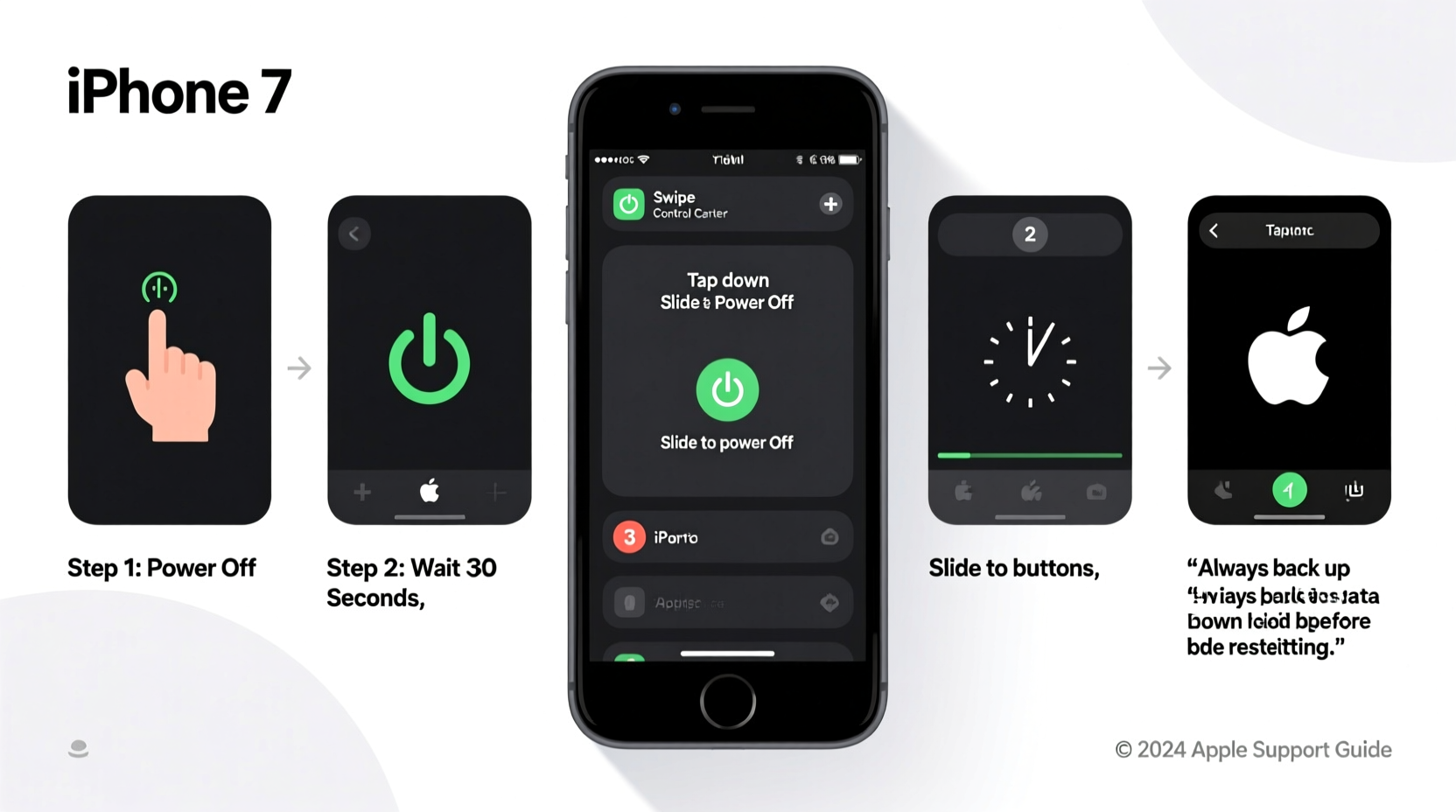
A reset serves multiple purposes. Whether your phone is running slowly, freezing frequently, or stuck in a reboot loop, a full reset often resolves underlying software conflicts. It’s also essential when selling or gifting your device to erase personal data completely.
iOS updates sometimes introduce bugs that affect older models like the iPhone 7. A factory reset can eliminate corrupted settings or app caches that interfere with stability. Additionally, if you’re experiencing login loops, unresponsive features, or failed updates, resetting may be the most effective fix.
Preparing for the Reset: Back Up Your Data
Before initiating any reset, safeguard your photos, messages, app data, and settings. You have two reliable options: iCloud and iTunes (now Finder on macOS Catalina and later).
Option 1: iCloud Backup
- Connect your iPhone 7 to Wi-Fi.
- Go to Settings > [Your Name] > iCloud > iCloud Backup.
- Tap “Back Up Now” and wait for completion.
- Ensure the screen shows “Back Up Complete” with a timestamp.
Note: iCloud offers 5GB of free storage. If your backup exceeds this, you’ll need to upgrade your plan or use iTunes/Finder.
Option 2: Computer Backup via iTunes or Finder
- Connect your iPhone 7 to your computer using a USB cable.
- Open iTunes (Windows or macOS Mojave and earlier) or Finder (macOS Catalina+).
- Select your device when it appears.
- Choose “Back Up Now.” For added security, check “Encrypt local backup” and set a password to preserve Health and Activity data.
- Wait for the progress bar to complete.
“Always encrypt your computer backup if you use Apple Watch or track health metrics. Without encryption, sensitive data won’t be included.” — David Lin, iOS Support Specialist at Apple Authorized Service Provider
Step-by-Step Factory Reset Process
Once your data is securely backed up, proceed with the reset. Follow these steps carefully to avoid interruptions.
Method 1: Through Settings (Recommended)
- Go to Settings > General > Transfer or Reset iPhone.
- Tap “Erase All Content and Settings.”
- Enter your passcode when prompted.
- If Find My iPhone is enabled, enter your Apple ID password to disable Activation Lock.
- Confirm the action. The device will begin erasing all data, apps, and settings.
This process takes 5–15 minutes. The screen will go black, then restart with the Apple logo. Do not disconnect the device until the setup screen appears.
Method 2: Using Recovery Mode (If Device Is Unresponsive)
Use this method only if the iPhone is frozen, locked out, or won’t boot normally.
- Connect your iPhone 7 to a computer with iTunes/Finder open.
- Press and hold both the Volume Down button and the Sleep/Wake (Side) button simultaneously.
- Keep holding until the recovery mode screen appears (a cable pointing to an iTunes logo).
- In iTunes or Finder, choose “Restore” to reinstall iOS and erase all data.
Recovery mode downloads the latest compatible iOS version, which may take time depending on your internet speed.
What Happens After the Reset?
After erasure, your iPhone 7 restarts to the initial setup screen—similar to when it was brand new. You'll see language selection, region settings, and Wi-Fi setup prompts.
If you're keeping the device:
- Restore from your earlier backup (iCloud or computer).
- Sign in with your Apple ID.
- Wait for apps and data to sync. This may take minutes to hours depending on backup size.
If you're selling or recycling:
- Stop at the “Hello” screen—do not set up the phone.
- Turn off the device and hand it over. The new owner will activate it with their own Apple ID.
Do’s and Don’ts During and After Reset
| Do’s | Don’ts |
|---|---|
| ✅ Charge your iPhone to at least 50% before starting | ❌ Interrupt the reset once started |
| ✅ Verify backup completion before erasing | ❌ Forget your Apple ID password |
| ✅ Use a trusted Wi-Fi network for iCloud restore | ❌ Restore from an outdated or corrupted backup |
| ✅ Enable Find My iPhone again after setup | ❌ Skip software updates post-reset |
Real-World Example: Recovering a Frozen iPhone 7
Sarah, a freelance photographer, noticed her iPhone 7 became sluggish after installing iOS 15. Apps crashed, the camera shuttered randomly, and she couldn’t send messages. She tried restarting, but the issue persisted.
She followed the backup steps using her MacBook, encrypted the backup to preserve health data, then performed a factory reset via Settings. After restoration, her phone operated smoothly again. The root cause? A corrupted preferences file from a third-party editing app. The reset cleared the conflict without requiring professional repair.
This case illustrates how a proper reset can extend the life of aging hardware through software optimization.
FAQ: Common Questions About Resetting iPhone 7
Will resetting my iPhone 7 remove the carrier lock?
No. A factory reset does not unlock your phone from a carrier. If your iPhone is locked, contact your service provider for unlocking procedures. Resetting only removes user data and settings.
Can I cancel a reset once it starts?
Not safely. Once the erase process begins, interrupting it may leave the device inoperable. If done via Settings, cancellation isn't possible after confirmation. In recovery mode, stopping mid-restore could require repeating the entire process.
How do I know my backup worked?
After backing up, go to Settings > [Your Name] > iCloud > Manage Storage > Backups. Find your device and confirm the backup size and timestamp match your expectations. For computer backups, iTunes/Finder displays the date and size under the device summary.
Final Checklist Before You Reset
- ☑ Charge iPhone to at least 50%
- ☑ Connect to stable Wi-Fi
- ☑ Back up to iCloud or computer
- ☑ Note down Apple ID and password
- ☑ Disable Find My iPhone (if needed for transfer)
- ☑ Ensure computer has latest iTunes or macOS
- ☑ Remove SIM card if required by new owner
Conclusion
Resetting your iPhone 7 doesn’t have to be risky. With careful preparation and adherence to each step, you can refresh your device’s performance, protect your privacy, and ensure a seamless transition whether you’re keeping it or passing it on. The key lies in disciplined backup habits and understanding the difference between a standard reset and recovery mode intervention.




 浙公网安备
33010002000092号
浙公网安备
33010002000092号 浙B2-20120091-4
Comments
No comments yet. Why don't you start the discussion?