
Keeping your Android phone updated is one of the most effective ways to maintain its performance, security, and longevity. Software updates often include critical security patches, bug fixes, new features, and optimizations that enhance speed and battery efficiency. Yet many users delay or skip updates due to fear of data loss, long installation times, or confusion about the process. This guide walks you through each stage of updating your Android device—safely, confidently, and efficiently.
Why Updating Your Android Phone Matters
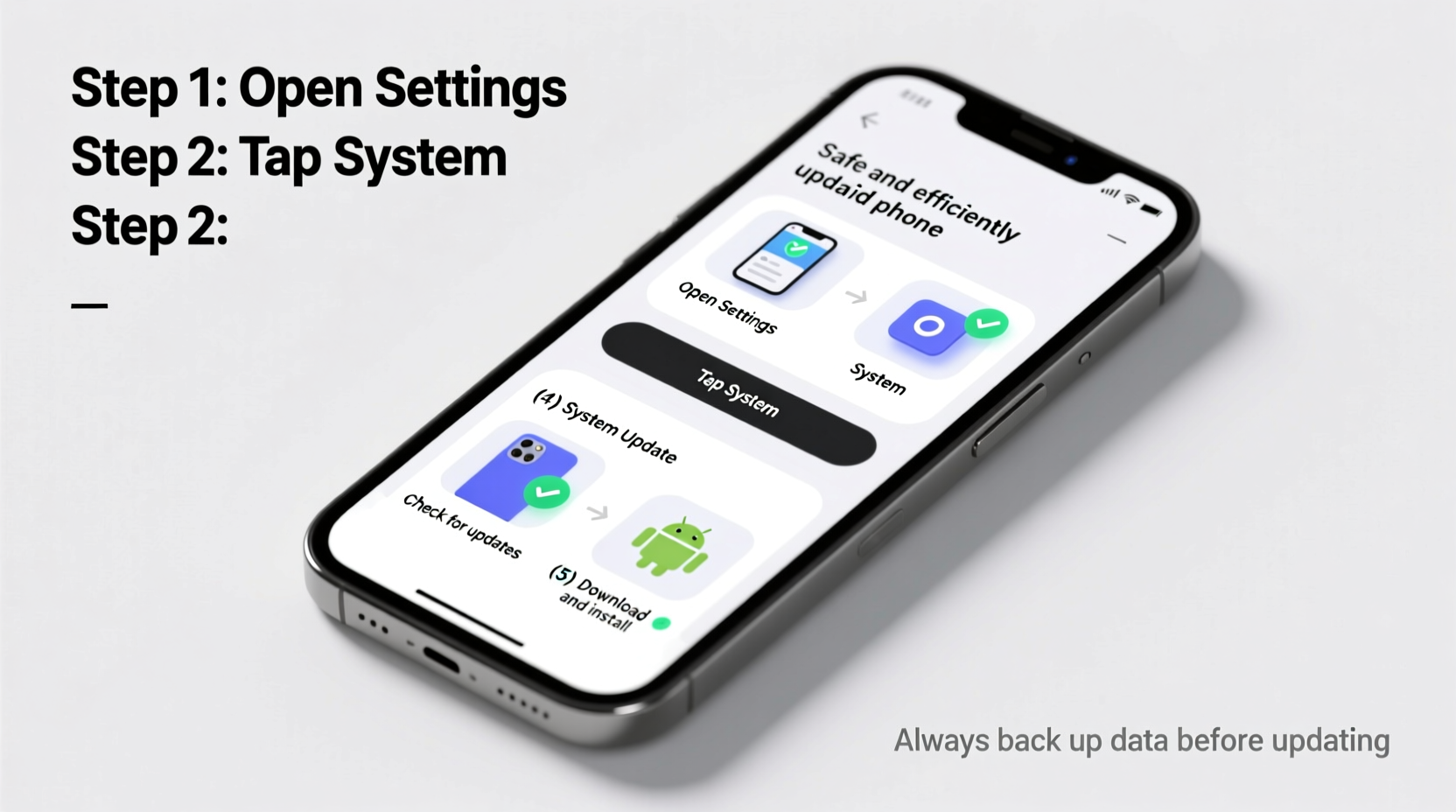
Android updates are not just about flashy new features. They play a vital role in protecting your personal information from emerging threats. Cybersecurity researchers consistently find vulnerabilities in older versions of Android that can be exploited by malicious apps or phishing attempts. Google releases monthly security patches specifically to address these risks.
Beyond security, updates improve system stability. You may notice faster app launches, smoother animations, and fewer crashes after an update. Manufacturers like Samsung, OnePlus, and Pixel also roll out feature drops—such as improved camera modes or enhanced privacy controls—that only reach users who keep their software current.
“Regular OS updates are the first line of defense against digital threats on mobile devices.” — Dr. Lena Torres, Mobile Security Analyst at SecureMobile Labs
Step-by-Step Guide to Updating Your Android Phone
Follow this structured sequence to ensure your update goes smoothly without unexpected issues.
- Check Your Current Software Version
Go to Settings > About phone > Software information. Note the current Android version and security patch level. This helps confirm what’s being updated later. - Connect to Wi-Fi
Updates range from 100MB to over 1GB. Use a stable Wi-Fi connection to avoid data charges and prevent mid-download interruptions. - Charge Your Phone (or Plug It In)
Ensure your battery is at least 50% charged. For major updates, plug your phone into a charger during installation. Interruptions caused by power loss can corrupt the system. - Back Up Important Data
Even though updates rarely cause data loss, it’s wise to back up contacts, photos, messages, and app data. Use Google One Backup (Settings > Google > Backup) or a third-party cloud service. - Free Up Storage Space
Insufficient storage is a common reason updates fail. Clear unnecessary downloads, uninstall unused apps, or move media to external storage. Aim for at least 2–3GB of free space. - Download and Install the Update
Navigate to Settings > System > System Update (exact path varies by brand). Tap “Check for Updates.” If available, download and install. Do not use the phone during installation. - Restart and Verify
After rebooting, go back to About phone to confirm the new version is active. Test core functions: calls, internet, camera, and notifications.
Do’s and Don’ts During the Update Process
| Do’s | Don’ts |
|---|---|
| ✅ Use Wi-Fi instead of mobile data | ❌ Interrupt the update once started |
| ✅ Back up data before installing | ❌ Ignore low storage warnings |
| ✅ Keep the device plugged in during large updates | ❌ Force restart unless absolutely necessary |
| ✅ Check for post-update bugs or battery drain | ❌ Skip multiple updates—install them sequentially |
| ✅ Review new settings or permissions introduced | ❌ Assume all apps will work immediately after update |
Troubleshooting Common Update Issues
Even with careful preparation, problems can occur. Here’s how to handle frequent scenarios:
- Update fails to download: Clear the cache of the “Google Services Framework” app (Settings > Apps > See all apps > Show system apps > Google Services Framework > Storage > Clear Cache).
- Phone stuck on boot screen: Perform a soft reset by holding the Power button for 15 seconds. If unresponsive, enter recovery mode (usually Power + Volume Down) and select “Reboot system now.”
- App compatibility issues: Some apps may crash after an update. Open the Play Store and check for pending app updates. Reinstall problematic apps if needed.
- Excessive battery drain post-update: Allow 24–48 hours for the system to optimize background processes. If the issue persists, recalibrate battery usage via Settings > Battery > Battery Health (if supported).
Real-World Example: Sarah’s Smooth Upgrade Experience
Sarah, a freelance photographer in Portland, uses her Pixel 7 daily for editing and client communication. When Android 14 became available, she hesitated—worried her custom Lightroom presets might be affected. Instead of skipping the update, she followed a cautious approach.
First, she backed up her photos to Google Photos and exported presets to cloud storage. She waited until Friday evening, connected to her home Wi-Fi, and ensured her phone was fully charged. The download took 12 minutes; installation, 18. After restarting, she noticed slightly longer boot time initially, but within a few hours, performance improved noticeably—especially multitasking between Adobe apps.
By preparing ahead and following best practices, Sarah avoided downtime and gained access to enhanced photo organization tools in the new OS.
Essential Pre-Update Checklist
Use this checklist before starting any Android update:
- ☐ Charge phone to at least 50% (ideally 80%+)
- ☐ Connect to a reliable Wi-Fi network
- ☐ Back up photos, messages, and documents
- ☐ Free up at least 2GB of storage
- ☐ Disable battery optimization for the update app (optional but helpful)
- ☐ Close all running apps
- ☐ Inform yourself about new features or changes in the update notes
Frequently Asked Questions
How often should I update my Android phone?
Major OS updates typically arrive once a year. Security patches are released monthly. Install security updates as soon as possible—within 7 days of availability—to stay protected.
Can I downgrade after an update?
Generally, no. Android does not support official downgrading for security reasons. Once updated, reverting requires advanced methods like flashing factory images, which void warranties and risk bricking your device.
Will updating delete my apps and photos?
No—modern Android updates preserve user data. However, rare bugs or interrupted installations can cause issues. That’s why backing up is essential, even if deletion isn’t expected.
Final Thoughts: Make Updates Part of Your Digital Routine
Updating your Android phone doesn’t have to be stressful. With proper preparation, the process becomes routine—much like changing the oil in your car or renewing a subscription. The benefits far outweigh the minor time investment: stronger security, better performance, and access to innovations designed to improve your experience.
Don’t wait for a glitch or breach to act. Build a habit: check for updates once a month, schedule them during downtime, and always back up first. Your future self will thank you when everything runs faster, safer, and more smoothly.




 浙公网安备
33010002000092号
浙公网安备
33010002000092号 浙B2-20120091-4
Comments
No comments yet. Why don't you start the discussion?