
Changing your email address on Amazon is a straightforward process, but it must be done carefully to avoid disruptions in order updates, password resets, or even accidental account lockouts. Whether you're switching to a new personal email, retiring an old work address, or enhancing your online security, updating your Amazon login information correctly ensures continued access and protection of your data. This guide walks you through every stage—securely and confidently.
Why Updating Your Email Matters
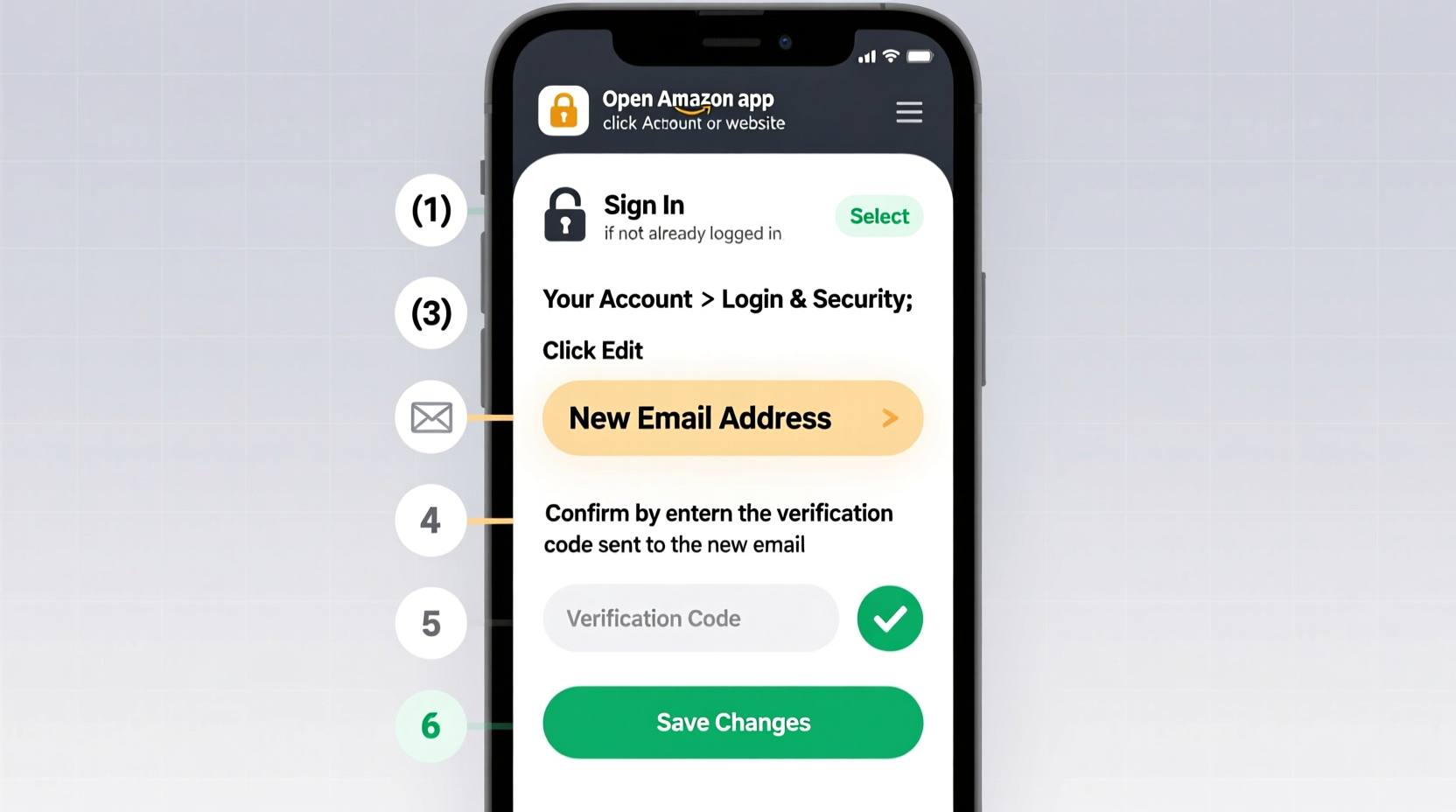
Your Amazon account is tied to your primary email for critical communications: shipping confirmations, delivery alerts, digital purchases, and two-factor authentication. If you no longer use the email linked to your account, you risk missing vital messages or losing recovery options if locked out. A timely update prevents service interruptions and strengthens your account’s integrity.
Amazon treats email changes as sensitive modifications. The platform requires identity verification to prevent unauthorized access, so following the correct steps is essential to avoid delays or account holds.
Step-by-Step Guide to Change Your Amazon Email Address
Follow these verified steps to update your Amazon email securely from any device—desktop, tablet, or smartphone.
- Sign in to Your Amazon Account
Go to amazon.com and log in using your current credentials. Ensure you’re on the official site to avoid phishing scams. - Navigate to “Account & Settings”
Hover over “Accounts & Lists” in the top-right corner, then click Your Account. - Select “Login & Security”
Under the “Settings” section, find and click “Login & Security.” You may need to re-enter your password for verification. - Edit Your Email Address
In the “Login & Security” section, locate “Email.” Click the “Edit” button next to it. - Enter Your New Email
Type your new, active email address. Double-check for typos—this will become your new login and contact point. - Verify Identity with Password
Amazon will prompt you to re-enter your current account password. This confirms it’s really you making the change. - Confirm via Verification Code
Amazon sends a six-digit verification code to your new email address. Check your inbox (and spam folder) and enter the code on the Amazon page. - Finalize the Update
Once the code is validated, your email is updated. You’ll see a confirmation message. From now on, use your new email to sign in.
What Happens After the Change?
- All future order notifications and promotional emails will go to your new address.
- You can no longer sign in with your old email unless you reverse the change.
- Two-factor authentication (if enabled) will now link to the new email for codes.
“Updating your email is one of the most common yet high-risk account changes. Always verify both old and new inboxes during the transition.” — Lena Patel, Cybersecurity Analyst at TrustNet Security
Checklist: Secure Email Change Best Practices
- ✅ Ensure access to both your current and new email accounts
- ✅ Use a trusted device and secure internet connection
- ✅ Disable ad-blockers or pop-up blockers that might interfere with verification
- ✅ Note down your Amazon password—don’t rely on auto-fill during this process
- ✅ Back up recent orders or digital receipts in case of temporary access issues
- ✅ Test signing in with your new email and password
- ✅ Confirm receipt of a post-change notification from Amazon
- ✅ Update your email in Amazon’s “Order Alerts” and “Digital Content” preferences
- ✅ Remove Amazon-related saved passwords from browsers using the old email
- ✅ Monitor your old inbox for any delayed Amazon messages for 30 days
Do’s and Don’ts When Changing Your Amazon Email
| Do’s | Don’ts |
|---|---|
| Use a reliable, personal email provider (e.g., Gmail, Outlook) | Switch to a temporary or disposable email address |
| Keep access to your old email for at least one month | Delete or deactivate your old email immediately |
| Enable two-factor authentication after the change | Disable 2FA during or right after the email update |
| Verify the spelling of your new email before submitting | Rely solely on browser autofill when entering the new address |
| Clear browser cache and re-login after the change | Assume all devices will automatically update your login info |
Real Example: Recovering Access After a Mistake
Sarah, a frequent Amazon shopper, decided to switch from her outdated university email to a personal Gmail account. She followed Amazon’s steps but accidentally typed “gmal.com” instead of “gmail.com.” The verification code was sent to the incorrect address, and she couldn’t complete the change. Her account remained accessible via the old email, but she received repeated warnings about pending updates.
After realizing the typo, Sarah returned to “Login & Security,” clicked “Edit” again, corrected the email, and successfully verified with the proper inbox. Her experience highlights how a small error can cause confusion—but also shows that Amazon’s system allows corrections as long as the original account remains accessible.
Frequently Asked Questions
Can I revert to my old email after changing it?
Yes. As long as you can still sign in, you can go back to “Login & Security” and edit your email again. However, if you’ve lost access to the old email, you won’t be able to use it for verification if needed later.
Will changing my email affect my subscriptions or digital content?
No. Your Prime membership, Kindle library, Amazon Music, and other subscriptions remain fully intact. The only change is the contact method and login credential. However, ensure your new email is added to any third-party services linked to Amazon (like Audible or MGM+).
What if I don’t receive the verification code?
First, check your spam or junk folder. Wait 5–10 minutes and request a new code if needed. If issues persist, confirm the email address was entered correctly. Persistent problems may require contacting Amazon Customer Service with proof of identity.
Final Steps and Ongoing Security
After updating your email, take a moment to review your overall account security. Navigate to “Login & Security” and ensure:
- Two-factor authentication is enabled
- Recovery phone number is current
- Trusted devices are recognized and outdated ones removed
- “Secure Messaging” preferences reflect your new contact details
Amazon does not notify you via email when your login email changes—so if you ever see such a message unexpectedly, it could indicate a breach. In that case, recover your account immediately through Amazon’s password reset page and report suspicious activity.
Conclusion
Changing your email on Amazon is a simple task when approached with care. By following the correct sequence, verifying both old and new addresses, and maintaining access during the transition, you protect your shopping history, subscriptions, and personal data. Don’t rush the process—accuracy and patience ensure a smooth update without locking yourself out.




 浙公网安备
33010002000092号
浙公网安备
33010002000092号 浙B2-20120091-4
Comments
No comments yet. Why don't you start the discussion?