
Disconnecting your iPhone from iCloud may be necessary when selling your device, switching to a new phone, or managing account access. However, doing so without proper preparation can result in permanent data loss—photos, messages, contacts, and more. The key is not whether you *can* disconnect, but whether you do it the right way. This guide walks you through every essential step to ensure your personal information remains secure and accessible after leaving iCloud.
Why You Should Never Rush iCloud Disconnection
iCloud is deeply integrated into the iOS ecosystem. It syncs everything from photos and app data to health records and device settings. When you disable iCloud services—or remove your device from your account—syncing stops immediately. Any unsaved changes may vanish unless backed up. Worse, if Find My iPhone is still active, the device becomes unusable due to Activation Lock, even for the next owner.
Apple designed this system to protect users from theft, but it also means that skipping steps risks locking yourself—or someone else—out of a perfectly functional phone. That’s why preparation matters more than the actual disconnection process.
Essential Pre-Disconnection Checklist
Before making any changes, follow this checklist to safeguard your data and avoid common pitfalls:
- Ensure your iPhone is charged to at least 50% or connected to power
- Connect to a stable Wi-Fi network (required for full iCloud backup)
- Verify available iCloud storage (Settings > [Your Name] > iCloud)
- Confirm two-factor authentication is enabled on your Apple ID
- Write down or securely store your Apple ID password
- Double-check that all recent photos, messages, and files are synced
- Disable Find My iPhone only after confirming your backup is complete
Step-by-Step: How to Safely Disconnect Your iPhone from iCloud
- Back Up Your iPhone to iCloud
Go to Settings > [Your Name] > iCloud > iCloud Backup. Tap “Back Up Now.” Wait until the process completes. Do not close the screen or leave Wi-Fi during this time. - Optional: Create an Encrypted Backup on Computer
Connect your iPhone to a trusted Mac or PC. Open Finder (macOS Catalina+) or iTunes (older systems). Select your device, then choose “Back Up Now” with encryption enabled. This preserves passwords, Health data, and HomeKit settings—which iCloud alone doesn’t always include. - Sign Out of iCloud Properly
Return to Settings > [Your Name]. Scroll down and tap “Sign Out.” Choose “Turn Off & Sign Out.” You’ll be prompted to confirm which data to keep on the device (e.g., Contacts, Calendars). Select “Keep on iPhone” if you plan to continue using it temporarily. - Disable Find My iPhone
If not already off, go to Settings > [Your Name] > Find My > Find My iPhone and toggle it off. You’ll need to enter your Apple ID password. This step is critical—without it, the device cannot be erased or reused. - Erase All Content and Settings (Final Step)
Navigate to Settings > General > Transfer or Reset iPhone > Erase All Content and Settings. After confirmation, your iPhone will wipe completely and restart as a new device, free from your iCloud account.
Alternative Method: Remove Device Remotely via iCloud.com
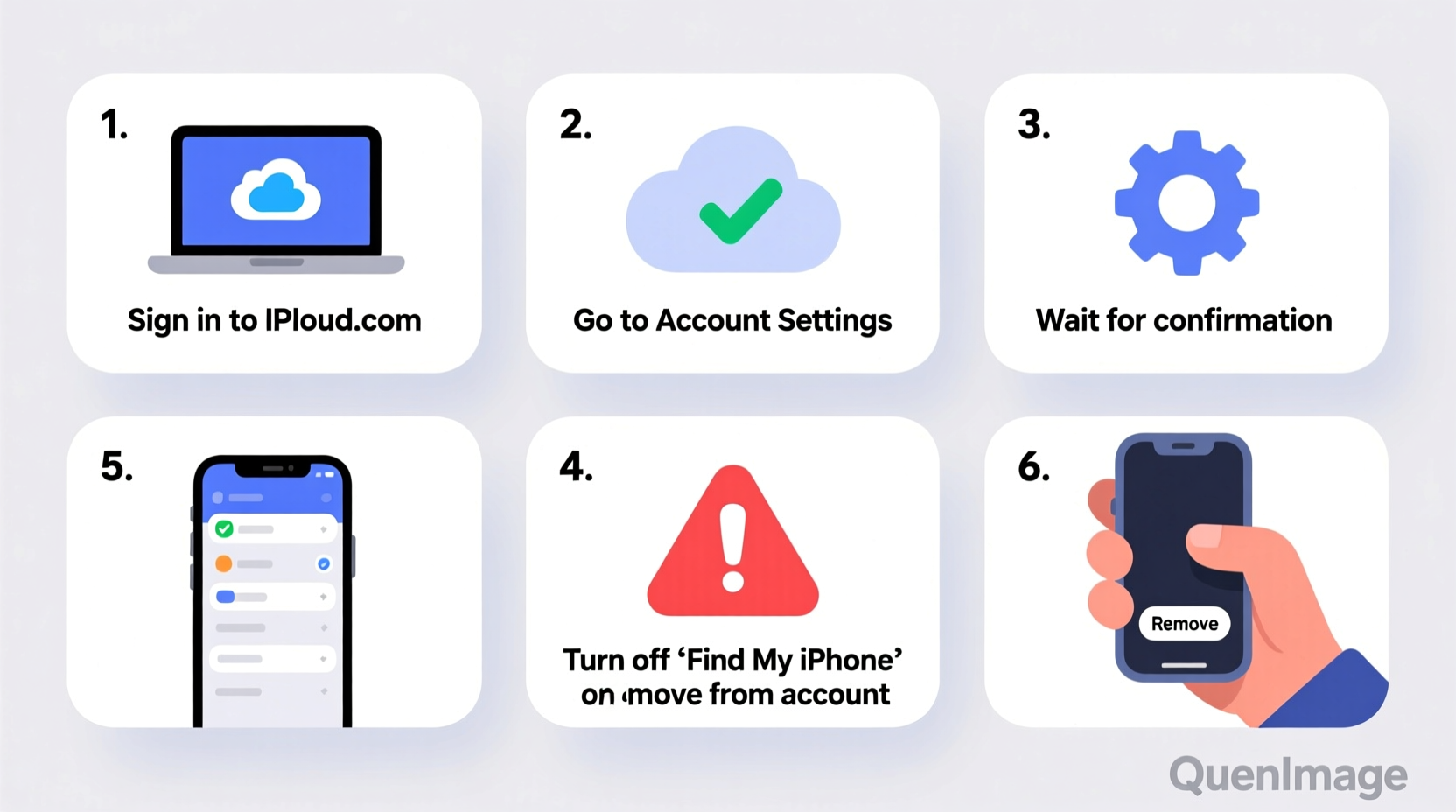
If you no longer have physical access to the phone (e.g., lost or sold), visit iCloud.com, sign in with your Apple ID, and go to “Find iPhone.” Select the device, click “Remove from Account,” and confirm. This detaches it from your iCloud while preserving your other devices’ connections.
Data Preservation: What Stays and What Leaves iCloud
Understanding what happens to your data post-disconnect prevents surprises. The following table outlines where your information ends up based on your actions:
| Data Type | After iCloud Sign-Out (Device Kept) | After Full Erase (Device Sold/Reset) | Stored Elsewhere? |
|---|---|---|---|
| Photos | Remains on iPhone if downloaded | Deleted unless backed up externally | Yes – in iCloud Photos or computer backup |
| Messages | Stays locally if iMessage disabled | Permanently erased | No direct export; use Messages in iCloud or third-party tools |
| Contacts | Can be kept on device | Lost without prior export | Yes – export vCard via iCloud.com |
| Health Data | Not backed up to iCloud by default | Gone forever | Only saved in encrypted computer backups |
| App Data | Signed out per app (e.g., Notes, Keychain) | Removed entirely | Some apps offer independent sync options |
“Many users assume turning off one iCloud service disables all—but each must be managed individually. Missteps here lead to accidental deletions.” — Daniel Reyes, Senior iOS Support Analyst at Apple Authorized Service Provider
Real-World Scenario: Maria’s Mistake and Recovery
Maria decided to sell her iPhone 13 after upgrading. Excited about her new model, she quickly signed out of iCloud, turned off Find My iPhone, and wiped the phone—all in under ten minutes. Two weeks later, she realized her voice memos and workout history were missing from her new device. She hadn’t created a computer backup, and those files weren’t included in standard iCloud backups.
Luckily, she had used a third-party tool months earlier to archive her Health data. While inconvenient, she avoided total loss. Her experience highlights a crucial point: some data types require special handling. Always assess what you value most before disconnecting.
Frequently Asked Questions
Will I lose my photos if I turn off iCloud Photos?
Only if they haven’t been downloaded to your device. Turning off iCloud Photos prompts iOS to ask whether you want to keep a local copy. Choose “Download and Keep Originals” to retain them on your phone. Note: Full-resolution originals may take time to download over Wi-Fi.
Can I reuse my old phone after removing it from iCloud?
Yes, once fully erased and disconnected, the phone functions like new. During setup, choose not to restore from a backup if you’re repurposing it (e.g., for a child or as a media player).
What happens to shared albums and Family Sharing?
Leaving iCloud doesn’t automatically cancel shared memberships. You must exit Family Sharing separately in Settings. Shared photo albums remain accessible until removed manually via iCloud.com or the Photos app.
Final Steps and Best Practices
After completing the disconnection process, take these final actions to ensure long-term security and continuity:
- Check iCloud.com to confirm your device no longer appears under “Find My”
- Update your trusted devices list in Apple ID settings
- If selling, provide the buyer with proof of erasure and removal from your account
- Review subscription services tied to the old device (e.g., Apple Music, iCloud+)
Conclusion
Disconnecting your phone from iCloud doesn’t have to mean losing your digital life. With careful planning, verified backups, and methodical execution, you maintain full control over your data while freeing your device for its next chapter. Whether you're upgrading, repairing, or passing it on, taking the time to do it right protects years of memories and personal organization.




 浙公网安备
33010002000092号
浙公网安备
33010002000092号 浙B2-20120091-4
Comments
No comments yet. Why don't you start the discussion?