
Resetting your PC to factory settings can resolve performance issues, remove stubborn malware, or prepare the system for resale. However, many users hesitate because they fear losing personal files, photos, documents, or installed applications. The truth is, with proper planning and execution, you can perform a full reset while keeping your valuable data intact. This guide walks you through every essential step—from backup strategies to post-reset recovery—ensuring your reset is safe, thorough, and stress-free.
Why Reset Your PC—and When It Makes Sense
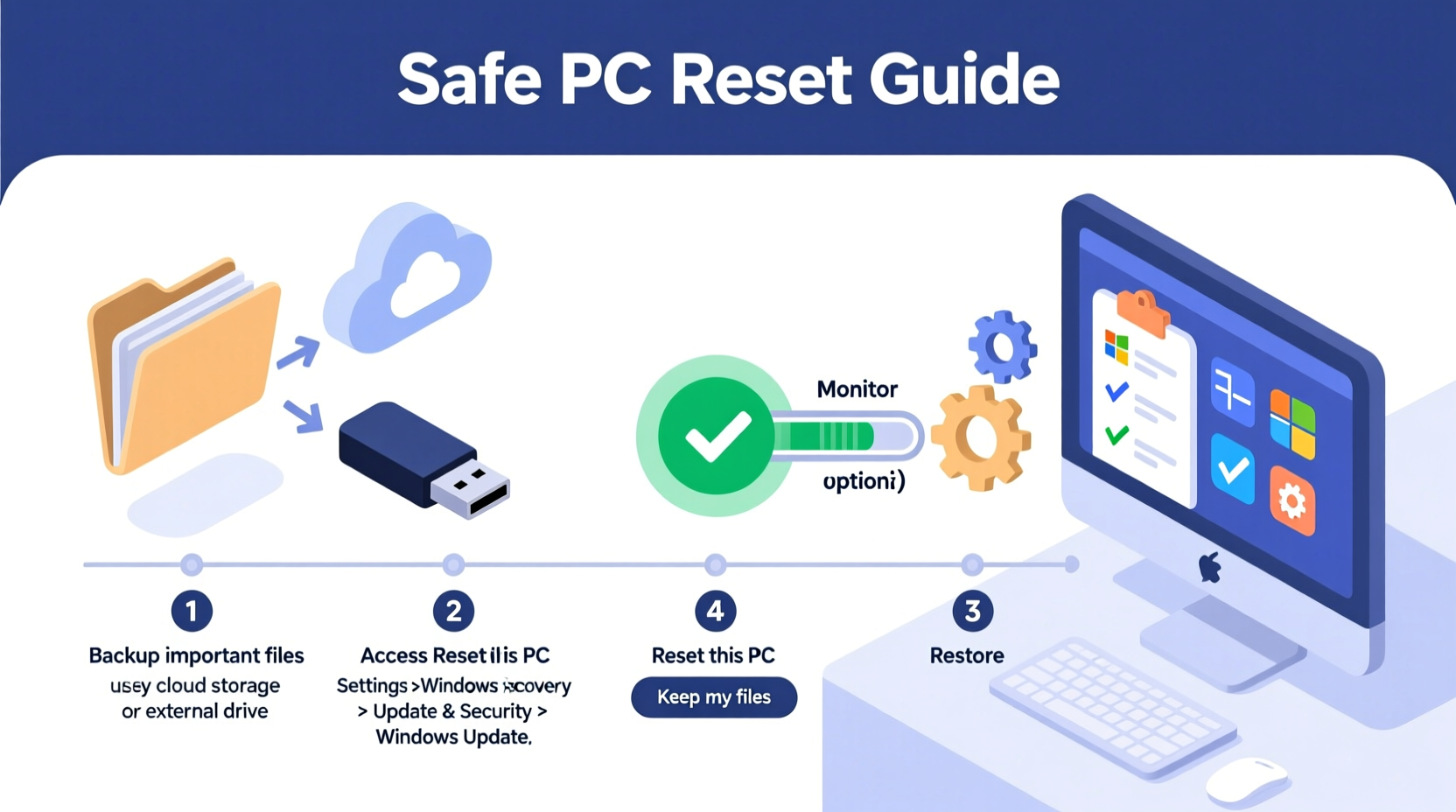
A factory reset returns your operating system to its original state, removing third-party software, temporary files, and configuration errors that accumulate over time. Common reasons to consider a reset include:
- Severe slowdowns despite regular maintenance
- Persistent crashes or blue screen errors (BSOD)
- Malware or ransomware infections that resist removal
- Preparing to sell or donate your computer
- Resolving upgrade-related issues after a Windows update
However, a reset should not be your first troubleshooting step. Try disk cleanup, malware scans, and driver updates before proceeding. When those fail, a reset becomes a powerful solution—but only if done correctly.
“Factory resets are among the most effective ways to restore system stability, but they must be paired with disciplined data management.” — Dr. Alan Reyes, Senior Systems Engineer at TechGuard Solutions
Your Data Backup Strategy: The Foundation of a Safe Reset
The key to resetting without data loss lies in preparation. Even if Windows offers an option to “keep my files,” relying solely on it risks corruption or incomplete restoration. A layered backup approach ensures maximum protection.
Step 1: Identify What Needs Saving
Not all data is equal. Focus on irreplaceable personal files:
- Documents, spreadsheets, presentations
- Photos, videos, music libraries
- Email archives (Outlook PST files)
- Browser bookmarks and saved passwords (export them)
- Application settings or configurations (e.g., code editors, design tools)
modified:thisyear in File Explorer to quickly locate recently updated files.
Step 2: Choose Your Backup Method
Use multiple storage types for redundancy:
| Method | Pros | Cons |
|---|---|---|
| External Hard Drive | Fast, high capacity, no internet needed | Risk of physical damage or theft |
| Cloud Storage (OneDrive, Google Drive, Dropbox) | Accessible from anywhere, automatic sync | Slower upload; limited free space |
| Network Attached Storage (NAS) | Centralized, secure, scalable | Higher cost and technical setup |
For best results, use both an external drive and cloud backup. Copy your files twice—once locally, once remotely.
Step 3: Verify Your Backup
After copying, open random files from each category to confirm readability. Check file sizes and modification dates. Rename one test file on the backup to ensure it’s not just a shortcut.
Performing the Factory Reset Safely
Once your data is securely backed up, proceed with the reset. Follow these steps carefully to avoid unintended consequences.
- Sign out of sensitive accounts: Log out of banking apps, email clients, and messaging platforms. This prevents auto-login attempts post-reset.
- Deactivate licensed software: Some programs (e.g., Adobe Creative Suite, Microsoft Office) require deactivation before reinstalling.
- Update your BIOS/UEFI (optional): Visit your manufacturer’s website to check for firmware updates. A stable BIOS improves reset reliability.
- Access Windows Recovery Environment: Go to Settings > Update & Security > Recovery > Reset this PC > Get started.
- Choose “Keep my files”: This removes apps and settings but preserves personal files in user folders (Documents, Pictures, etc.).
- Disconnect non-essential peripherals: Unplug printers, external drives, and USB hubs to prevent driver conflicts during reinstallation.
- Begin the reset process: Confirm your choice and allow the system 20–60 minutes to complete. Do not interrupt power or force shutdown.
Post-Reset Recovery and System Optimization
After the reset completes and Windows reinstalls, your system will behave like new. Now it’s time to restore functionality without reintroducing old problems.
Reinstall Essential Software Gradually
Don’t rush to reinstall everything at once. Prioritize:
- Operating system updates
- Antivirus and firewall software
- Web browsers and productivity tools (e.g., Office, PDF readers)
- Device drivers (if not auto-installed)
Download software directly from official websites—not third-party installers—to avoid bundled adware.
Restore Your Files
If you used the “Keep my files” option, your data should already be in place. Otherwise, copy it back from your backup drive or cloud service. Double-check folder integrity afterward.
Customize Privacy and Performance Settings
Fresh Windows installations often come with telemetry enabled and visual effects turned on. Optimize your experience:
- Disable unnecessary startup programs via Task Manager
- Adjust power settings to “Best performance”
- Turn off Cortana and advertising ID in Privacy settings
- Enable encryption (BitLocker) if using sensitive data
Real-World Example: Recovering a Sluggish Laptop
Sarah, a freelance graphic designer, noticed her 3-year-old laptop taking over 5 minutes to boot and frequently freezing during photo edits. Antivirus scans found no threats, and disk cleanup had minimal impact. She decided on a factory reset.
First, she backed up 120GB of client projects and raw images to an encrypted external SSD and synced critical files to OneDrive. After choosing “Keep my files” in the reset menu, the process completed in 40 minutes. Upon reboot, her system booted in under 30 seconds. She reinstalled Adobe Creative Cloud and restored her project library. Two weeks later, she reported consistent performance and no recurrence of crashes.
This case highlights how structured preparation transforms a risky operation into a reliable fix.
FAQ: Common Questions About PC Resets
Will resetting my PC remove viruses?
In most cases, yes. A full factory reset deletes all user-installed programs, including malware. However, firmware-level rootkits or UEFI infections may persist. For high-risk scenarios, consider secure erase tools or professional diagnostics.
Do I need my Windows product key after a reset?
No. Modern systems store activation digitally via Microsoft’s servers. As long as you’re using the same hardware and account, Windows will reactivate automatically.
Can I undo a factory reset?
Only if you have a system image backup created before the reset. Regular file backups do not capture system state or installed programs. Once reset, prior configurations are permanently erased.
Final Checklist Before You Reset
📋 Essential Pre-Reset Actions:- Back up all personal files to external and cloud storage
- Export browser bookmarks and passwords
- Deactivate subscription-based software licenses
- Record Wi-Fi passwords and account credentials in a secure notebook
- Ensure your PC is plugged into power and connected to the internet
- Confirm that Windows recovery options are accessible
Conclusion: Reset with Confidence, Not Fear
Resetting your PC doesn’t have to mean starting from scratch. By treating your data with care and following a disciplined process, you can eliminate system clutter, improve speed, and regain control—without sacrificing what matters most. Technology should serve you, not slow you down. Take the time today to back up, reset, and rebuild a cleaner, faster computing environment.




 浙公网安备
33010002000092号
浙公网安备
33010002000092号 浙B2-20120091-4
Comments
No comments yet. Why don't you start the discussion?