
Resetting your Galaxy tablet can resolve performance issues, clear out software glitches, or prepare the device for a new user. However, many users hesitate because of the fear of losing personal data—photos, messages, app settings, and documents. The good news is that with proper preparation, you can perform a factory reset safely while preserving everything that matters. This guide walks you through each phase: backup, reset, and restoration, ensuring no critical information slips through the cracks.
Why Reset Your Galaxy Tablet?
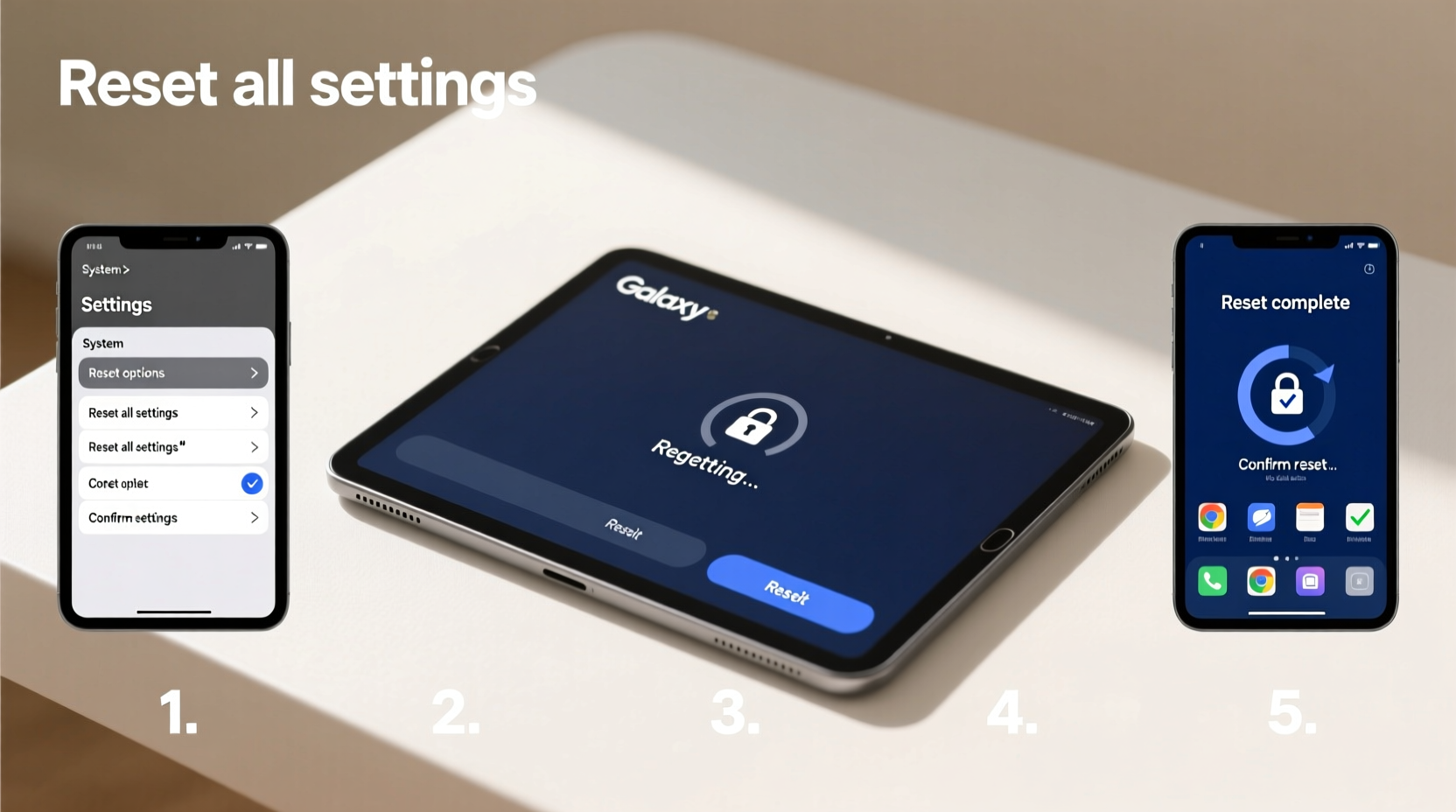
A factory reset returns your device to its original state, removing apps, accounts, and cached files that may be causing slowdowns or crashes. Common reasons include:
- Fixing persistent app errors or system freezes
- Preparing to sell or give away the tablet
- Removing malware or suspicious software
- Resolving login loops or boot issues
Despite these benefits, a reset deletes all locally stored data unless it's backed up. That’s why the key to a safe reset lies not in the reset itself—but in what you do before it.
Step-by-Step: How to Back Up Your Data Before Resetting
Before initiating any reset, ensure your data is securely backed up using Samsung’s ecosystem and additional cloud services. Follow this sequence:
- Sign into your Samsung Account
Go to Settings > Accounts and Backup > Manage Accounts. Tap “Add Account” and sign in with your Samsung ID. This enables syncing of contacts, calendar, and some app data. - Enable Samsung Cloud Backup
Navigate to Settings > Accounts and Backup > Samsung Cloud. Turn on backups for Contacts, Calendar, Messages, and Device Settings. Tap “Back up now” to force an immediate sync. - Use Google One (if applicable)
If you use Gmail, Google Photos, or Google Drive, ensure auto-sync is enabled under Settings > Accounts > Google. Open Google Photos and confirm your gallery has fully uploaded. - Manually Save Critical Files
Open My Files (Samsung’s file manager), go to Internal Storage, and copy folders like DCIM (photos), Downloads, Documents, and Music to an external microSD card or computer via USB cable. - Check App-Specific Backups
Some apps like WhatsApp, Notes, or banking tools have their own backup systems. For example, in WhatsApp, go to Settings > Chats > Chat Backup and tap “Back Up.”
“Backing up isn’t optional—it’s essential. A factory reset treats your device like a blank slate. Without prior backup, recovery is nearly impossible.” — David Kim, Mobile Support Specialist at Samsung Care
Data Backup Checklist
- ✅ Signed into Samsung Account
- ✅ Samsung Cloud backup completed
- ✅ Google account synced (if used)
- ✅ Photos and videos backed up to cloud or PC
- ✅ Important documents copied to external storage
- ✅ App-specific backups confirmed (e.g., WhatsApp, Notes)
- ✅ Wi-Fi connected and battery charged above 50%
Performing the Factory Reset Safely
Once your data is secured, proceed with the reset. There are two primary methods: through settings (recommended) or hardware keys (for unresponsive devices).
Method 1: Reset via Settings (Normal Operation)
- Open Settings.
- Tap General Management.
- Select Reset.
- Choose Factory data reset.
- Review the warning message. Confirm that backups are complete.
- Scroll down and tap Reset.
- Enter your PIN, password, or pattern when prompted.
- Tap Delete All. The tablet will reboot and begin erasing data.
This process takes 5–10 minutes. Do not interrupt it—avoid pressing buttons or disconnecting power.
Method 2: Reset via Recovery Mode (If Tablet Is Unresponsive)
- Power off the tablet completely.
- Press and hold Volume Up + Power buttons simultaneously until the Samsung logo appears.
- Release the Power button but keep holding Volume Up until the recovery menu loads.
- Use Volume keys to navigate to “Wipe data/factory reset” and press the Power button to select.
- Confirm with “Yes” using the same navigation method.
- After completion, select “Reboot system now.”
Note: This method bypasses the OS interface and should only be used if the tablet won’t boot normally.
What Gets Deleted vs. What Can Be Restored
| Data Type | Deleted During Reset? | Can Be Restored? | How to Restore |
|---|---|---|---|
| Photos & Videos (in DCIM) | Yes | Yes (if backed up) | From Google Photos, Samsung Cloud, or SD card |
| Contacts | Yes | Yes | Sync from Samsung or Google account after setup |
| Messages (SMS/MMS) | Yes | Yes (if backed up) | Samsung Cloud or third-party app backup |
| App Data & Settings | Yes | Limited | Only if app supports cloud sync (e.g., Gmail, Spotify) |
| Downloads & Documents | Yes | Yes | Manual restore from external drive or cloud storage |
| Wi-Fi Passwords | Yes | No (unless saved in account) | Re-enter manually or use Smart Switch |
Restoring Your Data After the Reset
After the reset, your tablet will restart like a brand-new device. During initial setup:
- Connect to Wi-Fi.
- Sign in with the same Samsung account used for backup.
- When prompted, choose “Restore from Samsung Cloud” or “Google Account.”
- Select the most recent backup date.
- Wait for the restoration process to complete—this may take several minutes depending on data size.
For files not restored automatically (like downloaded PDFs or music), connect the tablet to your computer or insert the microSD card and manually transfer them back.
Real-World Example: Maria’s Smooth Reset Experience
Maria had been using her Galaxy Tab S7 for over two years. Recently, it started freezing during video calls and draining battery rapidly. She considered replacing it but decided to try a factory reset first. Following this guide, she spent 20 minutes backing up photos to Google Photos, syncing contacts to her Samsung account, and saving work documents to an SD card. After the reset, her tablet booted faster, apps loaded instantly, and she restored all her data within 15 minutes. “I got my tablet back to day-one performance without losing a single photo,” she said. “It felt like magic—but it was just smart preparation.”
Frequently Asked Questions
Will a factory reset remove my Samsung account?
No. While the reset clears local data, your Samsung account remains linked to the device. You’ll need to enter your credentials again during setup due to security protocols, including Samsung’s reactivation lock.
Can I reset without a Google or Samsung account?
You can perform the reset, but restoring data will be extremely limited. Without account sync, only manually backed-up files (via USB or SD card) can be recovered. Always use an account for full protection.
How often should I back up my tablet?
For optimal safety, back up weekly if you add photos or documents regularly. At minimum, perform a full backup monthly and always before any major system change or update.
Final Steps and Ongoing Best Practices
A successful reset isn’t just about wiping the device—it’s about maintaining continuity. After restoration, consider enabling automatic backups permanently. In Settings > Accounts and Backup > Samsung Cloud, toggle on auto-backup. Also, invest in a reliable cloud storage plan if you generate large media files.
Additionally, avoid installing unknown apps from outside the Galaxy Store or Google Play, as they can introduce instability that leads to future resets. Keep your tablet updated—security patches and OS improvements help prevent issues before they arise.




 浙公网安备
33010002000092号
浙公网安备
33010002000092号 浙B2-20120091-4
Comments
No comments yet. Why don't you start the discussion?