
Resetting your Google phone can resolve performance issues, clear persistent bugs, or prepare the device for sale. However, many users hesitate due to fear of losing photos, messages, apps, and settings. The good news: with the right preparation, a factory reset doesn’t have to mean starting from scratch. By following a structured approach that prioritizes backup integrity and verification, you can reset your phone confidently—knowing your data is safe and easily restorable.
Why Reset Your Google Phone?
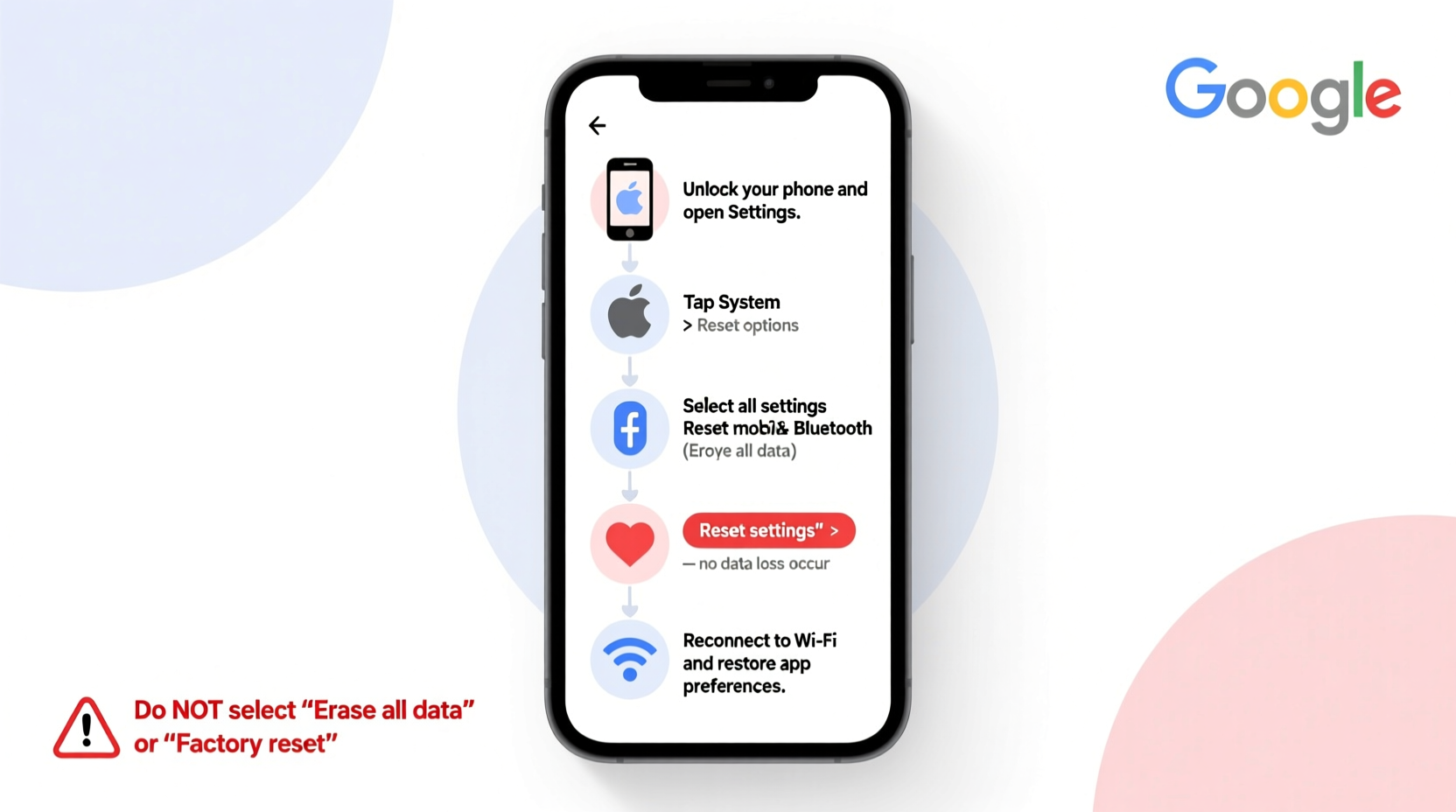
A factory reset returns your Pixel or other Google phone to its original out-of-box state. This action erases all user-installed apps, accounts, settings, and locally stored files. Common reasons to perform a reset include:
- Fixing software glitches or boot loops
- Improving sluggish performance
- Removing malware or suspicious apps
- Preparing to sell or give away the device
- Resolving sync or account-related issues
Despite the benefits, a reset should never be done impulsively. Without proper safeguards, it can result in irreversible data loss. The key lies not in avoiding the reset—but in preparing for it meticulously.
Understanding Data Types on Your Google Phone
Not all data behaves the same way during a reset. Understanding what’s automatically saved and what requires manual intervention is crucial.
| Data Type | Saved to Google Account? | Survives Factory Reset? |
|---|---|---|
| Google Contacts | Yes | Yes (if synced) |
| Gmail, Calendar, Drive Files | Yes | Yes |
| App Data & Settings | Optional (per app) | Only if backed up |
| Photos & Videos | Only if using Google Photos Backup | Only if backed up |
| Messages (SMS/MMS) | No (unless backed up) | No |
| Call Logs | No | No |
| Third-party App Data (e.g., games, notes) | Varies | Only if cloud-synced |
This distinction highlights why relying solely on Google Account sync isn’t enough. Critical personal data like SMS messages, local media, and app-specific information often require additional backup steps.
Step-by-Step Guide to Safely Reset Your Google Phone
Follow this sequence carefully to ensure no data is lost during the reset process.
- Charge Your Phone
Ensure your battery is at least 50% charged. A sudden shutdown during backup or reset can corrupt data. - Connect to Wi-Fi
Use a stable Wi-Fi network to avoid interruptions during upload-heavy processes like photo syncing. - Enable Google One Backup (or Google Backup)
Navigate to Settings > Google > Backup. Confirm that “Back up to Google Drive” is enabled. Select your Google account and verify backup frequency. - Back Up Photos and Videos
Open the Google Photos app. Tap your profile icon > Photos settings > Backup. Ensure “Back up & sync” is on. Wait until all media shows as “Up to date.” - Manually Back Up Messages (If Needed)
If you use Google Messages, enable chat backup under Settings > Chat features. For third-party messaging apps, check their individual export options. - Verify App Data Sync
Some apps (like Chrome, Gmail, Keep) automatically sync. Others (such as banking apps or offline games) may store data locally. Check each critical app’s settings for cloud sync options. - Export Critical Local Data
For files not automatically backed up (e.g., downloaded documents, voice memos), manually transfer them to Google Drive or a computer via USB cable. - Confirm Backup Completion
Return to Settings > Google > Backup. Check the timestamp of the last backup. If outdated, tap “Back up now” and wait for confirmation. - Perform the Factory Reset
Go to Settings > System > Reset options > Erase all data (factory reset). Confirm your choice. The phone will reboot and begin wiping data. - Restore After Reset
After setup, sign in with the same Google account. When prompted, choose “Restore from backup.” Follow on-screen instructions to recover apps and settings.
Common Pitfalls and How to Avoid Them
Even with good intentions, mistakes happen. Here are frequent oversights and how to prevent them:
- Assuming everything syncs automatically – Not all data does. Always double-check message and media backups.
- Using a different Google account after reset – Restoration only works with the same account used for backup.
- Skipping post-reset verification – After restoration, confirm key data like contacts, messages, and passwords are present.
- Ignoring two-factor authentication recovery – Resetting may log you out of 2FA apps. Have backup codes ready.
“Backing up isn’t just about copying data—it’s about verifying that the copy exists and is usable.” — Lena Patel, Mobile Security Analyst at Digital Horizon Labs
Real-World Example: Recovering from a Frozen Pixel
Mark, a freelance photographer, noticed his Pixel 7 freezing frequently, especially when opening the camera. Apps crashed unexpectedly, and battery life dropped sharply. He considered visiting a service center but decided to try a factory reset first.
Before proceeding, he connected to Wi-Fi, ensured Google Photos had synced his latest shoots, and verified his Google Drive contained exported client notes. He also backed up SMS threads containing booking details using Google Messages’ RCS chat backup.
After performing the reset, Mark restored from his Google account. Within 20 minutes, his phone was functional again—apps reinstalled, photos intact, and messages recovered. The freezing issue disappeared, likely caused by corrupted cache data. His careful preparation turned a potential disaster into a smooth recovery.
Essential Pre-Reset Checklist
Use this checklist to ensure nothing is overlooked before initiating a reset:
- ✅ Charge phone to at least 50%
- ✅ Connect to a reliable Wi-Fi network
- ✅ Enable Google Account backup in settings
- ✅ Confirm Google Photos backup is complete
- ✅ Back up SMS/messages using Google Messages or third-party tools
- ✅ Export important files to Google Drive or external storage
- ✅ Verify the correct Google account is signed in
- ✅ Disable screen lock temporarily (optional, for smoother setup)
- ✅ Note down Wi-Fi passwords and 2FA recovery codes
- ✅ Confirm last backup timestamp in Google settings
Frequently Asked Questions
Will I lose my WhatsApp chats if I reset my Google phone?
If you’ve enabled WhatsApp’s Google Drive backup, your chats will be preserved. During reinstallation, WhatsApp will prompt you to restore from the most recent backup. Ensure the backup was completed before the reset.
Can I reset my phone without a Google Account?
You can perform a factory reset without an active internet connection, but you won’t be able to restore data afterward unless you’ve previously backed up locally or externally. A Google Account is essential for seamless recovery.
How long does it take to restore data after a reset?
Restoration time varies based on data volume and internet speed. A lightweight backup may take 5–10 minutes; full photo libraries and large app collections can take over an hour. Stay on Wi-Fi throughout the process.
Final Thoughts: Reset with Confidence
Resetting your Google phone doesn’t have to be a high-risk operation. With deliberate preparation, the process becomes a powerful tool for rejuvenating your device without sacrificing personal data. The few extra minutes spent verifying backups can save hours—or even days—of lost memories, conversations, and productivity.




 浙公网安备
33010002000092号
浙公网安备
33010002000092号 浙B2-20120091-4
Comments
No comments yet. Why don't you start the discussion?