
AI smart glasses are transforming how we interact with digital information—offering real-time translation, voice assistance, navigation, and hands-free communication. But to unlock their full potential, pairing them correctly with Bluetooth-enabled devices is essential. Whether connecting to your smartphone, wireless earbuds, or a fitness tracker, a stable Bluetooth connection ensures smooth functionality. This guide walks you through every stage of the process, troubleshoots common issues, and shares expert-backed tips for maintaining reliable connectivity.
Understanding Your AI Smart Glasses and Bluetooth Compatibility
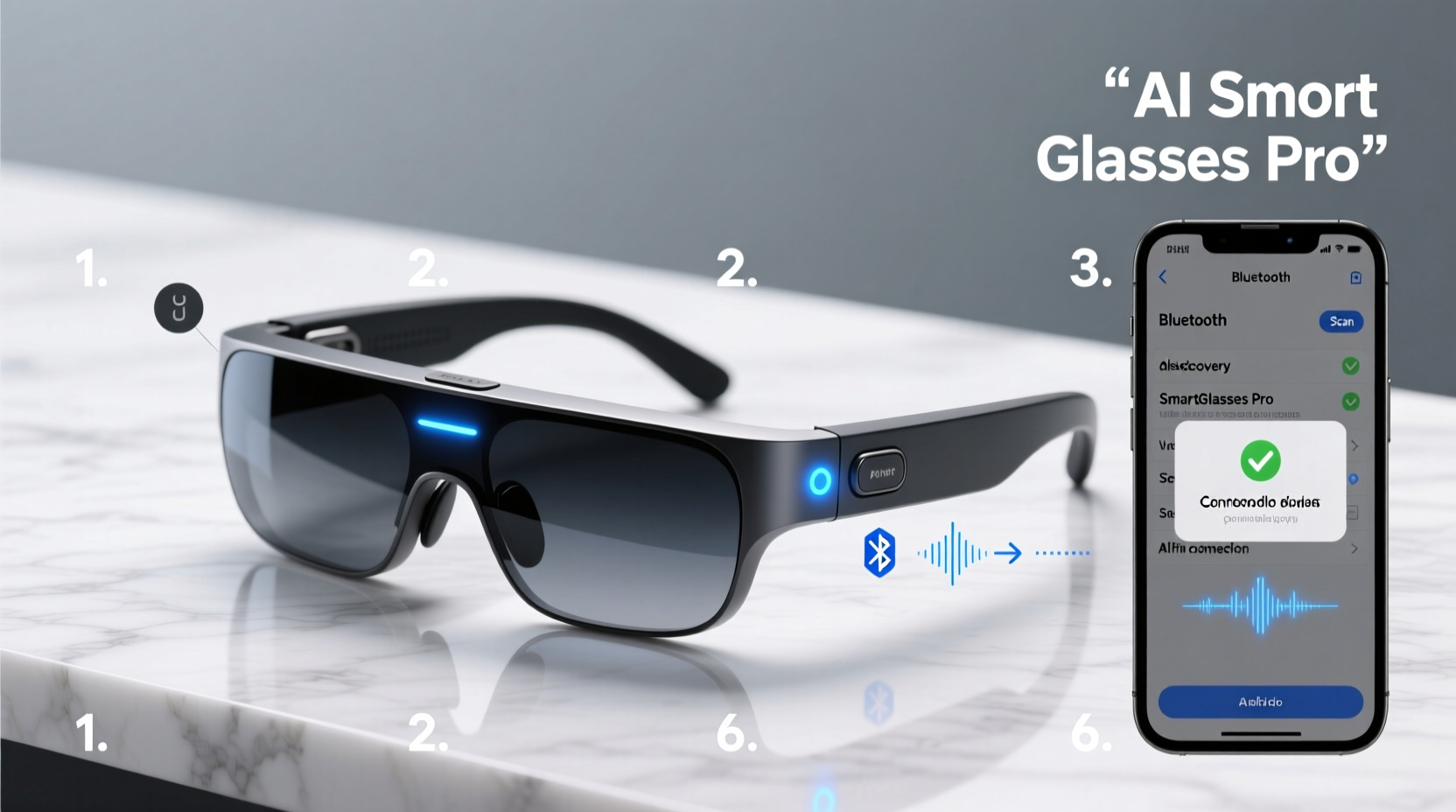
Before attempting any connection, it’s important to understand what kind of Bluetooth technology your smart glasses support. Most modern AI glasses use Bluetooth 5.0 or higher, which offers faster pairing, extended range (up to 30 meters), and lower power consumption. Check your device specifications to confirm compatibility with your target device—especially smartphones, tablets, or hearing aids.
Not all Bluetooth versions are backward compatible in every feature. For example, while Bluetooth 5.0 devices can technically pair with older 4.2 phones, they may not support advanced audio routing or dual-device connections. Always verify both hardware and software requirements:
- Ensure your phone or tablet supports Bluetooth Low Energy (BLE) if required.
- Update your smart glasses’ firmware via the manufacturer’s app before pairing.
- Confirm that location services are enabled on Android devices, as some require this for Bluetooth discovery.
“Bluetooth stability starts with firmware hygiene. Outdated software causes more than 60% of failed smart glass pairings.” — Dr. Lena Torres, Senior Wireless Systems Engineer at Connectiv Labs
Step-by-Step Guide to Pairing AI Smart Glasses with a Smartphone
Smartphones are the most common companion device for AI smart glasses. Follow this detailed sequence to ensure a seamless first-time setup.
- Power On Your Smart Glasses: Press and hold the power button (usually located on the temple arm) for 3–5 seconds until an LED flashes blue or you hear a voice prompt indicating pairing mode.
- Enable Bluetooth on Your Phone: Go to Settings > Bluetooth and turn it on. Make sure Airplane Mode is off.
- Initiate Pairing Mode: Refer to your user manual—some models require double-pressing the power button; others activate pairing automatically upon first boot.
- Select the Device: In your phone’s Bluetooth list, look for a name like “AuraGlasses X1” or “NeuronSight Pro.” Tap it.
- Confirm Connection: If prompted, enter the default PIN (commonly 0000 or 1234). Some newer models use NFC tap-to-pair or QR code scanning instead.
- Launch Companion App: Install the official app (e.g., VisionLink, MindFrame Hub) from the App Store or Google Play. The app will guide further configuration, including voice assistant activation and audio routing.
- Test Audio Output: Play a short audio clip or ask the AI assistant a question to verify sound delivery through built-in speakers or connected earbuds.
Connecting to Secondary Bluetooth Devices
Many users want to route audio from their smart glasses to wireless earbuds or hearing aids while keeping the phone connected for data. This requires multi-point Bluetooth support.
How to Use Dual Connection Mode
If your glasses support Bluetooth multipoint (available in select models like Ray-Ban Meta or Bose Frames Tempo), follow these steps:
- Pair your glasses with your smartphone first.
- Put your secondary audio device (e.g., AirPods) into pairing mode.
- Open the companion app and navigate to Audio Output Settings.
- Select “Add New Device” and choose your earbuds from the list.
- Set priority: Decide whether calls go to glasses speakers or earbuds.
Note: Simultaneous streaming to two audio devices is rare. Most systems allow only one active audio output at a time, though control signals (like play/pause) may sync across both.
Common Limitations
| Feature | Supported? | Notes |
|---|---|---|
| Simultaneous call + music streaming | No | One stream at a time due to A2DP limitations |
| Auto-switch between phone and laptop | Limited | Requires manual reconnection unless using Fast Pair (Android) |
| Bluetooth keyboard input | Rare | Only available on enterprise-grade models |
Troubleshooting Common Connection Issues
Even with careful setup, Bluetooth connections can fail. Here are frequent problems and their solutions:
- Device Not Showing Up: Restart both devices. Reset Bluetooth module on your phone (toggle off/on). Clean the glasses’ battery contacts if unresponsive.
- Poor Audio Quality: Interference from Wi-Fi routers or microwaves may degrade signal. Move away from dense electronic areas.
- Connection Drops Frequently: Update firmware. Disable Bluetooth auto-scan on your phone to reduce interference.
- Glasses Won’t Enter Pairing Mode: Perform a factory reset (refer to manual—often involves holding buttons for 10+ seconds).
Real-World Example: Remote Worker Using AI Glasses Daily
Jamal, a field service consultant based in Denver, uses his AI smart glasses to take notes during site inspections without touching his phone. Each morning, he follows a routine:
- Charges glasses overnight.
- At 7:30 AM, powers them on—they automatically reconnect to his iPhone via saved profile.
- Uses voice command: “Hey Lens, start transcription,” which routes audio to his paired Jabra Elite earbuds.
- When entering a vehicle, the glasses disconnect from earbuds and switch to car stereo via Bluetooth for navigation alerts.
This seamless ecosystem saves him over 90 minutes per week in manual logging. His key advice? “Always keep firmware updated. I once missed a critical update that fixed microphone echo—cost me two client recordings.”
Essential Checklist Before Every Pairing Attempt
Use this checklist to avoid preventable errors:
- ✅ Charge both devices above 50%
- ✅ Enable Bluetooth and location (on Android)
- ✅ Delete old or duplicate entries in Bluetooth settings
- ✅ Install the latest version of the companion app
- ✅ Ensure no other Bluetooth device is actively transmitting nearby
- ✅ Verify that airplane mode and Do Not Disturb are disabled
Frequently Asked Questions
Can I connect AI smart glasses to a Windows PC?
Yes, but functionality varies. Most PCs recognize smart glasses as audio input/output devices, allowing use for video conferencing. However, AI features like real-time captioning or object recognition typically require the mobile app and won’t work on desktop OS unless explicitly supported.
Why does my phone forget the glasses after restarting?
This often occurs if the initial pairing wasn’t completed through the companion app. The glasses may appear connected but lack proper trust binding. Re-pair using the app, and ensure you grant all permissions when prompted.
Is it safe to leave Bluetooth on all day?
Modern Bluetooth LE consumes minimal power and poses low security risk when paired only with trusted devices. However, disable discoverability when not pairing new gear to reduce exposure to spoofing attempts.
Maximize Your Experience with Seamless Connectivity
Connecting AI smart glasses to Bluetooth devices isn’t just about technical steps—it’s about building a responsive, intelligent ecosystem tailored to your lifestyle. From effortless call handling to immersive audio experiences, a well-paired setup enhances productivity and safety. Take time to configure your devices properly, maintain updates, and test connections regularly. With the right habits, your smart glasses will become a natural extension of your digital life.




 浙公网安备
33010002000092号
浙公网安备
33010002000092号 浙B2-20120091-4
Comments
No comments yet. Why don't you start the discussion?