
Selling, donating, or recycling your old smartphone without properly removing your Google account can expose your personal data to unauthorized access. Google’s Factory Reset Protection (FRP) is designed to prevent theft, but it also means that if you don’t log out of your account before resetting, the next user may be locked out — or worse, you could leave sensitive information behind. This comprehensive guide walks you through the correct process to securely erase your Google account and all associated data from your Android device, ensuring both your privacy and the usability of the phone for its next owner.
Why Removing Your Google Account Matters
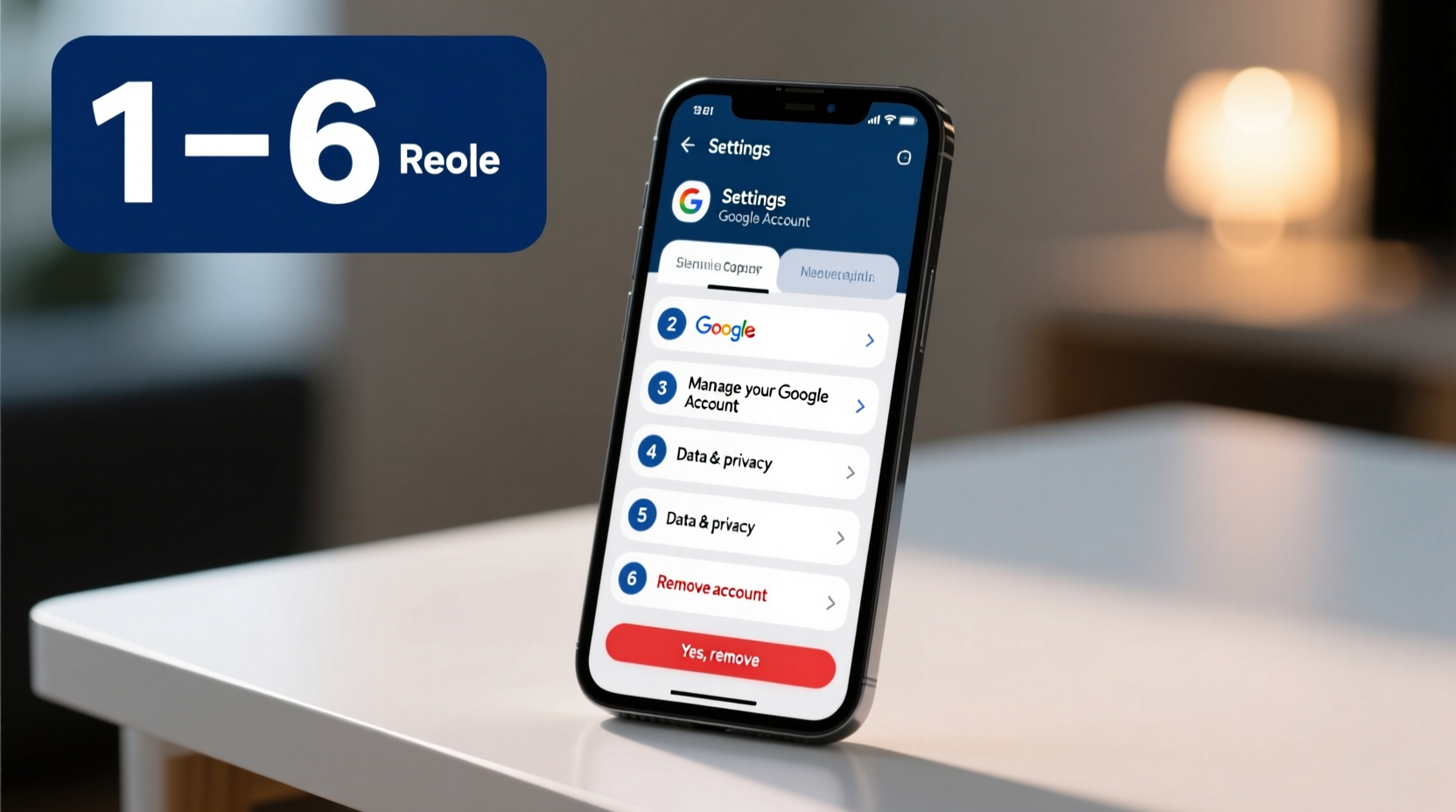
Modern Android devices are tightly integrated with Google services. Your account syncs emails, contacts, photos, app data, location history, passwords, and even payment methods. Simply deleting apps or clearing some data isn’t enough. If you skip proper deauthorization, you risk:
- Unauthorized access to your Gmail, Drive, or Photos
- Potential misuse of saved passwords or two-factor authentication tokens
- Activation locks preventing the new owner from using the device
- Data recovery by technically skilled individuals using forensic tools
“Failing to properly wipe a smartphone before disposal is one of the top data security oversights made by consumers.” — Sarah Lin, Cybersecurity Analyst at Digital Trust Labs
Step-by-Step Guide to Remove Your Google Account
Follow this sequence carefully to ensure full account removal and device reset. These steps apply to most Android phones running Android 5.0 (Lollipop) and later, including Samsung, Google Pixel, Motorola, and others.
- Back up your data: Before proceeding, back up any important files, messages, or photos to Google Drive, a computer, or external storage.
- Sign out of Google services: Go to Settings > Accounts > Google. Tap your email address, then select Remove account. Confirm the action. This logs you out of Gmail, Drive, YouTube, and other synced services.
- Disable Find My Device: Visit google.com/android/find, sign in with your Google account, select the device, and click Secure Device followed by Remove Device. This disables remote tracking and FRP after reset.
- Encrypt the device (if possible): For added security, manually encrypt the phone before wiping. Go to Settings > Security > Encryption & credentials > Encrypt phone. Note: Newer Android versions encrypt by default.
- Perform a factory reset: Navigate to Settings > System > Reset options > Erase all data (factory reset). Confirm the action and wait for the process to complete. The phone will restart and enter setup mode.
- Verify account removal: After reboot, the initial setup screen should appear. Do not log back in. Instead, power off the device. When powered on again, it should still show the welcome screen — indicating no Google account is linked.
Do’s and Don’ts When Removing Your Google Account
| Do’s | Don’ts |
|---|---|
| Back up essential data before wiping | Forget to remove your SIM and SD cards |
| Use Google’s Find My Device to remotely wipe if the phone is lost | Skip disabling Factory Reset Protection via account removal |
| Check for multiple Google accounts on the device | Assume a factory reset alone removes all traces of your identity |
| Test the reset by powering on after wipe — no login should be required | Leave the device plugged into your personal Wi-Fi during reset |
Real-World Example: A Cautionary Tale
In 2022, a secondhand buyer in Portland purchased a used Samsung Galaxy S20 online. Upon setup, the device prompted for a Google account password due to FRP. The seller had performed a factory reset but failed to remove their Google account first. Unable to use the phone, the buyer contacted Google support — only to discover that without proof of purchase from the original owner, the lock couldn’t be bypassed. Meanwhile, investigators found residual data still recoverable from the unencrypted backup partition, including old text messages and location history.
This case underscores two key points: always remove your account before resetting, and understand that incomplete wipes can leave digital footprints long after you think the data is gone.
Special Cases and Troubleshooting
Not all situations follow the standard path. Here are common complications and how to handle them:
- Phone won’t turn on: If the device is damaged or unresponsive, use Google’s Find My Device portal to remotely erase it. As long as it was previously connected to Wi-Fi or cellular data, the command will execute the next time it comes online.
- Multiple Google accounts signed in: Repeat the account removal process for each email address listed under Settings > Accounts > Google.
- FRP still active after reset: This usually means the account wasn’t properly removed. If you’re the original owner, sign in with the correct Google credentials to proceed. If you’re the buyer, contact the seller or verify proof of purchase with Google.
- Corporate or work-managed device: If the phone was enrolled in a company’s mobile device management (MDM) system, contact your IT department. A standard reset may not suffice, and administrative clearance is required.
Security Checklist Before Releasing Your Phone
Before handing over your old device, confirm every item below has been completed:
- ✅ Backed up photos, contacts, and important files
- ✅ Removed all Google accounts from the device settings
- ✅ Disabled Find My Device via web portal
- ✅ Signed out of third-party apps (e.g., banking, social media)
- ✅ Removed SIM card and microSD card
- ✅ Performed factory reset from settings menu
- ✅ Verified post-reset setup screen appears without account prompts
- ✅ Confirmed no personal accessories (cases, chargers) remain attached
Frequently Asked Questions
Can someone access my Google account if I don’t remove it from the phone?
Direct account access is unlikely if strong passwords and 2FA are enabled. However, cached data such as saved passwords, autofill forms, and offline emails may still be accessible through local exploits or recovery tools. Always remove the account to eliminate risk.
Does a factory reset automatically delete my Google account?
No. While a factory reset erases most user data, Google Account information often remains tied to the device for Factory Reset Protection. You must manually remove the account before resetting; otherwise, the activation lock will persist.
I sold my phone without removing my Google account. What should I do now?
Immediately go to your Google Account settings, review recent device activity, and use Find My Device to erase the phone remotely. Change your Google password and enable stronger 2FA methods to limit exposure.
Final Steps and Peace of Mind
Removing your Google account from an old phone isn’t just about preparing it for resale — it’s a critical step in maintaining your digital hygiene. With cybercrime rising and data breaches becoming more common, taking ten minutes to properly decommission a device can prevent years of headaches. Whether you're upgrading, donating, or recycling, treat every old phone like a vault of personal information. Secure it, wipe it, verify it, and let it go with confidence.




 浙公网安备
33010002000092号
浙公网安备
33010002000092号 浙B2-20120091-4
Comments
No comments yet. Why don't you start the discussion?