
Setting Google as your homepage is one of the simplest ways to streamline your browsing experience. Whether you're using Chrome, Firefox, Safari, or Microsoft Edge, having Google load automatically when you open your browser saves time and keeps your search habits consistent. While the process varies slightly across platforms and devices, this comprehensive guide walks you through every variation with clear, actionable steps.
A homepage acts as your digital starting point. For millions, Google remains the go-to destination due to its fast search capabilities, clean interface, and integration with other services like Gmail, Maps, and Drive. Making it your default ensures you begin each session efficiently—without typing URLs or navigating from a blank tab.
Why Set Google as Your Homepage?
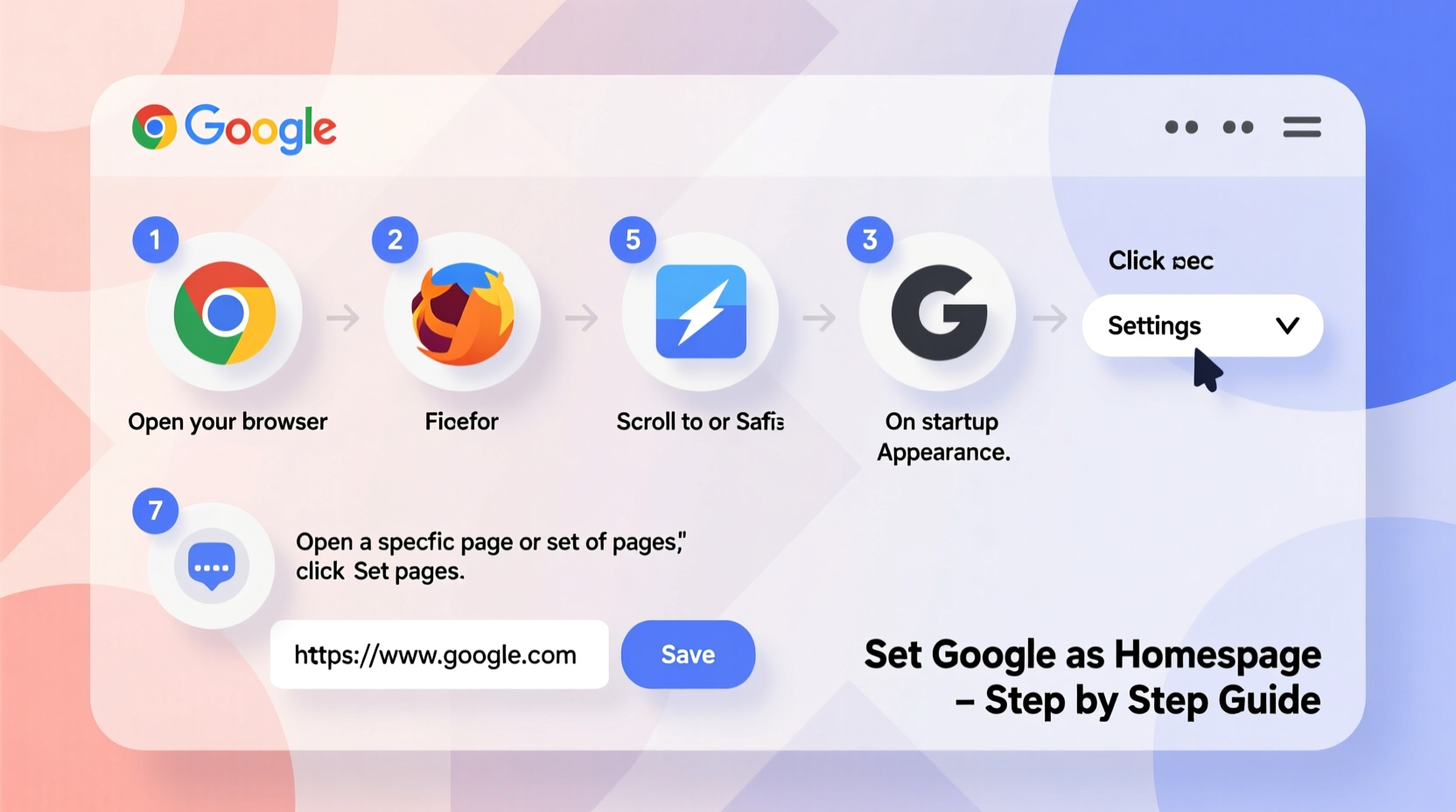
Before diving into the technical steps, it's worth understanding why setting Google as your homepage still matters in an era of smart browsers and predictive tabs.
- Speed: Instant access to search without typing “google.com” each time.
- Consistency: A uniform start across all your devices and browsers.
- Focus: Reduces distractions from news feeds or promotional tiles on default new-tab pages.
- Habit reinforcement: Encourages intentional browsing rather than passive scrolling.
“Having a predictable, clean homepage reduces cognitive load and helps users stay focused on their goals.” — Dr. Lena Torres, UX Researcher at WebFlow Labs
How to Set Google as Your Homepage: Desktop Browsers
The method depends on which browser you use. Below are detailed instructions for the most popular desktop browsers.
Google Chrome (Windows & macOS)
- Open Google Chrome.
- Click the three vertical dots in the top-right corner to open the menu.
- Select Settings.
- Scroll down to the “Appearance” section.
- Toggle on “Show Home button.”
- Next to “Homepage,” click where it says “Enter custom web address” and type
https://www.google.com. - Close Settings. Now, clicking the home button (house icon) will take you to Google.
To make Google appear every time you open a new window:
- Go to Settings > On startup.
- Select “Open a specific page or set of pages.”
- Click “Use current pages” or manually add
https://www.google.com.
Mozilla Firefox
- Launch Firefox.
- Click the menu button (three horizontal lines) in the upper-right corner.
- Navigate to Settings.
- Under the “Home” section, find “New Tabs and Windows.”
- In the dropdown labeled “When a new tab is opened, show,” select “Custom URLs.”
- Enter
https://www.google.comin the input field. - To set startup behavior, go to “Startup” and choose “Restore previous session” or “Show my home page,” then ensure your home page is set to Google.
Microsoft Edge
- Open Edge and click the gear icon (⚙️) for Settings.
- Go to Startup and home from the sidebar.
- Under “Homepage,” enter
https://www.google.com. - Ensure “Show home button” is toggled on.
- For startup pages, choose “A specific page” and add Google’s URL.
Safari (macOS)
- Open Safari from your Dock or Applications folder.
- Click Safari > Settings (or Preferences) in the menu bar.
- Go to the “General” tab.
- Find “Homepage” and enter
https://www.google.com. - Check “Safari opens with: A new window” and ensure “New windows open with: Homepage” is selected.
- Close settings. The next time you launch Safari, Google will load automatically.
| Browser | Homepage Setting Location | Startup Behavior Option |
|---|---|---|
| Google Chrome | Settings > Appearance > Homepage | On startup > Open a specific page |
| Mozilla Firefox | Settings > Home > New Tabs | Startup > Show my home page |
| Microsoft Edge | Settings > Startup and home > Homepage | Startup > A specific page |
| Safari | Preferences > General > Homepage | Opens with: Homepage |
Mobile Devices: Android and iOS
While mobile browsers don’t always support traditional homepages, you can configure your default search engine or create quick-access shortcuts that serve the same purpose.
Android (Chrome)
- Open Chrome on your Android device.
- Tap the three dots > Settings.
- Go to Homepage.
- Choose “Custom” and enter
https://www.google.com. - Note: Mobile Chrome doesn’t open this page on startup by default, but tapping the home button will redirect you.
iOS (Safari)
iOS Safari does not allow custom homepage settings directly, but you can simulate this behavior:
- Create a bookmark for Google on your Favorites Bar.
- Add a home screen shortcut: Navigate to google.com, tap the share icon, and select “Add to Home Screen.”
- Use third-party browsers like Chrome or Firefox on iPhone, which allow limited homepage customization.
Troubleshooting Common Issues
Even after following the correct steps, some users report their homepage resetting or not loading properly. Here’s how to fix common problems.
Your Homepage Keeps Changing
This is often caused by browser extensions or malware.
- Review installed extensions under Settings > Extensions.
- Remove unfamiliar or unused add-ons.
- Run a scan using trusted antivirus software (e.g., Malwarebytes).
- Reset browser settings to default if necessary.
Google Redirects to a Country-Specific Version
If you’re redirected to google.co.uk or google.de instead of google.com:
- Manually type
https://www.google.com/ncronce. The “ncr” stands for “No Country Redirect.” - Set this URL as your homepage to maintain consistency.
Homepage Button Not Visible
If the home button isn’t showing:
- In Chrome: Go to Settings > Appearance and toggle “Show Home button” ON.
- In Edge: Same path—ensure the toggle is active.
- In Firefox: Customize toolbar and drag the home button to the navigation bar.
Checklist: Setting Up Google as Your Homepage
Use this checklist to ensure you’ve completed the setup correctly:
- ✅ Choose your browser (Chrome, Firefox, Edge, Safari).
- ✅ Enable the home button if available.
- ✅ Enter
https://www.google.comas the homepage URL. - ✅ Configure startup settings to open Google on launch.
- ✅ Test by closing and reopening the browser.
- ✅ Remove conflicting extensions or toolbars.
- ✅ Repeat the process on other devices for consistency.
Frequently Asked Questions
Can I set Google as my homepage on all browsers simultaneously?
Yes. Each browser manages its own settings independently, so you’ll need to configure them one by one. Once done, every browser will open Google by default.
Does setting Google as my homepage affect my privacy?
No. It only changes the initial page you see. Privacy depends on your search settings, cookies, and tracking preferences—not the homepage itself.
Why doesn’t my browser remember my homepage setting?
This may happen if your user profile is corrupted or if group policies (common in workplaces) override local settings. Try creating a new browser profile or contacting your IT administrator if on a managed device.
Real Example: How Sarah Improved Her Workflow
Sarah, a freelance researcher, used to spend the first five minutes of her day typing “google.com” and navigating through cluttered new-tab pages filled with ads. After setting Google as her homepage across Chrome, Firefox, and her iPad, she reduced her daily startup time significantly. She also added Google Calendar and Gmail bookmarks just below the search bar, turning her homepage into a productivity hub. Within two weeks, she reported a noticeable improvement in focus and task initiation speed.
“Small optimizations like a clean homepage compound over time. They reduce friction in daily routines.” — Mark Chen, Digital Productivity Coach
Final Thoughts and Action Steps
Setting Google as your homepage is a small change with outsized benefits. It standardizes your entry point to the web, minimizes distractions, and supports efficient workflows. Whether you're a student, professional, or casual user, taking five minutes to configure this setting across your devices pays off in long-term usability.
Don’t stop at just setting it up—test it, troubleshoot if needed, and extend the habit to all your browsers. Consistency across platforms ensures you get the same reliable start every time.




 浙公网安备
33010002000092号
浙公网安备
33010002000092号 浙B2-20120091-4
Comments
No comments yet. Why don't you start the discussion?