
In today’s digital world, having a consistent and reliable web browser across all your devices is essential. Google Chrome stands out for its speed, synchronization features, and integration with Google services. Whether you're using a desktop, laptop, tablet, or smartphone, making Chrome your default browser ensures that links open in the environment you trust. This comprehensive guide walks you through the exact steps to set Google Chrome as your default browser on major operating systems—Windows, macOS, Android, and iOS—with practical tips and troubleshooting advice.
Why Set Chrome as Your Default Browser?
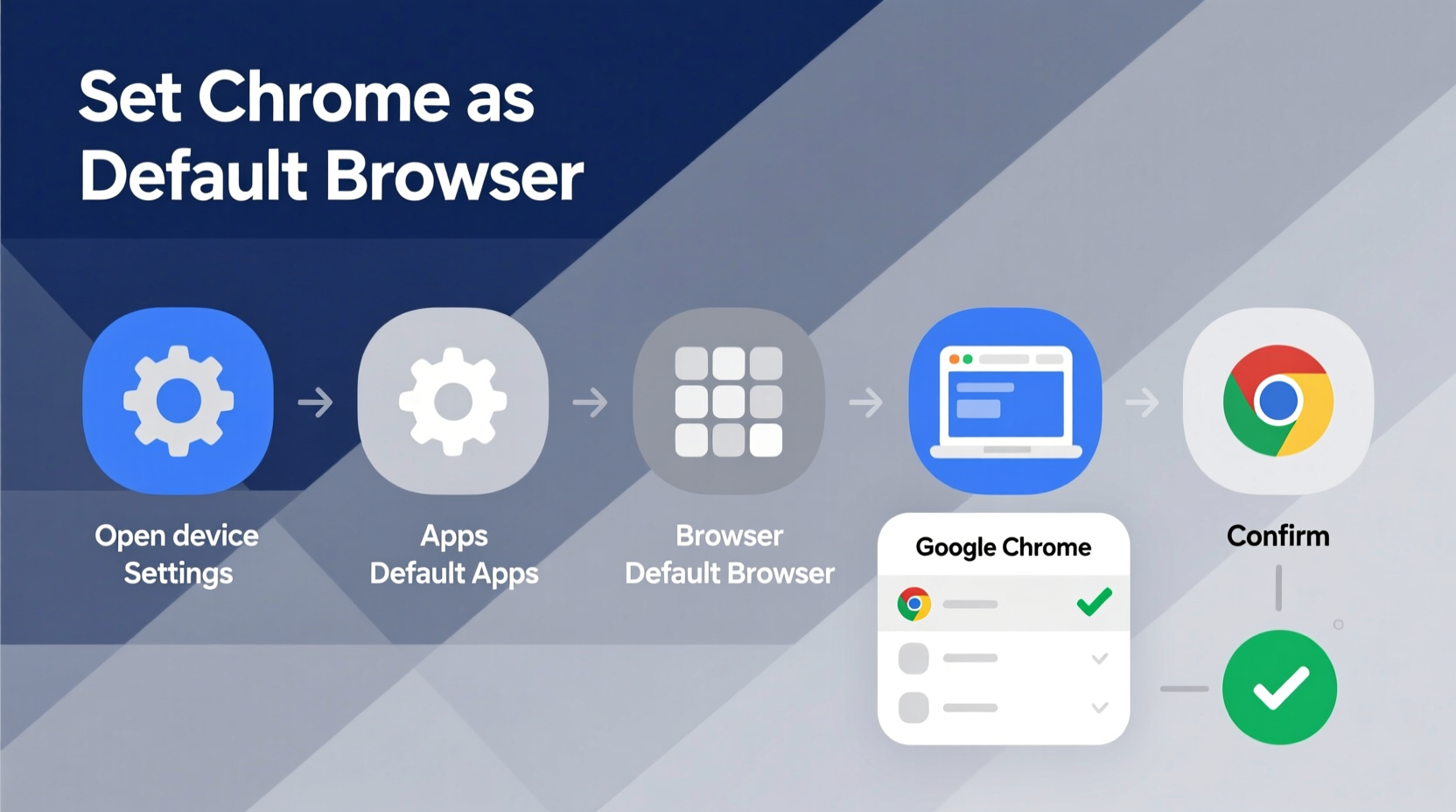
Your default browser determines which application opens when you click a link in an email, document, or app. While many devices come with pre-installed browsers, switching to Chrome offers tangible benefits: faster page loads, cross-device sync of bookmarks and history, built-in Google Assistant, enhanced security updates, and access to thousands of extensions.
Setting Chrome as default streamlines your workflow. You no longer have to manually switch browsers every time a link opens in Safari, Edge, or another app. It also ensures a uniform experience, especially if you rely on Chrome-specific tools like password managers, developer extensions, or cloud printing.
How to Set Chrome as Default on Windows 10 & 11
Microsoft Windows allows users full control over default applications, but the process has changed slightly between versions. Here's how to do it correctly on both Windows 10 and 11.
- Open Settings (press Win + I).
- Navigate to Apps > Default apps.
- Scroll down and click on Web browser.
- Select Google Chrome from the list of available browsers.
If Chrome isn’t listed, ensure it’s installed. Download it from google.com/chrome, install it, then return to this menu. After selection, Windows will prompt Chrome to confirm the change. Click “Set as default” within Chrome if prompted.
“Default browser settings are often overlooked, but they significantly impact user efficiency and online safety.” — David Lin, Senior UX Analyst at WebFlow Systems
Troubleshooting on Windows
Sometimes, even after selecting Chrome, links still open in Microsoft Edge. This can happen due to group policies or legacy defaults. To fix:
- Open Chrome and go to Settings > Default browser.
- Click Make default. This triggers a system-level permission request.
- Confirm in the pop-up window from Windows.
If the option doesn’t appear, check for pending Windows updates or run the Chrome Cleanup Tool to resolve conflicts.
Setting Chrome as Default on macOS
Apple has historically made changing the default browser more involved, but recent macOS versions (macOS Big Sur and later) have simplified the process.
- Launch Google Chrome from your Applications folder.
- Click the Chrome menu in the top-left corner and select Settings.
- Look for the banner at the top that says: \"Chrome is not your default browser. Click here to make it your default.\"
- Click the banner, then choose Use as Default.
Alternatively, go to System Settings > Desktop & Screen Saver > Default Web Browser, then select Chrome from the dropdown menu.
Verifying the Change
To confirm Chrome is now default, open an email with a web link and click it. It should launch directly in Chrome. If Safari opens instead, revisit System Settings and double-check permissions.
Configuring Chrome on Android Devices
Android gives users direct control over default apps, and setting Chrome as your default browser is straightforward.
- Open the Settings app on your Android phone or tablet.
- Tap Apps > Default apps.
- Select Browser app.
- Choose Chrome from the list.
Once selected, all HTTP and HTTPS links from messaging apps, social media, and emails will open in Chrome by default.
| Device Type | OS Version | Steps Required |
|---|---|---|
| Pixel Phone | Android 13 | 3 taps in Settings |
| Samsung Galaxy | One UI 5 (Android 13) | May require navigating through Samsung Internet first |
| Older Android | Android 10 or below | Chrome prompts automatically upon installation |
Handling Manufacturer Overrides
Some Android manufacturers like Samsung pre-install their own browser and may reset defaults after updates. To prevent this:
- Disable automatic updates for Samsung Internet (if not needed).
- Clear defaults for competing browsers under Settings > Apps > [Browser Name] > Open by default > Clear defaults.
Making Chrome Your Default on iPhone and iPad
iOS restricts default browser changes more than other platforms, but Apple introduced support for alternative defaults starting with iOS 14. Here’s how to set Chrome as your default on iPhone or iPad:
- Install Google Chrome from the App Store.
- Open the Settings app.
- Scroll down and tap Chrome.
- Select Default Browser App.
- Tap Chrome to confirm.
After this, links opened from Messages, Mail, Notes, and most third-party apps will launch in Chrome instead of Safari.
“It took Apple years to allow default browser changes, but once enabled, it empowers users to choose privacy-focused or feature-rich alternatives like Chrome.” — Lena Park, Mobile OS Researcher at TechInsight Group
Limitations on iOS
Note: Even with Chrome as default, some system-level functions (like certain in-app web views) may still use Safari’s engine due to Apple’s WebKit restrictions. However, standalone links will respect your default setting.
Mini Case Study: A Remote Worker’s Experience
Jamal, a freelance graphic designer based in Austin, used to juggle multiple browsers—Safari on his MacBook, Chrome on his Android tablet, and Edge on his work PC. He frequently lost saved logins and had to re-download files because bookmarks didn’t sync.
After reading about default browser settings, he systematically set Chrome as default across all devices. Within a week, he noticed fewer login interruptions, faster access to design resources via synced bookmarks, and smoother collaboration using Google Meet links. “It sounds minor,” he said, “but having one browser everywhere cut my daily setup time by nearly 15 minutes.”
Checklist: Setting Chrome as Default Across Devices
- ✅ Install the latest version of Google Chrome on each device.
- ✅ On Windows: Go to Settings > Apps > Default apps > Web browser > Chrome.
- ✅ On macOS: Click Chrome banner or use System Settings to assign default.
- ✅ On Android: Settings > Apps > Default apps > Browser app > Chrome.
- ✅ On iOS: Settings > Chrome > Default Browser App.
- ✅ Test by clicking a web link in an email or message.
- ✅ Clear defaults from old browsers to prevent conflicts.
Frequently Asked Questions
Will setting Chrome as default affect my saved passwords in other browsers?
No. Your existing data remains intact. However, to use those passwords in Chrome, you’ll need to import them via Chrome’s Settings > Autofill > Password Manager > Import.
Can I revert back to my previous browser later?
Absolutely. The process is fully reversible. Just go back into your device’s default apps settings and select a different browser.
Why does Chrome keep asking me to set it as default even after I did?
This usually happens after a system update or Chrome reinstall. Simply repeat the default-setting process. Some operating systems reset defaults during major updates for security reasons.
Final Thoughts and Call to Action
Switching to Google Chrome as your default browser isn’t just about preference—it’s about creating a cohesive, efficient digital experience. From automatic syncing to improved security and customization, the benefits compound over time. Whether you’re managing personal projects or professional workflows, consistency across devices reduces friction and enhances productivity.
The steps outlined here work across the most widely used platforms today. Take a few minutes to implement them on each of your devices. Once configured, you’ll wonder why you waited so long.




 浙公网安备
33010002000092号
浙公网安备
33010002000092号 浙B2-20120091-4
Comments
No comments yet. Why don't you start the discussion?