
In today’s fast-paced digital environment, maximizing screen real estate is no longer a luxury—it’s a necessity. Whether you're coding, designing, managing spreadsheets, or juggling multiple communication platforms, a dual monitor setup can significantly enhance your ability to work efficiently. Studies from the University of Utah have shown that using two monitors can improve productivity by up to 42%, especially in tasks requiring constant window switching. Yet, many professionals still rely on a single display, either due to uncertainty about setup or misconceptions about cost and complexity. This guide breaks down everything you need to know to configure a seamless dual monitor system tailored for optimal productivity.
Why Dual Monitors Improve Productivity
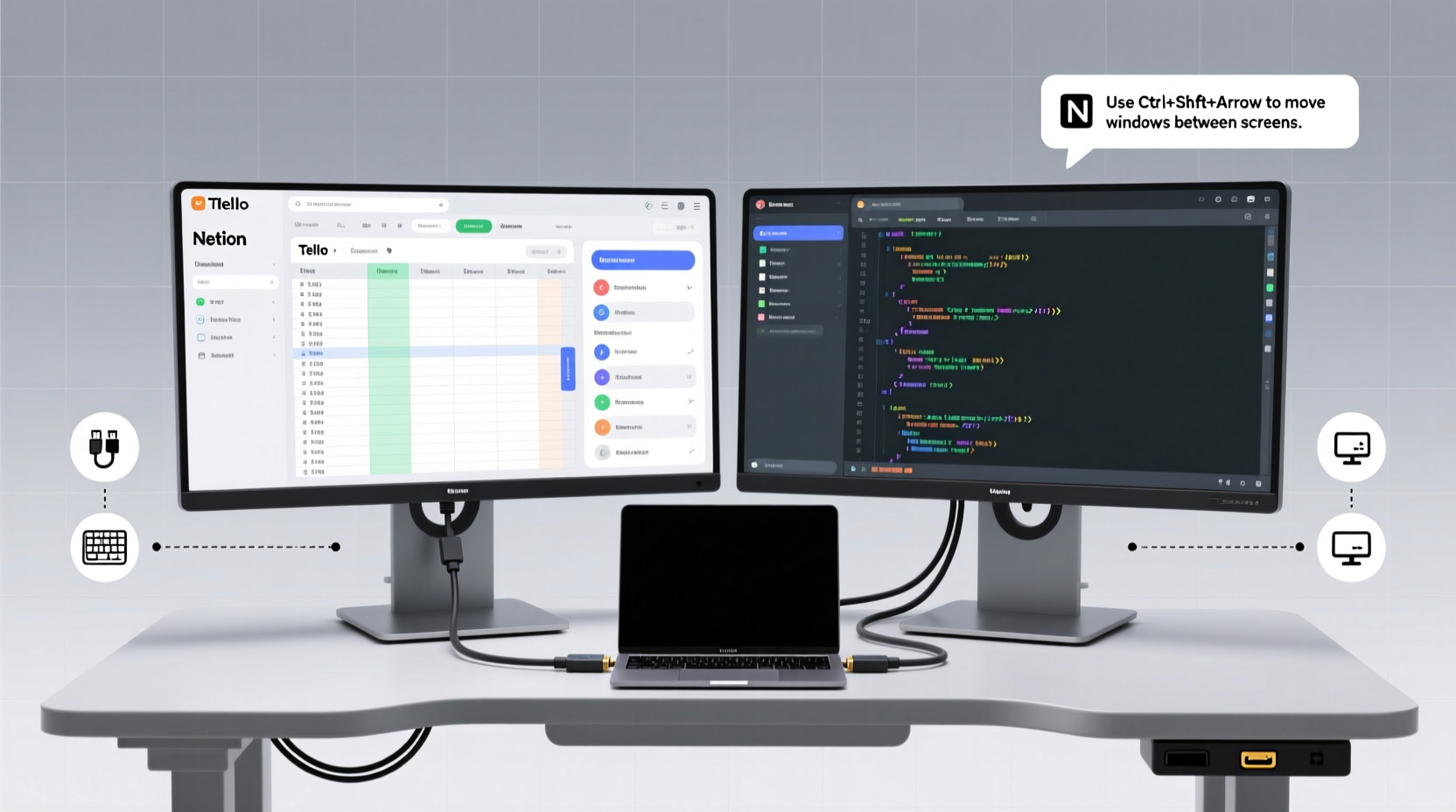
The core advantage of a dual monitor setup lies in spatial multitasking. Instead of minimizing and maximizing windows, users can keep essential applications open side by side—email on one screen, documents on the other; video calls on the left, notes on the right. This eliminates cognitive load associated with task-switching and reduces time wasted navigating between tabs.
Professionals across industries report tangible benefits:
- Developers use one screen for code and another for documentation or debugging tools.
- Graphic designers keep their design canvas full-screen while reserving the second monitor for layers, color palettes, and reference images.
- Financial analysts compare data across spreadsheets or track markets while building reports.
- Writers and editors draft content on one screen and research or fact-check on the other.
“Adding a second monitor is one of the most cost-effective upgrades you can make to your workspace. The return on time saved and mental clarity gained is immediate.” — David Lin, Ergonomics Consultant at WorkSmart Labs
What You’ll Need: Equipment Checklist
Before diving into configuration, ensure you have the right hardware and connections. Not all setups are compatible out of the box, so preparation prevents frustration later.
Essential Components
- Two compatible monitors: Ideally matching resolution and size (e.g., both 24-inch 1080p), but not strictly required.
- A computer with dual-output capability: Most modern laptops and desktops support multiple displays via built-in graphics cards.
- Video cables: HDMI, DisplayPort, DVI, or VGA—depending on available ports on your devices.
- Monitor stands or mounts: For ergonomic alignment and space-saving.
- Power strips or surge protectors: To manage multiple power cords neatly.
Optional but Recommended
- Dual monitor arm for clean cable management and adjustable positioning.
- USB hub if connecting peripherals like keyboards, mice, or webcams.
- Cable sleeves or clips to organize wires and maintain a clutter-free desk.
Compatibility Check
Your computer must support multi-monitor output. Check your GPU specifications:
| Graphics Output Type | Max Resolution Support | Dual Monitor Friendly? |
|---|---|---|
| HDMI 1.4 | 4K @ 30Hz or 1080p @ 60Hz | Yes |
| DisplayPort 1.2+ | 4K @ 60Hz | Yes (supports daisy-chaining) |
| VGA | 1080p @ 60Hz (analog signal) | Limited (not recommended for new setups) |
| USB-C with DisplayPort Alt Mode | 4K @ 60Hz | Yes (common on ultrabooks) |
If your laptop only has one video output, consider a USB-to-HDMI adapter or docking station. These emulate a second GPU and work well for office tasks, though they may lag in high-performance scenarios like video editing.
Step-by-Step Setup Process
Follow this sequence to physically connect and digitally configure your dual monitor system.
- Power down your computer: Prevents electrical surges during connection.
- Connect both monitors: Use appropriate cables to link each monitor to available video ports (e.g., HDMI and DisplayPort).
- Turn on monitors first: Allow them to initialize before booting the PC.
- Power on your computer: Windows or macOS should detect both displays automatically.
- Access display settings:
- Windows: Right-click desktop → “Display settings”
- macOS: System Settings → Displays → Arrangement
- Identify and arrange displays: Drag on-screen numbers to match physical layout (left/right).
- Select primary monitor: Choose which screen hosts the taskbar (Windows) or menu bar (macOS).
- Adjust resolution and scaling: Match resolutions where possible. If mismatched, set scaling to maintain readable text.
- Set orientation (optional): Rotate one monitor vertically for coding, reading PDFs, or social media monitoring.
- Test applications: Open two windows and drag between screens to confirm smooth transition.
Optimizing Layout and Workflow
Hardware setup is just the beginning. True productivity gains come from intentional screen organization.
Recommended Screen Roles
- Primary Monitor: Reserved for active work—writing, designing, coding. Centered and at eye level.
- Secondary Monitor: Dedicated to passive or reference tasks—email, Slack, calendar, research browser, video calls.
Workflow Examples
Case Study: Marketing Manager Sarah Chen
Sarah manages campaigns across email, social media, and analytics dashboards. Before her dual monitor upgrade, she spent an average of 27 minutes per day just switching between apps. After setup, she assigned her left screen to Google Analytics and Facebook Ads Manager, and her right screen to Gmail and Trello. She now completes weekly reports 35% faster and reports less mental fatigue at the end of the day.
She also uses a vertical monitor on the far left to track real-time Twitter mentions, minimizing distractions while staying informed.
Advanced Tips for Efficiency
- Use Win + Left/Right Arrow to snap windows to halves or quadrants.
- Enable “Show window previews on taskbar” in Windows for quick identification.
- On macOS, use Mission Control (F3 or swipe up with four fingers) to manage Spaces across monitors.
- Assign different virtual desktops per monitor for context separation (e.g., work vs. personal).
Common Mistakes to Avoid
| Do’s | Don’ts |
|---|---|
| Align top edges of both monitors | Mismatch monitor heights causing neck strain |
| Use consistent brightness and color profiles | Run one monitor too bright/dark creating visual imbalance |
| Extend desktop instead of duplicating | Duplicate screens unnecessarily limiting workspace |
| Label displays clearly in OS settings | Assume automatic detection always works correctly |
Troubleshooting Common Issues
Even with careful setup, problems can arise. Here’s how to resolve frequent issues:
Monitor Not Detected
First, check cable connections and try swapping ports. Restart the computer with monitors already powered on. Update your graphics drivers—visit NVIDIA, AMD, or Intel’s website depending on your GPU. On macOS, reset NVRAM by restarting and holding Option + Command + P + R for 20 seconds.
Resolution Mismatch
If one screen appears blurry, ensure it’s running at native resolution. Scaling settings may need adjustment—set both monitors to 100% or proportionally (e.g., 125%) to avoid UI distortion.
Mouse Movement Feels Off
If the cursor jumps unexpectedly between screens, revisit the display arrangement in settings. The on-screen layout must reflect your physical setup. Drag the monitor icons to mirror exact placement.
Performance Lag on Secondary Screen
This often occurs with USB adapters or older GPUs. Reduce resolution on the secondary monitor or close background GPU-heavy apps. Consider upgrading to a dedicated graphics card if using integrated graphics with large 4K displays.
Frequently Asked Questions
Can I use two different monitor sizes or brands?
Yes. Modern operating systems handle mixed sizes and resolutions. However, differences in bezel width, color accuracy, or refresh rate may create a disjointed experience. Calibrate both monitors for consistent brightness and color temperature.
Is a dual monitor setup good for eye health?
When configured ergonomically, yes. A proper dual monitor arrangement reduces head turning and allows better posture. However, prolonged use without breaks increases eye strain. Follow the 20-20-20 rule: every 20 minutes, look at something 20 feet away for 20 seconds.
Do I need a powerful computer for two monitors?
For basic office work, even entry-level machines handle dual 1080p displays easily. For creative or gaming workloads involving 4K or high refresh rates, a dedicated GPU with sufficient VRAM is recommended.
Conclusion: Unlock Your Full Work Potential
Setting up a dual monitor system is a straightforward yet transformative upgrade. With minimal investment and under an hour of setup time, you gain expanded visual workspace, reduced task-switching fatigue, and enhanced control over your digital environment. The key is not just adding a second screen, but designing a workflow that leverages both displays intentionally. From aligning hardware correctly to optimizing software behavior, each step contributes to a smoother, more focused day.
Now that you understand the process, gather your equipment, follow the steps, and experience the difference firsthand. Small changes compound—this one could redefine how you work forever.




 浙公网安备
33010002000092号
浙公网安备
33010002000092号 浙B2-20120091-4
Comments
No comments yet. Why don't you start the discussion?