
Spending hours at a desk with poorly positioned monitors can lead to neck strain, eye fatigue, and reduced focus. As more professionals adopt dual monitor setups for multitasking and increased screen real estate, the need for an ergonomic configuration becomes critical. A well-designed dual monitor workspace supports natural posture, reduces physical stress, and enhances workflow efficiency. This guide walks you through every step—from selecting the right equipment to fine-tuning angles and height—so you can build a setup that’s both productive and sustainable over time.
Why Ergonomic Dual Monitor Setup Matters
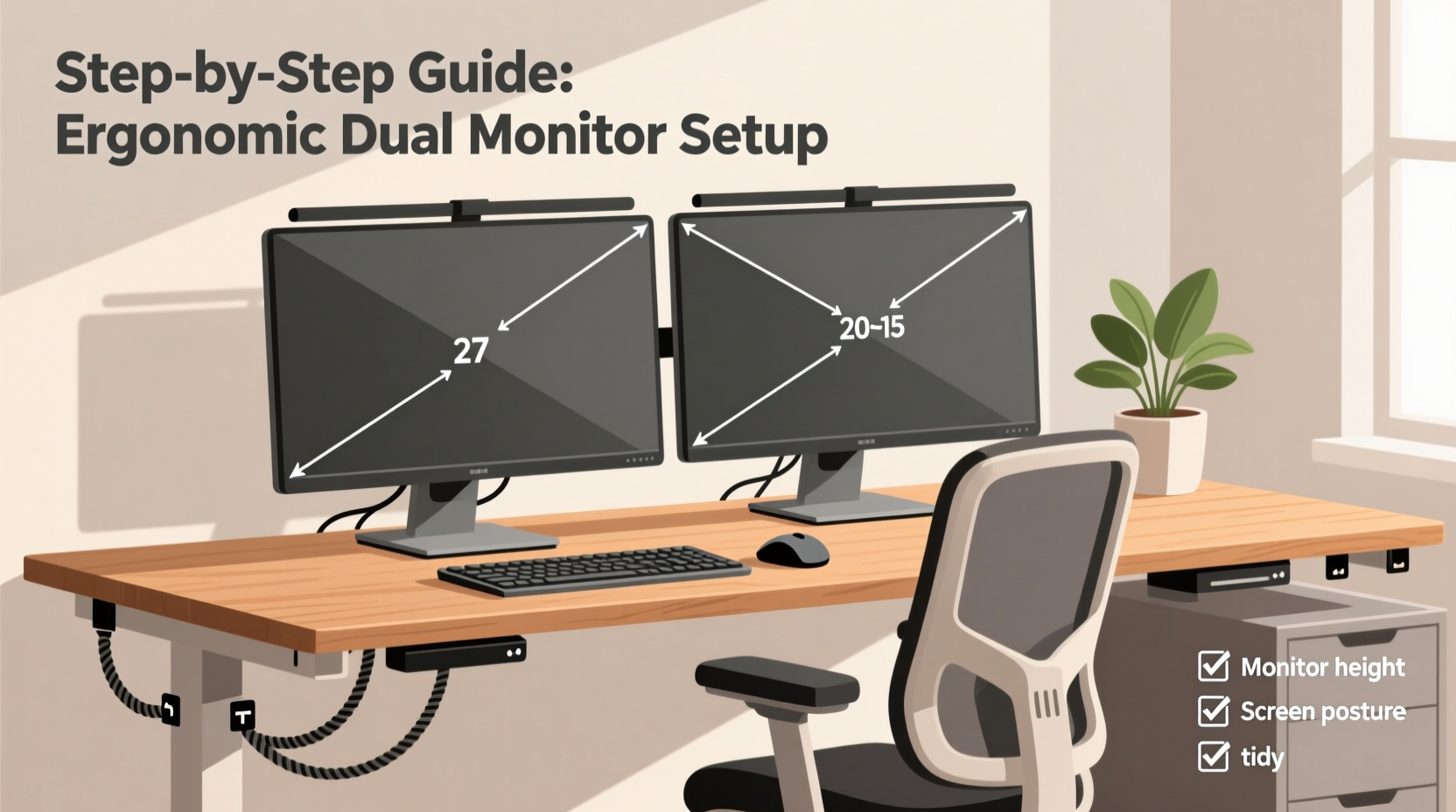
The human body wasn’t designed for prolonged static sitting, especially in front of screens. When monitors are too high, too low, or improperly aligned, your head tilts forward or sideways, placing undue pressure on your cervical spine. Over time, this contributes to chronic discomfort and repetitive strain injuries. According to the Occupational Safety and Health Administration (OSHA), improper workstation design is a leading contributor to musculoskeletal disorders among office workers.
Dual monitors multiply these risks if not arranged correctly. The temptation is to place one screen directly ahead and another off to the side, forcing constant twisting of the neck. Instead, the goal is symmetry and alignment with your natural field of vision. An optimal setup keeps your head centered, eyes level, and shoulders relaxed—regardless of which screen you're viewing.
Step 1: Choose the Right Equipment
Before arranging your monitors, ensure you have the appropriate hardware. Not all monitors and mounts support ideal ergonomic positioning.
- Monitor arms or stands: Adjustable monitor arms allow vertical, horizontal, and rotational adjustments. They’re superior to fixed stands because they let you position each screen precisely where it needs to be.
- Monitor size and resolution: Ideally, use two monitors of the same size and resolution to avoid visual imbalance. Mismatched sizes often lead to awkward positioning or scaling issues.
- Swivel and tilt capability: Each monitor must tilt forward/backward and swivel left/right. This ensures you can angle the screens toward your line of sight.
- VESA compatibility: Check if your monitors support VESA mounting (standard screw pattern on the back). Most modern monitors do, enabling use with third-party arms and brackets.
If you're using laptop docking stations or extended desktops, verify that your graphics output supports dual independent displays. Some older systems mirror screens unless configured properly.
Step 2: Position Monitors at Correct Height and Distance
Monitor height is one of the most overlooked aspects of ergonomics. Too high forces you to look up, straining your neck extensors. Too low causes forward head posture, compressing your spine.
- Sit in your usual working chair with feet flat on the floor and back supported.
- Adjust both monitors so the top edge of the screen aligns with or sits slightly below eye level.
- The center of each screen should be about 15–20 degrees below your horizontal gaze.
- Keep the monitors approximately an arm’s length (20–40 inches) from your eyes.
For dual monitors, maintain consistent height across both. Avoid stacking one above the other unless you’re using a vertical portrait layout for coding or document editing—and even then, only if it suits your workflow.
| Parameter | Ideal Setting | Common Mistake |
|---|---|---|
| Screen Top Edge | At or slightly below eye level | Top of screen far above eye level |
| Viewing Distance | 20–40 inches (50–100 cm) | Too close (<18\"), causing eye strain |
| Center of Screen | 15–20° below horizontal gaze | Aligned with eye level, forcing downward squint |
| Neck Angle | Natural, neutral position | Chin elevated or tucked excessively |
Step 3: Align Monitors to Minimize Head Movement
How you arrange your two monitors dramatically affects neck and eye strain. The key is minimizing unnecessary rotation while maintaining a wide but comfortable visual span.
The best configuration depends on your primary work mode:
- Primary-secondary setup: If one monitor is your main workspace (e.g., writing, coding), place it directly in front of you. Position the secondary screen (for email, chat, references) adjacent to it, angled inward like a shallow “V.”
- Symmetric dual-primary setup: For equal use (e.g., financial trading, video editing), arrange both monitors symmetrically around your midline, forming a curved plane facing you.
The inner edges of both screens should meet at the center, creating a seamless transition. Never leave a large gap between them—this disrupts eye tracking and forces excessive saccadic movement.
Angle Guidelines
- For a 30–34” total width setup, angle each monitor 30–45 degrees inward.
- Use your nose as a center reference: when looking straight ahead, your dominant screen should occupy central vision.
- Avoid turning either monitor more than 45 degrees from center—beyond this, neck twisting increases significantly.
“Workers who reduce lateral head rotation by aligning secondary displays report up to 40% less neck discomfort after six weeks.” — Dr. Lena Torres, Occupational Ergonomist at Cornell University Ergonomics Lab
Step 4: Optimize Viewing Angles and Reduce Glare
Even perfectly positioned monitors can cause strain if affected by glare or poor tilt. Light reflections force pupils to constantly adjust, leading to visual fatigue.
To minimize glare:
- Position monitors perpendicular to windows or bright light sources.
- Avoid placing screens directly under overhead lighting.
- Use matte screen protectors if anti-glare coatings aren't built-in.
- Close blinds during peak sunlight hours.
Tilt the tops of the monitors slightly backward (10–20 degrees). This creates a more direct viewing path and reduces reflection from ceiling lights. Do not tilt forward unless you're seated very high or using a standing desk without proper adjustment.
Mini Case Study: Remote Developer Reduces Eye Strain
Jamal, a full-stack developer based in Denver, worked 10-hour days across two 27-inch monitors. He frequently experienced headaches and dry eyes by mid-afternoon. His initial setup had both screens flat on the desk, slightly above eye level, with the secondary monitor turned sharply to the right.
After following ergonomic guidelines, he mounted both monitors on gas-spring arms, lowered them so the top edge matched his seated eye level, and angled the secondary screen 35 degrees inward. He also repositioned his desk to face away from the window, eliminating sun glare.
Within three days, Jamal reported noticeable improvement in focus and comfort. After two weeks, his end-of-day headaches disappeared entirely. “I didn’t realize how much energy I was wasting just trying to see clearly,” he said.
Step 5: Fine-Tune Keyboard, Chair, and Lighting
A dual monitor setup doesn’t exist in isolation. Your chair, desk height, keyboard placement, and ambient lighting all interact with screen ergonomics.
Ergonomic Checklist
- ✅ Adjust chair height so elbows are at 90° when typing
- ✅ Keep wrists straight; consider a negative tilt keyboard tray if needed
- ✅ Position mouse within easy reach, same height as keyboard
- ✅ Ensure lumbar support matches your lower back curve
- ✅ Use task lighting that illuminates work surface without reflecting on screens
- ✅ Take micro-breaks every 30 minutes to reset posture and focus
Your keyboard should sit directly in front of you, centered with your body—not pulled to one side to accommodate a monitor. If space is tight, consider relocating one monitor behind the other using a staggered depth setup, or use a vertical stand for less-used applications.
Ambient lighting should be soft and indirect. Harsh overhead lights create contrast between bright ceilings and darker screens, increasing eye strain. Use a warm-white LED desk lamp aimed at your desk surface, not the monitors.
FAQ: Common Questions About Dual Monitor Ergonomics
Can I place one monitor vertically?
Yes, especially for tasks involving long documents, code, or social media feeds. Place the vertical monitor on your non-dominant side to avoid obstructing your primary view. Ensure its top edge still aligns with eye level, and rotate the display settings accordingly in your operating system.
What if my monitors are different sizes?
Mismatched sizes complicate alignment. Prioritize matching the height of the viewing area (center of screen), not the physical frame. You may need to raise the smaller monitor or lower the larger one. Visually, this creates continuity. However, for long-term use, upgrading to matched panels improves comfort and aesthetic flow.
Is it okay to use a laptop with a second monitor?
Yes, but treat the laptop as the secondary screen. Elevate it with a stand and connect an external keyboard and mouse so you can position the external monitor as your primary display. Never hunch over a laptop keyboard while using an external monitor—it defeats ergonomic principles.
Final Thoughts and Call to Action
An ergonomic dual monitor workspace isn’t a luxury—it’s a necessity for anyone spending significant time at a computer. Small misalignments compound over hours, leading to discomfort, distraction, and decreased performance. By methodically adjusting height, distance, angle, and surrounding elements, you create a workspace that supports your body instead of fighting it.
The investment in monitor arms, proper seating, and thoughtful arrangement pays dividends in sustained energy, sharper focus, and long-term physical well-being. Don’t wait for pain to prompt change. Evaluate your current setup today using the steps outlined here. Make one adjustment at a time, test it for a full workday, and refine until every element feels effortless.




 浙公网安备
33010002000092号
浙公网安备
33010002000092号 浙B2-20120091-4
Comments
No comments yet. Why don't you start the discussion?