
In today’s connected homes and small offices, offering internet access to guests is common. But sharing your primary WiFi network can expose your personal devices, files, and smart home systems to risks—especially if a visitor's device is compromised. A dedicated guest WiFi network solves this problem by providing internet access while isolating visitors from your internal network. Setting one up securely isn’t complicated, but it requires careful configuration and ongoing management. This guide walks through every essential step to create a safe, functional, and reliable guest network.
Why You Need a Guest WiFi Network
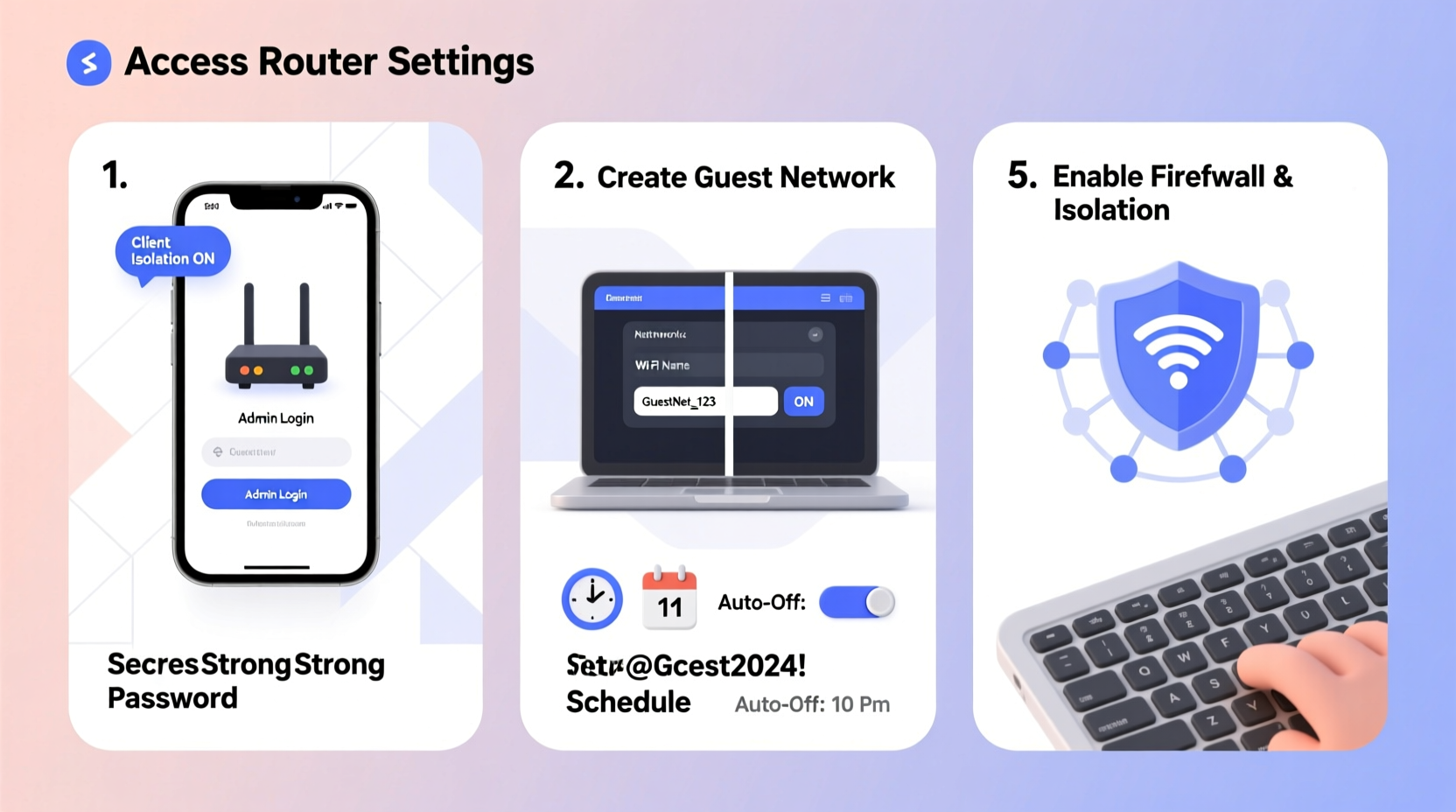
When friends, family, or contractors visit, they often expect internet access. Handing over your main WiFi password might seem convenient, but it opens the door to unintended consequences. A guest on your primary network could unknowingly introduce malware, access shared folders, or interfere with smart home devices like security cameras or thermostats.
A properly configured guest network acts as a digital buffer. It allows visitors to browse, stream, and work online without touching your private infrastructure. Most modern routers support guest networking natively, making setup accessible even for non-technical users. The key is ensuring that isolation, encryption, and monitoring are in place from the start.
“Isolating guest traffic isn’t just about privacy—it’s a fundamental layer of network defense.” — David Lin, Network Security Engineer at CyberShield Labs
Step-by-Step Guide to Setting Up a Secure Guest WiFi Network
Follow these seven steps to establish a guest network that balances convenience with strong security.
1. Check Your Router’s Guest Network Support
Not all routers offer guest networking, especially older or ISP-provided models. Begin by logging into your router’s admin interface. This is typically done by entering an IP address like 192.168.1.1 or 192.168.0.1 into a web browser. Use the default credentials (often found on a sticker on the router) or your custom login.
Navigate to the wireless settings section. Look for options labeled:
- Guest Network
- Guest Access
- Guest WiFi
- AP Isolation (related feature)
If you don’t see these, consult your router’s manual or manufacturer website. Some brands label it under “Advanced” or “Security” tabs. If your router lacks native support, consider upgrading to a model that supports multiple SSIDs and client isolation.
2. Enable the Guest Network Feature
Once located, enable the guest network option. You’ll usually find separate settings for 2.4 GHz and 5 GHz bands. It’s recommended to enable guest access on both for compatibility, though you can disable 5 GHz if speed isn’t critical for guests.
Enabling the feature will generate a new network name (SSID). Choose a clear, recognizable name such as:
SmithFamily_GuestOffice_VisitorsHomeNetwork_Guest
Avoid names that reveal personal information (e.g., JohnsLaptop) or imply administrative access (AdminWiFi).
3. Set a Strong, Unique Password
Create a dedicated password for the guest network. It should be:
- At least 12 characters long
- A mix of uppercase, lowercase, numbers, and symbols
- Not reused from any other network or account
Example: T7#mP9!kLq$v
Avoid dictionary words or predictable patterns. Rotate this password periodically—every 3–6 months—or after major gatherings. Share it verbally or via a printed card rather than texting, to reduce digital exposure.
4. Enable Client Isolation and Network Segmentation
This is the cornerstone of guest network security. Client isolation (also called AP isolation) prevents devices on the guest network from communicating with each other. Without it, a compromised laptop could scan and attack another guest’s phone.
Ensure the following settings are enabled:
- Client Isolation: Blocks device-to-device communication on the guest network.
- LAN Isolation: Prevents guest devices from accessing your main network (printers, NAS, computers).
- No DHCP Relay to Main Subnet: Ensures guest devices stay on a separate IP range.
On most routers, these are automatic when guest mode is enabled. Double-check under firewall or advanced routing settings.
5. Limit Bandwidth and Session Duration
To prevent abuse and ensure performance for your primary users, apply bandwidth controls:
- Set a download/upload cap per device (e.g., 25 Mbps).
- Use Quality of Service (QoS) rules to prioritize your main network.
- Enable time-based access (e.g., guest network auto-disables between 11 PM and 6 AM).
Some routers allow scheduling—ideal for limiting access during off-hours. For businesses, consider setting guest sessions to expire after 24 hours unless renewed.
6. Disable WPS and Firmware Updates for Guest Access
WPS (WiFi Protected Setup) is a known vulnerability. Even if disabled on your main network, confirm it’s turned off for the guest network too. Additionally, ensure firmware updates cannot be triggered from guest-connected devices.
Review your router’s remote management settings. Disable WAN access to the admin panel and ensure UPnP (Universal Plug and Play) is restricted to the main network only.
7. Monitor and Audit Regularly
After setup, review connected devices weekly. Most routers display active clients under “Attached Devices” or “Network Map.” Look for unknown or suspicious entries.
Log in monthly to:
- Rotate the guest password
- Check for firmware updates
- Review logs for failed login attempts
Consider using third-party tools like Fing or Wireshark (for advanced users) to analyze traffic patterns and detect anomalies.
Best Practices Checklist
Use this checklist to ensure your guest WiFi remains secure over time:
- ✅ Confirm router supports guest networking
- ✅ Log in to router admin panel securely (HTTPS if available)
- ✅ Enable guest network on 2.4 GHz and/or 5 GHz bands
- ✅ Set a unique, strong password (12+ characters)
- ✅ Enable client and LAN isolation
- ✅ Assign guest network to a separate IP subnet
- ✅ Limit bandwidth to prevent hogging
- ✅ Disable WPS and remote administration for guests
- ✅ Schedule network downtime if desired
- ✅ Test connectivity and isolation with two devices
- ✅ Review connected devices monthly
- ✅ Update router firmware quarterly
Common Pitfalls and How to Avoid Them
Even well-intentioned setups can fail due to overlooked details. Below is a comparison of common mistakes versus correct practices.
| Do’s | Don’ts |
|---|---|
| Use a unique SSID and password for guests | Reuse your main WiFi password |
| Enable client and network isolation | Allow file sharing or printer access to guests |
| Place guest network on a different subnet | Let guest devices obtain IPs from your main DHCP pool |
| Update router firmware regularly | Ignore firmware update notifications |
| Monitor connected devices monthly | Assume “no complaints” means no issues |
Real-World Example: Securing a Home Office for Clients
Sarah runs a freelance design business from her home. Clients occasionally visit for meetings and expect WiFi access to review portfolios or upload files. Initially, she shared her main network password, but noticed sluggish performance and discovered an unfamiliar device had accessed her network-attached storage (NAS).
She followed the steps in this guide: enabling a guest network named DesignStudio_Guest, setting a complex password, and enabling full isolation. She also limited bandwidth to 20 Mbps per device and scheduled the network to turn off after 8 PM.
Within weeks, her main network became more stable, and she received fewer support requests from clients experiencing connectivity issues. When a contractor later brought an infected tablet, it couldn’t spread malware to her systems—thanks to proper segmentation.
Frequently Asked Questions
Can a guest access my main network if I share the same router?
No—if client and LAN isolation are properly enabled. The guest network operates on a separate logical channel, preventing access to devices on your primary subnet. However, misconfiguration can break this barrier, so always test isolation by attempting to ping a main-network device from a guest-connected laptop.
Should I use WPA2 or WPA3 for my guest network?
Use WPA3 if your router and most guest devices support it. Otherwise, WPA2-PSK (AES) is still secure. Avoid WPA or WEP, which are outdated and easily cracked. Note: Some older smartphones or IoT devices may not support WPA3, so assess your typical guests’ tech before choosing.
Is a guest network enough protection, or do I need a firewall?
A guest network provides basic segmentation, but a built-in router firewall enhances protection by filtering malicious traffic. High-end routers include SPI (Stateful Packet Inspection) and DoS protection. For added security, consider a dedicated firewall appliance or software like pfSense, especially in professional environments.
Conclusion: Take Control of Your Network’s Security Today
Setting up a secure guest WiFi network is a simple yet powerful step toward protecting your digital life. It shields your personal data, maintains network performance, and gives visitors a seamless experience—all without compromising safety. With modern routers, the process takes less than 20 minutes and pays dividends in peace of mind.
You don’t need to be a network engineer to get this right. By following the steps outlined here—enabling isolation, using strong passwords, and monitoring activity—you create a resilient boundary between convenience and risk. Technology should serve you, not expose you.




 浙公网安备
33010002000092号
浙公网安备
33010002000092号 浙B2-20120091-4
Comments
No comments yet. Why don't you start the discussion?