
Streaming 4K movies, hosting video calls, and playing fast-paced online games all demand a reliable, high-performance home network. Yet many households struggle with buffering, latency spikes, and dropped connections—issues that stem not from slow internet plans but from poorly configured networks. The solution isn’t upgrading your ISP plan; it’s optimizing how your network delivers bandwidth where it matters most.
A well-designed home network ensures low latency, consistent throughput, and seamless device communication. Whether you’re building a new setup or upgrading an existing one, this guide walks through every critical step—from hardware selection to fine-tuning settings—for peak performance in both streaming and gaming environments.
Assess Your Internet Needs and Usage Patterns
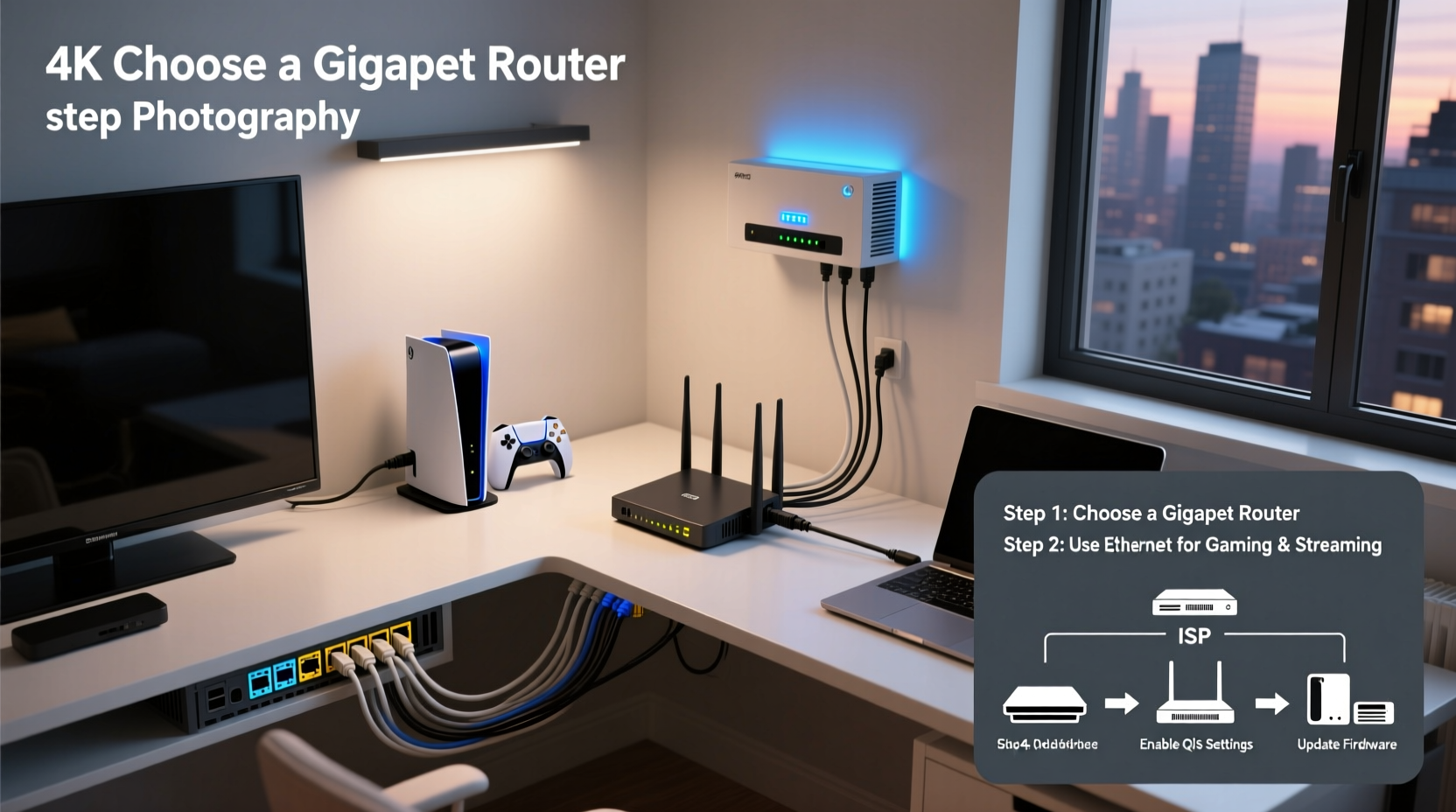
Before investing in routers or mesh systems, understand what your household actually requires. Bandwidth demands vary significantly based on the number of devices, types of content consumed, and usage intensity.
For example, a single user watching HD Netflix needs about 5 Mbps, while 4K streaming can require up to 25 Mbps per stream. Competitive gaming adds another layer: although download speed is less critical (most games use under 3 Mbps), upload stability, jitter, and ping time are crucial. High packet loss or fluctuating latency ruins gameplay even on gigabit connections.
Consider these baseline requirements:
- HD Streaming: 5–8 Mbps per stream
- 4K Streaming: 15–25 Mbps per stream
- Online Gaming: 3–6 Mbps down / 1–3 Mbps up (but sub-30ms ping preferred)
- Video Conferencing: 1.5–4 Mbps (up/down)
If four family members regularly stream 4K content while two others play multiplayer games simultaneously, you’ll need at least 100 Mbps of stable throughput—preferably more to account for overhead and traffic bursts.
Select the Right Networking Hardware
Your router is the command center of your network. Choosing outdated or underpowered equipment undermines even the fastest internet plan. Prioritize modern standards and features tailored for media-heavy and latency-sensitive applications.
Key Features to Look For:
- Wi-Fi 6 (802.11ax): Offers better efficiency, higher throughput, and improved handling of multiple connected devices compared to Wi-Fi 5.
- Multi-Gig WAN/LAN Ports: Essential if your ISP offers 500 Mbps or faster. Gigabit Ethernet caps at ~940 Mbps; multi-gig ports support 2.5 Gbps or higher.
- Quality of Service (QoS): Allows you to prioritize gaming or streaming traffic over background downloads.
- Dual-Band or Tri-Band Design: Separates 2.4 GHz (range) and 5 GHz (speed) bands. Tri-band routers add a second 5 GHz channel to reduce congestion.
- OFDMA and MU-MIMO: Enables simultaneous data transmission to multiple devices, reducing lag in busy networks.
Router vs. Mesh System: Which Do You Need?
Single-router setups work well in apartments or homes under 1,500 sq ft with minimal obstructions. Larger homes or those with thick walls benefit from mesh Wi-Fi systems like Google Nest Wifi Pro, Netgear Orbi, or TP-Link Deco XE200 (which supports Wi-Fi 6E).
| Scenario | Recommended Setup | Rationale |
|---|---|---|
| Small apartment, few devices | High-end dual-band router (e.g., ASUS RT-AX86U) | Sufficient coverage and QoS for streaming/gaming |
| Large home, multiple floors | Tri-band mesh system (e.g., Netgear Orbi RBK753) | Dedicated backhaul band minimizes interference |
| Home office + gamer + 4K TV | Wi-Fi 6E router with wired Ethernet options | 6 GHz band reduces congestion; Ethernet ensures zero latency |
“Gamers often overlook network congestion caused by smart home devices. A dedicated access point for entertainment zones isolates critical traffic.” — David Lin, Network Engineer at Broadband Insights Group
Step-by-Step Network Setup Process
Follow this sequence to build a robust foundation for your home network.
- Connect Modem to Router: Use an Ethernet cable to link your ISP-provided modem (or gateway) to the router’s WAN port. Power cycle both devices after connection.
- Update Firmware: Access the router’s admin interface (usually via 192.168.1.1 or vendor-specific app). Check for firmware updates immediately—these often include security patches and performance improvements.
- Configure SSID and Passwords: Set unique names for 2.4 GHz and 5 GHz networks (e.g., “Home_Network_2G” and “Home_Network_5G”). Use WPA3 encryption if available; otherwise, WPA2-AES.
- Enable Quality of Service (QoS): Navigate to QoS settings and prioritize devices used for gaming (PCs, consoles) and streaming (smart TVs, Apple TV). Assign higher priority to UDP/TCP ports commonly used by services like Xbox Live (port 3074) or Steam.
- Optimize Channel Selection: In crowded urban areas, automatic channel selection may default to congested frequencies. Manually set 5 GHz to non-overlapping channels like 36, 40, 44, or 48. Avoid DFS channels unless necessary.
- Set Up Guest Network: Isolate IoT devices (smart bulbs, cameras) on a separate SSID to prevent them from consuming bandwidth needed for gaming or streaming.
- Position Equipment Strategically: Place the router or primary mesh node centrally, elevated, and away from metal objects, microwaves, and cordless phones.
Maximize Performance with Wired Connections and Advanced Tweaks
While Wi-Fi has improved dramatically, nothing beats a wired Ethernet connection for stability and speed—especially for gaming consoles and streaming boxes.
Run Cat 6 or Cat 6a cables from your router to key locations: living room (TV, console), home office (PC), and bedroom (media PC). If running wires isn't feasible, consider MoCA adapters (over coaxial cable) or powerline Ethernet kits as alternatives—though performance varies by electrical circuit quality.
Advanced Settings for Gamers and Streamers
- Port Forwarding: Assign static IP addresses to gaming devices and open specific ports required by platforms (e.g., PSN, Xbox, PC game servers).
- Disable Band Steering: Some routers aggressively push devices to 5 GHz, causing instability. Disable this and let devices choose intelligently.
- Use DNS Optimization: Switch to low-latency DNS services like Cloudflare (1.1.1.1) or Google DNS (8.8.8.8) instead of ISP defaults.
- Limit Background Traffic: Schedule large downloads (cloud backups, OS updates) for off-peak hours via parental controls or scheduling tools.
Mini Case Study: The Lagging Gamer in Austin
Mark, a competitive Fortnite player in Austin, experienced frequent rubber-banding despite having a 300 Mbps plan. His router was tucked behind the TV cabinet, surrounded by electronics. After moving the router to a central shelf and connecting his PS5 via Ethernet, his ping dropped from 68 ms to 23 ms. He also enabled QoS to prioritize his console and disabled auto-updates on other devices during gaming hours. Buffering vanished, and match consistency improved overnight.
Essential Maintenance and Monitoring Routine
A great network isn’t “set and forget.” Regular checks ensure long-term reliability.
📋 Monthly Home Network Checklist- ✅ Reboot modem and router to clear memory leaks
- ✅ Verify all devices receive expected speeds (use wired test first)
- ✅ Review connected devices list for unknown entries
- ✅ Confirm firmware hasn’t updated automatically (check changelog)
- ✅ Test Wi-Fi signal strength in key rooms using apps like Wi-Fi Analyzer
Monitor bandwidth usage through your router’s dashboard. Sudden spikes may indicate unauthorized access or malfunctioning smart devices. Many modern routers offer mobile apps that send alerts when anomalies occur.
Frequently Asked Questions
Do I need a mesh system if I already have strong Wi-Fi?
Not necessarily. If all your streaming and gaming devices are within range of your main router and perform well, a mesh system adds unnecessary complexity. However, if you experience dead zones or inconsistent performance in distant rooms, mesh nodes can extend coverage without sacrificing speed.
Why does my game lag even with fast internet?
Download speed isn’t the only factor. High latency (ping), jitter (variation in ping), or packet loss can disrupt real-time gameplay. These issues often stem from Wi-Fi interference, network congestion, or ISP routing inefficiencies. Try switching to Ethernet, enabling QoS, or contacting your ISP about routing paths to gaming servers.
Can too many devices slow down streaming and gaming?
Yes. Each connected device consumes network resources—even when idle. Smart speakers, phones, and IoT gadgets constantly communicate with cloud servers. Use your router’s device prioritization tools to allocate bandwidth fairly and isolate non-critical devices on a guest network.
Final Steps Toward a Seamless Digital Experience
Building a high-performance home network doesn’t require technical expertise—just careful planning and attention to detail. By selecting appropriate hardware, configuring settings strategically, and maintaining the system proactively, you create an environment where 4K streams load instantly and online matches run smoothly.
The goal isn’t just speed; it’s consistency. A network that performs reliably under load gives you freedom—whether you're hosting a movie night, joining a ranked match, or working remotely. Start with one improvement today: reposition your router, enable QoS, or plug in an Ethernet cable. Small changes compound into transformative results.




 浙公网安备
33010002000092号
浙公网安备
33010002000092号 浙B2-20120091-4
Comments
No comments yet. Why don't you start the discussion?