
Setting up a new email account on your smartphone is one of the most essential digital tasks, whether you're starting a new job, creating a personal account, or managing multiple inboxes. While it may seem straightforward, missteps during setup can lead to missed messages, sync issues, or security vulnerabilities. This guide walks you through the entire process with precision, offering platform-specific instructions, expert insights, and real-world tips to ensure a smooth and secure configuration.
Why Proper Email Setup Matters
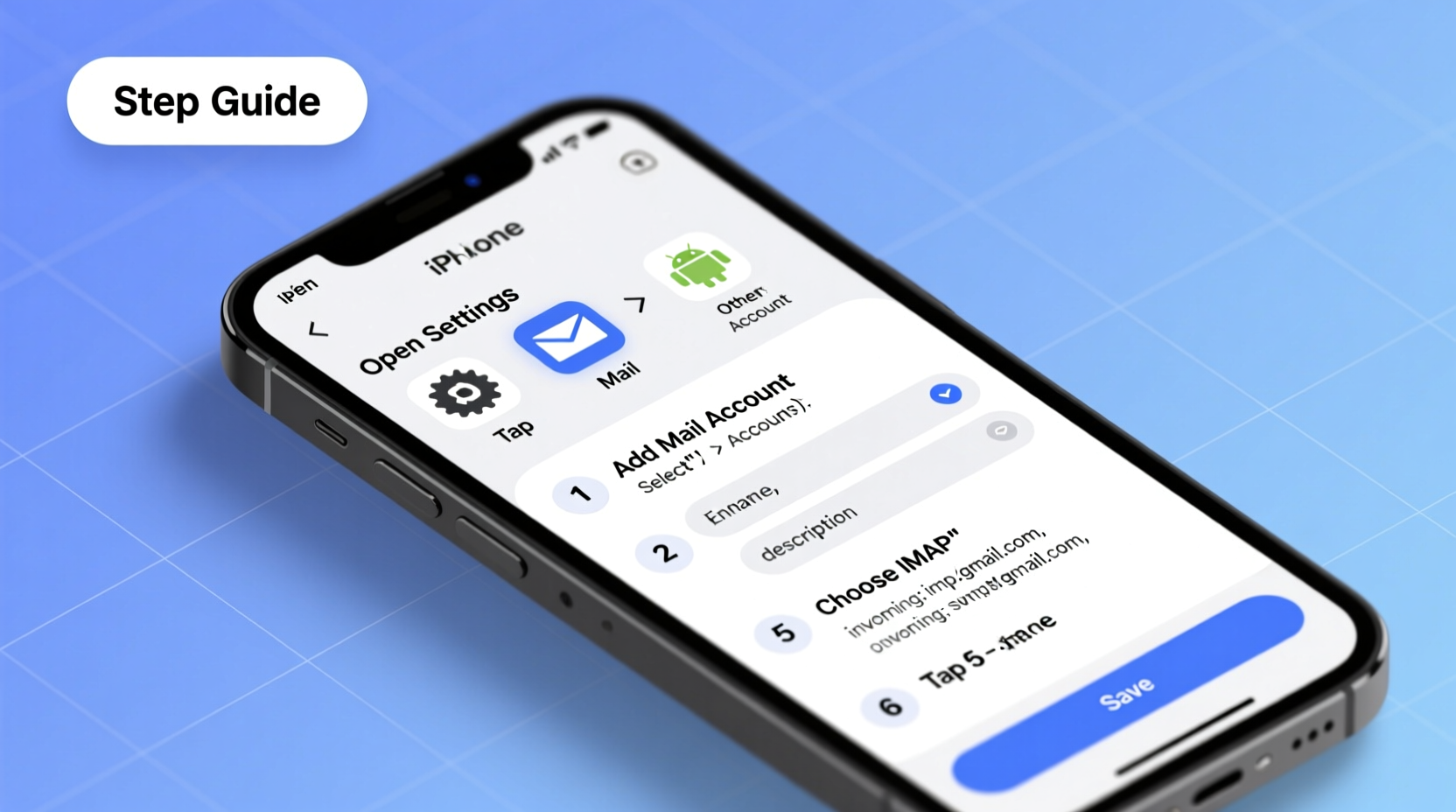
Your phone is likely the device you check most frequently throughout the day. Having your email properly configured ensures instant access to important messages, calendar events, and contacts. A well-set-up account also enables push notifications, two-factor authentication, and seamless integration with other productivity tools like task managers and cloud storage.
Mistakes such as entering incorrect server settings, skipping security verification, or enabling insecure protocols can result in failed delivery, data exposure, or drained battery life from constant syncing errors. Taking the time to set up your email correctly the first time saves hours of troubleshooting later.
Step-by-Step Guide: Setting Up Email on iPhone (iOS)
iOS supports major providers like Gmail, Outlook, Yahoo, and iCloud out of the box, using automatic configuration. For custom domains or less common services, manual setup may be required.
- Open Settings → Tap “Mail” → Select “Accounts.”
- Tap Add Account.
- Choose your provider (e.g., Google, iCloud, Exchange). If your provider isn’t listed, select “Other.”
- Enter your name, email address, password, and a description (e.g., “Work Email”).
- Tap Next. iOS will attempt to auto-configure the account using its database.
- If automatic setup fails, you’ll need to enter IMAP/SMTP details manually:
- Incoming Mail Server (IMAP): imap.yourdomain.com, Port 993, SSL enabled
- Outgoing Mail Server (SMTP): smtp.yourdomain.com, Port 587, TLS enabled
- Select which data to sync: Mail, Contacts, Calendars, Notes.
- Tap Save. The account will now appear in the Mail app.
Step-by-Step Guide: Setting Up Email on Android
Android offers flexibility across manufacturers and email clients. Google’s native Gmail app simplifies setup for most accounts, but you can also use third-party apps like Outlook or the built-in Email app.
- Open the Gmail app.
- Tap your profile icon in the top-right → “Add another account.”
- Select your provider type: Google, Outlook.com, Yahoo, or “Other email provider.”
- Enter your full email address and tap Next.
- Enter your password and tap Next.
- If prompted, allow Gmail to access account settings via OAuth (recommended for security).
- For non-OAuth accounts, you may need to input:
- IMAP Server: imap.example.com (Port 993, SSL/TLS)
- SMTP Server: smtp.example.com (Port 587, STARTTLS)
- Customize sync frequency, notification preferences, and mailbox organization.
- Tap Done. Your inbox will begin syncing.
“Modern smartphones support OAuth authentication, which is far more secure than storing passwords directly on the device.” — David Lin, Mobile Security Analyst at CyberShield Labs
Email Setup Checklist
Use this checklist to ensure nothing is missed during setup:
- ✅ Confirm your email address and password are correct
- ✅ Verify that two-factor authentication (2FA) is enabled on the account
- ✅ Use app-specific passwords if 2FA is enabled and required
- ✅ Enable encryption (SSL/TLS) for incoming and outgoing servers
- ✅ Test sending and receiving a message after setup
- ✅ Set up spam filters and primary/promotional tab preferences
- ✅ Backup account settings or note them down in a secure place
Common Providers: Configuration Overview
The table below summarizes server settings for popular email services when manual setup is needed.
| Provider | Incoming Server (IMAP) | Port | Outgoing Server (SMTP) | Port | Encryption |
|---|---|---|---|---|---|
| Gmail | imap.gmail.com | 993 | smtp.gmail.com | 587 | SSL/TLS |
| Outlook.com / Hotmail | outlook.office365.com | 993 | smtp-mail.outlook.com | 587 | TLS |
| Yahoo Mail | imap.mail.yahoo.com | 993 | smtp.mail.yahoo.com | 587 | SSL/TLS |
| Apple iCloud | imap.mail.me.com | 993 | smtp.mail.me.com | 587 | SSL |
| Custom Domain (cPanel) | mail.yourdomain.com | 993 | mail.yourdomain.com | 587 | TLS |
Real Example: Maria Sets Up Her Work Email
Maria recently started a remote position and needed to configure her company email (hosted on Microsoft 365) on her Android phone. She opened the Gmail app, selected “Add account,” then chose “Work or school account.” After entering her email, she was redirected to her company’s login portal where she completed two-factor authentication using an authenticator app. The Gmail app automatically detected all necessary settings, including calendar and contact sync. Within three minutes, Maria had full access to her inbox, scheduled meetings, and team contacts—all securely authenticated without ever typing her main password into the phone.
This scenario highlights how modern identity systems streamline setup while enhancing security. When available, always opt for OAuth or SSO (Single Sign-On) methods over manual password entry.
Security Best Practices After Setup
Configuring your email is just the beginning. Protecting your account is ongoing.
- Enable Two-Factor Authentication (2FA): Even if your phone stores the password, 2FA prevents unauthorized access if the device is lost.
- Use App-Specific Passwords: For accounts like Gmail with 2FA enabled, generate unique passwords for each device instead of using your main password.
- Review Active Devices: Periodically check which devices are logged into your email account and remove old or unknown ones.
- Lock Your Phone: Use biometric or strong PIN protection. An unlocked phone with email access is a major security risk.
- Disable Auto-Download on Public Wi-Fi: Prevent sensitive attachments from downloading automatically over unsecured networks.
Frequently Asked Questions
Why won’t my email sync after setup?
Synchronization issues often stem from incorrect password entry, disabled IMAP in the webmail settings, or firewall restrictions. Log in to your email via a browser and confirm IMAP/POP access is enabled. Also, verify your date and time settings are correct on your phone, as SSL certificates rely on accurate system clocks.
Can I have multiple email accounts on one phone?
Yes. Both iOS and Android support multiple accounts across different providers. You can view them separately or consolidate into a unified inbox depending on your preferred email client. Most users manage 3–5 accounts efficiently without performance issues.
Is it safe to store work email on my personal phone?
It can be, provided your employer allows it and you follow their security policies. Ensure your phone has a passcode, remote wipe capability, and avoid public Wi-Fi for sensitive emails. Some organizations require mobile device management (MDM) software to enforce compliance.
Final Steps: Test and Optimize
After setup, send a test email to yourself from another account. Check that replies are properly attributed and signatures appear if configured. Adjust notification sounds, vibration patterns, and banner visibility based on priority. Consider organizing folders or labels to keep your mobile inbox clutter-free.
Take a moment to explore advanced features: swipe gestures, undo send (in Gmail), scheduled emails, and offline access. These tools enhance productivity and reduce stress from constant connectivity.
Start Today—Stay Connected with Confidence
Setting up a new email account on your phone doesn’t have to be intimidating. With clear steps, reliable settings, and attention to security, you can gain immediate access to your digital communications. Whether it’s personal correspondence, professional collaboration, or financial updates, having your email at your fingertips empowers better decisions and faster responses.




 浙公网安备
33010002000092号
浙公网安备
33010002000092号 浙B2-20120091-4
Comments
No comments yet. Why don't you start the discussion?