
Publishing a document as a PDF is common practice across industries, but not all PDFs are created equally when it comes to collaboration. A poorly configured file can block edits, limit access, or create formatting issues across devices. To ensure your PDF supports smooth sharing and efficient editing, it needs deliberate preparation—from structuring content correctly to enabling the right permissions. This guide walks through every essential step to transform your document into a user-friendly, editable, and widely accessible PDF.
1. Start with an Editable Source Document
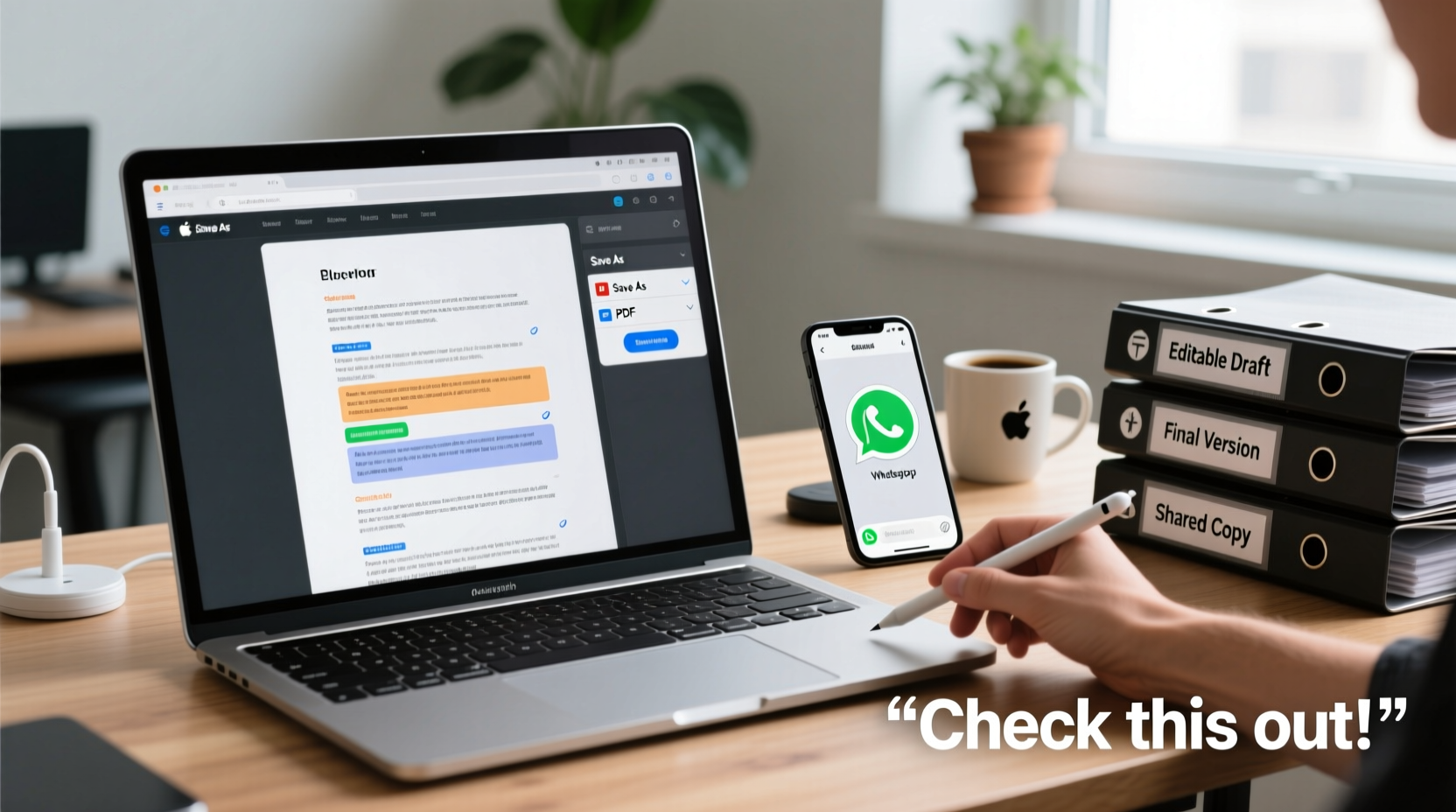
Before exporting to PDF, ensure your original file (Word, Google Docs, Pages, etc.) is clean, well-organized, and fully editable. This is the foundation of a shareable PDF. Use consistent heading styles, proper paragraph spacing, and avoid embedding text within images. These choices preserve accessibility and allow others to extract or modify content later.
If you're using Microsoft Word, enable the Navigation Pane to review your document's outline. In Google Docs, use built-in heading levels instead of manually bolded titles. This semantic structure carries over into the PDF, making it easier for screen readers and editing tools to interpret the content.
2. Optimize PDF Settings During Export
When converting to PDF, default settings often prioritize appearance over functionality. Adjust export options to support interactivity and future editing. In most applications, this happens during the “Save As” or “Export to PDF” process.
In Microsoft Word or Adobe Acrobat, select “Best for Electronic Distribution” or “Optimize for Standard” rather than “High Quality Print.” This reduces file size and enables features like form fields, comments, and embedded links. Ensure the following options are checked:
- Document properties (author, title, subject)
- Bookmarks from headings
- Interactive elements (hyperlinks, form fields)
- Accessibility tags
These settings make the PDF more navigable and compatible with assistive technologies and editing platforms.
Key Export Checklist
- Use \"Save As PDF\" with optimized digital settings
- Preserve document structure with tagged content
- Include bookmarks for major sections
- Embed fonts to prevent display issues
- Enable accessibility features
3. Set Permissions for Sharing and Editing
A PDF’s usefulness depends on what users are allowed to do. By default, many PDFs restrict copying, printing, or annotating. To encourage collaboration, configure permissions that align with your intent.
Using Adobe Acrobat Pro or free tools like PDFtk or Smallpdf, you can set password-protected permissions. For shared documents, allow these actions:
- Commenting and highlighting
- Text extraction for notes
- Filling out forms (if applicable)
- Assembly of pages (adding/removing)
Avoid restricting basic interactions unless sensitive data is involved. Overly locked files frustrate collaborators and may force them to recreate content manually, increasing error risk.
| Action | Recommended Setting | Risks if Restricted |
|---|---|---|
| Comment & Annotate | Allowed | Prevents feedback and suggestions |
| Copy Text | Allowed | Hampers research and citation |
| Edit Content | Allowed (with caution) | May cause version confusion |
| Allowed | Reduces usability for offline review |
“PDFs should be gateways to collaboration, not barriers. Enable commenting and text selection by default unless security demands otherwise.” — Lena Torres, Digital Workflow Consultant
4. Facilitate Real-Time Collaboration with Cloud Tools
While a PDF is static by nature, modern cloud platforms add dynamic layers for teamwork. Uploading your properly configured PDF to services like Google Drive, Dropbox, or Microsoft OneDrive unlocks real-time commenting, version tracking, and shared annotations.
To maximize effectiveness:
- Upload the PDF to a shared folder with clear naming (e.g., “Project_Report_Draft_v2.pdf”)
- Set viewer permissions appropriately—edit access only for core contributors
- Use comment threads to discuss specific lines or sections
- Enable notifications so team members stay updated
Some platforms, like DocHub or PDFescape, allow direct in-browser editing of text and forms within a PDF. These tools preserve layout while supporting changes, bridging the gap between static documents and live collaboration.
Mini Case Study: Streamlining Team Reviews at NexaCorp
NexaCorp, a mid-sized consulting firm, struggled with inconsistent feedback on client reports. Editors used printed copies, while remote team members emailed tracked changes in Word, leading to version chaos. After switching to a standardized PDF workflow, they began exporting final drafts from Word with tagging and bookmarks enabled, then uploading them to Google Drive with commenting rights.
Within weeks, review cycles shortened by 40%. Team members added time-stamped comments directly on charts and paragraphs. The lead editor consolidated feedback without opening multiple files. The structured PDF became the single source of truth, reducing errors and improving turnaround time.
5. Test Compatibility and Accessibility
A well-set-up PDF must function across devices and meet accessibility standards. Before finalizing distribution, test the file on different platforms: Windows, macOS, iOS, Android, and web browsers. Open it in Adobe Reader, Apple Preview, and online viewers to confirm layout integrity.
Ensure accessibility by checking:
- Screen reader navigation via headings and alt text
- Logical reading order (use the “Read Out Loud” feature in Acrobat)
- Color contrast for visually impaired users
- Keyboard-only navigation support
Tools like Adobe’s Accessibility Checker or the free PAC 2022 validator can scan your PDF for compliance with WCAG and PDF/UA standards. Fix any reported issues—such as missing tags or unmarked images—before sharing.
Frequently Asked Questions
Can people edit a PDF without special software?
Yes—many free tools like Google Docs (via upload), PDFescape, or Microsoft Edge’s annotate feature allow basic text edits, highlights, and comments. However, complex layout changes may require desktop software like Adobe Acrobat or LibreOffice Draw.
How do I know if my PDF is accessible?
Use Adobe Acrobat’s “Accessibility Checker” under the “Tools” panel. It identifies missing tags, low contrast, and other barriers. Alternatively, open the PDF with a screen reader like NVDA or VoiceOver to experience navigation firsthand.
What’s the best way to collect feedback on a PDF?
Share the file via a cloud platform that supports threaded comments—Google Drive, Dropbox Paper, or Notion work well. Encourage reviewers to use sticky notes or highlight+comment features rather than emailing separate notes.
Final Steps: Distribute with Confidence
Once your PDF is structured, permissioned, and tested, distribute it with clear instructions. Include a brief note: “Please add comments using the tools in your PDF viewer. Avoid editing text directly unless authorized.” This sets expectations and maintains control over revisions.
For ongoing projects, establish a versioning system: increment the filename with each update (v1, v2, final_review, approved). Store older versions in an archive folder to maintain a clean audit trail.
“A properly prepared PDF isn’t just a document—it’s a collaboration hub.” — Rajiv Mehta, Document Systems Engineer
Take Action Today
Don’t let outdated PDF habits slow down your team. Revisit your next document with these steps in mind: start clean, export smart, enable interaction, and test thoroughly. Whether you're sharing a report, proposal, or contract, a thoughtfully configured PDF saves time, reduces errors, and invites meaningful input. Apply this guide to your next file and experience how a simple format can become a powerful tool for connection and productivity.




 浙公网安备
33010002000092号
浙公网安备
33010002000092号 浙B2-20120091-4
Comments
No comments yet. Why don't you start the discussion?