
Visiting the Apple Store can be a seamless experience when you plan ahead. Whether you need technical support, want to purchase a new device, or are attending a free Today at Apple session, booking an appointment ensures you’re seen quickly and efficiently. Walk-ins are accepted, but they come with unpredictable wait times. Scheduling in advance gives you control over your schedule and access to specialized services like Genius Bar repairs or personal setup assistance. This guide walks you through every stage of securing your Apple Store appointment—quickly, correctly, and without confusion.
Why You Should Book an Appointment Instead of Walking In
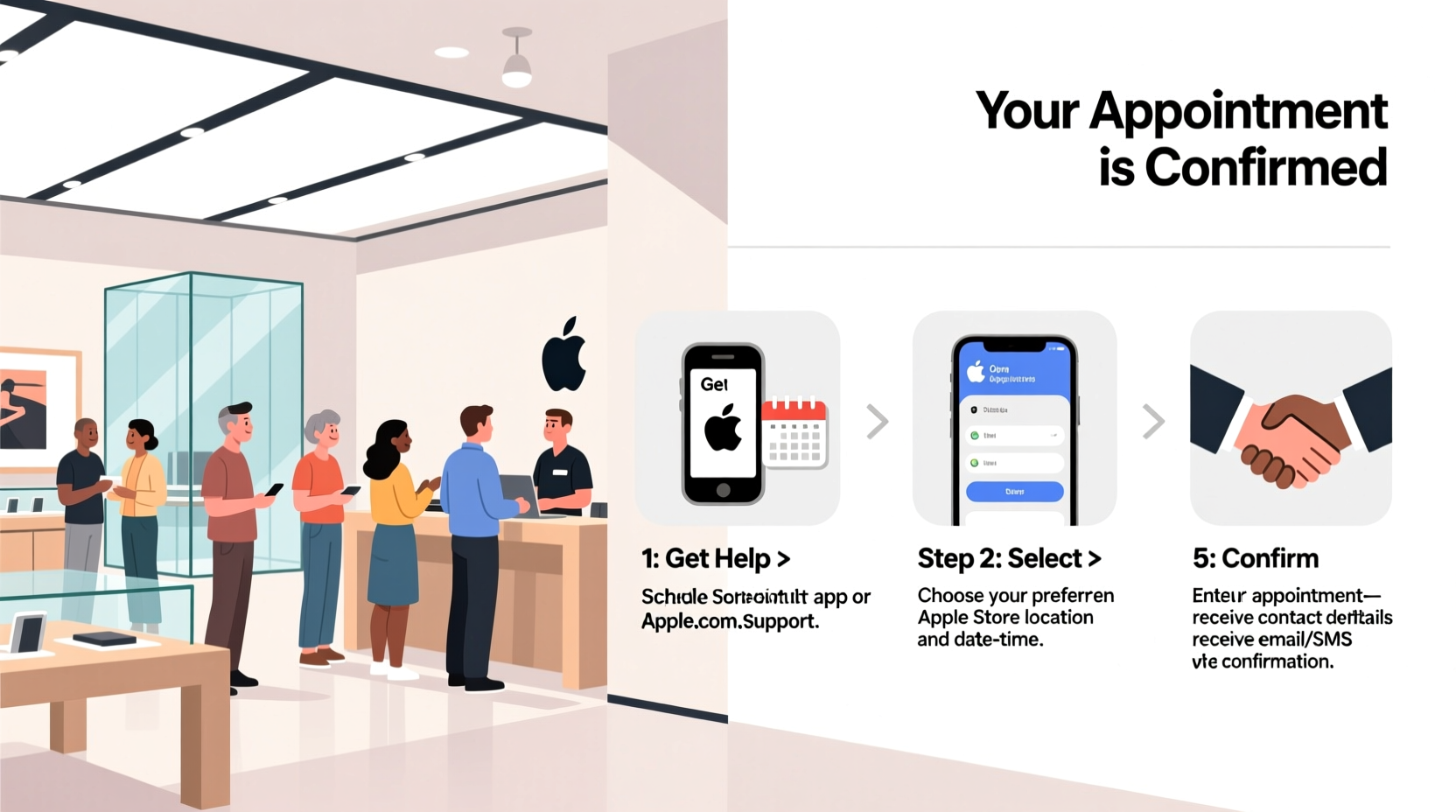
Apple designed its appointment system to streamline customer service and reduce congestion in stores. Without a reservation, you risk long waits, especially during peak hours or product launch periods. Appointments guarantee face time with trained specialists such as Genius Technicians, Specialists for sales, or Creative Pros for workshops.
Additionally, certain services—including hardware diagnostics, battery replacements, and screen repairs—are only available through scheduled visits. Apple also uses appointments to verify your device information beforehand, which speeds up troubleshooting on arrival.
Step-by-Step Guide to Booking Your Apple Store Appointment
- Open the Apple Support App or Visit the Website
The fastest way to book is via the Apple Support app (available on iOS) or by visiting getsupport.apple.com. Both options connect directly to your Apple ID and device list. - Select Your Device
After signing in, choose the device you need help with from your registered devices. If it’s not listed, add it manually using the serial number found in Settings > General > About. - Choose the Type of Service Needed
Options include:- Genius Bar – For repairs and diagnostics
- Today at Apple – Free creative sessions
- Shopping Help – Assistance purchasing products
- Personal Setup – Help transferring data or setting up new devices
- Select “Get Help at an Apple Store”
Tap this option to proceed. The system will prompt you to allow location access or let you enter your ZIP code to find nearby locations. - Pick a Date and Time
Available slots appear based on technician availability and service demand. Early mornings and weekday afternoons typically have more openings. Select the most convenient slot. - Confirm Your Appointment
Review details including store address, time, reason for visit, and required documents (e.g., proof of purchase, ID). Confirm the booking. You’ll receive a confirmation email and calendar invite with a QR code for check-in.
What to Bring to Your Appointment
Walking into your appointment unprepared can delay service. Apple may refuse to work on a device if essential items are missing. Use this checklist to ensure you're ready:
- ✅ Your Apple device (charged and powered on)
- ✅ Password or passcode (required for diagnostics)
- ✅ Proof of ownership (receipt, original box label, or credit card used)
- ✅ Government-issued photo ID (especially for high-value repairs)
- ✅ Any related accessories (chargers, cases, cables)
- ✅ AppleCare+ or warranty documentation (if applicable)
For shopping appointments, bring your trade-in device if upgrading, along with any financing preferences. For Personal Setup, ensure your old phone has all data backed up via iCloud or iTunes.
Common Mistakes That Delay Appointments
Even with a confirmed reservation, mistakes happen. These issues commonly disrupt service:
| Mistake | Consequence | Solution |
|---|---|---|
| Arriving late | Rescheduled or walk-in status | Aim to arrive 10–15 minutes early |
| Device not charged | Diagnostics impossible | Charge fully before leaving home |
| No passcode provided | Technician cannot test functionality | Be present and ready to unlock |
| Missing receipt for out-of-warranty repair | Service denied or higher quote | Keep digital copies in Notes or email |
“Over 30% of no-shows or delays stem from forgotten passwords or dead batteries. A little prep saves 45 minutes on average.” — Carlos Mendez, Former Apple Store Team Lead
Real Example: How Sarah Fixed Her iPhone Screen in Under Two Hours
Sarah noticed a hairline crack spreading across her iPhone 14 Pro display after dropping it. She didn’t panic. Instead, she opened the Apple Support app, selected her device, and chose “Screen Repair” under Genius Bar services. Within seconds, three time slots appeared at her local mall location. She picked one for the next morning at 9:15 AM.
Before bed, she backed up her data and ensured the phone was charged. On the day of the appointment, she brought her phone, case, charger, driver’s license, and a printed copy of her AppleCare+ coverage. At the store, she scanned her QR code at the kiosk, greeted the Specialist by name, and was taken directly to the back area. Diagnosis took five minutes. Because she had AppleCare+, the screen replacement cost $29 instead of $329. By 10:45 AM, she was walking out with a brand-new display—no waiting, no surprises.
Alternative Ways to Access Apple Support
If booking in-store feels inconvenient, consider these alternatives:
- Live Chat Support: Visit support.apple.com and initiate a chat with an advisor who can troubleshoot software issues remotely.
- Phone Support: Call Apple directly. Representatives can schedule appointments for you and sometimes resolve issues over the call.
- Mail-In Repairs: For eligible hardware problems, Apple may offer prepaid shipping boxes so you can send your device securely.
- Self-Service Repair: Through the Self Service Repair program, users can order genuine parts and tools to fix their own devices.
However, for complex issues involving logic boards, water damage, or calibration, in-person service remains the gold standard.
Frequently Asked Questions
Can I reschedule or cancel my Apple Store appointment?
Yes. Open your confirmation email or go to the Apple Support app, tap “Manage Appointment,” then select “Reschedule” or “Cancel.” Do this at least two hours in advance to maintain priority access later.
Do I need an appointment to buy an iPhone in-store?
No, but it’s highly recommended. While you can walk in and purchase devices, booking a shopping appointment ensures dedicated assistance, faster checkout, and immediate activation support. It’s especially useful during holiday seasons or new product launches.
Are Today at Apple sessions really free?
Yes. All Today at Apple sessions—from photography tips to coding workshops—are completely free. However, registration is required due to limited seating. These are excellent opportunities to learn skills while meeting local creators.
Final Tips for a Smooth Experience
Maximize your Apple Store visit by combining services when possible. If you’re getting a repair, ask about Personal Setup while you wait. Many customers use downtime during same-day repairs to attend short workshops or consult with Specialists about future upgrades.
Also, enable notifications in the Apple Support app. Apple occasionally sends reminders, last-minute openings, or post-visit surveys that help improve service quality.
Take Control of Your Apple Experience
Setting up an appointment at the Apple Store isn’t just convenient—it’s the smartest way to get expert help without wasting time. With a few taps on your iPhone or a quick web visit, you secure priority access, reduce stress, and ensure your device gets the care it deserves. Whether you're troubleshooting a glitch, upgrading to the latest iPad, or learning how to edit videos in iMovie, preparation is power. Don’t leave your tech needs to chance. Book your next appointment today and walk into the store with confidence.




 浙公网安备
33010002000092号
浙公网安备
33010002000092号 浙B2-20120091-4
Comments
No comments yet. Why don't you start the discussion?