
Local businesses today rely heavily on digital presence, and a well-optimized Google Business Profile (GBP) is one of the most powerful tools available. It influences search rankings, builds trust with customers, and drives foot traffic and calls. Yet, many businesses set up their profile once and forget it—missing out on consistent visibility and engagement opportunities. This guide walks through the complete process of creating, verifying, and continuously optimizing your Google Business Page to ensure you appear at the top of local searches.
1. Claim and Verify Your Google Business Profile
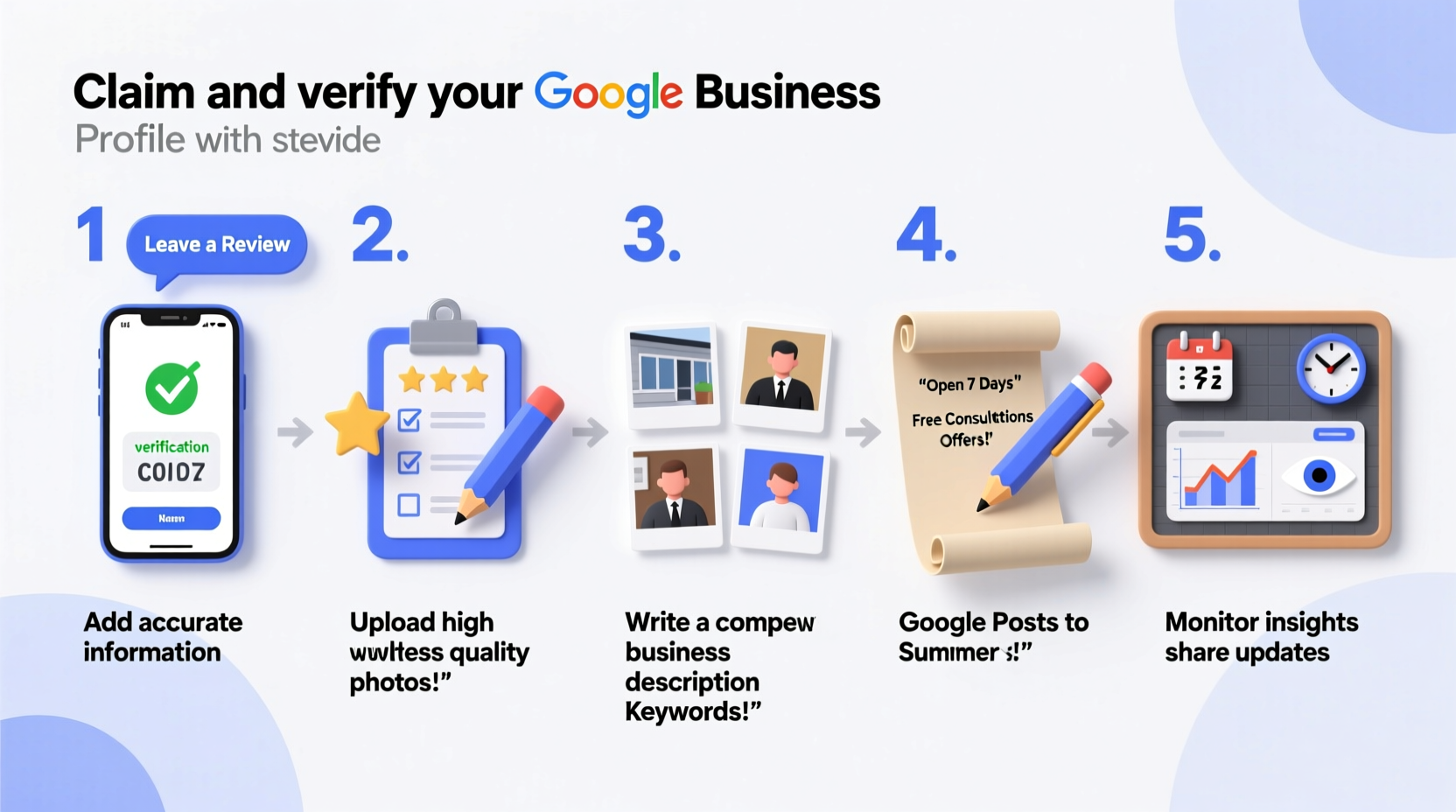
The first step in establishing a strong local presence is claiming your business on Google. If your business already appears in Google Search or Maps when someone types your name or service, you may just need to claim it. If not, you’ll create a new listing.
- Go to Google Business and sign in with your Google account.
- Click “Manage now” and enter your business name.
- If your business appears in the dropdown, select it. Otherwise, choose “Add your business.”
- Enter accurate details: business name, address, service area (if applicable), phone number, website, and category.
- Select the appropriate primary category—this significantly impacts how Google understands and ranks your business.
- Verify your business. Most businesses receive a postcard with a verification code mailed to their physical address within 5–14 days. Some may qualify for instant verification via phone or email.
2. Optimize Your Profile for Local Search
Once verified, optimization begins. Google uses your profile data to determine relevance, distance, and prominence. To maximize visibility, every field must be filled thoughtfully.
Key Optimization Areas
- Business Name: Must match real-world branding exactly.
- Address: Include suite numbers if applicable. For service-area businesses, hide the full address but specify regions served.
- Phone Number: Use a local number, not a national call center line.
- Website URL: Link to a dedicated landing page if possible, not just your homepage.
- Hours of Operation: Keep these updated, including special holiday hours.
- Attributes: Add features like “Women-owned,” “Wheelchair accessible,” or “Free Wi-Fi” to stand out.
| Element | Do’s | Don’ts |
|---|---|---|
| Business Category | Choose the most specific primary category (e.g., “Italian Restaurant” over “Restaurant”) | Avoid generic categories; don’t use multiple primary categories |
| Description | Use natural language, include location and services (under 750 characters) | No keywords stuffing, promotions, or links |
| Photos | Add high-quality images of storefront, team, products, and interior | Don’t upload watermarked or stock photos |
“Over 60% of consumers visit a business within a day of searching on Google Maps. A complete, optimized profile is non-negotiable.” — Sarah Kim, Local SEO Strategist at BrightLocal
3. Leverage Visual Content and Posts
Photos and regular posts dramatically increase engagement and trust. Google favors active profiles, and visual content can boost click-through rates by up to 35%.
Photo Best Practices
- Upload at least 10–15 high-resolution images.
- Categorize them: exterior, interior, team, products/services, and logo.
- Update seasonally—show holiday decor or summer specials.
Using GBP Posts
Think of GBP posts as mini-updates that appear directly in search results. They’re ideal for promoting offers, events, news, or seasonal services.
- Navigate to your GBP dashboard.
- Click “Posts” and choose type: Offer, Event, Update, or What’s New.
- Add a compelling headline, short description (300 characters max), image, and CTA button (e.g., “Book,” “Learn More”).
- Schedule recurring posts monthly to maintain visibility.
4. Encourage and Manage Customer Reviews
Reviews are one of the top three local ranking factors. They influence both algorithmic decisions and consumer behavior. A business with 50+ reviews typically outranks those with fewer, even with similar relevance.
How to Get More Reviews
- Ask satisfied customers politely—via email follow-ups, receipts, or in-person requests.
- Use a direct link:
https://g.co/m/YOURBUSINESSIDto make leaving a review effortless. - Train staff to mention reviews during checkout or service completion.
Responding to Reviews
Always reply to reviews—positive and negative. Thank customers for praise, and address concerns professionally in public responses. This shows accountability and improves perceived trust.
“We responded to every single review, good or bad. Within six months, our conversion rate from GBP clicks increased by 40%.” — Marcus Lee, Owner of Urban Cycle Repair, Portland
5. Monitor Insights and Adjust Strategy
Google provides free analytics called “Insights” in your GBP dashboard. These metrics reveal how customers find and interact with your listing.
Key Metrics to Track
- Search Queries: See which terms people used to find your business.
- Discovery vs. Direct Searches: “Discovery” means users searched for a service + location (e.g., “dentist near me”), while “Direct” means they searched your business by name. Aim to grow discovery traffic.
- Photo Views & Call Clicks: Indicates engagement level and interest in contacting you.
- Request Quote/Website Clicks: Measure lead generation effectiveness.
Checklist: Monthly GBP Optimization Routine
- ✅ Verify all information is up to date (hours, holidays, contact info)
- ✅ Upload 2–3 new photos
- ✅ Publish one new GBP post
- ✅ Respond to all new reviews
- ✅ Review Insights and adjust strategy
- ✅ Audit competitors’ GBP profiles for inspiration
Frequently Asked Questions
Can I have multiple locations on one Google Business account?
Yes. If you operate multiple physical locations, each should have its own verified listing under a Business Profile Manager account. Chains and franchises benefit greatly from centralized management with localized content.
Why isn’t my business showing up in local search?
Common reasons include incomplete profile setup, unverified status, incorrect category selection, or recent changes that haven’t been reindexed. Ensure NAP (Name, Address, Phone) consistency across directories and wait 3–7 days after updates.
Can I edit my business name after verification?
You can request a name change, but only if it reflects your real-world business accurately. Google does not allow names with keywords (e.g., “Plumbing Experts Chicago”) unless legally registered. Misleading edits risk suspension.
Conclusion
A fully optimized Google Business Profile isn’t a one-time task—it’s an ongoing strategy. From accurate categorization and keyword-rich descriptions to active posting and review engagement, each element compounds your visibility. Businesses that treat their GBP as a dynamic marketing asset consistently outperform competitors in local search rankings and customer acquisition. The tools are free, the impact is measurable, and the opportunity is immediate.




 浙公网安备
33010002000092号
浙公网安备
33010002000092号 浙B2-20120091-4
Comments
No comments yet. Why don't you start the discussion?