
Streaming has evolved from a niche hobby into a full-fledged profession for thousands worldwide. Whether you're broadcasting gameplay, hosting tutorials, or running live events, your setup directly impacts performance and viewer experience. One of the most effective upgrades streamers make is adding a second monitor. But without proper configuration, dual monitors can introduce lag, reduce FPS, and degrade stream quality. This guide walks through every critical phase of setting up dual monitors for smooth, high-performance streaming—without sacrificing responsiveness or visual fidelity.
Why Dual Monitors Improve Streaming (When Done Right)
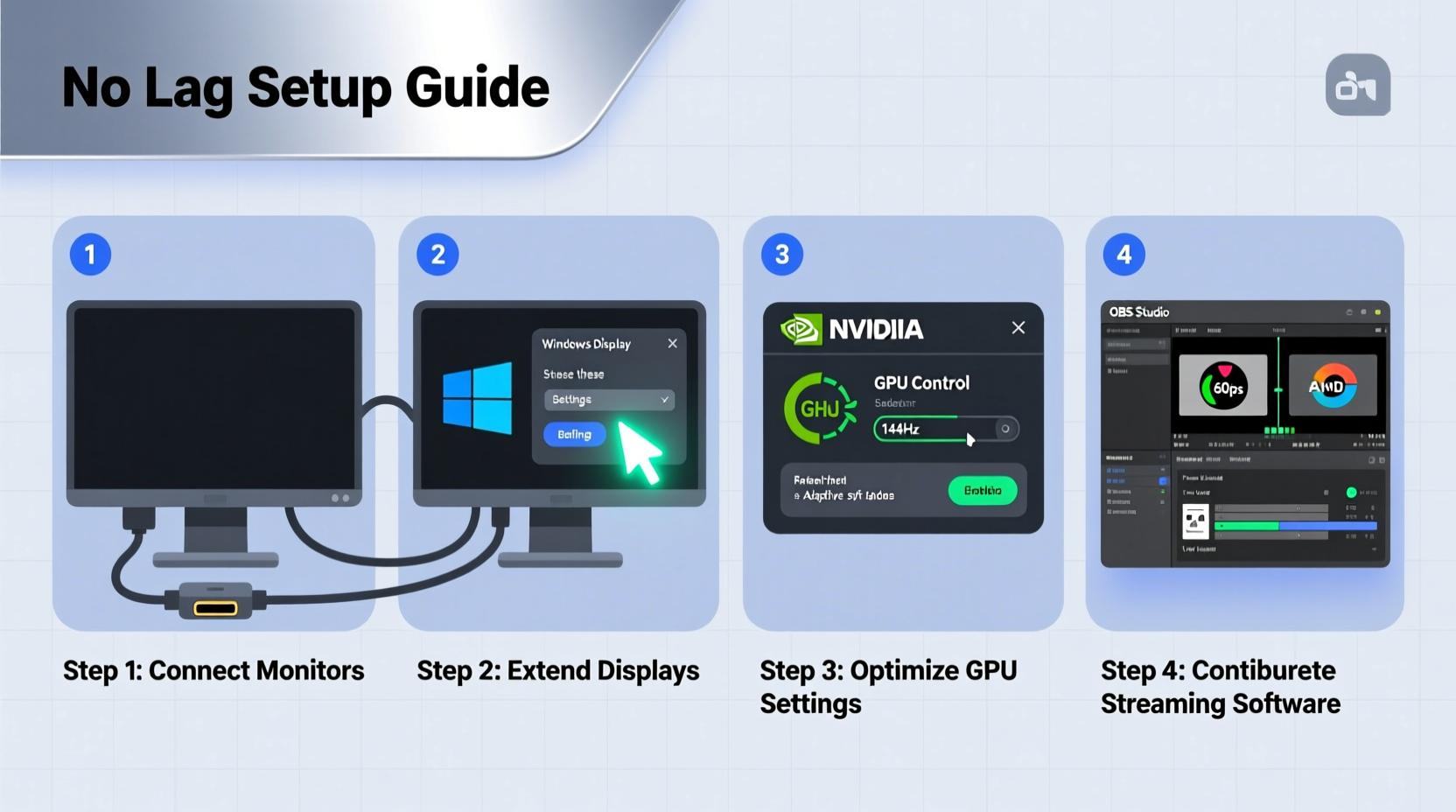
A second monitor isn't just about screen real estate—it's about workflow optimization. By offloading chat, alerts, browser windows, or OBS controls to a secondary display, your primary monitor stays focused on gameplay or content creation. This separation reduces GPU load on your main application window and minimizes context switching that can disrupt immersion.
However, adding hardware doesn’t guarantee better performance. Poor driver settings, incorrect resolution scaling, or misconfigured capture sources in streaming software can create input lag, dropped frames, or stuttering streams. The key lies not in simply connecting another screen, but in integrating it intelligently within your system architecture.
“Streamers who manage their GPU resources across multiple displays see up to 15% better encoding stability during peak loads.” — Jordan Lee, Senior Systems Engineer at StreamOptima Labs
Step-by-Step Setup: From Connection to Optimization
Follow this detailed sequence to ensure your dual-monitor streaming environment runs efficiently from day one.
- Verify Hardware Compatibility
Select monitors with matching refresh rates if possible (e.g., both 60Hz or both 144Hz). Use GPUs that support multi-display output—most modern NVIDIA and AMD cards handle two or more screens effortlessly. Check available ports: HDMI, DisplayPort, or USB-C/Thunderbolt depending on your devices. - Connect Monitors Properly
Attach each monitor using high-quality cables. Prefer DisplayPort over HDMI for higher bandwidth and better VRR support. Connect both to your dedicated GPU rather than mixing integrated and discrete graphics unless absolutely necessary. - Configure Display Settings in OS
In Windows: Right-click desktop → Display settings → Identify which screen is primary. Arrange them logically by dragging thumbnails to match physical placement. Set both to native resolution and same scaling (e.g., 100% or 125%). Avoid mixed DPI settings as they increase compositing overhead. - Assign Roles: Primary vs Secondary
Designate the higher-refresh-rate monitor as primary for gaming or content creation. Use the secondary for OBS Studio, Discord, Twitch Chat, or browser dashboards. This prevents constant rendering shifts when interacting with overlays. - Update Graphics Drivers
Download the latest drivers from NVIDIA GeForce Experience or AMD Adrenalin. Enable Application Settings like “Prefer Maximum Performance” for OBS and your game executable. - Optimize GPU Workload Distribution
Use NVIDIA Control Panel or AMD Radeon Software to assign specific apps to run on the GPU. For example, force your game to use the discrete GPU while allowing background apps to share resources efficiently. - Configure OBS Scene Layouts
Create separate scenes in OBS: one for Game Capture (full-screen detection), another for Window Capture showing only essential tools on Monitor 2. Use 'Display Capture' only if needed—and always set it to capture the correct monitor ID. - Limit Capture Overhead
Avoid capturing entire desktops. Instead, use Window Capture or Browser Source for specific elements. Disable transparency effects and animations in Windows Settings (System → About → Advanced System Settings → Performance Options → Adjust for best performance). - Test for Lag and Frame Drops
Run a test stream at your target bitrate. Use tools like LatencyMon or OBS’s built-in stats panel to check for encoder stalls, dropped frames, or audio sync issues. Pay attention to delayed mouse movement or keyboard response on either screen. - Finalize Power & Background Settings
Set power plan to “High Performance.” Disable fullscreen optimizations for OBS and games via Properties → Compatibility. Close unnecessary startup programs via Task Manager → Startup tab.
Hardware & Software Checklist for Lag-Free Operation
Before going live, verify these key components are properly configured:
- ✅ Both monitors connected to the same GPU (preferred)
- ✅ Native resolution and refresh rate applied per display
- ✅ Latest GPU drivers installed and optimized for streaming
- ✅ OBS updated to latest stable version (v30+ recommended)
- ✅ Game running on primary monitor; OBS/UI on secondary
- ✅ Encoding preset balanced between quality and CPU usage (NVENC preferred)
- ✅ No overlapping transparent windows or animated wallpapers
- ✅ Background apps minimized or moved off active capture zones
- ✅ Audio devices correctly assigned (game audio vs mic vs monitoring)
- ✅ Test stream completed with no dropped frames or latency spikes
Monitor Configuration Comparison Table
| Factor | Recommended | Avoid |
|---|---|---|
| Connection Type | DisplayPort 1.4 or HDMI 2.0+ | VGA, DVI, or damaged cables |
| Resolution Matching | Same res (e.g., 1080p/1440p) | Mixed resolutions (e.g., 720p + 1440p) |
| Scaling Settings | Uniform scaling (100%, 125%) | Mixed DPI scaling across monitors |
| OBS Capture Method | Window or Display Capture (specific monitor) | Full Desktop Capture |
| Graphics Mode | NVIDIA NVENC or AMD AMF | Software (x264) on low-end CPUs |
Real-World Example: How Mia Reduced Stream Lag by 40%
Mia, a mid-tier Twitch streamer with 2.3K followers, struggled with inconsistent frame pacing and audio desync despite having a capable RTX 3060 and i5-12400F. Her setup used a 1080p 144Hz monitor for gaming and an older 1080p 60Hz display for chat and alerts. She captured her entire desktop in OBS, leading to excessive GPU sampling.
After reviewing her configuration, she made three changes: first, she switched from Full Desktop Capture to targeted Window Capture for her browser and Streamlabs app. Second, she disabled all visual effects in Windows and set her secondary monitor to 100% scaling (previously 150%). Third, she forced OBS to use NVENC encoding and limited preview rendering to the primary monitor only.
The result? Dropped frames fell from an average of 8–12% to under 2%. Input lag dropped noticeably, confirmed by viewers commenting on smoother reactions. Her stream uptime improved, and concurrent viewer count rose by 18% within two weeks due to enhanced reliability.
Troubleshooting Common Dual-Monitor Streaming Issues
Even with careful planning, problems can arise. Here are frequent pain points and how to resolve them quickly:
- Mouse cursor lags between screens: Caused by mismatched refresh rates. If one monitor is 60Hz and the other 144Hz, disable adaptive sync on the lower-refresh display or cap both at 60Hz temporarily.
- OBS shows black screen on capture: Ensure the application window being captured isn’t running in fullscreen exclusive mode. Switch to borderless windowed.
- Audio delay during stream: Check sample rate consistency across devices. Set all audio inputs/outputs to 48kHz in Windows Sound Control Panel.
- Secondary monitor causes FPS drop: Confirm no heavy applications (like Chrome with 50 tabs) are rendering animations constantly. Use lightweight alternatives like FFZ for Twitch chat.
- Stream looks blurry: Verify OBS output resolution matches your base canvas. If capturing a scaled window, adjust downscale filter (Lanczos recommended) and ensure sharpness settings are optimal.
Frequently Asked Questions
Can I use integrated graphics for the second monitor while gaming?
Technically yes, but not recommended for serious streaming. Integrated GPUs add CPU overhead and often lack proper HDCP or multi-stream transport support. They can also cause timing conflicts when paired with a discrete GPU. For consistent performance, connect both monitors to the same dedicated GPU.
Does having two monitors increase stream latency?
Not inherently. The additional display itself doesn’t add delay. However, poorly optimized capture methods (like grabbing unused screen areas) or inefficient scene composition can increase processing time. Keep captures tight and focused to maintain low end-to-end latency.
Should I extend or duplicate my display for streaming?
Always choose “Extend” mode. Duplicating sends the same image to both screens, defeating the purpose of multitasking. Extension allows true workspace expansion and enables clean separation between game and stream management tools.
Conclusion: Stream Smarter With Purposeful Dual-Screen Design
Dual monitors offer tangible benefits for streamers—provided they’re implemented with technical precision. It’s not enough to plug in a second screen and expect instant gains. True performance comes from aligning hardware capabilities with software efficiency, minimizing visual clutter, and respecting the underlying demands of real-time video encoding.
By following the steps outlined here—from initial connection to final testing—you’ll eliminate common sources of lag and build a resilient streaming foundation. The difference isn’t just in numbers; it’s in confidence. Knowing your setup won’t buckle under pressure lets you focus on what matters: engaging your audience and delivering great content.




 浙公网安备
33010002000092号
浙公网安备
33010002000092号 浙B2-20120091-4
Comments
No comments yet. Why don't you start the discussion?