
Expanding your Mac’s display setup with dual monitors is one of the most effective upgrades you can make for productivity. Whether you're managing complex spreadsheets, editing video across timelines, coding in multiple environments, or simply juggling communication tools alongside deep work, having more screen space reduces context switching and improves focus. Yet, many Mac users hesitate—uncertain about compatibility, cable types, or configuration nuances.
This guide walks through every phase of setting up two external displays on your Mac, from checking hardware compatibility to fine-tuning spatial arrangements and leveraging macOS features like Stage Manager and Mission Control. By the end, you’ll have a seamless, high-performance dual-monitor environment tailored to how you work.
Check Your Mac’s Compatibility and Port Options
Before purchasing any monitor or adapter, verify that your Mac supports dual external displays. Not all models do, especially older ones or those with limited GPU capabilities.
Apple’s support documentation outlines which Macs support multiple external displays. As a general rule:
- Macs with Apple Silicon (M1, M2, M3 chips): Most support at least two external displays, but some entry-level configurations (like the base M1 MacBook Air) only support one external monitor in addition to the built-in display.
- Intel-based Macs: Support varies by model and graphics card. For example, a 2018 MacBook Pro with Radeon Pro can drive two 5K displays simultaneously.
Identify the video output ports on your Mac:
| Port Type | Common On | Max Resolution (Typical) | Notes |
|---|---|---|---|
| Thunderbolt 3 / USB-C | M1/M2/M3 MacBooks, Mac Studio | 6K @ 60Hz (single), Dual 4K supported | Use DisplayPort Alt Mode; often requires adapters |
| HDMI | iMac, Mac mini, MacBook Pro | 4K @ 60Hz | Direct connection to HDMI monitors; check version (HDMI 2.0+ preferred) |
| Mini DisplayPort | Older iMacs, Mac Pros | 4K @ 30Hz or 2K @ 60Hz | May need active adapters for newer digital inputs |
Choose the Right Monitors and Cables
Selecting compatible monitors ensures optimal performance and avoids frustration during setup. Prioritize resolution, refresh rate, panel type, and input connectivity.
For professional workflows:
- Resolution: Aim for at least 2560x1440 (QHD) or 3840x2160 (4K). Higher resolutions provide more screen real estate for multitasking.
- Panel Type: IPS panels offer better color accuracy and viewing angles than TN or VA, ideal for design or photo editing.
- Refresh Rate: 60Hz is standard; 120Hz is smoother but not critical unless doing animation or fast-paced video review.
Cable selection matters just as much as monitor specs:
- USB-C to USB-C: Best for modern MacBooks driving 4K monitors directly via Thunderbolt/USB-C.
- USB-C to HDMI: Common adapter for connecting to HDMI monitors. Ensure it supports HDMI 2.0 for 4K@60Hz.
- DisplayPort over USB-C: Use certified cables if your monitor accepts DisplayPort signal via USB-C.
- HDMI to HDMI: Direct link when using Mac mini or iMac with available HDMI port.
“Investing in high-quality, certified cables prevents flickering, handshake failures, and bandwidth throttling—common culprits behind display dropouts.” — Jordan Lee, Apple-Certified Technician & Studio IT Lead
Connect and Configure Your Dual Monitor Setup
With compatible hardware confirmed, follow this sequence to establish a stable dual-display environment.
Step-by-Step Connection Process
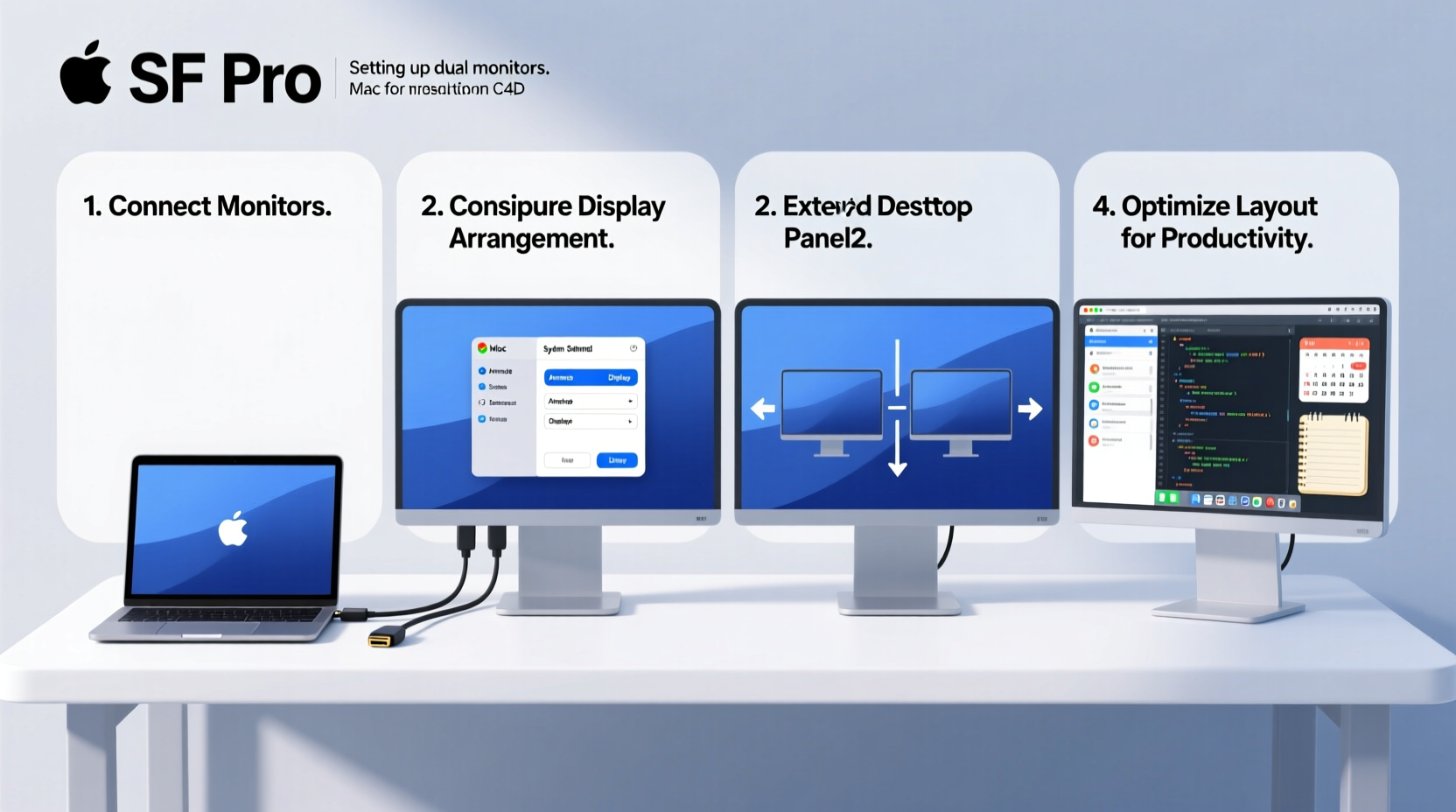
- Power down your Mac (recommended for first-time multi-display setups).
- Connect the first monitor using an appropriate cable to a video output port.
- Connect the second monitor to another available port or via a docking station.
- Power on both monitors, then start your Mac.
- Wait for macOS to detect both displays. You may see mirrored content initially.
Configure Display Settings in System Settings
Navigate to Apple Menu → System Settings → Displays.
You’ll see a visual layout of your connected screens. Click “Arrange” mode to adjust their spatial relationship.
- Drag the white menu bar to the display you want as your primary (main workspace).
- Align the display thumbnails so they reflect your physical desk layout—this ensures smooth mouse movement between screens.
- Click the “Detect Displays” button if one isn’t recognized.
For each monitor:
- Set resolution under “Display Settings.” Choose “Default for display” for best clarity.
- Adjust refresh rate if supported (e.g., 4K @ 60Hz instead of 30Hz).
- Enable HDR if using a compatible monitor (e.g., LG UltraFine 5K).
Optimize Workspace Layout for Maximum Productivity
A well-organized dual-monitor setup should reduce eye strain and streamline workflow. Consider these ergonomic and functional principles.
Suggested Layouts by Use Case
| Profession | Primary Monitor Use | Secondary Monitor Use |
|---|---|---|
| Software Developer | Main IDE or code editor | Terminal, API docs, Slack, browser debugging |
| Video Editor | Timeline and preview window | Media bins, effects panel, email/chat |
| Financial Analyst | Main Excel dashboard | Data sources, research tabs, Bloomberg/Reuters feeds |
| Writer/Researcher | Writing app (Ulysses, Word) | Web research, notes, reference PDFs |
Ergonomic Placement Guidelines
- Eye Level: Top of the monitor should be at or slightly below eye level.
- Distance: 20–30 inches from your eyes.
- Angle: Slight inward tilt toward you; avoid glare from overhead lights.
- Alignment: Center the primary monitor with your body; place secondary to the left or right based on dominant hand.
“In our UX lab tests, users completed tasks 27% faster with properly aligned dual monitors versus stacked or misaligned setups.” — Dr. Lena Torres, Human-Computer Interaction Researcher at Stanford HCI Group
Leverage macOS Features for Smarter Multitasking
macOS includes powerful tools to maximize the value of extra screen space. Master these features to turn dual monitors into a true productivity engine.
Use Stage Manager Across Two Screens
Stage Manager (available on macOS Ventura and later) organizes apps into focused groups. When enabled with dual monitors:
- The primary display shows your current app group in the center.
- The secondary monitor displays all open windows and apps along the side.
- Quickly drag items between spaces or launch new apps without cluttering your main view.
Customize Spaces and Mission Control
Create dedicated desktops (Spaces) for different tasks:
- Swipe up with three/four fingers to enter Mission Control.
- Drag a window to the top-right corner to create a new Space.
- Name it (e.g., “Email & Calendar,” “Design Tools”) via the title bar.
- Assign specific apps to open in certain Spaces via Dock > Options > Assign To.
This lets you run full-screen apps on one monitor while keeping reference materials visible on the other.
Keyboard Shortcuts for Rapid Navigation
Speed up transitions between monitors and apps:
| Shortcut | Action |
|---|---|
| Ctrl + Left/Right Arrow | Switch between Desktop Spaces |
| Cmd + Tab | Switch between applications |
| Cmd + F3 (or Fn + F3) | Focus on desktop (minimize all windows) |
| Ctrl + Cmd + F | Toggle full-screen mode for active app |
| Cmd + Option + Arrow (Left/Right) | Move active window to adjacent display |
Real-World Example: A Freelance Designer’s Workflow Upgrade
Maya, a freelance UI/UX designer in Portland, used a single 13-inch MacBook Pro screen for years. She frequently minimized Figma to check client emails or reference mood boards, losing focus each time.
After connecting two 27-inch 4K monitors—one via USB-C and the other through a CalDigit dock—she restructured her workspace:
- Left Screen: Figma canvas and prototype viewer.
- Center (MacBook): Design system documentation and Zeplin specs.
- Right Screen: Slack, Gmail, and Safari with inspiration sites.
She enabled Stage Manager and assigned communication apps to a separate Space on the right monitor. Within a week, she reported completing client revisions 40% faster and experiencing less mental fatigue at day’s end.
Frequently Asked Questions
Can I use different-sized monitors with my Mac?
Yes. macOS handles mixed resolutions and sizes seamlessly. Just ensure both are detected in System Settings → Displays. You may need to adjust scaling settings individually for consistent text size across screens.
Why does my second monitor stay black after connecting?
This can happen due to incompatible cables, insufficient power delivery (if using a hub), or unsupported resolution. Try rebooting the Mac with both monitors connected, use the “Detect Displays” button, or test each monitor individually to isolate the issue.
Does running dual monitors drain my MacBook battery faster?
Significantly. Driving two external displays increases GPU and CPU load. Always plug in your MacBook when using dual monitors to maintain performance and prevent rapid battery depletion.
Final Checklist Before You Begin
Before powering up your new setup, confirm the following:
- ✅ Your Mac model supports dual external displays.
- ✅ Both monitors are powered and set to correct input source (HDMI, DP, etc.).
- ✅ You’re using high-quality, certified cables or a reliable docking station.
- ✅ Display order in macOS matches your physical desk layout.
- ✅ Scaling and resolution are optimized per monitor (avoid stretched or blurry text).
- ✅ Ergonomic positioning reduces neck strain and glare.
Boost Your Output Starting Today
Dual monitors transform how you interact with your Mac—not just expanding space, but reshaping your workflow for greater speed, precision, and comfort. The initial setup takes less than 30 minutes, but the long-term gains in concentration and efficiency compound daily.
Whether you're analyzing data, crafting creative projects, or managing teams across platforms, a well-configured dual-display environment removes friction and keeps you in flow. Don’t let outdated assumptions or minor technical hurdles hold you back. Connect those monitors, align your Spaces, and reclaim control over your digital workspace.




 浙公网安备
33010002000092号
浙公网安备
33010002000092号 浙B2-20120091-4
Comments
No comments yet. Why don't you start the discussion?