
Working from home has become the norm for many professionals, and one of the most effective upgrades you can make to your workspace is adding a second monitor. A dual-monitor setup dramatically improves multitasking, reduces eye strain, and enhances overall productivity. Whether you're editing documents, coding, managing spreadsheets, or video editing, having more screen real estate changes how efficiently you work. The good news? Setting up dual monitors with your laptop is simpler than most people think—no advanced technical skills required. This guide walks you through every phase: from checking compatibility to optimizing display settings for long-term comfort.
Assess Your Laptop’s Capabilities
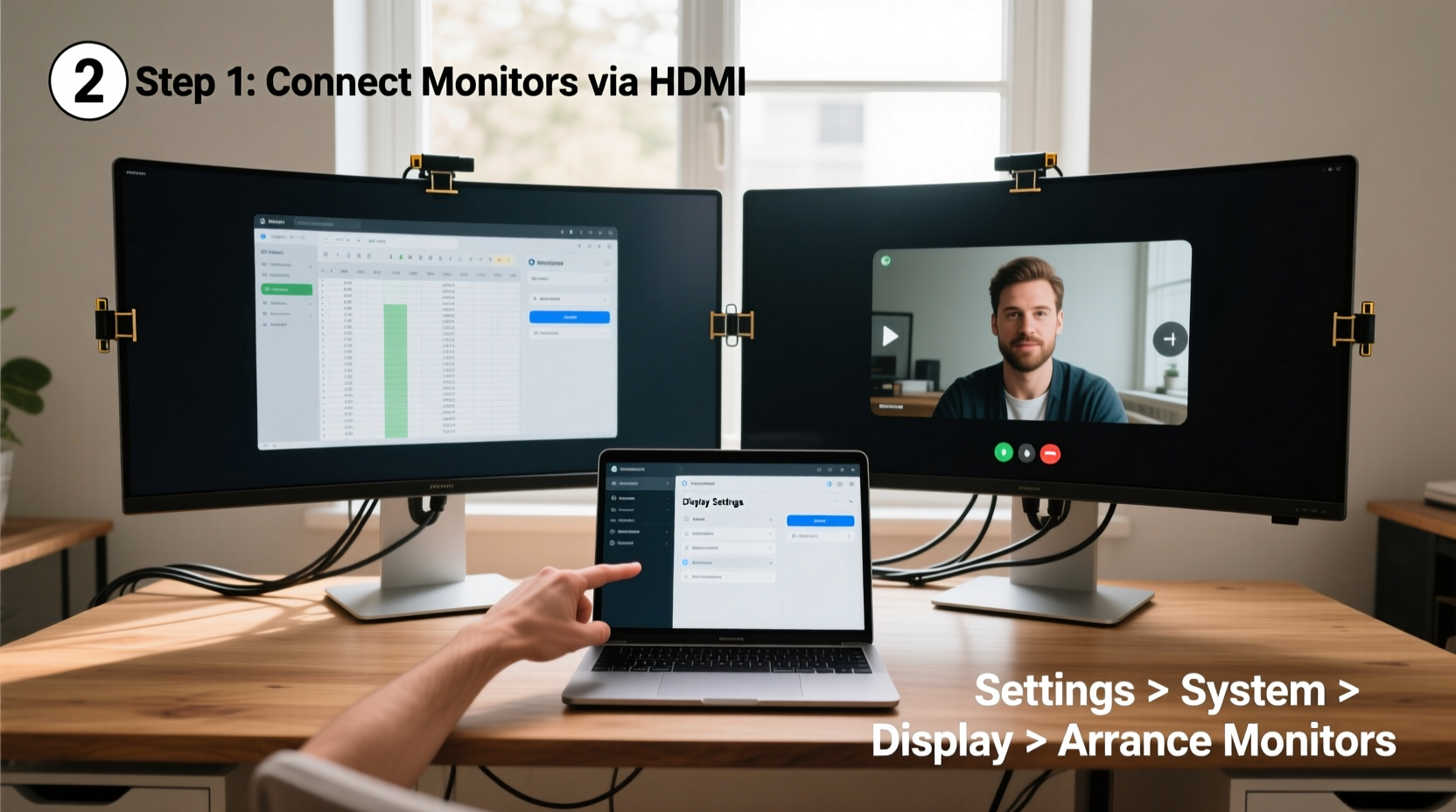
Before purchasing additional hardware, verify that your laptop supports multiple external displays. Most modern laptops do, but the number and type of available ports determine your options. Begin by identifying the video output ports on your device. Common types include:
- HDMI: Found on nearly all laptops; widely compatible with monitors and TVs.
- USB-C / Thunderbolt 3 or 4: Increasingly common on newer models; supports video, power delivery, and data over one cable.
- DisplayPort: Often seen on business-grade or performance laptops; excellent for high-resolution outputs.
- VGA: Older analog standard; still functional but limited in resolution support.
Check your laptop’s specifications online using the model number. Look specifically for “maximum external displays supported.” Some older or budget machines may only allow one external monitor at a time, while most mid-range and premium devices support two or more.
Choose Compatible Monitors and Cables
Selecting the right monitors involves balancing size, resolution, refresh rate, and connectivity. For general productivity, 24-inch Full HD (1920x1080) monitors are ideal. Creative professionals may prefer larger 27-inch 4K displays for detailed image work. Ensure both monitors have input ports matching your laptop’s outputs—or plan to use adapters.
When connecting two monitors, consistency matters. Using identical models simplifies alignment and scaling in display settings. However, mixing different sizes or resolutions is possible—you’ll just need to adjust positioning manually in your operating system.
Cables should match the highest-quality connection both devices support. Prioritize HDMI 2.0 or higher, DisplayPort 1.2+, or USB-C with DisplayPort Alt Mode. Avoid daisy-chaining unless your monitors explicitly support it via DisplayPort Multi-Stream Transport (MST).
“Dual monitors aren’t just about more space—they change how your brain processes information. Studies show users complete tasks up to 52% faster with extended desktops.” — Dr. Alan Tran, Human-Computer Interaction Researcher
Step-by-Step Setup Process
Follow this sequence to connect and configure your dual-monitor system properly.
- Power down your laptop. While hot-plugging is usually safe, turning off your machine prevents detection glitches during initial setup.
- Connect the first monitor. Use an appropriate cable (e.g., HDMI to HDMI) from your laptop to Monitor 1. Plug the monitor into power and turn it on.
- Connect the second monitor. Use another port on your laptop (e.g., USB-C to HDMI). If both monitors require the same port type, use a docking station or active adapter.
- Boot up your laptop. Windows or macOS will typically detect both screens automatically.
- Access display settings.
- Windows: Right-click desktop > Display Settings.
- macOS: System Settings > Displays.
- Identify and arrange displays. Click “Identify” to see numbered boxes on each screen. Drag them in the settings window to reflect their physical layout (left/right/above).
- Set resolution and scaling. Match native resolutions where possible. On macOS, choose “Default for display” or adjust scaling under Display Settings.
- Select display mode. Choose between:
- Extend: Spreads desktop across both screens (recommended).
- Duplicate: Shows the same content on both (useful for presentations).
- Adjust orientation and refresh rate (optional). Useful for portrait-mode reading or gaming.
- Test the setup. Open multiple windows and drag them between screens to confirm seamless movement.
Optimize Ergonomics and Workflow
A powerful dual-monitor setup is only as effective as its physical configuration. Poor placement leads to neck strain, reduced focus, and long-term discomfort. Follow these ergonomic principles:
- Position the primary monitor directly in front of you, centered with your keyboard.
- Angle the secondary monitor slightly inward so both screens form a gentle curve around your field of view.
- Top of the screen should be at or slightly below eye level—about 20–30 inches from your face.
- Use monitor stands or arms to achieve proper height without tilting the screen upward.
- Keep both monitors at similar brightness and color temperature to reduce visual fatigue.
Increase efficiency by assigning roles to each screen. For example:
| Primary Monitor | Secondary Monitor |
|---|---|
| Main application (browser, document editor) | Reference material (PDFs, emails, chat apps) |
| Video calls (camera-aligned center) | Notes or presentation slides |
| Coding environment | Terminal, documentation, or debugging tools |
Keyboard shortcuts further streamline navigation:
- Windows: Win + Shift + Left/Right Arrow moves windows between monitors.
- macOS: Use Mission Control (F3 or swipe up with four fingers) to manage spaces across screens.
Troubleshooting Common Issues
Even with careful setup, problems can arise. Here’s how to resolve frequent issues quickly.
No Signal on One Monitor
Check the cable connections and ensure the monitor is set to the correct input source (e.g., HDMI 1 vs. HDMI 2). Try swapping cables or ports to isolate hardware faults. Restart your laptop after reconnecting.
Incorrect Resolution or Fuzzy Text
This often happens when the OS defaults to a non-native resolution. In display settings, select the recommended resolution for each monitor. On Windows, also check \"Scale and layout\" to ensure text isn't blurry due to improper DPI scaling.
Laptop Screen Turns Off Automatically
Some laptops disable the built-in display when external monitors are connected. To fix:
- Windows: Press Win + P, then choose “Extend” instead of “Second screen only.”
- macOS: Hold the Option key while clicking the “Mirror Displays” button to reveal “Arrange” and re-enable the laptop screen.
Performance Lag or Refresh Rate Drops
If your system feels sluggish with multiple displays, verify GPU capabilities. Integrated graphics (like Intel UHD) may struggle with two high-resolution screens under heavy load. Close background apps, update graphics drivers, or lower resolution temporarily.
Real-World Example: Remote Worker Boosts Productivity
Sophia, a freelance content strategist based in Portland, worked exclusively on her 13-inch MacBook Air for over a year. She frequently switched between research tabs, writing tools, and client calls, leading to constant tab cycling and mental fatigue. After investing in two affordable 24-inch IPS monitors, she followed the steps above to extend her desktop.
She placed the left monitor for browser-based research and email, kept the central MacBook screen for active writing in Google Docs, and used the right panel for Zoom meetings and calendar management. Within a week, she reported completing articles 30% faster and experiencing less end-of-day eye strain. Her only adjustment was enabling Night Shift mode on all three screens to maintain consistent color warmth in the evenings.
“It felt like upgrading from a studio apartment to a full office,” she said. “I didn’t realize how much cognitive load came from constantly minimizing and maximizing windows.”
Quick Setup Checklist
Use this checklist before powering on your new dual-monitor system:
- ✅ Confirm laptop supports dual external displays
- ✅ Identify available video output ports (HDMI, USB-C, etc.)
- ✅ Purchase compatible monitors and necessary cables/adapters
- ✅ Position monitors ergonomically on desk or stands
- ✅ Connect both monitors to power and laptop
- ✅ Boot laptop and access display settings
- ✅ Arrange displays to match physical layout
- ✅ Set native resolution and scaling for clarity
- ✅ Choose “Extend” mode for maximum workspace
- ✅ Test window movement and app placement
Frequently Asked Questions
Can I use different-sized monitors together?
Yes. You can pair monitors of different sizes or resolutions. Just expect slight inconsistencies in text size and cursor movement speed when crossing screens. Adjust scaling individually in display settings to minimize mismatch.
Do I need a special graphics card?
Most integrated GPUs in modern laptops handle dual Full HD monitors without issue. For 4K or high-refresh-rate displays, especially in creative or gaming workflows, a dedicated GPU helps. Check your laptop’s specs to confirm graphical limits.
What if my laptop only has one HDMI port?
You have several options: use a USB-C to HDMI adapter alongside the built-in HDMI, employ a USB docking station, or use a DisplayLink-enabled adapter that transmits video over USB-A/USB-C. Note: DisplayLink requires driver installation and may introduce minor latency.
Conclusion: Transform Your Home Office Today
Dual monitors are one of the most impactful yet underrated upgrades for remote workers, students, and creatives alike. What once seemed like a complex technical hurdle is now accessible to anyone with a modern laptop and a few cables. By following this guide, you’ve not only learned how to physically connect two screens but also how to optimize them for lasting comfort and peak efficiency. The investment pays off daily—in fewer headaches, smoother workflows, and greater control over your digital environment.




 浙公网安备
33010002000092号
浙公网安备
33010002000092号 浙B2-20120091-4
Comments
No comments yet. Why don't you start the discussion?