
Fitness trackers like the Fitbit have transformed how we understand our health. But simply wearing a device isn’t enough—true value comes from accurate, personalized tracking. Many users miss out on key features because their Fitbit isn’t properly configured. Whether you’re new to wearable tech or upgrading from an older model, optimizing your setup ensures reliable heart rate monitoring, precise sleep analysis, and meaningful activity insights. This guide walks through every essential step to configure your Fitbit for maximum performance.
1. Initial Setup: Pairing Your Device Correctly
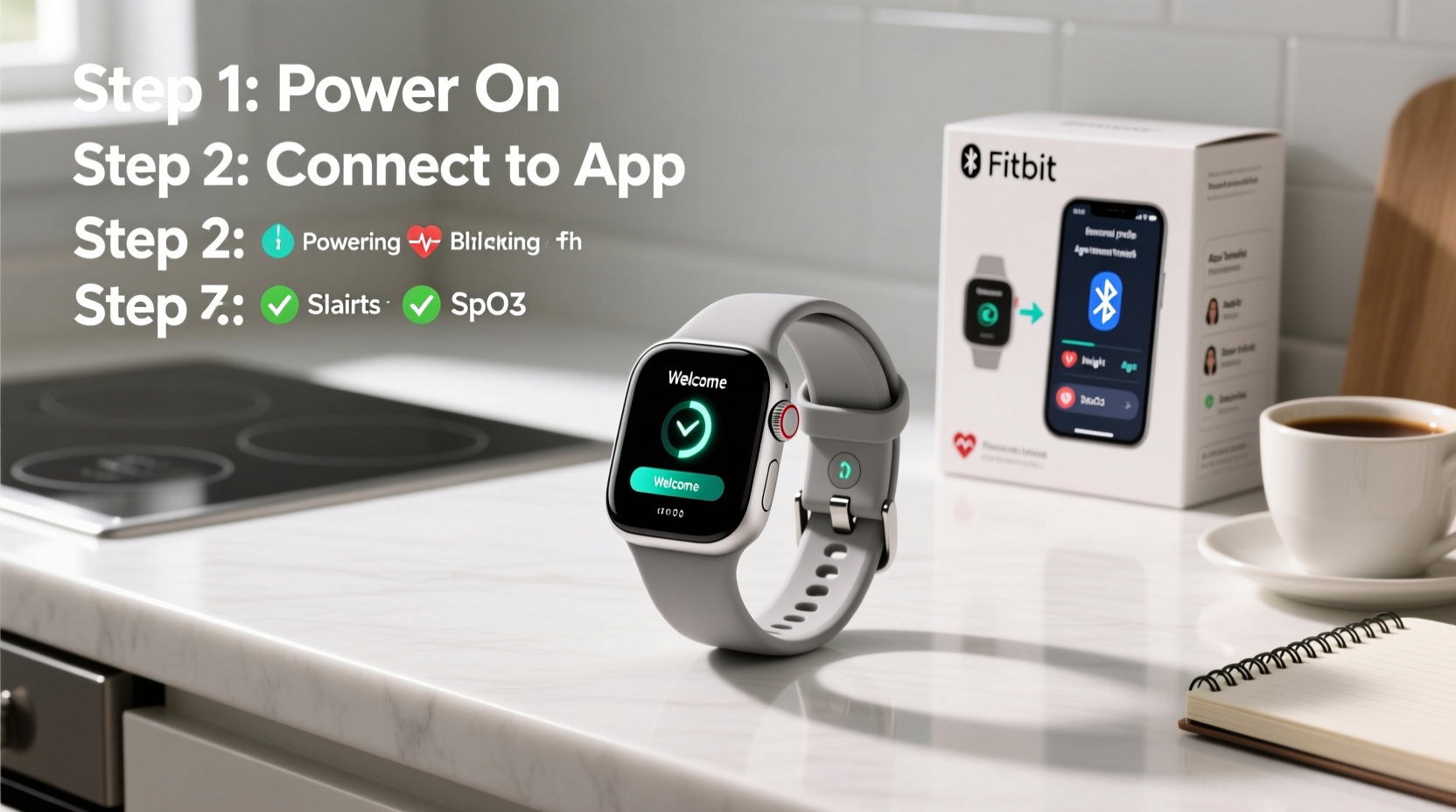
The foundation of effective tracking starts with a correct initial setup. Skipping steps here can lead to syncing issues, inaccurate data, or missed notifications later on.
- Charge your Fitbit fully before starting. A low battery during setup may interrupt the process.
- Download the Fitbit app (iOS or Android) and create an account if you don’t already have one.
- Enable Bluetooth on your smartphone. The Fitbit app relies on Bluetooth to pair and sync data.
- Open the app and tap “Set Up a Device.” Follow the prompts to select your specific model.
- Hold your Fitbit near your phone. When prompted, confirm the code displayed on both devices matches.
- Wait for the pairing confirmation. Once connected, allow the app to install any firmware updates automatically.
2. Personalize Your Profile for Accurate Metrics
Your Fitbit uses personal data to calculate calories burned, stride length, and heart rate zones. Inaccurate inputs lead to misleading results.
Go to the Fitbit app > Today tab > tap your profile picture > Edit Profile. Update the following:
- Height and weight (measure these accurately; avoid estimating)
- Date of birth and biological sex (used for metabolic calculations)
- Activity level (choose based on your actual daily movement, not goals)
For example, if you input a height that’s 5 inches shorter than reality, your step count could overestimate distance by as much as 15%. Similarly, an outdated weight affects calorie burn estimates, especially during workouts.
| Data Field | Why It Matters | Best Practice |
|---|---|---|
| Height | Affects step length and distance calculation | Measure barefoot against a wall |
| Weight | Determines calorie expenditure | Weigh yourself in the morning weekly |
| Resting Heart Rate | Baseline for cardiovascular health trends | Let Fitbit auto-calculate after 7 days of wear |
3. Optimize Wearing Position and Sensor Contact
No matter how advanced the sensors are, poor wear placement undermines accuracy. Fitbit’s optical heart rate sensor requires consistent skin contact and minimal motion interference.
Wear your watch snugly on your non-dominant wrist, about one finger’s width above the wrist bone. Too loose, and movement creates signal noise; too tight, and blood flow restriction skews readings.
“Proper fit is critical—especially during exercise. We see up to 20% higher heart rate variability errors when the band slips during runs.” — Dr. Lena Torres, Biomedical Engineer & Wearable Tech Researcher, Stanford Health Lab
For high-motion activities like weightlifting or HIIT, consider switching the wear position to the upper forearm using a sports armband. This stabilizes the sensor and reduces motion artifacts.
4. Customize Settings for Real-Time Accuracy
Default settings work for general use, but fine-tuning enhances precision and relevance.
Enable All-Day Sync
In the Fitbit app, go to Account > App Settings > All-Day Sync and ensure it’s turned on. This allows continuous data flow without manual syncing.
Set Correct Time Zone & Automatic Sync
Incorrect time zones disrupt sleep stage analysis. Enable “Set Automatically” in your phone’s location settings to keep your Fitbit’s clock accurate.
Adjust Sensitivity for Activities
Under Exercise Shortcuts in the app, customize which workouts appear on your watch. Prioritize those you do regularly (e.g., running, cycling, yoga). For swimming, enable Pool Swim mode to track laps and strokes accurately.
Calibrate GPS (for outdoor models)
If your Fitbit supports built-in GPS (like Versa 3 or Charge 5), calibrate it once in an open area with clear sky visibility. Go outside, start a run, and wait for GPS lock before moving. This improves route and pace accuracy in future sessions.
📋 **Setup Checklist: Are You Fully Optimized?**- ✅ Charged device before setup
- ✅ Paired via official Fitbit app
- ✅ Entered accurate height, weight, age
- ✅ Worn snugly on non-dominant wrist
- ✅ Sensors cleaned and unobstructed
- ✅ All-Day Sync enabled
- ✅ GPS calibrated (if applicable)
- ✅ Exercise shortcuts customized
5. Real-World Example: How Sarah Improved Her Sleep Tracking
Sarah, a 34-year-old teacher, wore her Fitbit Charge 6 for two weeks but noticed inconsistent sleep scores. She often woke up feeling tired despite the device reporting 7+ hours of rest. After reviewing her setup, she discovered three issues: she had worn the band too loosely at night, entered an incorrect weight, and hadn’t charged the device fully before bed.
She adjusted the band tighter (but comfortably), updated her current weight in the app, and committed to charging her Fitbit nightly. Within three days, her sleep stages aligned better with how she felt—her deep sleep duration increased in the data, and her readiness score improved. By correcting basic setup flaws, Sarah gained trustworthy insights that helped her adjust bedtime routines and reduce screen time before sleep.
FAQ: Common Fitbit Setup Questions
How often should I update my Fitbit’s software?
Firmware updates are typically automatic when your device is charged and near your phone. Check monthly under Settings > About > Version Info. Updates often include sensor improvements and bug fixes that enhance tracking accuracy.
Why does my heart rate spike when I’m not exercising?
Temporary spikes can occur due to stress, caffeine, or poor sensor contact. If persistent, ensure the band is snug and clean. Also verify that you haven’t accidentally started a workout timer.
Can I wear my Fitbit on my ankle for better step accuracy?
Fitbit doesn’t support ankle wear for step counting. The algorithms are calibrated for wrist movement patterns. Ankle placement leads to undercounting steps and skewed metrics.
Conclusion: Make Every Data Point Count
Setting up your Fitbit correctly transforms it from a simple step counter into a powerful health companion. From precise heart rate monitoring to meaningful sleep analysis, each optimization step compounds into more actionable insights. Don’t just wear your device—understand it, configure it, and trust it. When your Fitbit reflects reality, you gain the clarity needed to make smarter decisions about your fitness, recovery, and daily habits.




 浙公网安备
33010002000092号
浙公网安备
33010002000092号 浙B2-20120091-4
Comments
No comments yet. Why don't you start the discussion?