
Gmail remains one of the most widely used email platforms globally, trusted by millions for personal and professional communication. Yet, many users only scratch the surface of its capabilities—especially when it comes to optimizing accessibility and strengthening security. A properly configured Gmail account does more than just deliver messages; it protects your identity, streamlines workflow, and ensures you can access your data anytime, anywhere. This guide walks through essential steps to set up your Google Email with both convenience and safety in mind.
1. Secure Your Account with Strong Authentication
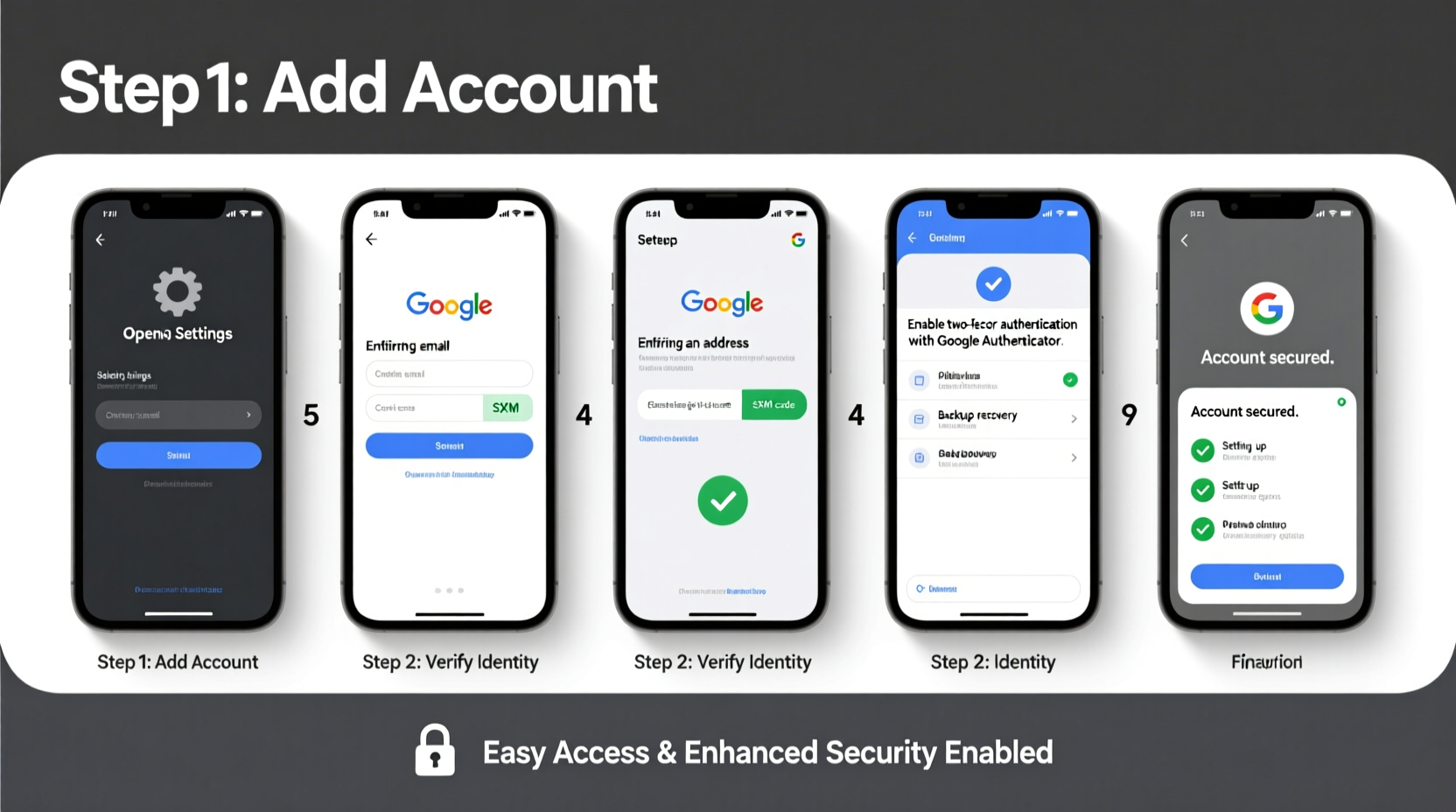
The foundation of any secure email setup is strong authentication. Weak passwords and lack of multi-factor protection leave accounts vulnerable to phishing, brute-force attacks, and unauthorized access.
Start by creating a unique, complex password. Avoid common words, birthdays, or reused credentials from other sites. A strong password should be at least 12 characters long and include uppercase letters, lowercase letters, numbers, and special symbols (e.g., !@#$%). Consider using a reputable password manager to generate and store this securely.
“Over 80% of account breaches stem from weak or stolen passwords. Multi-factor authentication reduces risk by over 99%.” — Google Security Blog, 2023
Enable Two-Factor Authentication (2FA)
Two-factor authentication adds a second layer of defense. Even if someone obtains your password, they won’t gain access without the second verification method.
- Go to your Google Account settings.
- Navigate to “Security” > “2-Step Verification.”
- Follow the prompts to verify your phone number via SMS or voice call.
- Choose a second factor: authenticator app (like Google Authenticator or Authy), physical security key, or backup codes.
- Confirm activation.
2. Set Up Recovery Options
No matter how careful you are, there may come a time when you’re locked out—perhaps due to a lost device, forgotten password, or suspicious login attempt. Having reliable recovery methods ensures you retain control of your account.
Google allows two primary recovery paths: a secondary email address and a verified phone number. Both should be current and accessible.
Recommended Recovery Setup
| Recovery Method | Recommended? | Notes |
|---|---|---|
| Alternate Email | Yes | Use a trusted provider; avoid linking two Google accounts together. |
| Phone Number (SMS) | Moderate | Vulnerable to SIM swap; best paired with 2FA app. |
| Authenticator App | Highly Recommended | Offline access to codes; not dependent on network. |
| Physical Security Key | Best for High Risk | Resists phishing; ideal for business or sensitive use. |
In addition to these, download and store your 10-digit backup codes in a secure location—such as a locked drawer or encrypted file. These can restore access if all other methods fail.
3. Optimize Access Across Devices
Modern life demands seamless access across smartphones, tablets, laptops, and desktops. Setting up Gmail correctly on each device enhances productivity while maintaining security.
Mobile Setup (Android/iOS)
- Open the Gmail app or Settings > Mail.
- Add account using your full Google email address.
- Select “Google” as account type (not IMAP/POP unless necessary).
- Sign in and allow app permissions.
- Enable biometric lock (fingerprint or face unlock) within the app settings for added local security.
Desktop & Web Browser Tips
- Use Chrome or another updated browser with sync enabled for consistent experience.
- Bookmark mail.google.com for quick access.
- Log out of shared computers automatically using guest mode or incognito browsing.
- Clear cookies periodically on public devices.
4. Enhance Privacy and Filtering
Gmail’s powerful filtering system helps organize incoming mail and reduce spam exposure. Proper configuration keeps your inbox clean and minimizes risks from malicious emails.
Create Smart Filters
To filter unwanted messages or prioritize important ones:
- In Gmail, click the search bar’s dropdown arrow.
- Enter criteria (sender, subject, keywords, etc.).
- Click “Create filter.”
- Choose actions: skip inbox, apply label, mark as read, delete, or forward.
- Save.
For example, create a filter to automatically label newsletters under “Read Later” or move known spam domains directly to trash.
Block Suspicious Senders
If you receive phishing attempts or spam from specific addresses:
- Open the message.
- Click the three dots in the top right.
- Select “Block [sender].”
This prevents future emails from appearing in your inbox and reports abuse to Google.
5. Real-World Example: Recovering from a Compromised Account
Sarah, a freelance consultant, noticed unfamiliar login activity in her Gmail account. She received a notification that a device in Nigeria had accessed her mail. Though she hadn’t clicked any suspicious links recently, her password was likely exposed in a third-party data breach.
Because Sarah had already enabled 2FA using Google Authenticator and registered a recovery phone number, she was able to regain control quickly. She followed Google’s account recovery flow, verified her identity, reset her password, and reviewed recent activity. She then checked connected apps and revoked access from unknown third parties.
This incident highlighted the importance of proactive security—not just reacting after damage occurs. Her preparedness minimized downtime and prevented data theft.
Essential Security Checklist
Use this checklist to ensure your Gmail setup meets best practices:
- ✅ Created a strong, unique password
- ✅ Enabled two-factor authentication (2FA)
- ✅ Configured at least one recovery method (email or phone)
- ✅ Downloaded and stored backup codes safely
- ✅ Installed the Gmail app with device-level lock
- ✅ Set up filters for spam and high-priority mail
- ✅ Reviewed “Recent activity” and sign-in locations monthly
- ✅ Revoked access from unused third-party apps
Frequently Asked Questions
Can I use Gmail without giving Google my phone number?
While Google strongly encourages a phone number for recovery and verification, it is sometimes possible to bypass this during account creation using alternative methods like CAPTCHA challenges. However, doing so limits recovery options and increases the risk of permanent lockout. For long-term reliability, providing a verified number is recommended.
What should I do if I lose my phone and can’t access 2FA?
If you’ve saved backup codes, use one to log in and disable 2FA temporarily. Once logged in, update your recovery settings. If you don’t have codes, go to the Google Account Recovery page and follow identity verification steps. Providing accurate recovery details increases success chances.
Is it safe to stay logged into Gmail on my personal computer?
On a private, password-protected device, staying logged in is generally safe—especially with automatic screen locks enabled. However, always log out if others have physical access to your machine. For extra security, consider using a dedicated user profile or guest mode when sharing devices.
Final Steps: Maintain Long-Term Security
Setting up your Google Email securely isn't a one-time task—it requires ongoing attention. Revisit your account settings every few months. Check for unrecognized devices, update recovery info, and rotate passwords if needed. Enable alerts for new logins and review app permissions regularly.
By combining ease of access with robust safeguards, you transform Gmail from a simple messaging tool into a resilient digital hub. Whether managing personal correspondence or handling sensitive work communications, a well-configured account gives you peace of mind and uninterrupted productivity.




 浙公网安备
33010002000092号
浙公网安备
33010002000092号 浙B2-20120091-4
Comments
No comments yet. Why don't you start the discussion?