
Creating a Google email account—also known as Gmail—is one of the most essential digital steps for personal and professional communication. Whether you're starting fresh, switching from another provider, or setting up an account for work or school, Gmail offers powerful tools, robust security, and seamless integration with other Google services like Drive, Calendar, and Meet. The process is straightforward, but knowing exactly what to do—and how to do it safely—can save time and prevent common mistakes.
This guide walks you through every stage of creating a new Gmail account, from choosing the right username to enabling two-factor authentication. By the end, you’ll have a fully functional, secure inbox ready for everyday use.
Why Choose Gmail?
Gmail isn’t just an email service—it’s a productivity ecosystem. With 15 GB of free storage shared across Gmail, Google Drive, and Photos, intelligent spam filtering, and smart features like Priority Inbox and Smart Compose, Gmail simplifies how you manage messages. It’s accessible on any device, supports custom labels and filters, and integrates effortlessly with third-party apps.
Additionally, Google continuously updates its security infrastructure, helping protect your data from phishing, malware, and unauthorized access. For these reasons, over 1.8 billion people rely on Gmail worldwide.
Step-by-Step Guide to Creating Your Gmail Account
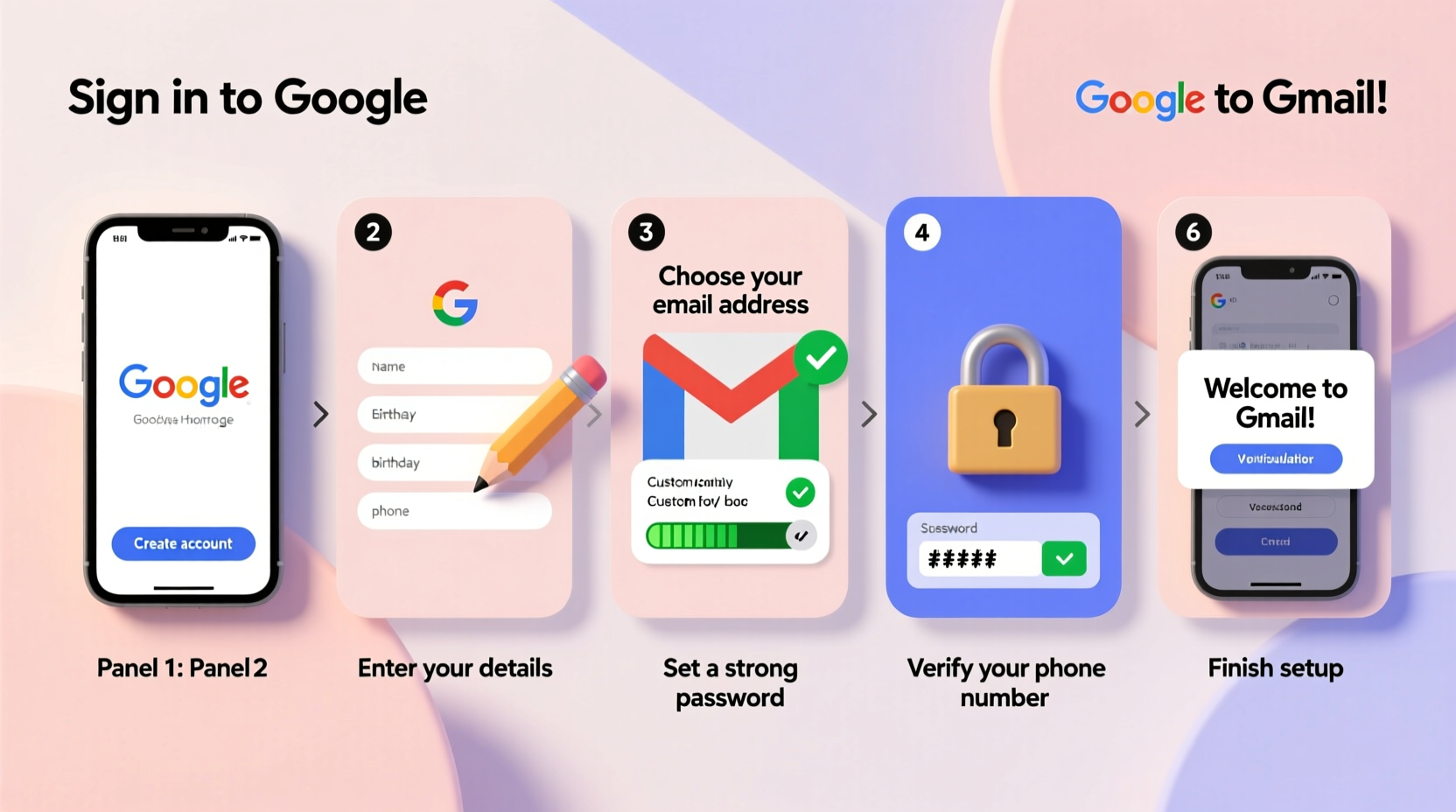
Follow this timeline to set up your account in under ten minutes. Each step includes key details to ensure accuracy and security.
- Go to the Gmail Sign-Up Page
Open your web browser and navigate to gmail.com. Click “Create account” in the lower-left corner of the login screen. - Select Account Type
Choose “For myself” unless you’re setting up an account for a business, child, or organization. This ensures the correct setup flow. - Enter Personal Information
Fill in your first name, last name, and desired username (this will be your email address ending in @gmail.com). If your preferred username is taken, try adding numbers, initials, or slight variations. - Create a Strong Password
Enter a password that’s at least 8 characters long and includes uppercase letters, lowercase letters, numbers, and symbols. Avoid using common words or personal information like birthdays. - Add Recovery Options
Provide a secondary email address or phone number. This helps you regain access if you forget your password or get locked out. Google may send a verification code here during setup. - Verify Your Phone Number
Enter your mobile number and choose to receive a text message or automated call. Input the code sent to confirm ownership of the number. - Review Privacy & Terms
Google will ask you to review its Terms of Service and Privacy Policy. Take a moment to read them before clicking “I agree.” - Complete Setup
You’ll be redirected to your new inbox. A welcome tour may appear; feel free to skip it and begin exploring your mailbox.
Essential Post-Setup Actions
After creating your account, take a few extra steps to maximize functionality and security.
- Set up a recovery email – Even if you skipped it earlier, go to Settings > See all settings > Accounts and Import > Change account recovery options.
- Enable Two-Factor Authentication (2FA) – Go to your Google Account settings, select Security, then turn on 2-Step Verification. This adds a critical layer of protection.
- Customize your inbox – In Gmail settings, choose between default, priority, or focused inbox layouts based on how you want messages sorted.
- Add a profile photo – Upload an image via Google Account settings so contacts recognize your emails.
- Install the Gmail app – Download Gmail on iOS or Android for push notifications and offline access.
“Setting up recovery options and 2FA during the initial setup reduces the risk of permanent account loss by over 90%.” — Google Security Team, 2023 Transparency Report
Common Pitfalls to Avoid
New users often make simple errors that lead to access issues later. Here’s a comparison of best practices versus common missteps.
| Do’s | Don’ts |
|---|---|
| Use a strong, unique password | Reuse passwords from other accounts |
| Verify your phone number during setup | Skip verification to save time |
| Choose a professional-sounding username for work | Pick a playful or confusing email like coolguy123@gmail.com for job applications |
| Enable 2FA immediately | Assume your password alone is enough |
| Regularly check recovery options | Forget which number or email you used years ago |
Real Example: Maria Sets Up Her First Gmail Account
Maria, a recent college graduate, needed a professional email for job applications. She avoided using her old high school email and decided to create a Gmail account. She chose maria.johnson.jobs@gmail.com to reflect her purpose clearly. During setup, she added her mobile number and backup email (her sister’s address) for recovery.
After logging in, she enabled two-factor authentication using her phone and customized her signature to include her LinkedIn profile and phone number. Within days, she began receiving interview requests, and recruiters noted how polished her communication appeared. Six weeks later, when she temporarily lost access due to a SIM swap, her recovery options allowed her to regain control in under five minutes.
Maria’s experience shows how proper setup not only establishes credibility but also ensures long-term access and security.
Checklist: Secure Gmail Setup in 7 Steps
Print or bookmark this checklist to ensure nothing is missed:
- ✅ Visit gmail.com and click “Create account”
- ✅ Select “For myself” and enter your name
- ✅ Choose a professional, easy-to-remember username
- ✅ Create a strong password (use a mix of characters)
- ✅ Add a recovery phone number and/or email
- ✅ Complete phone verification with the code sent
- ✅ Enable two-factor authentication in Google Account settings
Frequently Asked Questions
Can I change my Gmail username after creating the account?
No, you cannot change the actual @gmail.com part of your address once it’s created. However, you can update your display name, which appears to recipients. If you need a different email, you’ll have to create a new account.
Is Gmail really free?
Yes, personal Gmail accounts are completely free. You get 15 GB of combined storage across Gmail, Google Drive, and Google Photos. If you need more space or custom domains (like yourname@yourbusiness.com), Google offers paid plans through Google Workspace starting at $6/month.
What should I do if I forget my password?
Click “Forgot password?” on the login screen. Google will prompt you to verify your identity through your recovery email, phone number, or security questions. Follow the steps to reset your password securely.
Final Thoughts: Start Smart, Stay Secure
Your email is the gateway to your digital life—from banking and social media to job opportunities and education. Taking the time to set up your Gmail account correctly ensures you start with clarity, professionalism, and strong protection against threats.
Whether you're a student, professional, or someone reconnecting with family, a well-configured Gmail account makes communication easier, safer, and more efficient. Don’t rush the setup. Use this guide to build a foundation that lasts for years.




 浙公网安备
33010002000092号
浙公网安备
33010002000092号 浙B2-20120091-4
Comments
No comments yet. Why don't you start the discussion?