
In today’s hybrid work environment, mobile video conferencing is no longer optional—it's essential. Whether you're joining a team meeting from your commute or attending a virtual class from the park, your smartphone can be your most reliable tool. Zoom leads the way in accessible video communication, and setting it up on your phone takes just minutes. This guide walks you through every stage of the process, ensuring you’re ready to connect confidently and professionally.
Download and Install the Zoom App
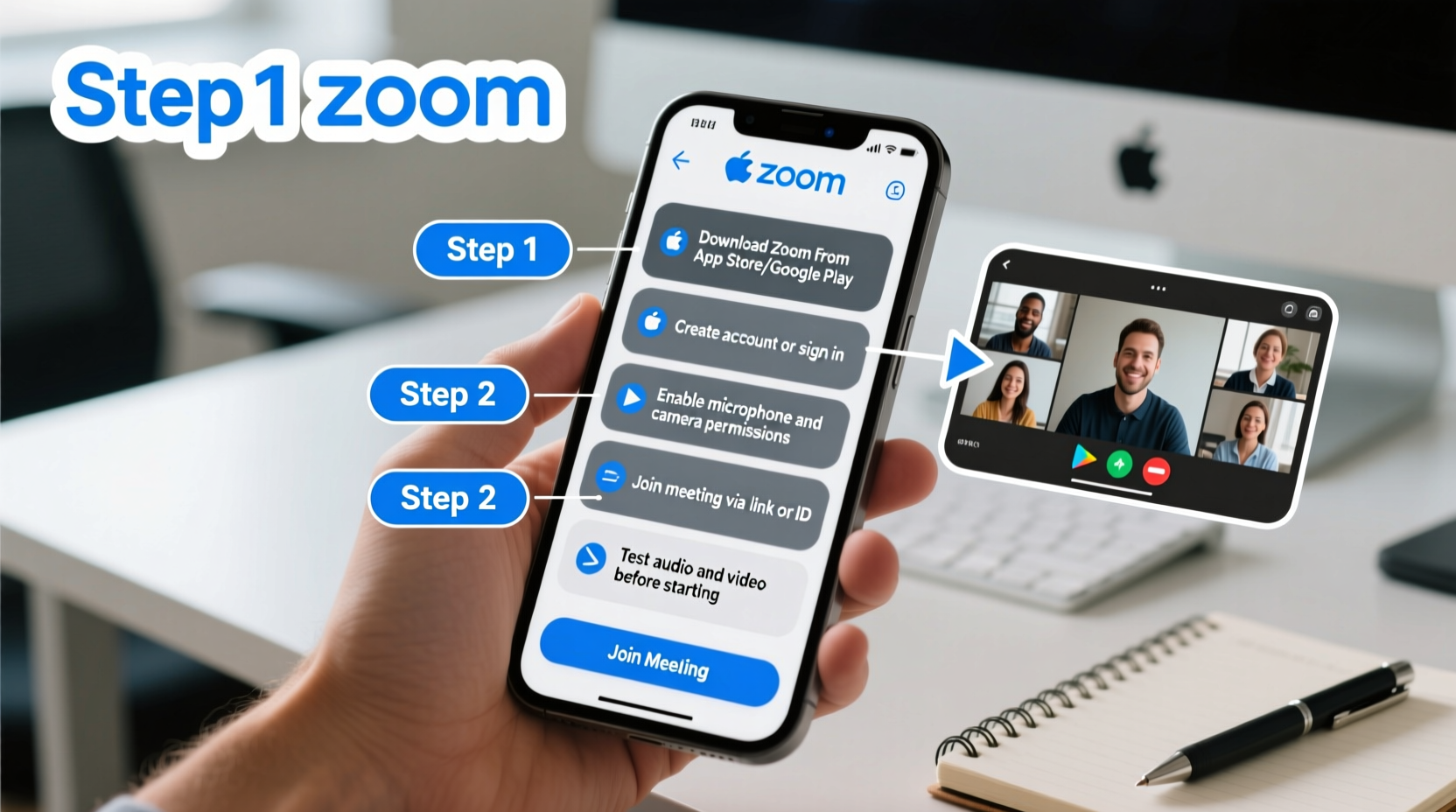
The first step is getting the Zoom application onto your device. Both iOS and Android users can access Zoom through their respective app stores. The app is free to download and includes robust features for both personal and professional use.
- Open the App Store (for iPhone) or Google Play Store (for Android).
- Search for “Zoom” in the search bar.
- Look for the official app published by Zoom Video Communications, Inc.
- Tap “Install” or “Get” to begin downloading.
- Wait for the installation to complete, then tap “Open.”
Create or Log In to Your Zoom Account
Once the app is installed, you’ll need to sign in. If you already have an account, tap “Sign In” and enter your credentials. If you don’t have one, creating a free Zoom account takes less than a minute.
How to Create a Free Zoom Account
- Launch the Zoom app.
- Select “Sign Up Free.”
- Enter your email address when prompted.
- Check your inbox for a confirmation email from Zoom.
- Click the verification link to activate your account.
- Return to the app and log in using your new credentials.
With a free account, you can host meetings of up to 40 minutes with up to 100 participants. For longer sessions or advanced features like cloud recording, consider upgrading to a Pro plan later.
Configure Essential Settings for Optimal Performance
Before joining your first meeting, take a moment to adjust key settings. Proper configuration ensures better audio, video, and overall experience.
Audio & Video Preferences
- Microphone Access: Grant Zoom permission to use your microphone during setup. Without this, others won’t hear you.
- Camera Access: Allow camera access so you can share your video. You can toggle this off during meetings if needed.
- Speaker Test: Join a test meeting via “Settings” > “Test Speaker & Microphone” to verify sound quality.
Notification Settings
Enable push notifications so you don’t miss meeting invites or reminders. Go to “Settings” > “Notifications” and toggle on alerts for upcoming meetings and chat messages.
Background & Appearance
If you plan to appear on camera, consider using a virtual background or touch-up filter. Navigate to “Settings” > “Meetings” > “Touch Up My Appearance” to enable subtle beautification. Use virtual backgrounds sparingly—they can consume extra processing power.
| Setting | Recommended Option | Why It Matters |
|---|---|---|
| Low Light Mode | Enabled | Improves visibility in dim environments |
| Original Sound | Disabled (default) | Saves battery; enable only for music or high-fidelity audio |
| Always Mute Microphone When Joining | Enabled | Prevents background noise from disrupting meetings |
Joining or Scheduling a Meeting
You can either join an existing meeting or schedule one directly from your phone. Here’s how both work.
Joining a Meeting
- Open the Zoom app.
- Tap “Join a Meeting.”
- Enter the meeting ID provided by the host.
- Type your name (e.g., “Alex Chen – Marketing”).
- Toggle video and microphone on or off as needed.
- Tap “Join Meeting.”
If the meeting requires a password, enter it when prompted. Once connected, you’ll see the host and other participants.
Scheduling a Meeting
- Tap the “Schedule” icon (calendar symbol).
- Fill in the meeting topic, date, time, and duration.
- Choose whether to enable video for yourself and participants.
- Set a password for security (recommended).
- Decide if you want to enable waiting rooms to control entry.
- Tap “Save,” and Zoom will generate an invite link.
You can share the invite via text, email, or calendar sync. Recipients can click the link to join directly from their phones.
“Mobile meeting readiness isn’t just about technology—it’s about professionalism. A well-configured phone setup shows respect for your colleagues’ time.” — Dr. Lisa Tran, Remote Work Consultant at FutureWorkspace Labs
Tips for a Seamless Mobile Meeting Experience
Your phone is powerful, but it has limitations compared to desktop setups. These tips help you maximize performance and minimize disruptions.
- Use headphones with a built-in mic to reduce echo and improve audio clarity.
- Position your phone securely using a mini tripod or stand to avoid shaky footage.
- Close unused apps to free up memory and prevent lag during screen sharing.
- Turn off Do Not Disturb mode temporarily so you receive Zoom alerts, or add Zoom as an allowed exception.
- Keep your phone charged—start meetings with at least 50% battery or plug in during long sessions.
Mini Case Study: Maria’s First Client Call
Maria, a freelance graphic designer, had never used Zoom on her phone before landing her first remote client. She downloaded the app the night before her scheduled call but didn’t test her settings. During the meeting, her microphone wouldn’t activate due to denied permissions, and her camera appeared blurry because she was sitting too far from the light source. After troubleshooting mid-call, she lost valuable presentation time.
The next week, she followed this guide: she updated the app, granted all permissions, tested her audio, and positioned herself near a window. Her second call went smoothly—her voice was clear, her visuals were sharp, and the client praised her professionalism. A little preparation made all the difference.
Frequently Asked Questions
Can I share my screen during a Zoom meeting on my phone?
Yes. While in a meeting, tap the screen to bring up controls, then select “Share Screen.” Choose what you’d like to share—your entire display or specific apps (on supported devices). Note that some organizations restrict screen sharing for security reasons.
What should I do if Zoom crashes during a meeting?
First, check your internet connection. Reopen the app and rejoin the meeting using the same link. If crashes persist, restart your phone and reinstall the Zoom app. Ensure your operating system is up to date, as outdated software can cause compatibility issues.
Is it safe to use Zoom on my personal phone for work meetings?
Yes, as long as you follow basic security practices: use strong passwords, enable two-factor authentication, avoid public Wi-Fi, and keep the app updated. If your company uses Zoom for Business, consider installing it through a managed workspace profile for added protection.
Final Checklist Before Your Next Meeting
- ✅ Zoom app is installed and updated
- ✅ Account created and logged in
- ✅ Microphone and camera permissions granted
- ✅ Audio tested using Zoom’s built-in tool
- ✅ Joined a test meeting to verify connectivity
- ✅ Notifications enabled for meeting reminders
- ✅ Phone is fully charged or plugged in
- ✅ Quiet location selected with good lighting
Start Connecting With Confidence
Setting up Zoom on your phone doesn’t require technical expertise—just attention to detail and a few minutes of preparation. Once configured, your smartphone becomes a portable command center for collaboration, learning, and connection. No more scrambling to find a laptop or missing important discussions. With Zoom ready in your pocket, you’re always prepared to engage, contribute, and lead—wherever life takes you.




 浙公网安备
33010002000092号
浙公网安备
33010002000092号 浙B2-20120091-4
Comments
No comments yet. Why don't you start the discussion?