
Switching Google accounts on your phone is a common need—whether you're separating personal and work profiles, upgrading devices, or managing shared family phones. But the fear of losing critical data like emails, calendar events, photos, or app settings often stops users from making the change. The good news: with proper preparation and methodical steps, you can switch accounts seamlessly and retain all your essential information.
This guide walks you through the entire process—from backing up your current account to verifying data integrity after the switch. Whether you’re using an Android device or managing multiple Gmail identities, these strategies ensure continuity, privacy, and peace of mind.
Why Switching Accounts Can Be Risky (And How to Avoid It)
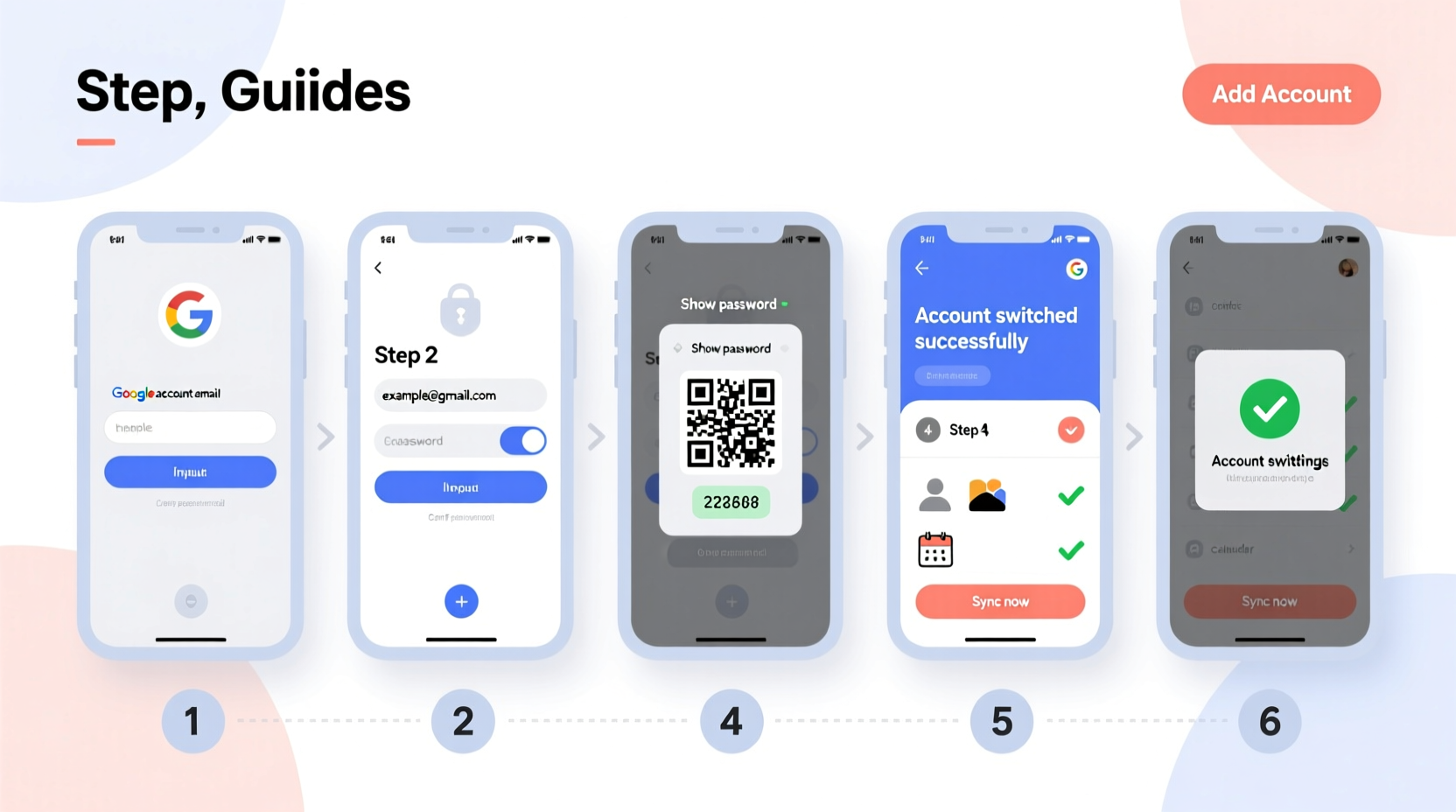
Google accounts are deeply integrated into Android systems. Removing one without precautions can lead to unintended consequences:
- Automatic sign-out from Gmail, Drive, YouTube, and other apps.
- Loss of synced contacts, calendar entries, and browser bookmarks.
- Disruption in app functionality that relies on Google Play Services.
- Potential deletion of locally stored photos if not backed up properly.
The key is understanding what’s tied to your account versus what’s stored locally or in third-party services. Not all data disappears when you remove an account—only what’s actively synced and not otherwise saved.
“Most data loss during account switches happens due to skipped backups, not system failure.” — Lena Patel, Mobile Systems Analyst at TechGuard Labs
Step-by-Step Guide to Safely Switch Google Accounts
Follow this timeline-based process to transition between Google accounts without compromising your digital life.
- Back Up All Critical Data
Before removing any account, ensure everything important is securely backed up:- Photos & Videos: Use Google Photos with “Back up & Sync” enabled. Confirm recent uploads under Settings > Backup.
- Contacts: Go to Google Contacts and verify sync status. Export as a .vcf file for offline safety.
- Calendar Events: Check Google Calendar sync and export key calendars via Google Takeout if needed.
- Device Settings: Enable “Backup to Google Drive” under System > Backup in Settings.
- Add the New Account First
Do not remove the old account until the new one is fully added.- Navigate to Settings > Accounts > Add Account > Google.
- Sign in with the new Google credentials.
- Select which services to sync (Gmail, Drive, Contacts, etc.).
- Verify Data Sync on the New Account
Open each app—Gmail, Calendar, Keep, Drive—and confirm that data appears correctly. If migrating historical data, use Google Takeout to transfer archives manually. - Adjust Default App Assignments
Some apps default to the first Google account. Update them individually:- In Gmail, set the preferred sending account.
- In Chrome, switch the signed-in profile.
- In Play Store, select the desired purchase account.
- Remove the Old Account (Only After Verification)
Once confident the new account functions properly:- Go to Settings > Accounts.
- Select the old Google account.
- Tap Remove Account.
- Final Check: Reboot and Revalidate
Restart your phone and open core apps again. Ensure notifications, email delivery, and cloud access remain functional.
Data Retention Checklist Before Switching
Use this checklist to ensure nothing gets left behind:
- ✅ Google Photos backup completed and verified
- ✅ Contacts exported or confirmed synced to new account
- ✅ Calendar events visible under new login
- ✅ Device backup enabled in Google Drive
- ✅ Important emails labeled or archived for retrieval
- ✅ Two-factor authentication set up on the new account
- ✅ App-specific passwords updated (e.g., for third-party mail clients)
- ✅ Family sharing, payment methods, and subscriptions transferred
Do’s and Don’ts When Changing Google Accounts
| Do’s | Don’ts |
|---|---|
| Add the new account before removing the old one | Don’t delete the old account immediately |
| Enable auto-backup on both accounts | Don’t assume local storage equals permanent safety |
| Test app functionality post-switch | Don’t ignore sync error messages |
| Use Google Takeout for full data portability | Don’t reuse passwords across accounts |
| Update recovery options (email, phone) | Don’t leave old devices logged in after removal |
Real Example: A Professional Switches Work and Personal Accounts
Sophie, a marketing consultant, used her personal Google account on her phone for years—including for freelance client work. As she joined a corporate role requiring a company-managed G Suite account, she needed to separate identities without losing past project files.
She followed the six-step process outlined above. First, she backed up over 12,000 photos and exported five years of contacts. Then, she added her employer’s Google Workspace account, configured selective sync for work calendars and emails, and adjusted her Play Store and Chrome defaults. Only after confirming all work systems were operational did she remove her personal account from the device.
Three weeks later, she reported zero data loss and improved focus due to clear separation between professional and private communications.
Frequently Asked Questions
Will I lose my text messages if I switch Google accounts?
No. SMS messages are stored on your device or SIM card, not in your Google account. However, if you use Google Messages with chat features enabled, those conversations sync to your Google account. Make sure to back them up in Google Chat settings before switching.
Can I keep both accounts on the same phone?
Absolutely. Android supports multiple Google accounts simultaneously. You can toggle between them in apps like Gmail, Drive, and Calendar. Many users maintain two or more accounts for work, personal use, and family sharing.
What happens to my downloaded apps when I switch accounts?
Your installed apps remain on the device. However, app updates and purchases are tied to the Google Play account used for download. To continue receiving updates, either re-download using the new account or ensure the original account stays active on the device.
Conclusion: Confidence in Transition
Switching Google accounts doesn’t have to be stressful or risky. With deliberate planning, thorough backups, and careful execution, you can transition smoothly while preserving every photo, contact, and calendar invite. The process isn’t about replacing one identity with another—it’s about managing your digital presence with intention and control.
Whether you're streamlining your workflow, enhancing privacy, or adapting to a new job, the ability to manage multiple accounts effectively is a modern necessity. Apply these steps the next time you need to make a change, and do so with full confidence that your data remains secure and accessible.




 浙公网安备
33010002000092号
浙公网安备
33010002000092号 浙B2-20120091-4
Comments
No comments yet. Why don't you start the discussion?