
In today’s fast-moving world, capturing life’s fleeting moments is more important than ever. While smartphones have evolved into powerful photography tools, many users still rely on basic LG mobile phones—devices that offer simplicity, durability, and long battery life. These models may not have advanced camera interfaces or AI enhancements, but they can still take clear, functional snapshots. The key is knowing how to operate them efficiently.
This guide walks you through every step of taking a photo on a standard LG feature phone or entry-level smartphone. Whether you’re using an LG K20, LG X Charge, or an older flip-style model with a camera, this process applies universally across LG's non-flagship lineup. From powering up the camera to reviewing your shot, we cover it all—plus common pitfalls and how to avoid them.
Understanding Your LG Phone’s Camera Capabilities
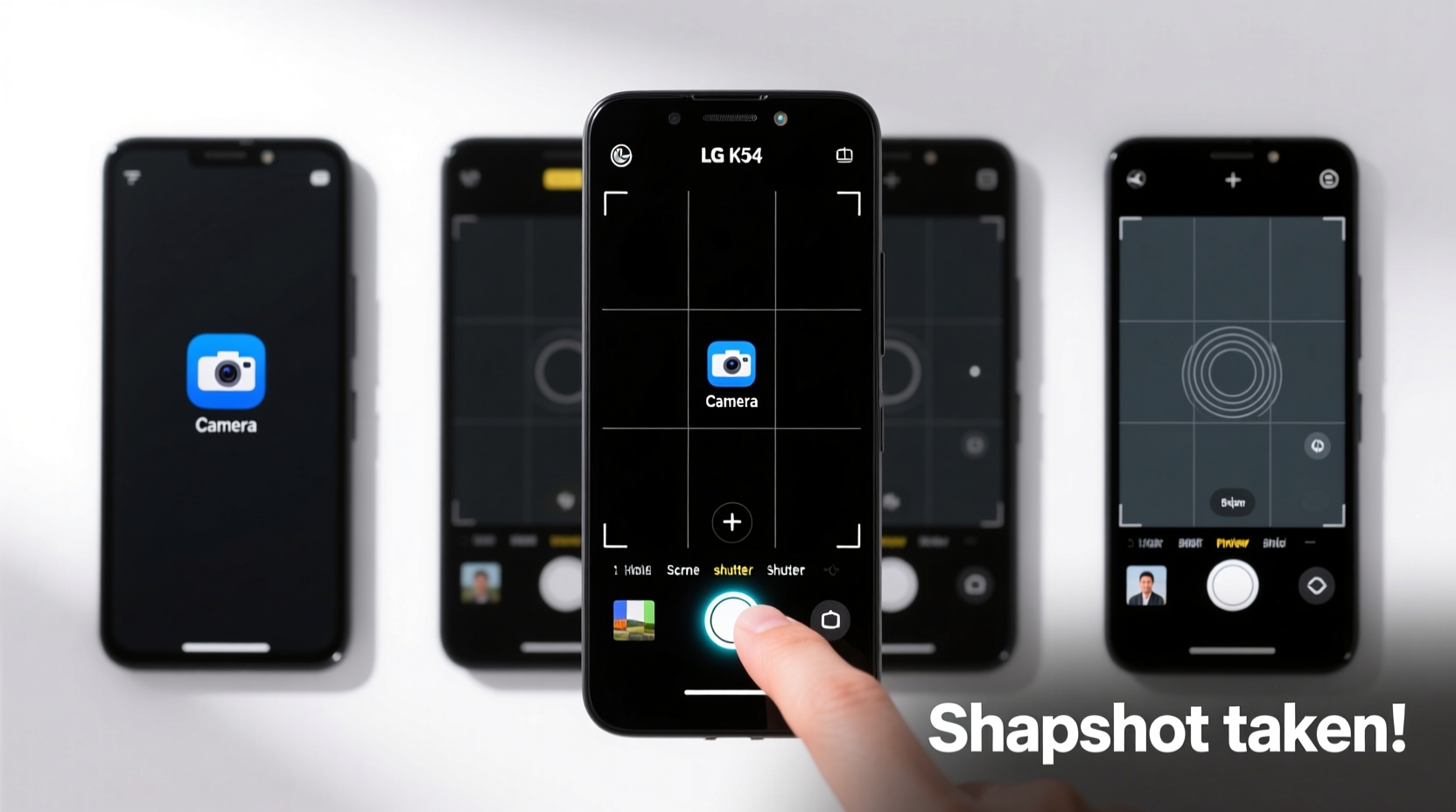
Before diving into the mechanics of taking a snapshot, it helps to understand what kind of camera system your LG device uses. Basic LG phones typically come with one rear-facing camera (ranging from 5MP to 8MP), limited zoom functionality, and minimal manual controls. There’s usually no front-facing camera on ultra-basic models, though some newer budget smartphones include a low-resolution selfie lens.
Unlike high-end Android devices, these phones often lack tap-to-focus, HDR modes, or night vision. However, they do support essential functions like flash toggling, basic digital zoom, and image review—all accessible through simple menu navigation or dedicated hardware buttons.
Knowing your device’s limits prevents frustration. For example, don’t expect crisp low-light performance without flash, and avoid heavy editing since storage and processing power are limited.
Step-by-Step Guide to Taking a Snapshot
- Power On Your Device: Ensure your LG phone is turned on and unlocked. If the screen is off, press the power button once to wake it.
- Locate the Camera Shortcut: Many basic LG phones have a dedicated camera button on the side (often near the volume keys). Press and hold this button—even when the phone is locked—to launch the camera app instantly.
- Alternative: Open via Home Screen: If there’s no physical button, navigate to the home screen, locate the “Camera” icon (usually a small circle with a dot inside), and tap it to open the camera interface.
- Frame Your Shot: Point the back of the phone toward your subject. Use the screen as a viewfinder. Keep steady; shaky hands lead to blurred images, especially in lower light.
- Adjust Settings if Needed: Tap the screen to reposition the focus box. Some models allow access to flash settings (Off/On/Auto) by swiping or tapping a lightning icon. Set it according to lighting conditions.
- Capture the Image: Press the on-screen shutter button (a large circle at the bottom center or side of the screen) or use the volume down button as a shutter trigger—this works on most LG devices.
- Review the Photo: After capture, the image will briefly appear in the corner or full screen. Tap it to open the gallery and confirm quality.
- Save and Exit: Photos are automatically saved to the phone’s internal storage under “DCIM/Camera.” Close the app by pressing the back or home button.
When No Dedicated Button Exists
Some entry-level LG phones lack a hardware camera button. In such cases, launching the camera relies entirely on software access. To speed things up:
- Add the camera widget to your home screen for one-tap access.
- Enable quick launch from the lock screen (if supported): Go to Settings > Lock Screen > Shortcuts, and assign the camera to a swipe direction.
- Use voice commands only if your model supports Google Assistant (e.g., “Open camera”).
Do’s and Don’ts When Using a Basic LG Phone Camera
| Do’s | Don’ts |
|---|---|
| Hold the phone with both hands for stability | Don’t shake the phone while pressing the shutter |
| Use natural light whenever possible | Don’t rely on digital zoom—it reduces quality |
| Tap the screen to set focus point | Don’t block the lens with fingers |
| Keep the lens clean and smudge-free | Don’t leave the camera app running unnecessarily—it drains battery |
| Check available storage before extended shooting | Don’t expect DSLR-level detail from a 5MP sensor |
Troubleshooting Common Snapshot Issues
Even with correct procedure, problems can arise. Here are frequent issues and their fixes:
- Camera won’t open: Restart the phone. Clear cache via Settings > Apps > Camera > Storage > Clear Cache.
- Blurry photos: Clean the lens, ensure adequate lighting, and hold still. Avoid moving subjects unless necessary.
- Flash not working: Check if the battery is too low—some LG models disable flash to conserve power. Also verify the setting isn’t stuck on “Off.”
- No sound when taking photo: This is normal on some carriers due to local laws. It doesn’t affect image capture.
- Photo not saving: Confirm storage space isn’t full. Insert or replace microSD card if used. Format the card via Settings > Storage if errors persist.
Real-Life Example: Capturing a Family Moment
Maria, a grandmother in Milwaukee, owns an LG Tribute Dynasty—a basic Android phone given to her by her son. She wanted to photograph her granddaughter’s first steps but struggled initially. The first few attempts were dark or out of focus because she didn’t realize the flash needed manual activation. After reading the user manual briefly and following the tap-to-focus method, she successfully captured a bright, clear image. By using the volume button as a shutter, she reduced blur caused by tapping the screen too hard. That photo later became the family’s holiday card.
Her experience shows that even users unfamiliar with smartphones can master photography basics with clear instructions and patience.
“Basic phones aren’t outdated—they’re optimized for reliability. Teaching older adults how to use built-in features like the camera builds confidence and connection.” — Dr. Alan Torres, Digital Literacy Advocate
Frequently Asked Questions
Can I take a picture while recording video?
No, most basic LG phones do not support simultaneous photo and video capture. You must pause or stop video recording before taking a still image.
Why does my photo look grainy?
Graininess (noise) occurs in low light, especially when the flash isn’t used. The small sensors in basic phones struggle to gather enough light, resulting in pixelated images. Whenever possible, shoot in well-lit environments.
Where are my photos stored?
By default, all snapshots are saved in the DCIM/Camera folder on your phone’s internal memory or microSD card. You can access them via the Gallery app or file manager.
Final Checklist Before Taking a Snapshot
- ✅ Phone is powered on and charged
- ✅ Lens is clean and unobstructed
- ✅ Sufficient storage space available
- ✅ Flash setting adjusted for current lighting
- ✅ Subject is within optimal distance (1–6 feet recommended)
- ✅ Hands are steady or phone is braced against a surface
- ✅ Camera app has fully loaded before shooting
Conclusion: Mastering Simplicity
Taking a snapshot on a basic LG mobile phone doesn’t require technical expertise—just awareness of the right steps and limitations. With consistent practice, anyone can produce usable, meaningful photos that preserve memories. These devices prove that functionality often outweighs flashy specs, especially when ease of use and dependability matter most.




 浙公网安备
33010002000092号
浙公网安备
33010002000092号 浙B2-20120091-4
Comments
No comments yet. Why don't you start the discussion?