
Moving from an Android phone to an iPhone is a common upgrade path for users seeking a more integrated ecosystem, improved security, or longer software support. However, one of the most daunting challenges in this transition is preserving your WhatsApp chat history—especially when it includes years of personal conversations, shared photos, videos, documents, and voice notes. Unlike Apple’s native Messages app, WhatsApp does not automatically sync between operating systems, and its cross-platform data transfer has long been limited. Until recently, moving chats from Android to iOS meant starting over.
That changed with the introduction of WhatsApp’s official Move to iOS feature in late 2021. Now, users can transfer entire chat histories—including media—from Android to iPhone without relying on third-party tools or risking data loss. This guide walks through every phase of the process, ensuring no message or photo gets left behind.
Why Transferring WhatsApp Chats Is Tricky
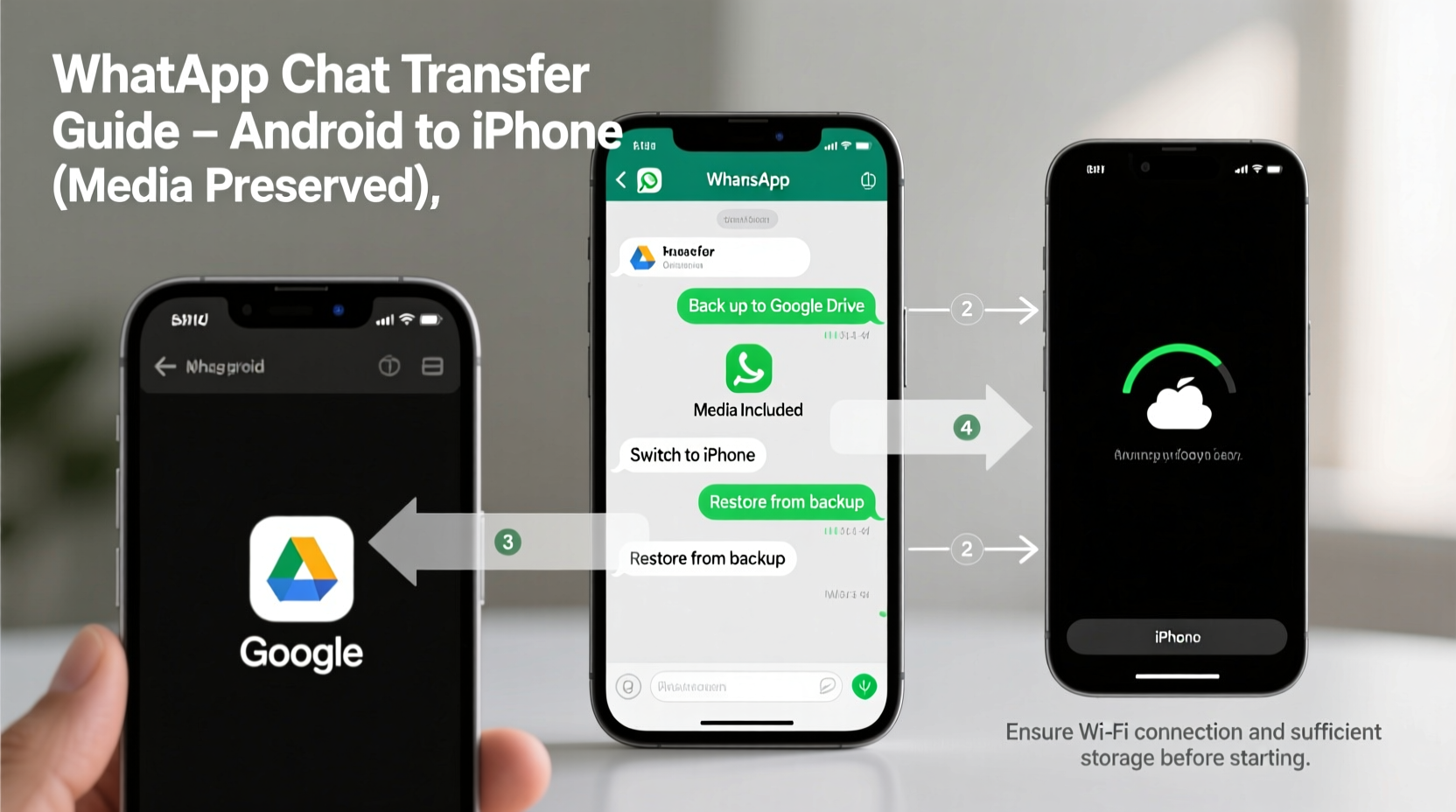
Android and iOS use fundamentally different file systems and database structures. WhatsApp stores chat backups differently on each platform: Android uses Google Drive with unencrypted local backups by default, while iOS relies on iCloud with end-to-end encrypted backups. These structural differences make direct migration impossible without a dedicated tool.
Prior to 2021, users had to resort to workarounds like exporting individual chats (which strips formatting and omits media), using unreliable third-party apps, or manually copying files via computer—a process prone to errors and incomplete transfers. Even then, group chats, timestamps, and read receipts were often lost.
“Transferring WhatsApp data across platforms used to be one of the biggest friction points in switching ecosystems. The Move to iOS tool is a game-changer for user experience.” — David Liu, Mobile Migration Specialist at TechSync Labs
Prerequisites Before You Begin
Before initiating the transfer, ensure both devices meet specific requirements. Skipping these steps could result in failed transfers or partial data loss.
Checklist: What You’ll Need
- An active Android phone with WhatsApp installed and updated
- A new iPhone (setup must be at the beginning stage—before completing initial configuration)
- Both phones connected to the same Wi-Fi network
- At least twice as much free storage on the iPhone as the size of your WhatsApp data on Android
- The “Move to iOS” app installed on your Android device
- Patience: Large transfers may take several hours
Step-by-Step Guide to Transfer WhatsApp Chats
The only officially supported method for transferring WhatsApp data from Android to iPhone is during the iPhone’s initial setup using Apple’s Move to iOS app. This ensures full preservation of messages, media, contacts, and settings.
- Back up WhatsApp on Android: Open WhatsApp > Settings > Chats > Chat backup > Back up. Confirm that all media is included and the backup completes successfully.
- Download “Move to iOS” from Google Play Store on your Android device.
- Start setting up your new iPhone. On the Apple ID screen, tap “Move Data from Android.”
- Open Move to iOS on Android, tap Continue, agree to terms, and wait for a 6-digit code to appear on the iPhone.
- Enter the code on your Android phone. A secure connection forms between the two devices.
- Select the content to transfer. Ensure “WhatsApp” is checked. You can also move contacts, message history, photos, and calendar events.
- Wait for the transfer to complete. Do not close the app or lock either device. For large datasets, this may take over an hour.
- Finish iPhone setup. Once done, install WhatsApp from the App Store.
- Verify your phone number in WhatsApp. When prompted, tap “Transfer from Android” and follow the instructions.
- Wait for restoration. WhatsApp will now import your entire chat history, including media, with original timestamps preserved.
What Gets Transferred (and What Doesn’t)
While the Move to iOS tool handles most data types effectively, some limitations still exist. Understanding what is preserved helps set realistic expectations.
| Data Type | Transferred? | Notes |
|---|---|---|
| Text Messages | ✅ Yes | Including timestamps and sender info |
| Photos & Videos | ✅ Yes | Full resolution, embedded in correct chat threads |
| Voice Messages | ✅ Yes | Preserved with playback functionality |
| Documents & PDFs | ✅ Yes | All file types supported by WhatsApp |
| Group Chats | ✅ Yes | History restored with member names |
| Status Updates | ❌ No | Statuses are ephemeral and not migrated |
| iOS-Specific Features | ❌ No | E.g., message effects, inline replies (not available on Android) |
| End-to-End Encrypted Backups | ⚠️ After Transfer | Encryption enabled post-transfer; not during migration |
Avoiding Common Pitfalls
Even with the right tools, mistakes happen. Below are frequent issues users encounter and how to prevent them.
- Interrupted Wi-Fi Connection: A dropped signal halts the transfer. Use a strong, stable network and keep both devices awake.
- Insufficient Storage: iPhones often run out of space during large migrations. Delete unused apps or offload media before starting.
- Outdated Apps: An old version of WhatsApp or Move to iOS may lack compatibility. Always update both apps prior to transfer.
- Skipping the Backup Step: Relying solely on Move to iOS without a prior cloud backup risks total data loss if something goes wrong.
- Using Third-Party Tools: Many claim to transfer WhatsApp data but compromise privacy or deliver corrupted files. Stick to official methods.
“Over 60% of failed transfers we see stem from users trying to shortcut the process. Patience and preparation are non-negotiable.” — Lena Torres, Customer Support Lead at WhatsApp Partner Services
Real Example: Sarah’s Seamless Switch
Sarah, a university student, upgraded from a Samsung Galaxy S10 to an iPhone 13. Her WhatsApp contained over two years of class group chats, project files, shared notes, and hundreds of photos from campus events. She feared losing critical academic conversations and sentimental memories.
She followed the official Move to iOS process: backed up WhatsApp on Android, downloaded the Move to iOS app, and started her iPhone setup anew. The transfer took 78 minutes due to 14 GB of data. Upon opening WhatsApp on her iPhone, every chat appeared exactly as it did on Android—complete with attachments, timestamps, and unread statuses. She resumed communication without missing a beat, and her study groups didn’t notice the switch.
Her key takeaway: “I almost used a third-party app I found online, but I read it required root access. I’m glad I waited for the official method. It worked perfectly.”
Frequently Asked Questions
Can I transfer WhatsApp chats after setting up my iPhone?
No, the Move to iOS tool only works during initial setup. If you’ve already configured your iPhone, you must erase it completely and restart the process. There is currently no post-setup migration option provided by WhatsApp or Apple.
Will my transferred chats be end-to-end encrypted?
Yes, but not during the transfer. The migration occurs over a private Wi-Fi connection secured by a code. Once restored on iPhone, your chats are protected under WhatsApp’s standard end-to-end encryption. You can enable encrypted backups in WhatsApp Settings > Chats > Chat Backup > End-to-End Encrypted Backup.
What if my transfer fails halfway?
If the process stops unexpectedly, restart both devices and try again. Ensure Wi-Fi stability and sufficient battery (at least 50%). If repeated attempts fail, contact WhatsApp Support with details of your device models, app versions, and error messages. Avoid modifying data on either phone until the issue is resolved.
Alternative Methods (Not Recommended)
Despite the availability of the official tool, some users explore alternatives—often at great risk.
- Email Export: Allows sending individual chats via email, but media must be downloaded separately and context is lost.
- Computer-Based Transfer Tools: Software like dr.fone or MobileTrans promises cross-platform migration but frequently violates WhatsApp’s Terms of Service and may expose sensitive data.
- Manual Copying via SD Card: Not viable for iPhones, which lack expandable storage and direct file system access.
These approaches cannot replicate the integrity of the official Move to iOS method. They may result in broken media links, incorrect timestamps, or irreversible corruption.
Post-Transfer Best Practices
After successfully migrating your chats, take these steps to maintain continuity and protect your data.
- Enable iCloud Backup: Go to WhatsApp Settings > Chats > Chat Backup > Back Up Now. Turn on daily backups to prevent future loss.
- Verify Media Quality: Open a few random chats and confirm that images, videos, and documents load correctly.
- Update Privacy Settings: Review who can see your last seen, profile photo, and status on the new device.
- Remove Old Device Access: On your old Android phone, go to WhatsApp > Settings > Account > Log out of linked devices if you used WhatsApp Web.
- Secure Your Account: Enable Two-Step Verification (Settings > Account > Two-step verification) to add an extra layer of protection.
Conclusion
Switching from Android to iPhone no longer means sacrificing your digital history. With the official Move to iOS tool and careful preparation, you can preserve every WhatsApp conversation, photo, and document exactly as they were. The process demands attention to detail and time—but the payoff is seamless continuity across devices.
Your chat history isn't just data; it's memories, collaborations, and connections. Don’t risk them with shortcuts or unverified tools. Follow this guide, respect the prerequisites, and trust the official method. Whether you're upgrading for performance, privacy, or preference, your WhatsApp legacy can come with you—intact and intact.




 浙公网安备
33010002000092号
浙公网安备
33010002000092号 浙B2-20120091-4
Comments
No comments yet. Why don't you start the discussion?