
The Ze21 speaker delivers crisp audio and reliable wireless performance when functioning properly. However, like any Bluetooth device, it can occasionally struggle to connect, drop signals, or fail to pair altogether. These issues are often fixable with a methodical approach. Whether you're setting up the speaker for the first time or encountering sudden disconnections, this guide walks you through every possible solution — from basic checks to advanced resets.
1. Verify the Basics: Power, Range, and Device Compatibility
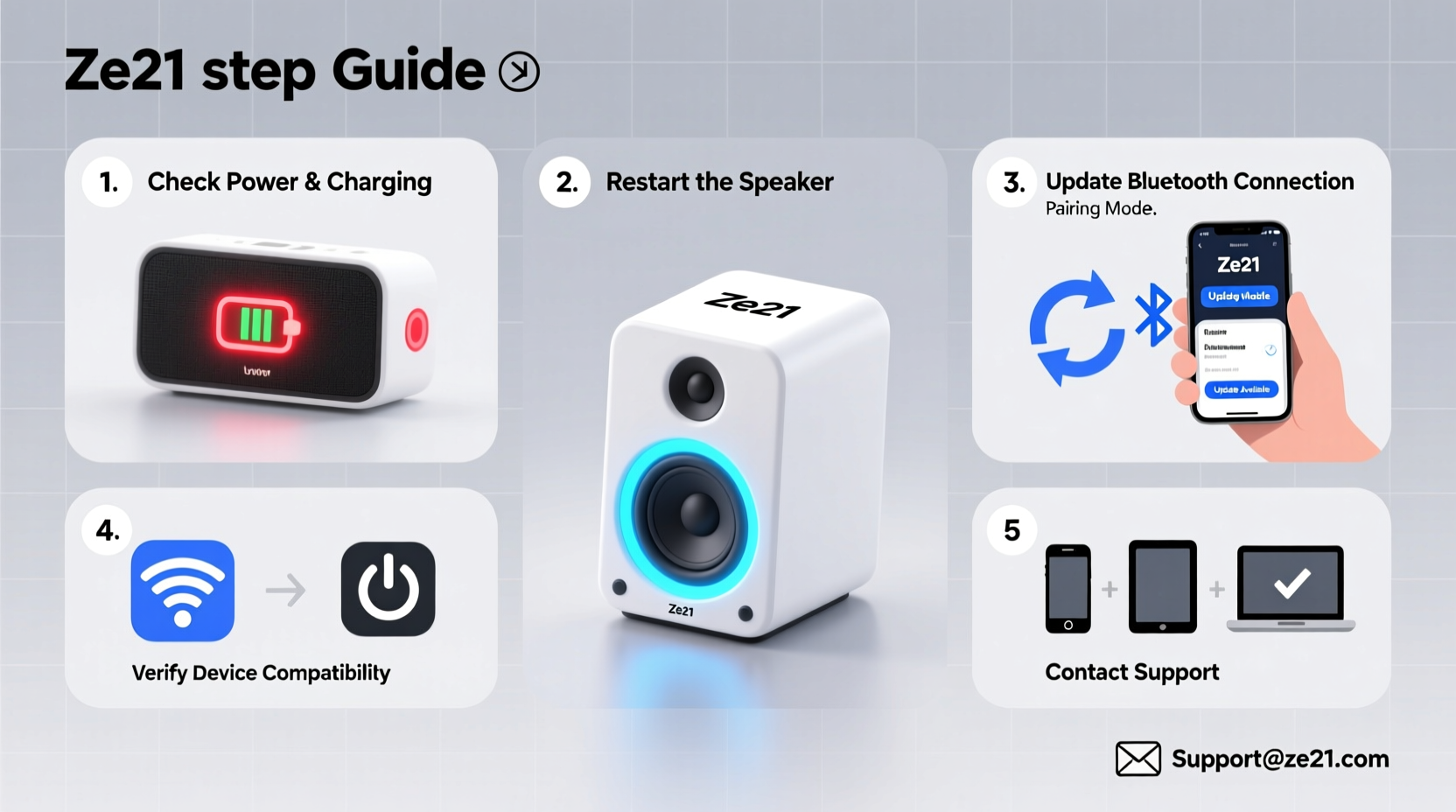
Before diving into complex fixes, confirm that the fundamentals are in order. Many connection problems stem from simple oversights.
- Ensure the speaker is powered on: The Ze21 has a power button that glows blue when active. If the light doesn’t illuminate, charge the speaker using the included micro-USB cable.
- Check battery level: A low battery can prevent stable Bluetooth connections. Charge the speaker fully before troubleshooting further.
- Maintain proximity: Bluetooth range for the Ze21 is approximately 33 feet (10 meters) in open space. Walls, furniture, or electronic interference can reduce this. Stay within close range during setup.
- Confirm device compatibility: The Ze21 supports Bluetooth 4.2 and works with iOS, Android, Windows, and macOS devices. Older devices with outdated Bluetooth stacks may have difficulty pairing.
2. Establish a Clean Bluetooth Pairing
If the speaker was previously paired with another device, residual connections can interfere with new attempts. Follow this sequence to ensure a clean connection:
- Turn on the Ze21 speaker. Wait for the LED to blink blue and red — this indicates pairing mode.
- If the lights are solid blue, the speaker is already connected. Press and hold the Bluetooth button (or the Play/Pause button, depending on model variant) for 3–5 seconds until the lights flash alternately.
- On your phone or tablet, go to Settings > Bluetooth.
- Ensure Bluetooth is enabled.
- Select “Ze21” from the list of available devices.
- If prompted for a PIN, enter 0000 (four zeros).
- Wait for confirmation — a solid blue light on the speaker and an audio cue indicate successful pairing.
If the device fails to appear, proceed to forget any prior pairing history.
Remove Old Pairings from Your Device
Saved but inactive Bluetooth devices can conflict with reconnection attempts. Remove the Ze21 from your device’s memory:
- iOS: Settings > Bluetooth > Tap the (i) icon next to Ze21 > Forget This Device.
- Android: Settings > Connected Devices > Bluetooth > Tap gear icon next to Ze21 > Unpair.
- Windows: Settings > Devices > Bluetooth & other devices > Ze21 > Remove device.
- macOS: System Settings > Bluetooth > Right-click Ze21 > Remove.
After removal, restart Bluetooth on your device and attempt to pair again.
3. Reset the Ze21 Speaker to Factory Settings
If standard pairing fails, perform a factory reset. This clears all saved connections and restores default settings.
How to Reset the Ze21:
- Power on the speaker.
- Press and hold both the Volume Down and Bluetooth buttons simultaneously.
- Hold for 8–10 seconds until the LED flashes rapidly in red and blue.
- Release the buttons. The speaker will power off automatically.
- Turn it back on. It should now enter pairing mode automatically.
After resetting, attempt to pair as if it were a brand-new device.
4. Diagnose Interference and Environmental Factors
Wireless performance depends heavily on environment. Common sources of interference include:
- Wi-Fi routers operating on 2.4 GHz band
- Other Bluetooth devices (keyboards, headphones, smart home gadgets)
- Thick walls, metal objects, or large appliances
- USB 3.0 ports and poorly shielded electronics
Move the speaker away from these sources during testing. Place it on a non-metal surface and minimize physical obstructions between the speaker and your device.
| Factor | Impact on Ze21 | Solution |
|---|---|---|
| Wi-Fi congestion | Audio stuttering or disconnection | Switch router to 5 GHz band or use speaker farther from router |
| Multiple Bluetooth devices | Pairing conflicts | Turn off unused Bluetooth peripherals |
| Poor signal path | Weak or unstable connection | Reduce distance; avoid placing speaker inside cabinets |
| Firmware bugs | Random disconnects | Reset speaker; check for updates via manufacturer site |
“Bluetooth stability isn’t just about the device — it’s about ecosystem harmony. Reducing signal clutter often resolves more issues than technical fixes.” — Rajiv Mehta, Wireless Audio Engineer
5. Advanced Troubleshooting and Recovery Steps
When all else fails, consider deeper system-level causes.
Update Your Source Device’s Operating System
An outdated OS may lack proper Bluetooth drivers or security patches needed for stable communication. Check for updates:
- iOS: Settings > General > Software Update
- Android: Settings > System > System Update
- Windows: Settings > Update & Security > Windows Update
- macOS: Apple Menu > System Settings > Software Update
Test with Multiple Devices
Determine whether the issue lies with the speaker or your primary device. Attempt to pair the Ze21 with a different phone, tablet, or laptop.
- If it connects successfully elsewhere, the problem is likely with your original device’s Bluetooth module or settings.
- If no device can pair, the speaker may require service or replacement.
Check for Physical Damage
Inspect the speaker for signs of water exposure, cracked casing, or damaged ports. Moisture can corrode internal circuits and disrupt wireless functions. If exposed to liquid, power off immediately and allow 48 hours of drying time in a dry, ventilated area — do not use heat.
Bypass Bluetooth: Use Auxiliary Mode
The Ze21 includes a 3.5mm auxiliary input. If Bluetooth remains unreliable, use a wired connection:
- Connect one end of an audio cable to your device’s headphone jack.
- Plug the other end into the AUX port on the Ze21.
- Press the Mode button until you hear a tone indicating AUX mode.
- Play audio — volume may need adjustment on both devices.
This confirms the speaker itself is functional, isolating the issue to Bluetooth functionality.
Troubleshooting Checklist
- Speaker is charged and powered on
- Bluetooth is enabled on source device
- Devices are within 10 meters, unobstructed
- Old pairings removed from device list
- Speaker reset to factory settings
- Tested with multiple devices
- Operating systems updated
- Environmental interference minimized
- AUX mode tested as fallback
Real-World Example: Office Meeting Setup Failure
Sarah, a project manager, arrived at a client meeting with her Ze21 speaker to play a presentation video. Despite previous successful use, the speaker wouldn’t connect to her tablet. She followed standard steps: turned on Bluetooth, searched for devices — but Ze21 didn’t appear.
She remembered reading about device clutter. Her tablet had been used with four other Bluetooth devices that week. She went to settings, forgot the Ze21, restarted Bluetooth, and re-paired. Still no success.
Next, she reset the speaker using the Volume Down + Bluetooth button combo. After the lights flashed, she powered it back on. This time, the Ze21 appeared instantly in her tablet’s device list. The connection held throughout the presentation.
The root cause? A corrupted Bluetooth profile stored from a previous failed connection. The reset cleared the glitch.
Frequently Asked Questions
Why does my Ze21 connect but produce no sound?
This usually occurs when the audio output isn’t routed correctly. On your device, open the music or video app and ensure sound isn’t being sent to another device (like headphones or a smart TV). Also, check that the speaker’s volume isn’t muted and that the correct playback mode (Bluetooth A2DP) is active.
Can I connect two Ze21 speakers together?
The standard Ze21 model does not support stereo pairing or daisy-chaining. It functions as a single-unit speaker. For dual-speaker setups, consider models explicitly labeled “TWS” (True Wireless Stereo) compatible.
How do I know if my Ze21 needs repair?
If the speaker fails to power on, shows no LED response, produces distorted sound even in AUX mode, or consistently refuses pairing across multiple devices after resets, contact the manufacturer or retailer for warranty support.
Conclusion: Regain Control Over Your Listening Experience
Connection issues with the Ze21 speaker are rarely permanent. Most problems stem from pairing conflicts, environmental factors, or minor software hiccups — all of which are reversible. By following a structured approach, starting with basic checks and progressing to resets and diagnostics, you can restore seamless wireless audio.
Don’t accept intermittent connectivity as normal. With the right steps, your Ze21 should deliver consistent performance. Apply these solutions today, and enjoy uninterrupted music, calls, and media wherever you go.




 浙公网安备
33010002000092号
浙公网安备
33010002000092号 浙B2-20120091-4
Comments
No comments yet. Why don't you start the discussion?