
Changing your phone number is a common part of modern life—whether you're switching carriers, relocating, or simply upgrading your plan. But when that number is tied to your Apple ID, the process requires care. Your Apple ID is the gateway to iCloud, iMessage, FaceTime, App Store purchases, and device recovery. Updating your phone number correctly ensures uninterrupted access and strengthens your account security.
Many users hesitate to make this change, fearing they might lock themselves out or compromise their data. This guide walks you through each stage with precision, offering best practices, troubleshooting tips, and expert-backed insights to keep your digital identity secure while making the switch seamlessly.
Why Updating Your Apple ID Phone Number Matters
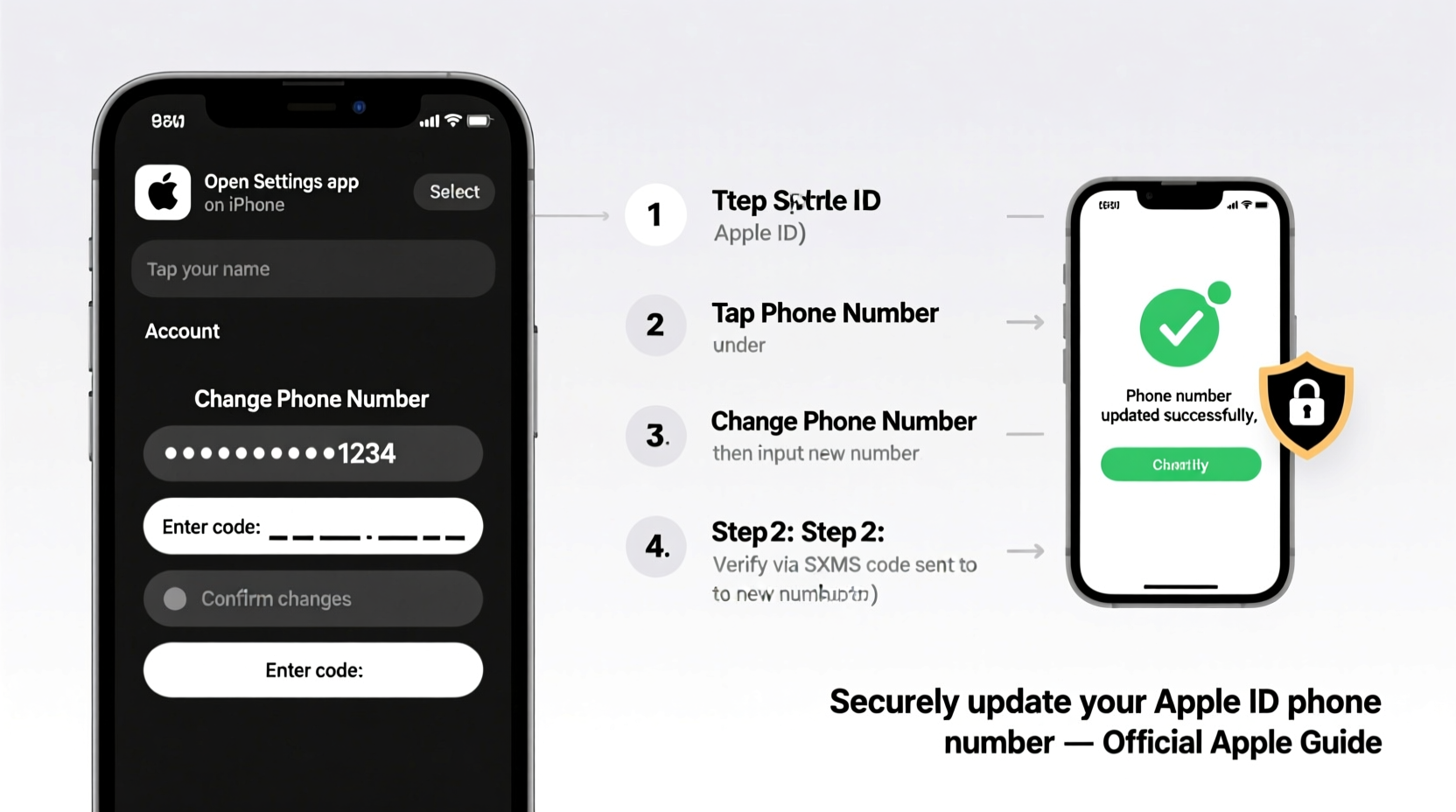
Your Apple ID phone number isn’t just for receiving texts—it plays a critical role in two-factor authentication (2FA), account recovery, and trusted device verification. If you lose access to your old number without updating it, you risk being locked out of your own devices and services.
Apple uses your trusted phone number to:
- Send verification codes during login attempts
- Verify your identity when resetting your password
- Enable iMessage and FaceTime on new devices
- Help recover your account if compromised
Leaving an outdated number attached to your Apple ID creates a vulnerability. Scammers can sometimes take over inactive numbers—a practice known as SIM swapping—and use them to intercept verification codes. Keeping your contact information current closes this gap.
Step-by-Step Guide to Updating Your Phone Number
Follow these steps carefully to ensure a smooth transition. The process varies slightly depending on whether you're using an iPhone, iPad, or Mac—but all paths lead to the same secure outcome.
- Ensure You Have Access to Both Numbers
Before starting, confirm you can receive SMS or calls on both your current (old) and new phone numbers. This helps verify ownership during the update. - Sign In to Your Apple ID Account Page
Open Safari or any browser and go to appleid.apple.com. Sign in with your Apple ID and password. - Navigate to the “Security” Section
Once logged in, scroll down to the \"Security\" section. Here you’ll see your currently listed phone numbers under “Trusted Phone Numbers.” - Edit Trusted Phone Numbers
Click “Edit” next to Trusted Phone Numbers. You'll be prompted to verify your identity via two-factor authentication using one of your trusted devices. - Add Your New Number
Click the \"+\" button to add a new number. Enter your new phone number, select the type (mobile), and choose how you’d like to receive verification (text or call). - Verify the New Number
Apple will send a six-digit code to your new number. Enter it on the website to confirm ownership. - Remove the Old Number (Optional but Recommended)
After verifying the new number, you can remove the old one. Select the trash icon next to the outdated number and confirm deletion. - Update Devices (Automatic in Most Cases)
Within minutes, your updated number should sync across all signed-in Apple devices. However, manually check Settings > [Your Name] > Phone Number on each device to confirm.
This entire process typically takes less than ten minutes and doesn’t affect your data, apps, or subscriptions.
Do’s and Don’ts When Changing Your Apple ID Number
| Do’s | Don’ts |
|---|---|
| Verify both old and new numbers are active before starting | Don’t remove your old number until the new one is verified |
| Use a mobile number—not a VoIP or landline—for full functionality | Don’t skip two-factor authentication prompts |
| Keep your recovery key safe if using legacy account recovery methods | Don’t share verification codes with anyone |
| Test iMessage and FaceTime after updating | Don’t assume all devices update instantly—check each one |
A Real-World Scenario: Recovering Access After a Number Change
Sarah recently moved from New York to Austin and switched her carrier to get better local coverage. She updated her phone number with her provider but forgot to change it on her Apple ID. A week later, she bought a new MacBook and couldn’t sign in because the verification code was sent to her old, deactivated number.
With no access to the old SIM and no alternate email set up, Sarah faced a lengthy account recovery process that took 48 hours. She regained access only after answering security questions and waiting for Apple Support to manually verify her identity.
Her experience underscores a crucial point: updating your Apple ID phone number proactively prevents unnecessary delays and stress. Had she followed the simple steps outlined above before disconnecting her old line, she would have avoided the disruption entirely.
“Updating your contact information is one of the most overlooked yet vital aspects of digital hygiene. It's not just convenience—it's a frontline defense against account hijacking.” — Marcus Reed, Cybersecurity Consultant at DigitalShield Labs
Troubleshooting Common Issues
Even with careful execution, some users encounter hiccups. Here are frequent problems and how to resolve them:
- Verification Code Not Received: Double-check signal strength on the new device. Wait five minutes and request a new code. Ensure the number was entered correctly, including country code.
- “Number Already in Use” Error: This means the number is still linked to another Apple ID. Contact Apple Support to disassociate it or wait 30 days after deactivation.
- iMessage Still Using Old Number: Go to Settings > Messages > Send & Receive. Deselect the old number and set the new one as primary.
- FaceTime Not Activating: Restart the device, then toggle FaceTime off and on. Make sure your new number is listed under Settings > FaceTime.
Essential Checklist Before You Begin
Use this checklist to prepare for a seamless update:
- ✅ Confirm your new phone number is active and can receive texts/calls
- ✅ Back up your devices (via iCloud or Finder)
- ✅ Know your Apple ID password and have access to at least one trusted device
- ✅ Disable Find My [Device] temporarily if transferring between phones (optional)
- ✅ Write down your Recovery Key if using two-factor authentication
- ✅ Notify family or contacts who message you via iMessage about the change
Frequently Asked Questions
Can I use a landline number for my Apple ID?
You can add a landline for account recovery purposes, but it cannot be used for two-factor authentication since it doesn’t receive text messages. For full functionality, always include a working mobile number.
How long does it take for the new number to sync across devices?
In most cases, changes propagate within a few minutes. However, older devices or those offline during the update may take longer. Manually refresh by signing out and back into iCloud if needed.
What happens to my iMessage history when I change numbers?
Your message history remains intact on your devices. However, new messages sent to your old number may not route properly unless rerouted by your carrier. Inform close contacts of your new number to maintain conversation continuity.
Stay Secure, Stay Connected
Updating your phone number on Apple ID is more than administrative upkeep—it's a fundamental step in maintaining control over your digital ecosystem. With cyber threats evolving and mobile numbers becoming prime targets for fraud, staying proactive protects not just your devices, but your personal information and peace of mind.
By following the steps in this guide, you ensure that every verification code reaches the right device, every iMessage finds its recipient, and every login attempt remains under your authority. Whether you're changing numbers for convenience or necessity, doing it right makes all the difference.




 浙公网安备
33010002000092号
浙公网安备
33010002000092号 浙B2-20120091-4
Comments
No comments yet. Why don't you start the discussion?