
Lige Smart Glasses blend style and technology, offering hands-free audio, voice assistance, and smartphone integration through Bluetooth connectivity. But like any wearable tech, they can occasionally struggle to maintain a stable connection. Whether the glasses won’t pair, disconnect frequently, or fail to sync with the companion app, these issues disrupt the seamless experience users expect. The good news is that most connection problems are solvable with systematic troubleshooting. This guide walks through practical, tested steps to restore reliable performance—without needing technical expertise.
Understanding Common Connection Issues
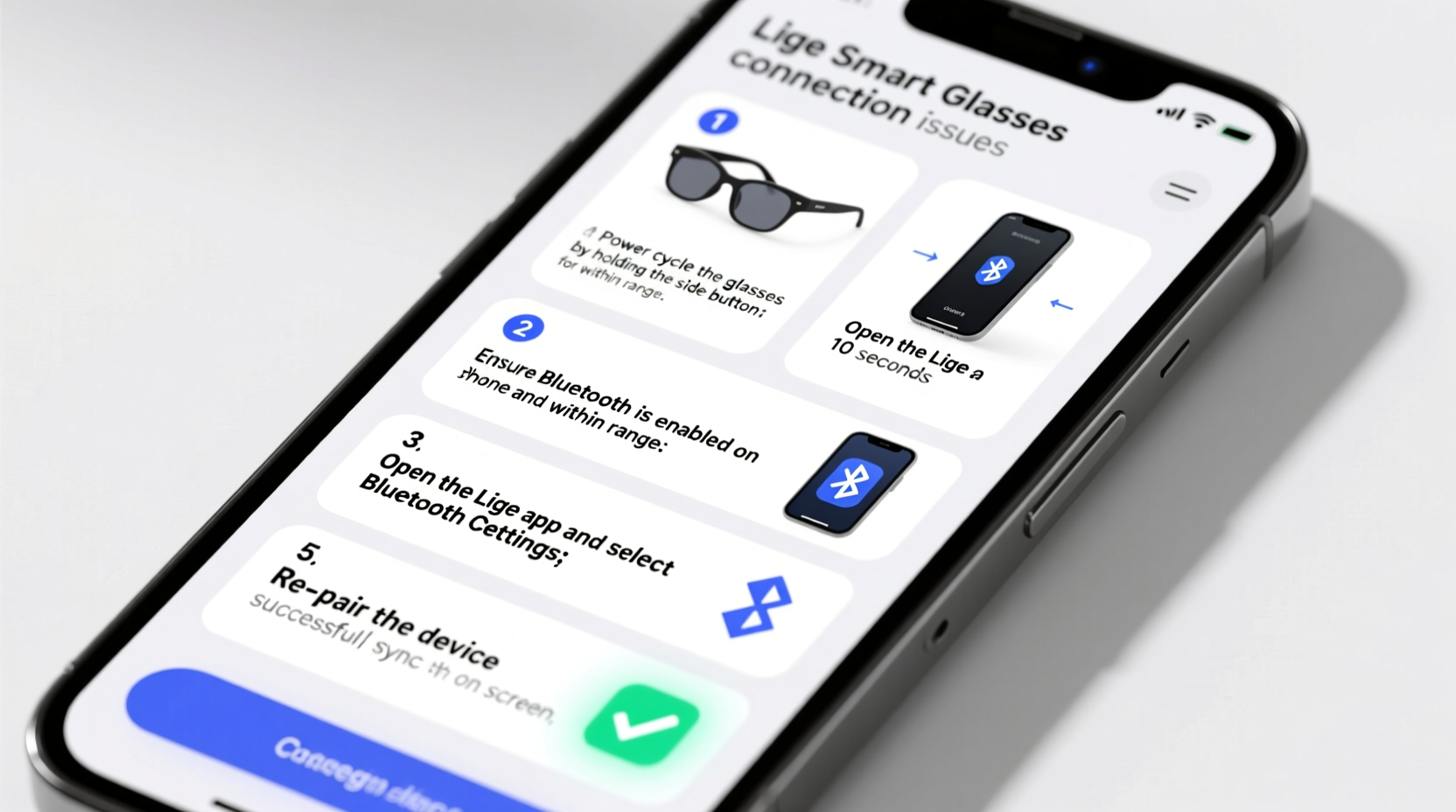
Lige Smart Glasses rely on Bluetooth 5.0 or higher for stable communication with smartphones and other devices. When problems arise, they typically fall into one of several categories:
- Pairing failure: The glasses don’t appear in the device’s Bluetooth list or fail to connect after selection.
- Intermittent disconnections: Audio cuts out or the glasses drop connection during use.
- App syncing errors: The Lige app fails to recognize the glasses or update firmware.
- One-sided audio or control unresponsiveness: Touch controls don’t respond, or only one earpiece works.
These symptoms often stem from software glitches, outdated firmware, interference, or incorrect device settings. Addressing them methodically increases the chances of a quick resolution.
Step-by-Step Troubleshooting Guide
Follow this sequence of actions to diagnose and resolve connection problems. Each step builds on the previous one, starting with the simplest fixes.
- Restart Both Devices
Power off your Lige Smart Glasses and smartphone completely. Wait 30 seconds, then power them back on. This clears temporary software hiccups affecting Bluetooth functionality. - Check Battery Levels
Low battery can cause unstable connections. Charge both the glasses and your phone to at least 50% before attempting further troubleshooting. - Enable Bluetooth and Location (Android)
On Android devices, Bluetooth scanning requires location services to be active. Go to Settings > Location and turn it on. Then re-enable Bluetooth. - Forget and Re-Pair the Device
On your phone, go to Bluetooth settings, find \"Lige Smart Glasses\" in the paired devices list, and select \"Forget.\" Place the glasses back into pairing mode (usually by holding the touch panel for 5–7 seconds until the LED flashes red and blue), then reconnect via your phone’s Bluetooth menu. - Reset the Smart Glasses
Perform a factory reset on the glasses. The method varies slightly by model, but generally involves holding the touch control for 10–15 seconds until the LED flashes rapidly or turns off and restarts. Refer to your user manual for exact instructions. - Update Firmware via the Lige App
Download or open the official Lige app (available on iOS and Android). Ensure your account is logged in, then follow prompts to check for firmware updates. Outdated firmware is a common cause of connectivity bugs. - Test with Another Device
Pair the glasses with a different smartphone or tablet. If they connect successfully, the issue lies with your original device’s settings or compatibility.
Do’s and Don’ts: Best Practices for Stable Connections
| Do’s | Don’ts |
|---|---|
| Keep your smartphone’s OS and the Lige app updated. | Don’t use third-party apps to pair or control the glasses. |
| Store the glasses in their case when not in use to preserve battery. | Don’t expose the glasses to moisture or extreme temperatures. |
| Use the glasses within 10 meters (33 feet) of your connected device. | Don’t place the glasses near Wi-Fi routers, microwaves, or other Bluetooth devices that cause interference. |
| Re-pair the device after a firmware update. | Don’t attempt hardware repairs unless authorized by Lige support. |
Real-World Example: Recovering a Non-Responsive Pair
Sarah, a frequent commuter in Chicago, purchased Lige Smart Glasses for her daily train rides. After two weeks, the glasses stopped connecting to her iPhone. She tried turning Bluetooth on and off repeatedly, but the device wouldn’t appear in the list. Frustrated, she nearly returned them—until she followed a structured reset process.
She first restarted her iPhone, then placed the glasses into pairing mode. When that failed, she used the Lige app to locate the “Reset Device” option under settings. After resetting, the glasses appeared in her Bluetooth menu immediately. The key was discovering that the app—not just the phone’s Bluetooth settings—was needed to trigger the reset. Firmware also updated automatically after reconnecting, resolving a background bug causing the dropout.
This case highlights how combining app-based tools with standard Bluetooth procedures leads to faster fixes than guesswork.
“Many smart glasses issues aren’t hardware failures—they’re synchronization gaps between firmware, apps, and mobile OS updates.” — Rajiv Mehta, Senior Wearable Tech Engineer
Essential Checklist for Connection Recovery
Print or save this checklist to quickly troubleshoot future issues:
- ✅ Restart smartphone and glasses
- ✅ Charge both devices above 50%
- ✅ Enable Bluetooth and location (Android)
- ✅ Forget device in Bluetooth settings
- ✅ Reset glasses using touch control hold
- ✅ Open Lige app and check for firmware update
- ✅ Re-pair glasses as a new device
- ✅ Test with a secondary smartphone if possible
Frequently Asked Questions
Why do my Lige Smart Glasses keep disconnecting?
Repeated disconnections are often caused by low battery, signal interference, outdated firmware, or Bluetooth instability on the host device. Try resetting the glasses and updating the firmware via the Lige app. Also, minimize obstacles like walls or metal objects between the glasses and your phone.
The Lige app isn’t detecting my glasses—what should I do?
Ensure Bluetooth is enabled and that the glasses are in pairing mode. Close and reopen the app, or reinstall it if necessary. Make sure you're logged into the correct account. If detection still fails, reset the glasses and try again. Some older phone models may have limited compatibility; check Lige’s official device support list.
Can I use Lige Smart Glasses with multiple devices?
Yes, but not simultaneously. You can pair them with different phones or tablets, but only one device can be actively connected at a time. To switch devices, disconnect from the current one, then pair with the new device. Note that some features, like voice assistant access, may only work with the primary paired phone.
Final Steps and Long-Term Maintenance
Once your Lige Smart Glasses are reconnected, take steps to prevent future issues. Regularly check for firmware updates—at least once a month. Avoid leaving the glasses in hot environments, such as a car dashboard, as heat degrades battery and internal components. Clean the charging contacts gently with a dry cloth weekly to ensure proper power delivery.
If all troubleshooting steps fail and the glasses still won’t connect, contact Lige customer support with your purchase details. Many units come with a one-year warranty covering manufacturing defects, including persistent Bluetooth module failures.




 浙公网安备
33010002000092号
浙公网安备
33010002000092号 浙B2-20120091-4
Comments
No comments yet. Why don't you start the discussion?