
The Transformers Bumblebee earbuds combine nostalgic design with modern wireless convenience, making them a favorite among fans and tech users alike. However, like any Bluetooth device, they can occasionally struggle with connectivity—failing to pair, dropping audio, or not being recognized by devices. These issues often stem from software glitches, interference, or incorrect usage patterns. The good news is that most connection problems are fixable with systematic troubleshooting. This guide walks through practical, tested steps to restore seamless performance.
Understanding Common Connection Issues
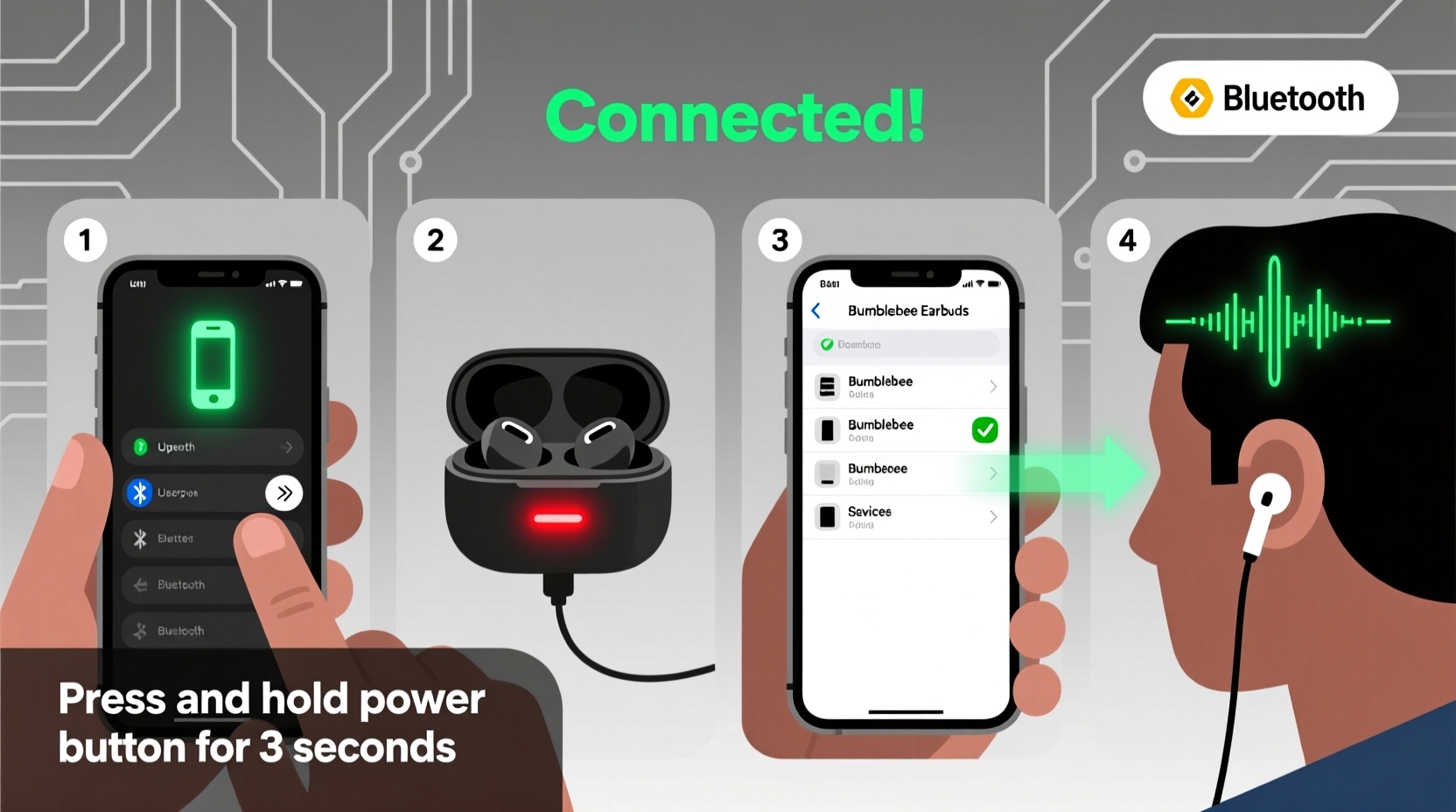
Before diving into fixes, it helps to identify the type of problem you're facing. The most frequent complaints from Bumblebee earbud users include:
- Earbuds won’t enter pairing mode
- Only one earbud connects (mono mode instead of stereo)
- Connection drops intermittently during use
- Device detects earbuds but no audio plays
- Earbuds fail to reconnect automatically after turning off
These symptoms usually point to either a temporary Bluetooth stack glitch, low battery, signal interference, or firmware misalignment between the earbuds and the host device. Rarely, hardware defects are to blame—but most cases resolve with simple resets and recalibration.
Step-by-Step Troubleshooting Guide
Follow this logical sequence to diagnose and resolve your connection issue. Each step builds on the previous one, increasing in depth of reset and reconfiguration.
- Check Battery and Charging Status
Ensure both earbuds are fully charged. Place them in the case for at least 30 minutes. A blinking red light typically indicates charging; solid white means fully charged. Low battery prevents stable connections. - Enable Bluetooth on Your Device
Confirm Bluetooth is turned on and functioning. Try connecting to another Bluetooth device (like a speaker) to verify your phone or tablet isn’t the source of the issue. - Reset the Earbuds
Press and hold both earbud touch panels simultaneously for 15 seconds while outside the case. The LED will flash red and white multiple times, then go dark. This resets internal memory and clears prior pairing data. - Enter Pairing Mode
After resetting, place both earbuds back in the case, close the lid for 10 seconds, then reopen. Remove them—the LED should blink rapidly in white, indicating pairing mode. If only one blinks, place both back in and repeat. - Delete Old Pairing Records
On your smartphone or tablet, go to Bluetooth settings, find “Transformers Bumblebee” or “Bumblebee TWS,” and select “Forget This Device.” This prevents connection conflicts. - Re-pair from Scratch
With the earbuds in pairing mode, scan for new devices on your phone. Select “Bumblebee TWS” when it appears. Once connected, play audio to test both channels. - Test on Another Device
Try pairing with a different phone, tablet, or laptop. If the earbuds work elsewhere, the original device may have Bluetooth driver issues or cache corruption.
Advanced Fixes for Persistent Problems
If basic steps don’t resolve the issue, deeper system-level adjustments may be necessary.
Clear Bluetooth Cache (Android Only)
On Android devices, accumulated Bluetooth cache can interfere with new connections. Navigate to Settings > Apps > Show System Apps > Bluetooth > Storage > Clear Cache. Restart the phone and attempt pairing again.
Update Firmware (If Available)
While official firmware updates for Bumblebee earbuds are rare, check the manufacturer’s website or companion app (if provided) for any available patches. Some models support over-the-air updates via dedicated apps.
Check for Signal Interference
Bluetooth operates on the 2.4 GHz band, which is shared with Wi-Fi routers, microwaves, and other wireless devices. Move away from crowded signal zones or disable nearby electronics temporarily to test stability.
“Over 70% of ‘faulty’ wireless earbud reports we see are resolved with a proper factory reset and clean pairing process.” — Rajiv Mehta, Senior Support Engineer at SoundSync Technologies
Troubleshooting Checklist
- ✅ Charge earbuds fully
- ✅ Confirm Bluetooth is active on device
- ✅ Reset earbuds (15-second press)
- ✅ Forget device in Bluetooth settings
- ✅ Re-enter pairing mode (white blinking LED)
- ✅ Pair from scratch on primary device
- ✅ Test with secondary device
- ✅ Avoid Wi-Fi-heavy environments during testing
Common Mistakes That Worsen Connectivity
Some user habits unintentionally trigger or prolong connection problems. Avoid these pitfalls:
| Do’s | Don’ts |
|---|---|
| Charge the case regularly | Leave earbuds in case with zero charge for months |
| Store in a dry, cool place | Expose to moisture or extreme heat |
| Use both earbuds symmetrically to maintain sync | Remove only one earbud and expect perfect mono balance |
| Perform a reset monthly if used daily | Ignore persistent stuttering or one-sided audio |
Real-World Example: Recovering From One-Sided Audio
Samantha, a college student in Chicago, reported that her left Bumblebee earbud stopped working after two weeks of regular use. Her phone detected the earbuds, played audio, but only the right side produced sound. She tried restarting her phone and re-pairing—without success.
Following a technician’s advice, she performed a full reset: removed both earbuds, held the touch controls for 15 seconds until lights flashed, then placed them back in the case. After reopening the case, both buds blinked in sync. She deleted the old pairing and reconnected. The left earbud immediately responded, restoring stereo sound.
The root cause? A synchronization drift between the master (right) and slave (left) earbud. The reset realigned their internal handshake protocol, proving that firmware hiccups—not hardware damage—were responsible.
Frequently Asked Questions
Why do my Bumblebee earbuds keep disconnecting?
Intermittent disconnections are often due to weak signal, low battery, or Bluetooth interference. Ensure both earbuds are charged, stay within 30 feet of your device, and avoid areas with heavy wireless traffic. Also, confirm that no metal objects or thick walls are blocking the signal path.
How do I know if my earbuds are in pairing mode?
When correctly in pairing mode, both earbuds should flash white LEDs rapidly (about once per second). If one flashes red or irregularly, it may not be synchronized. Return both to the case, wait 10 seconds, and remove them again to reinitiate pairing.
Can I use only one earbud at a time?
Yes, but with limitations. The right earbud typically acts as the master unit and can function independently. The left earbud usually cannot connect alone. When using just the right bud, place the left in the case to preserve its battery.
Final Thoughts and Next Steps
Most connection problems with Transformers Bumblebee earbuds are temporary and solvable without professional repair. By methodically resetting, re-pairing, and eliminating environmental interference, users regain full functionality in nearly all cases. Consistent maintenance—like periodic resets and keeping firmware up to date—can prevent future issues.




 浙公网安备
33010002000092号
浙公网安备
33010002000092号 浙B2-20120091-4
Comments
No comments yet. Why don't you start the discussion?