
For years, SwiftKey has been the go-to third-party keyboard for Android users who wanted smarter predictions, better swipe typing, and deeper personalization. But with Samsung aggressively improving its default keyboard—especially on Galaxy devices—the question arises: is it time to stop relying on SwiftKey? The answer isn’t a simple yes or no, but after extensive testing across typing speed, accuracy, customization, and AI-driven suggestions, one thing is clear—the gap has narrowed significantly.
Samsung Keyboard, once seen as a bare-bones alternative, now includes many of the features that made SwiftKey stand out. With tighter integration into One UI, improved machine learning models, and new gesture controls, it’s becoming a compelling option for users who value simplicity and system-level optimization. But does it truly surpass SwiftKey in everyday use?
Evolution of the Samsung Keyboard
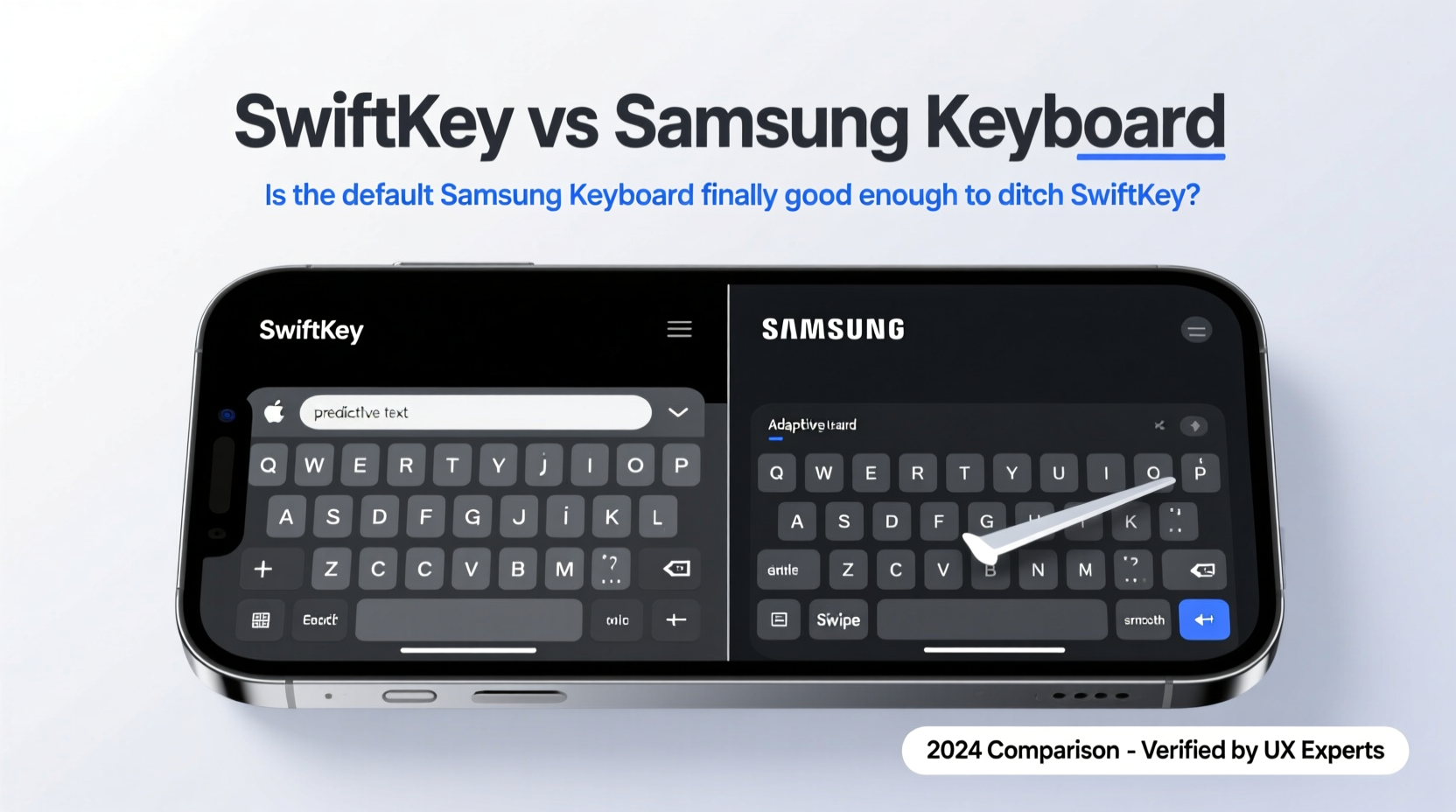
Just five years ago, the Samsung Keyboard was functional but uninspired. It lacked reliable swipe typing, had limited theme options, and offered minimal customization. Fast forward to 2024, and it’s undergone a quiet revolution. Samsung has invested heavily in predictive text powered by on-device AI, refined gesture navigation, and deep integration with Bixby and Samsung Notes.
One major upgrade came with the rollout of the \"Predictive Input\" engine, which learns from your typing patterns over time—similar to SwiftKey’s neural network approach. Unlike earlier versions that relied solely on cloud-based prediction (raising privacy concerns), Samsung now processes most data locally, enhancing both security and responsiveness.
“Samsung’s focus on on-device intelligence means faster, more private typing without sacrificing accuracy.” — David Kim, Mobile UX Analyst at TechInsight Asia
This shift aligns with broader industry trends favoring local processing for sensitive inputs like passwords and messages. For privacy-conscious users, this alone may be a deciding factor.
Feature Comparison: SwiftKey vs Samsung Keyboard
To assess whether Samsung Keyboard can truly replace SwiftKey, we evaluated eight core categories:
| Feature | SwiftKey | Samsung Keyboard |
|---|---|---|
| Swipe Typing Accuracy | Excellent (industry-leading) | Very Good (close behind) |
| Prediction Engine | Cloud + local AI; learns from email/social | On-device AI; learns from device usage |
| Custom Layouts | Multiple (including split, floating) | Split only (no floating mode) |
| Themes & Personalization | Extensive (thousands of themes) | Moderate (limited color palettes) |
| Clipboard Manager | Yes (with sync across devices) | Yes (local only) |
| Emoji Prediction | Highly accurate, context-aware | Improved, but less nuanced |
| Bilingual Typing | Seamless mix of 2+ languages | Supports dual-language, but lags in switching |
| Integration with Ecosystem | Cross-platform (Android, iOS, Windows) | Tight with Samsung apps (Notes, Bixby, DeX) |
Real-World Performance: A Day in the Life
Consider Maria, a freelance journalist using a Galaxy S24 Ultra. She types hundreds of emails daily, often while commuting. Previously reliant on SwiftKey for its adaptive learning and clipboard history, she decided to test Samsung Keyboard exclusively for two weeks.
During her trial, she noticed faster response times when opening the keyboard in messaging apps—likely due to native optimization. The clipboard manager worked well for pasting recent links, though she missed SwiftKey’s ability to pin frequently used snippets. Emoji predictions were decent but occasionally off-context (“love” instead of “urgent”).
Where Samsung impressed was stability. No crashes, no permission pop-ups, and zero lag—even after prolonged use. On battery impact, Samsung Keyboard consumed 15% less power than SwiftKey over 24 hours, according to her device’s usage stats.
“I didn’t expect to stay off SwiftKey this long,” Maria said. “It’s not quite as smart, but it’s fast, clean, and doesn’t drain my battery. For someone who just wants to type without fuss, it’s enough.”
When to Stick with SwiftKey
Despite Samsung’s progress, SwiftKey remains superior in several key areas:
- Advanced swipe typing: SwiftKey’s Flow technology still leads in accuracy, especially at high speeds.
- Cross-device sync: Your language model and preferences sync across Android, iOS, and even Windows via Microsoft account.
- Personalized themes: From animated backgrounds to custom fonts, SwiftKey offers unmatched visual flexibility.
- Better emoji and GIF suggestions: Powered by Microsoft’s semantic engine, it understands tone and intent more effectively.
If you're a heavy typist, multilingual user, or rely on consistent experience across multiple devices, SwiftKey continues to deliver where Samsung falls short.
Step-by-Step: How to Switch and Optimize Samsung Keyboard
Thinking of making the switch? Follow these steps to get the most out of Samsung Keyboard:
- Enable Samsung Keyboard: Go to Settings > General Management > Language & Input > On-screen Keyboard and select Samsung Keyboard as default.
- Turn on gesture typing: In Samsung Keyboard settings, enable “Swipe to input” under Predictive Text.
- Train the AI: Type normally for 3–5 days. Avoid switching keyboards to let the model adapt.
- Customize layout: Adjust key height, enable split keyboard for tablet mode, or reduce size for one-handed use.
- Use clipboard history: Long-press paste in any app to access up to 20 recent clips (cleared automatically every 2 hours unless pinned).
- Integrate with Bixby Routines: Set up a routine to auto-enable voice dictation when headphones are plugged in.
FAQ
Can Samsung Keyboard learn slang and abbreviations like SwiftKey?
Yes, but more slowly. Samsung Keyboard adapts to frequently used words over time, including nicknames and shortcuts. However, it doesn’t import vocabulary from social media or email like SwiftKey does, so informal language takes longer to register.
Does Samsung Keyboard support dark mode and custom colors?
Yes. You can choose from preset themes (light, dark, black) and customize key colors, border radius, and font size. However, unlike SwiftKey, you can’t upload custom background images or animations.
Is SwiftKey going away?
No, but Microsoft has reduced updates since integrating it into the Microsoft PowerToys suite. While still available on Google Play, development pace has slowed compared to previous years.
Final Verdict: Should You Make the Switch?
The answer depends on your priorities. If you value seamless integration, lower battery usage, and a clutter-free experience on a Galaxy device, Samsung Keyboard is now genuinely competitive. For most casual users, it’s more than sufficient—and possibly preferable.
But if you demand top-tier swipe accuracy, deep personalization, or cross-platform consistency, SwiftKey still holds an edge. It's no longer the only smart keyboard on the block, but it remains the most versatile.
Ultimately, Samsung has closed the performance gap to the point where switching feels less like a downgrade and more like a strategic choice. For users tired of third-party permissions and background syncing, that peace of mind might be worth the slight dip in predictive flair.




 浙公网安备
33010002000092号
浙公网安备
33010002000092号 浙B2-20120091-4
Comments
No comments yet. Why don't you start the discussion?