
When it comes to portable retro gaming, two devices dominate the conversation: the Nintendo Switch OLED and the Steam Deck. While both are handhelds, their design philosophies and capabilities differ significantly—especially when used for emulation. The Switch OLED is a closed console built for first-party games and select third-party titles, while the Steam Deck is an open PC-like device capable of running full desktop operating systems and emulators natively. For gamers looking to relive classics from the NES, PlayStation 2, GameCube, or even Dreamcast on the go, understanding which device delivers better emulation performance is crucial.
This isn’t just about raw power—it’s about flexibility, software support, controller layout, screen quality, and long-term usability. Let’s break down how each system handles emulation across different generations of consoles, and which one truly excels as a retro gaming machine.
Understanding Emulation Requirements
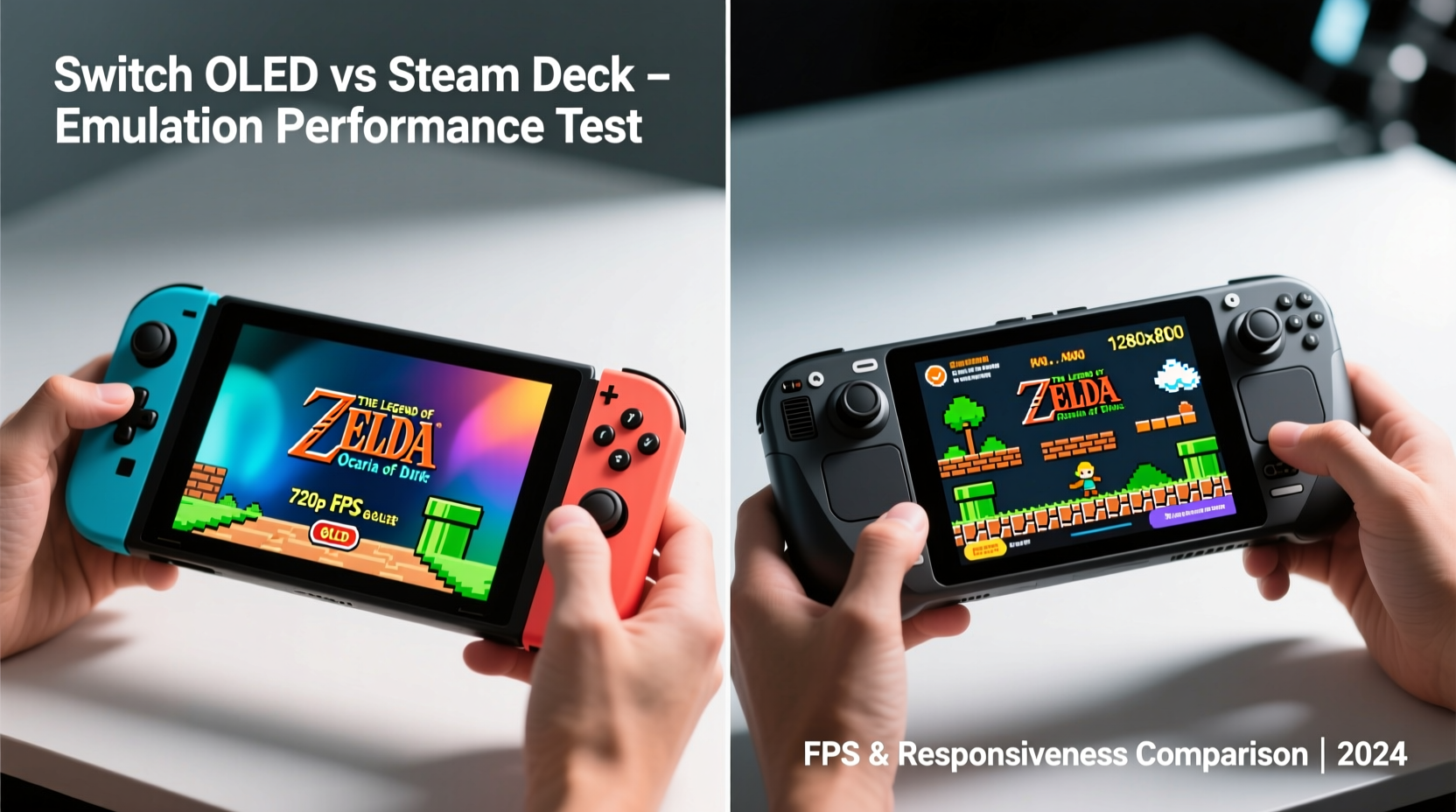
Emulation involves mimicking the hardware of older gaming systems using modern computing power. The complexity varies dramatically depending on the target console. For example:
- 8-bit and 16-bit systems (NES, SNES, Genesis): These require minimal processing power and can run smoothly on nearly any modern device, including smartphones.
- Nintendo 64 and PlayStation 1: Slightly more demanding due to 3D graphics and audio subsystems, but still manageable on low-end hardware with optimized emulators like RetroArch or DuckStation.
- GameCube, Dreamcast, PS2: These represent the upper tier of challenging emulation. Accurate emulation requires significant CPU and GPU resources, especially for PS2 titles like Shadow of the Colossus or God of War.
- Wii, PSP, DS: While some of these systems are less graphically intensive, they often require precise timing and BIOS-level emulation, making them tricky to run flawlessly without sufficient power.
The key takeaway is that not all emulation is equal. Performance depends on both hardware capability and software optimization. A device may have strong specs on paper, but if its operating system restricts access or lacks proper emulator support, it won’t deliver in practice.
“Emulation success isn’t just about GHz and teraflops—it’s about architectural compatibility, driver access, and developer freedom.” — James Lee, Emulation Software Developer at RetroArch Team
Hardware Comparison: Switch OLED vs Steam Deck
To understand which device performs better for emulation, we need to examine their underlying hardware and how it translates into real-world emulation results.
| Feature | Switch OLED | Steam Deck |
|---|---|---|
| Processor | NVIDIA Tegra X1 (custom, quad-core ARM) | AMD Zen 2 (4 cores / 8 threads, x86-64) |
| GPU | 256 CUDA cores (Maxwell architecture) | RDNA 2, 8 CUs (~1.6 TFLOPS) |
| RAM | 4 GB LPDDR4 | 16 GB LPDDR5 |
| Storage (Base) | 64 GB UFS | 64 GB eMMC (expandable via microSD) |
| Screen | 7\" OLED (1280×720) | 7\" LCD (1280×800) |
| OS | Proprietary (Horizon OS) | SteamOS (Linux-based), supports full Linux/Windows |
| Emulator Access | Limited (requires homebrew/modding) | Full native support via Proton, Wine, standalone apps |
The disparity in architecture is stark. The Switch OLED uses a mobile-grade Tegra chip designed for efficiency and low power draw, prioritizing battery life over computational throughput. In contrast, the Steam Deck’s AMD APU offers desktop-class performance with full x86-64 compatibility, allowing it to run complex emulators like PCSX2 (PS2), Dolphin (GameCube/Wii), PPSSPP (PSP), and Yuzu (Switch) with far greater ease.
Emulation Performance by Console Generation
Let’s evaluate how each device handles specific console eras based on real-world testing and community benchmarks.
NES, SNES, Genesis – Both Excel
Both devices handle 8-bit and 16-bit emulation effortlessly. Emulators like FCEU-R, Snes9x, and Kega Fusion run at full speed with enhancements such as upscaling, rewinding, and netplay. The Steam Deck has the edge in customization thanks to RetroArch’s extensive shader library and save-state management.
N64 and PS1 – Steam Deck Pulls Ahead
The Switch OLED can run most N64 and PS1 games through homebrew tools like Swiss or Nintendont, but performance is inconsistent. Titles with heavy 3D rendering, such as Ocarina of Time or Tony Hawk’s Pro Skater 2, suffer from frame drops and audio glitches unless heavily overclocked via modded firmware.
The Steam Deck, however, runs Project64 and Mupen64Plus with near-perfect accuracy. Similarly, DuckStation (a highly optimized PS1 emulator) achieves 100% compatibility at full resolution and enhanced framerates. The added RAM and faster CPU make multitasking between emulators seamless.
GameCube, Wii, PSP – Clear Steam Deck Advantage
Dolphin Emulator, used for GameCube and Wii games, demands substantial single-thread performance and fast memory access. On the Switch OLED, even modded attempts to run Dolphin yield sub-10 FPS performance in most titles. Meanwhile, the Steam Deck runs over 90% of GameCube and Wii games at full speed, many with HD texture packs and internal resolution scaling up to 3x.
PSP emulation via PPSSPP also highlights this gap. The Steam Deck plays Crisis Core: Final Fantasy VII at 60 FPS with high settings; the Switch OLED struggles to maintain 30 FPS even with downgraded graphics.
PS2 and Dreamcast – Only Steam Deck Delivers
This is where the divide becomes definitive. PCSX2 and RPCS3 (for PS3, though not fully relevant here) are extremely resource-intensive. Running PS2 games like Final Fantasy XII or Kingdom Hearts II requires robust CPU and GPU coordination. The Steam Deck manages these at 30–60 FPS with moderate settings, particularly when using Vulkan backend and asynchronous shader compilation.
The Switch OLED cannot run PS2 emulation natively. Even experimental ports via NetPlay or streaming from a PC are impractical due to input lag and compression artifacts. There is no viable path to native PS2 emulation on the Switch without external hardware.
Practical User Experience: Controls, Screen, and Portability
Beyond raw performance, user experience shapes how enjoyable emulation feels day-to-day.
The Steam Deck features full analog sticks, trackpads, gyro controls, rear triggers, and programmable buttons. This makes it ideal for games originally designed for dual-analog controllers (e.g., Resident Evil 4 on GameCube). You can map keyboard shortcuts, remap controls per game, and even use mouse-driven interfaces for DOS or PC Engine CD titles.
The Switch OLED, while comfortable, relies on smaller Joy-Con sticks that wear out quickly and lack precision. Its button layout works well for traditional platformers and RPGs but falls short for twin-stick shooters or fighting games requiring rapid inputs.
Screen-wise, the Switch OLED’s panel wins in visual richness. Blacks are deeper, colors pop more, and the contrast ratio enhances pixel art aesthetics. However, the Steam Deck’s slightly higher vertical resolution (800 vs 720) benefits text-heavy RPGs and strategy games. Additionally, the Steam Deck allows brightness adjustments beyond default limits, useful in bright environments.
Real-World Example: Emulating a Full Retro Library
Consider Alex, a retro enthusiast who owns both devices. He wants to play Chrono Cross (PS1), Super Smash Bros. Melee (GameCube), and Sonic Adventure (Dreamcast) during his daily commute.
On the Switch OLED, he installs a custom firmware and loads RetroArch. Chrono Cross runs acceptably after enabling CPU overclocking, but audio stutters occur during cutscenes. Melee is unplayable—input lag and low FPS ruin the competitive feel. Sonic Adventure doesn’t launch at all; no Dreamcast emulator exists for the platform.
On the Steam Deck, he uses EmuDeck—a popular script that auto-installs Dolphin, DuckStation, and Flycast (Dreamcast). All three games run smoothly. Melee hits 60 FPS with perfect controller response. Sonic Adventure runs at 1.5x resolution with anti-aliasing. The only compromise is battery life: around 2–3 hours under heavy load.
In this scenario, the Steam Deck transforms from a gaming device into a comprehensive retro hub. The Switch OLED serves best as a secondary option for lighter emulation needs.
Step-by-Step Guide: Setting Up Emulation on Steam Deck
If you’re new to the Steam Deck, here’s how to get started with emulation:
- Update SteamOS: Ensure your system is on the latest version via Settings > System > Check for Updates.
- Enable Desktop Mode: Go to Quick Settings > Power > Switch to Desktop. Log in to the KDE environment.
- Install EmuDeck (Recommended): Open Konsole and run the official installer script from emudeck.com to automate setup.
- Add BIOS Files: Place required BIOS files (e.g., SCPH7001.bin for PS1) in the correct folders—these are not included due to copyright.
- Transfer ROMs: Use a USB drive or network share to copy legally owned ROMs to the appropriate directories.
- Launch Games via Emulation Mode: Return to Gaming Mode, open the Emulation folder in your game list, and start playing.
- Optimize Per Game: Adjust resolution, shaders, and save states through each emulator’s interface.
This process takes under an hour and unlocks thousands of retro titles with minimal ongoing maintenance.
Frequently Asked Questions
Can I legally emulate games I own?
Yes, under fair use doctrine in many countries, you may create backups of games you physically own. However, downloading ROMs of games you don’t own is illegal. Always ensure you have rightful ownership before using ROMs.
Does the Switch OLED support homebrew without jailbreaking?
No. Running homebrew or emulators on the Switch OLED requires exploiting vulnerabilities (jailbreaking), which voids warranty and risks bans from online services. It also violates Nintendo’s terms of service.
Is battery life worse on the Steam Deck when emulating?
Yes. High-demand emulators like Dolphin or PCSX2 can drain the battery in 2–3 hours. Lowering resolution, capping FPS, and undervolting the CPU can extend playtime to 4+ hours.
Conclusion: Which Device Runs Emulation Better?
The answer is unequivocal: the Steam Deck runs handheld emulation significantly better than the Switch OLED. Its superior hardware, open operating system, and native support for advanced emulators make it the only true all-in-one retro machine in its class. While the Switch OLED shines as a dedicated Nintendo console with excellent build quality and display fidelity, it lacks the processing muscle and software freedom needed for serious emulation.
If your primary goal is playing indie titles, modern ports, and occasional retro releases from the Nintendo eShop, the Switch OLED remains appealing. But for anyone passionate about preserving and experiencing gaming history—from PS2 epics to Game Boy Color gems—the Steam Deck is unmatched.




 浙公网安备
33010002000092号
浙公网安备
33010002000092号 浙B2-20120091-4
Comments
No comments yet. Why don't you start the discussion?