
If your Nintendo Switch won’t charge, it can be more than just an inconvenience—it can disrupt gameplay, travel plans, or even affect game progress if you rely on handheld mode. The good news is that most charging issues aren’t permanent hardware failures. More often than not, they stem from simple causes like faulty cables, power sources, or software glitches. With a methodical approach, you can diagnose and resolve the problem without needing professional repair.
Understanding the Charging System
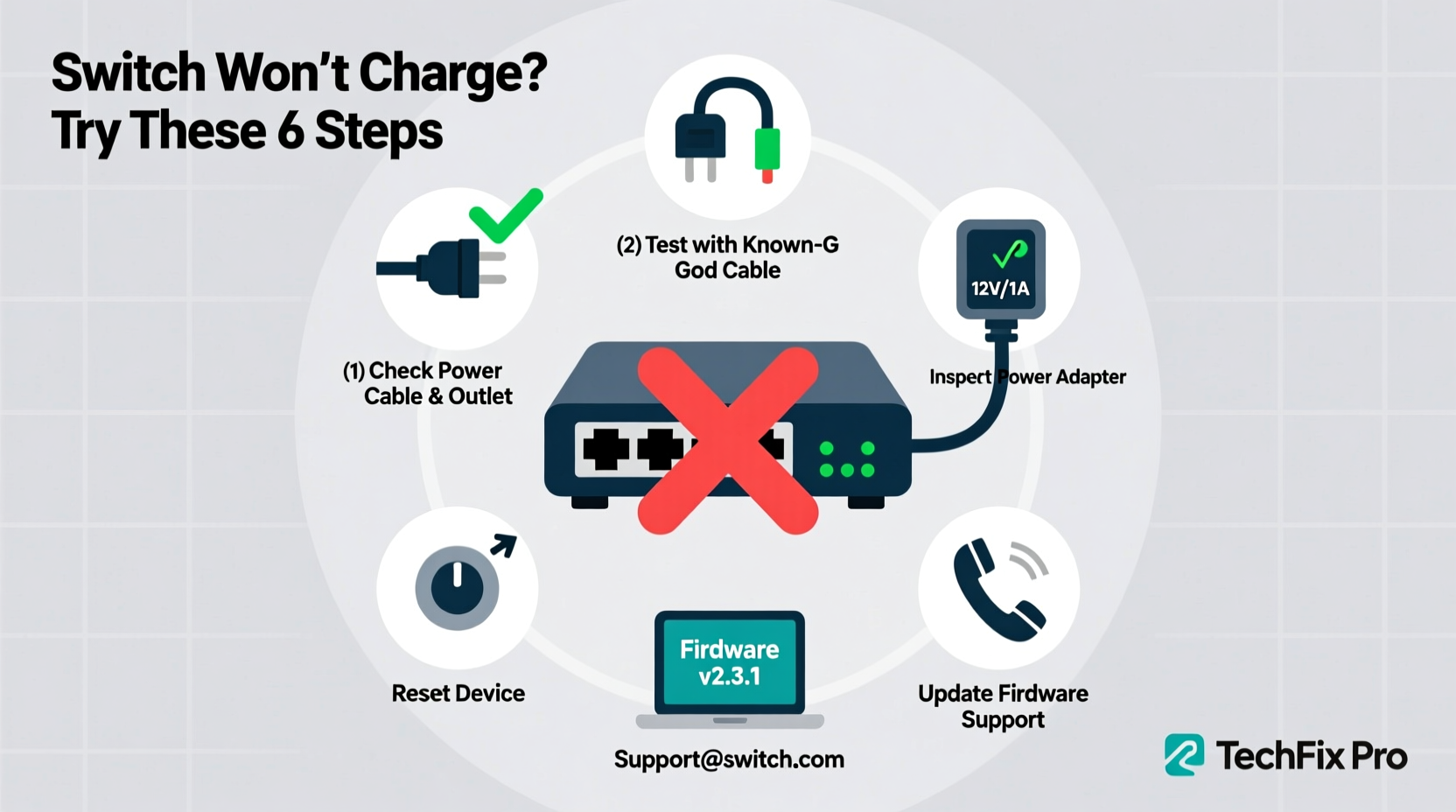
The Nintendo Switch relies on a USB-C charging port and requires a minimum of 5V/1.5A for standard charging. However, for optimal performance—especially when playing while charging—Nintendo recommends using the official adapter (5V/3.0A) or a high-quality third-party alternative that meets USB Power Delivery (PD) standards. The system includes built-in battery management software, which monitors charge levels and prevents overcharging. When any part of this ecosystem fails—cable, charger, port, or battery—the device may not charge properly, or at all.
Before jumping to conclusions about a broken console, consider that external factors are responsible in over 70% of reported charging issues. A systematic check of each component increases your chances of restoring normal function.
Step-by-Step Troubleshooting Guide
Follow this logical sequence to identify and resolve the root cause of your Switch’s charging problem. Start with the simplest fixes before moving to advanced diagnostics.
- Check the power source. Plug the charger into a different wall outlet. Avoid using power strips or surge protectors initially, as some filter voltage unevenly.
- Inspect the charging cable. Look for frays, kinks, or bent connectors. Try a known working USB-C cable, preferably one rated for at least 3A.
- Test with another power adapter. Borrow a compatible USB-C PD charger (at least 30W) from a laptop or phone to rule out a faulty original adapter.
- Clean the charging port. Use a dry cotton swab or compressed air to remove lint or debris from the Switch’s USB-C port. Do not use metal tools.
- Power cycle the console. Hold the power button for 15 seconds to force a shutdown. Wait 30 seconds, then reconnect the charger.
- Check the battery indicator. If the screen turns on but shows no charging symbol, try launching the system while plugged in. A completely drained battery may take up to 10 minutes to display a charge icon.
- Try docking the console. If you have the dock, connect the Switch to it while powered. If it charges via dock but not directly, the issue may lie in the handheld charging circuit.
Common Causes and Practical Fixes
Some charging problems recur across thousands of user reports. Identifying patterns helps isolate the most likely culprit.
Faulty or Incompatible Chargers
Not all USB-C chargers are created equal. Many phone chargers deliver insufficient amperage. The Switch needs steady current; low-power adapters may trigger intermittent charging or fail entirely under load (e.g., when playing a game).
Dirty or Damaged Charging Port
Dust, pocket lint, or minor physical damage inside the port can prevent proper contact. Users in dusty environments or those who frequently carry the Switch in bags are especially prone to this issue.
Software Glitches
Rarely, a firmware bug can interfere with battery reporting. The system might appear unresponsive to charging even when power is flowing. A full reset or update often resolves this.
Battery Degradation
After years of use, lithium-ion batteries lose capacity and may stop holding a charge. If your Switch is over three years old and only runs for minutes despite extended charging, battery replacement may be necessary.
| Potential Cause | Symptoms | Solution |
|---|---|---|
| Inadequate power supply | No charge icon, slow charging during play | Use official or 30W+ PD charger |
| Defective USB-C cable | Intermittent connection, flickering light | Replace with certified cable |
| Debris in port | Cable wobbles, no connection unless held at angle | Clean gently with soft tool |
| Completely drained battery | Console doesn’t turn on, no LED response | Charge for 30+ minutes before attempting startup |
| Internal hardware failure | No response with multiple tested components | Contact Nintendo Support or repair service |
“Many so-called ‘dead’ consoles are simply victims of poor-quality cables or worn-out ports. Before assuming hardware failure, test every variable.” — Carlos Mendez, Electronics Repair Technician with 12 years of experience in gaming devices
Mini Case Study: Recovering a \"Bricked\" Switch
Jessica, a college student, reported her Switch wouldn’t turn on after a weekend trip. She tried plugging it in, but the screen remained black. Assuming the battery was dead, she left it charging overnight with no result. Frustrated, she considered sending it in for repair.
Instead, she followed a troubleshooting checklist: she used a friend’s 65W laptop charger and a premium USB-C cable. After 20 minutes, the battery icon appeared faintly. She let it charge for another hour, then performed a hard reset. The console booted normally. Later inspection revealed her original cable had internal wire damage near the connector—visible only upon close inspection.
This case highlights two key points: first, deeply depleted batteries require time to register a charge; second, relying on a single cable or charger limits diagnostic ability.
Troubleshooting Checklist
Print or bookmark this checklist to methodically verify each possible solution:
- ✅ Test with a different wall outlet
- ✅ Swap in a known working USB-C cable (high-amperage)
- ✅ Use an alternative power adapter (30W+ PD preferred)
- ✅ Clean the charging port with compressed air or soft brush
- ✅ Hold power button for 15 seconds to reset
- ✅ Charge for at least 30 minutes before expecting response
- ✅ Try connecting through the dock (if available)
- ✅ Check for physical damage to port or cable
- ✅ Update system software once powered on
- ✅ Contact Nintendo Support if all else fails
Frequently Asked Questions
Why does my Switch show a charging icon but not gain battery?
This usually means the input power is too low to overcome the system's power draw. If you're playing while charging with a weak adapter, the battery may drain slowly despite the lightning bolt icon. Use a higher-wattage charger to resolve this.
Can I charge my Switch with a phone charger?
You can, but only if it supports USB Power Delivery and outputs at least 5V/1.5A. Most modern Android phone chargers (18W+) work, but older or low-output models (like 5W iPhone chargers) will not charge effectively, especially during gameplay.
How long should I charge a completely dead Switch?
A fully drained battery may take 15 to 30 minutes before the charging indicator appears. For best results, leave it connected to a reliable power source for at least an hour before attempting to power it on.
Preventive Maintenance Tips
Once you’ve restored charging functionality, take steps to prevent future issues:
- Store cables loosely coiled—avoid tight wraps that stress internal wires.
- Use a protective case to reduce port exposure to dust and impact.
- Unplug the charger gently by gripping the plug, not yanking the cord.
- Occasionally inspect the port with a flashlight for early signs of debris buildup.
- Keep the system updated; firmware improvements sometimes optimize power management.
When to Seek Professional Help
If you’ve tested multiple cables, adapters, and outlets without success, and the console doesn’t respond even after extended charging, internal hardware failure is likely. Possible issues include a blown fuse on the motherboard, damaged charging IC, or failed battery. These require professional micro-soldering or component replacement.
Nintendo offers repair services for out-of-warranty units. Alternatively, seek reputable third-party repair shops specializing in handheld consoles. Avoid disassembling the unit yourself unless experienced—doing so risks further damage or voids any remaining coverage.
Conclusion
A Nintendo Switch that won’t charge is rarely a lost cause. By systematically testing cables, power sources, and ports, most users can restore functionality within minutes. Understanding the difference between a dead battery, a weak charger, and a hardware fault empowers you to act confidently and avoid unnecessary repairs or replacements.




 浙公网安备
33010002000092号
浙公网安备
33010002000092号 浙B2-20120091-4
Comments
No comments yet. Why don't you start the discussion?