
Making the switch from Android to iOS has long carried a reputation for being clunky and frustrating. In earlier years, transferring contacts, messages, or photos between platforms was either impossible or required third-party tools with questionable reliability. But by 2025, Apple and Google have both made significant strides in cross-platform compatibility. While differences in ecosystem design still exist, the transition no longer needs to feel like starting over. With the right preparation and tools, moving from Android to iPhone can be smooth, efficient, and surprisingly intuitive.
This guide walks through every step of the process—before, during, and after your switch—with actionable tips, real-world insights, and a detailed checklist to ensure nothing gets left behind. Whether you're switching for privacy, longevity, or simply trying something new, this is your blueprint for a seamless migration.
Why Now Is the Best Time to Switch
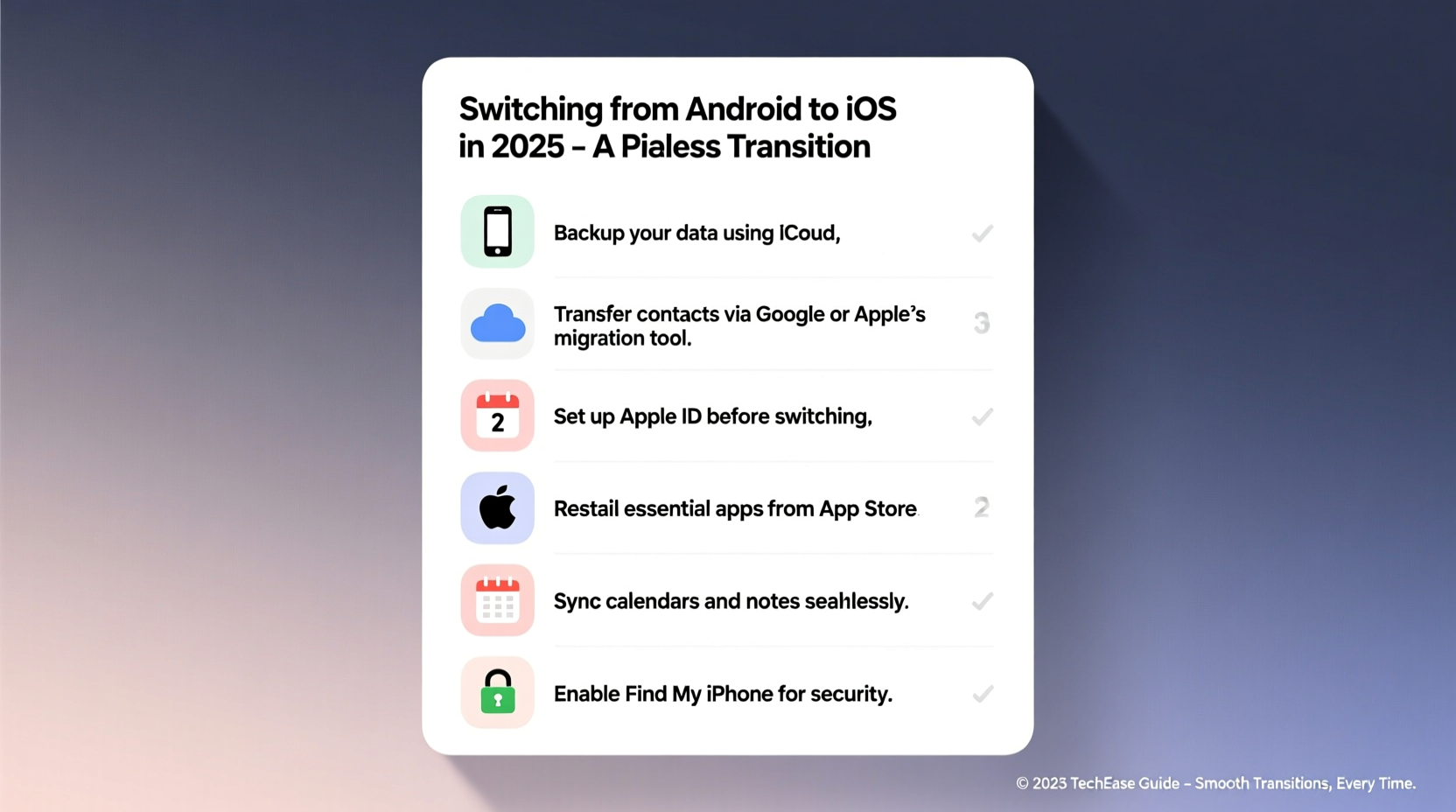
2025 marks a turning point in mobile interoperability. Apple’s continued investment in its Move to iOS infrastructure, combined with Google’s improved export features in Android 14 and 15, makes data portability more reliable than ever. iCloud now supports broader file types, and services like Google Photos, WhatsApp, and Signal offer robust cross-platform sync options. Even Apple’s own iMessage remains a hurdle only if you’re deeply embedded in the Apple ecosystem—otherwise, modern messaging apps fill the gap.
Additionally, iOS 18 introduces enhanced contact and calendar import workflows, automatic app suggestion based on your Android usage history, and deeper integration with non-Apple cloud providers like Google Drive and Dropbox. These changes reflect Apple’s subtle but growing acknowledgment that not everyone starts their journey on an iPhone.
Your Pre-Switch Preparation Checklist
The foundation of a smooth transition lies in what you do before unboxing your new iPhone. Skipping prep leads to lost photos, forgotten passwords, or incomplete message histories. Follow this checklist to lock in your digital life before the move.
- Back up your Android device fully – Use Google One or your preferred cloud service to ensure contacts, calendars, photos, and app data are saved. Enable backup in Settings > Google > Backup.
- Export critical local files – Save documents, downloads, and any non-synced media to a computer or external drive.
- Verify two-factor authentication (2FA) methods – Ensure recovery emails and phone numbers are current across key accounts (Google, social media, banking).
- Update your Android device – Install the latest OS and security patches to avoid compatibility bugs during transfer.
- List essential apps – Note which apps you use daily and check their availability on the App Store.
- Free up space on your new iPhone – If you’re reusing an old iPhone, erase it first. For new devices, keep initial setup clean.
- Charge both devices – A full charge prevents interruptions during data transfer.
Data You Can Bring Over—and What You Can’t
Not all data moves automatically. Understanding what transfers via Apple’s Move to iOS tool versus what requires manual handling prevents frustration later.
| Data Type | Moves via Move to iOS? | Alternative Method |
|---|---|---|
| Contacts | Yes | Sync via Google Contacts → iCloud |
| Messages (SMS/MMS) | Yes (during setup) | Use Google Messages backup if missed |
| Photos & Videos | No | Google Photos → Download → Import to iPhone |
| Call History | No | Not transferable |
| App Data | Limited (only select apps) | Log in manually or restore from app cloud |
| Wi-Fi Passwords | No | Re-enter manually or use password manager |
| Browser Bookmarks | No | Export from Chrome → Import to Safari |
Step-by-Step Transfer Process Using Move to iOS
Apple’s official Move to iOS app remains the most reliable method for transferring core data during initial iPhone setup. Here’s how to use it effectively in 2025.
- Set up your iPhone until you reach \"Apps & Data\" – Do not skip ahead to sign in with your Apple ID yet.
- Select \"Move Data from Android\" – This triggers the transfer prompt.
- Install Move to iOS on your Android phone – Available on the Google Play Store. Uninstall any older versions first.
- Open the app and agree to terms – Tap Continue and wait for the 10-digit code.
- Enter the code on your iPhone – This creates a private Wi-Fi connection between devices.
- Select what to transfer – Choose contacts, message history, photos, videos, calendars, and free apps available on both platforms.
- Wait for completion – The time depends on data volume. Do not close the app or lock either device.
- Finish iPhone setup – Once done, proceed with Apple ID, Face ID, and preferences.
Note: The Move to iOS tool does not work after setup. If you’ve already activated your iPhone, you’ll need to erase it (Settings > General > Transfer or Reset iPhone > Erase All Content and Settings) and start over.
“Many users fail the first transfer because they try to rush it. Patience and a stable environment are key. Let the transfer run uninterrupted.” — Jordan Lee, Mobile Migration Specialist at TechShift Solutions
Post-Switch Setup and Optimization
After the transfer, your iPhone may feel unfamiliar. iOS handles notifications, multitasking, and settings differently than Android. Spend the first few days adjusting rather than comparing.
Essential Post-Move Actions
- Sign in to Google services – Reconnect Gmail, Drive, Calendar, and YouTube using your existing account.
- Install key third-party apps – WhatsApp, Signal, Instagram, Spotify, and others will recognize your account if you log in with the same credentials.
- Restore WhatsApp chats – Open WhatsApp on iPhone, verify your number, and choose “Restore from Google Drive” if you backed up there.
- Set up iCloud Photos – Go to Settings > [Your Name] > iCloud > Photos and turn on Sync This iPhone. Then import any remaining photos from your computer.
- Customize notification behavior – Unlike Android, iOS groups notifications by app. Adjust settings per app under Settings > Notifications.
- Enable Find My – Critical for locating a lost iPhone. Toggle on in Settings > [Your Name] > Find My.
- Explore Control Center and gestures – Swipe down from top-right for quick settings, swipe up from bottom to return home (on non-Home-button models).
Mini Case Study: Sarah’s Seamless Switch
Sarah, a freelance designer in Portland, used Android for over eight years. She switched to iPhone 15 Pro in early 2025 for better Adobe Creative Cloud performance and longer software support. Before the switch, she spent two evenings backing up her Samsung Galaxy S23 to Google One, exporting client project files to Dropbox, and listing her must-have apps.
During setup, she used Move to iOS successfully to transfer contacts and text messages. Photos were synced via Google Photos and imported manually. WhatsApp restored her chat history from a Google Drive backup. Within 48 hours, she was fully operational. Her biggest adjustment was learning iOS gestures, but she found the Focus modes especially helpful for reducing distractions during creative work.
“I expected more friction,” she said. “But aside from relearning a few UI patterns, everything just worked. I even prefer how iCloud handles photo organization now.”
Frequently Asked Questions
Can I transfer my WhatsApp messages without losing history?
Yes. As long as you backed up your chats to Google Drive on Android, open WhatsApp on your new iPhone, verify your number, and tap “Restore” when prompted. The process takes a few minutes depending on chat size.
Will my Google Authenticator codes transfer?
No. Google Authenticator does not sync between platforms. Before switching, migrate your 2FA accounts to an authenticator app that supports cross-platform sync, such as Microsoft Authenticator or Authy. Otherwise, you’ll need recovery codes to regain access.
What happens to my Android apps that don’t exist on iOS?
If an app isn’t available on the App Store, look for alternatives. For example, Nova Launcher users often switch to Apex or rely on iOS widgets and focus modes. Some productivity apps have web-based equivalents accessible via Safari. Always check App Store reviews to find well-rated substitutes.
Final Tips for a Stress-Free Transition
The psychological shift—from Android’s customization freedom to iOS’s curated experience—is often harder than the technical one. Give yourself grace during the adjustment period. iOS prioritizes consistency and security over flexibility, which means fewer settings menus but tighter integration between devices.
If you use other Apple products—AirPods, Apple Watch, or Mac—the benefits compound quickly. Features like AirDrop, Universal Clipboard, and Handoff become invaluable. Even without them, iOS 18’s improved battery reporting, on-device AI processing, and accessibility tools make it a compelling platform in 2025.
“The best time to switch ecosystems is when you’re ready to commit—not just curious. Half-hearted transitions lead to frustration. But with preparation, iOS rewards patience with stability and longevity.” — Dr. Lena Torres, UX Researcher at Mobility Insights Group
Conclusion: Make the Move with Confidence
Switching from Android to iOS in 2025 doesn’t have to be daunting. With the right preparation, tools, and mindset, you can preserve your digital life while embracing a refined, secure mobile experience. The key is planning ahead, understanding what transfers automatically, and knowing where to take manual control.
You don’t need to replicate your Android setup exactly. Instead, use this transition as an opportunity to streamline your digital habits, upgrade your security practices, and explore what iOS does uniquely well. From enhanced privacy controls to multi-year software updates, the benefits extend far beyond the first week.




 浙公网安备
33010002000092号
浙公网安备
33010002000092号 浙B2-20120091-4
Comments
No comments yet. Why don't you start the discussion?