
Making the switch from Android to iPhone has long been considered a leap across ecosystems—but by 2025, Apple has significantly streamlined the process. Still, moving your digital life from one platform to another isn’t just about transferring photos and contacts; it’s about adapting to new workflows, relearning habits, and ensuring nothing gets lost in translation. Whether you're drawn to iOS for its privacy features, seamless integration with other Apple devices, or simply the allure of the latest iPhone model, preparation is key. Done right, the transition can be smooth and even refreshing. Done poorly, it becomes frustrating and time-consuming.
The good news is that Apple now offers dedicated tools like the Move to iOS app, iCloud+, and enhanced cross-platform compatibility to help users migrate without losing data. But beyond the technical transfer, there are usability shifts, ecosystem differences, and subtle mindset changes that require attention. This guide walks through everything you need to know to make your Android-to-iPhone journey in 2025 as seamless as possible—while avoiding the most common missteps.
Prepare Before You Switch: The Pre-Migration Checklist
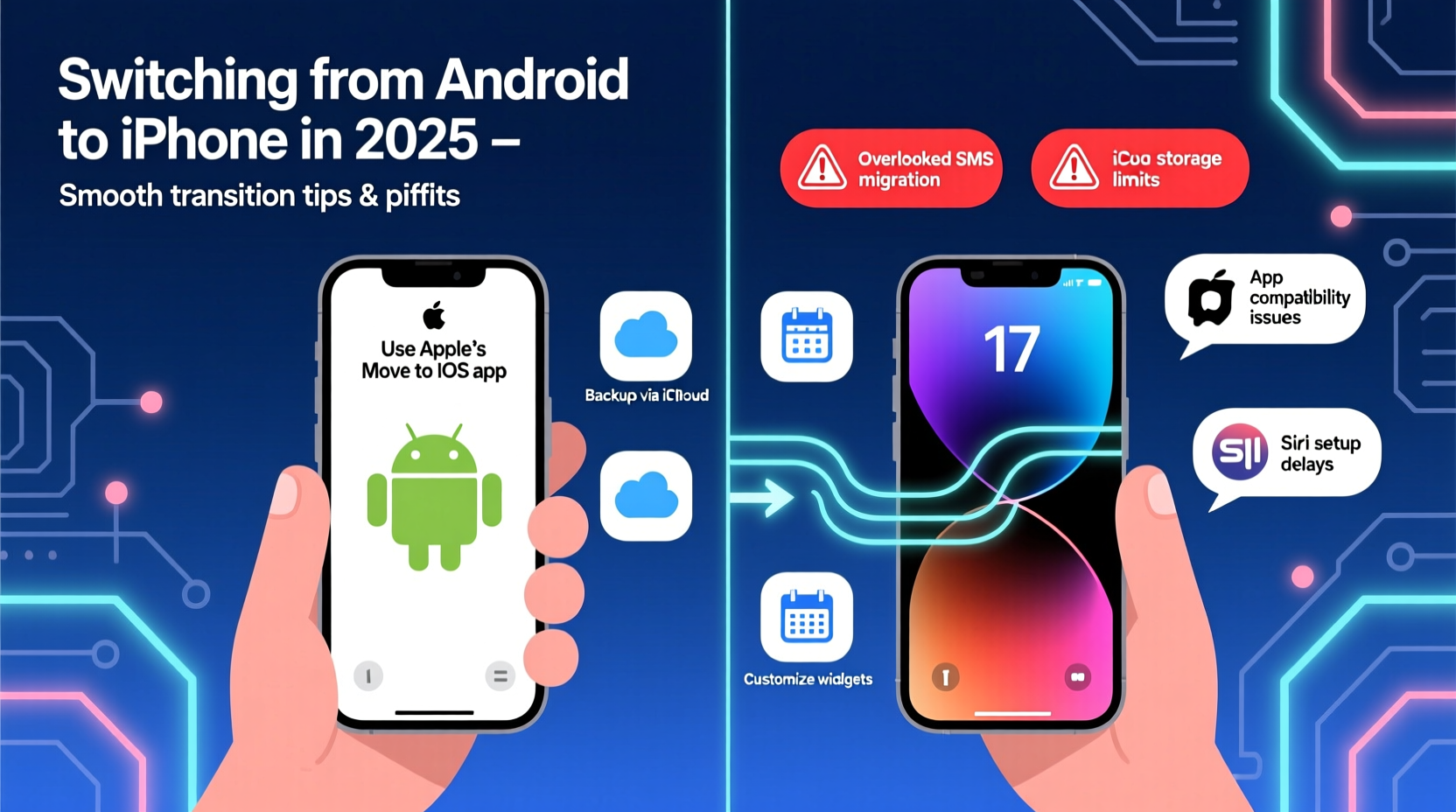
Before turning on your new iPhone, take time to organize your Android device. A clean start begins with knowing exactly what needs to come with you—and what should stay behind.
- Review and delete unused apps and files
- Ensure all photos are backed up to Google Photos (with original quality enabled)
- Sync contacts to your Google account
- Export important notes (especially if using Samsung Notes or Google Keep)
- Download the Move to iOS app on your Android device
- Charge both devices fully before starting the transfer
- Note down Wi-Fi passwords and two-factor authentication methods
One often overlooked step is checking subscription services tied to your Google account. Some third-party apps may not carry over subscriptions directly, so verify which ones will require reactivation or repurchase on iOS.
Transferring Your Data: Step-by-Step Migration Process
Apple's \"Move to iOS\" feature remains the most reliable method for transferring core data from Android to iPhone during initial setup. It works over a private Wi-Fi connection created between the two devices and supports the transfer of contacts, message history, photos, videos, web bookmarks, and calendar events.
- Power on your new iPhone and follow prompts until you reach “Apps & Data.”
- Select “Move Data from Android.”
- On your Android phone, open the Move to iOS app and agree to the terms.
- Enter the 6-10 digit code displayed on your iPhone into the Android app.
- Select the content you want to transfer (photos, messages, etc.).
- Wait for the transfer to complete—this can take anywhere from 15 minutes to over an hour depending on data volume.
- Finish setting up your iPhone with your Apple ID or create a new one.
While this tool handles basic data well, it does not transfer apps or their associated login states. You’ll need to manually download iOS versions of your favorite apps from the App Store and log back in. For apps like banking, productivity tools, or social media platforms, ensure you have recovery codes or access to backup email/phone numbers.
Key Differences Between Android and iOS in 2025
Even after successful data transfer, users often stumble when encountering fundamental differences in how iOS operates compared to Android. Understanding these distinctions early prevents confusion and speeds up adaptation.
| Feature | Android (2025) | iOS (2025) |
|---|---|---|
| Default Search Engine | Google (configurable) | Safari with Google default (customizable via settings) |
| App Permissions | Granular control per app, including one-time permissions | Robust but less flexible; limited background access enforcement |
| File Management | Built-in file explorer with full system access | Limited access; Files app requires manual organization |
| Widgets | Resizable, free-placed on home screen | Stack-based, limited customization on home screen |
| Default Apps | Full replacement allowed (browser, SMS, email) | Third-party defaults supported (e.g., Chrome, Gmail), but deeper integration varies |
| Split-Screen Multitasking | Widely supported on tablets and foldables | Limited to iPad; unavailable on iPhone |
Another major shift involves notification management. On Android, notifications are more interactive and customizable, while iOS groups them by app and emphasizes Focus modes. Take time to explore Settings > Notifications to tailor alerts to your preferences.
“Users migrating in 2025 benefit from stronger cross-platform interoperability than ever before—but muscle memory is hard to override. Give yourself two weeks to adjust.” — Lisa Tran, UX Researcher at MobileEra Insights
Avoiding Common Pitfalls During the Transition
Despite Apple’s efforts to simplify migration, many users fall into predictable traps that disrupt the experience. Being aware of these issues ahead of time can save hours of frustration.
Pitfall #1: Assuming All Apps Will Migrate Automatically
The Move to iOS app doesn’t transfer installed applications. While most popular apps like WhatsApp, Instagram, and Spotify are available on both platforms, some niche or region-specific apps may not exist on the App Store. Check availability beforehand.
Pitfall #2: Losing Access to Two-Factor Authentication (2FA) Methods
If you use authenticator apps like Google Authenticator, note that they don’t sync across platforms automatically. Before switching, migrate your 2FA codes to a cloud-synced solution like Authy or export them manually.
Pitfall #3: Ignoring Cloud Storage Ecosystems
Android users often rely on Google Drive; iPhone users typically use iCloud+. Transferring large files or documents stored in Drive requires either downloading and re-uploading or integrating Google Drive into iOS via the app. Consider upgrading your iCloud+ plan if you anticipate heavy photo and document storage.
Pitfall #4: Overlooking Messaging Continuity
While SMS and iMessage are central to iPhone communication, green bubbles (SMS) lack end-to-end encryption and rich features available in blue iMessage bubbles. If most of your contacts are on iPhone, encourage them to send texts as SMS/MMS when messaging you from their side—or consider staying within iMessage-compatible circles.
Real-World Example: Sarah’s Seamless Switch
Sarah, a freelance designer based in Portland, used a Samsung Galaxy S23 for five years before upgrading to an iPhone 15 Pro in early 2025. She initially worried about losing her organized note system and design asset folders.
Her strategy was methodical: she spent a weekend cleaning up her Android device, exporting project notes from Samsung Notes into Google Docs, and backing up her portfolio images to both Google Photos and an external drive. She downloaded the Move to iOS app and performed a test run with a friend’s old iPhone to understand the flow.
When she finally set up her new iPhone, the transfer completed in under 40 minutes. She then spent a few evenings installing essential creative apps—Procreate, Adobe Creative Cloud, and LumaFusion—and reconfiguring her cloud workflows. Within a week, she was fully adapted, appreciating iOS’s stability and smoother video editing performance.
“The first three days felt awkward,” she admitted. “But once I learned swipe gestures and mastered Focus filters, I actually preferred the simplicity.”
Frequently Asked Questions
Can I transfer WhatsApp chats from Android to iPhone?
Yes, but not through the standard Move to iOS tool. Starting with iOS 15.5 and later, Apple and WhatsApp introduced a direct chat transfer feature. Use the official WhatsApp Transfer tool during setup, which preserves message history, media, and group memberships via a local cable connection (Lightning to USB-C).
Will my Google account still work on iPhone?
Absolutely. You can add your Gmail account to the Mail app, use Chrome as your default browser, and continue using Google Maps, YouTube, and Drive seamlessly. Most Google services function well on iOS, though background syncing may be slightly delayed due to iOS power optimization.
Do I need to buy new accessories after switching?
It depends. iPhones use Lightning (older models) or USB-C (iPhone 15 and newer), so older micro-USB or proprietary Samsung cables won’t work. However, most wireless chargers, Bluetooth headphones, and smartwatches remain compatible. AirPods offer tighter integration, but Android-friendly earbuds like Sony or Sennheiser work fine too.
Final Tips for a Smooth Experience
Adapting to a new operating system isn’t just technical—it’s behavioral. Here are a few final recommendations to accelerate your comfort level:
- Learn iOS gesture navigation: Swipe up from bottom to go home, swipe diagonally for Spotlight search.
- Customize Control Center: Add frequently used toggles like Screen Recording, Low Power Mode, or Voice Memos.
- Use iCloud Drive for cross-device file access, especially if you own a Mac or iPad.
- Enable iCloud Photos to keep your library synced and safe.
- Explore Siri shortcuts for automation tasks you previously handled with Google Assistant routines.
“The biggest advantage of switching in 2025 is maturity. Both ecosystems are more open than ever. The real win comes from leveraging the best of both worlds—like using Google Workspace on an iPhone with biometric security and superior hardware.” — Marcus Lee, Tech Integration Consultant
Conclusion: Make the Move With Confidence
Switching from Android to iPhone in 2025 no longer feels like jumping into unfamiliar territory. With improved migration tools, broader app support, and greater user awareness, the transition is more accessible than ever. Success lies not in rushing the process, but in preparing thoughtfully, understanding the differences, and allowing time to adapt.
You don’t have to abandon your existing digital habits entirely—many Google services integrate smoothly with iOS. Instead, view this change as an opportunity to refine your tech routine, enhance privacy, and tap into a tightly integrated ecosystem. Whether you’re motivated by security, longevity, or simply wanting the latest technology, a smooth switch is within reach.




 浙公网安备
33010002000092号
浙公网安备
33010002000092号 浙B2-20120091-4
Comments
No comments yet. Why don't you start the discussion?