
Making the switch from Android to iPhone is one of the most common tech transitions today. Whether you're drawn by iOS’s seamless ecosystem, enhanced privacy controls, or long-term software support, the move can feel daunting when it comes to your personal data. Photos, messages, contacts—years of digital life shouldn’t vanish in a platform shift. The good news: Apple has built tools specifically for this transition, and many types of data transfer more smoothly than users expect. But not everything moves over effortlessly. Understanding what does—and what doesn’t—can save hours of frustration and prevent irreversible data loss.
How Apple's Move to iOS App Works
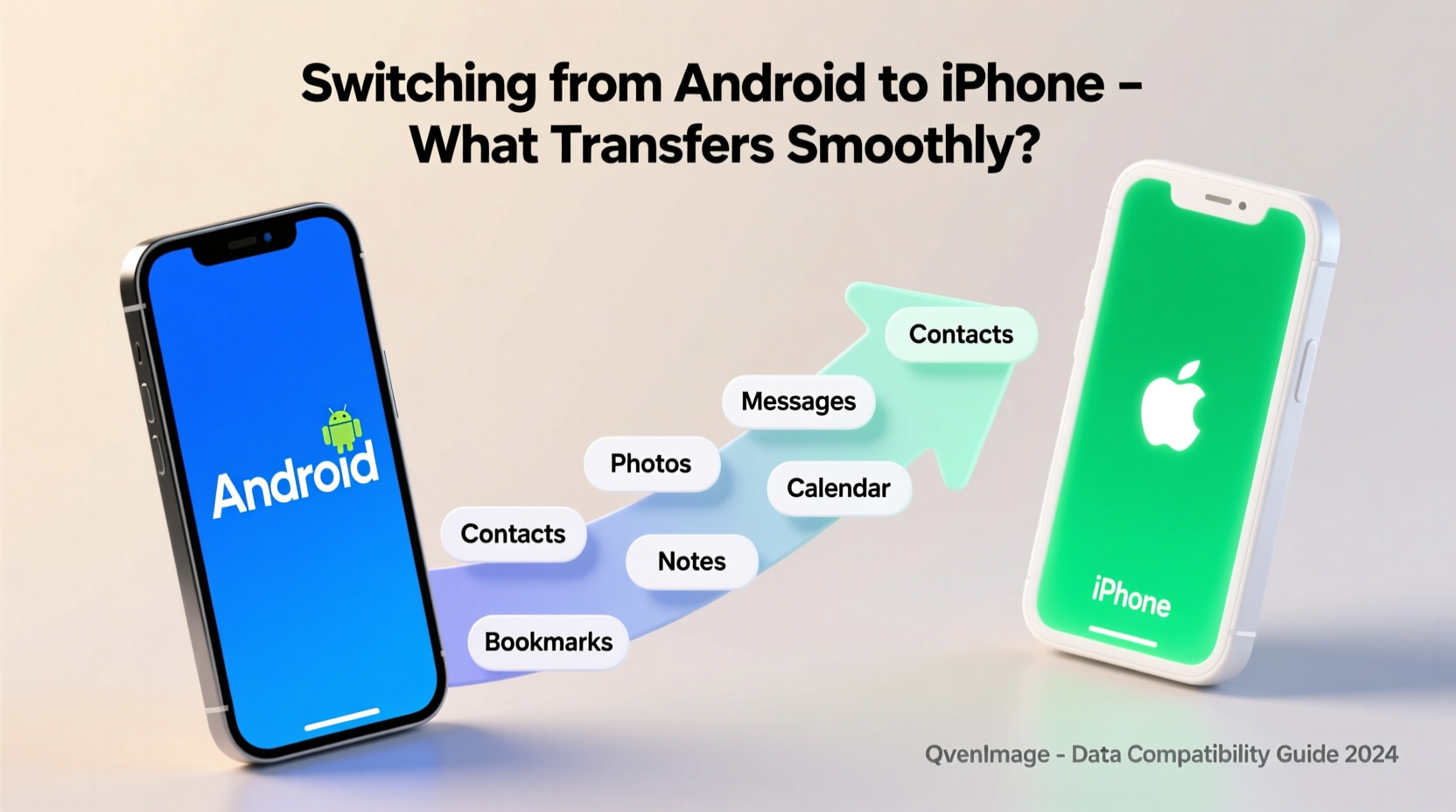
The cornerstone of a smooth Android-to-iPhone transition is Apple’s official “Move to iOS” app, available on the Google Play Store. This app creates a private Wi-Fi network between your Android device and your new iPhone during setup, allowing encrypted data transfer without relying on cloud services or cables.
Launched during the iPhone’s initial configuration, the process begins when you reach the “Apps & Data” screen and select “Move Data from Android.” You’ll be prompted to open the Move to iOS app on your Android phone and enter a six- to ten-digit code displayed on the iPhone. Once connected, the transfer begins.
This method is designed to be user-friendly and secure, with end-to-end encryption ensuring that no third party—including Apple—can access your data during transit. However, it’s not a universal solution. The app supports only specific categories of data, and performance depends on your devices’ battery levels, proximity, and network stability.
Data That Transfers Smoothly (and How)
Certain types of data are handled efficiently through the Move to iOS app. These include core personal information that forms the backbone of daily smartphone use.
Contacts
Your contact list transfers completely, including names, phone numbers, email addresses, and even custom labels. The app pulls data directly from your Android’s native Contacts app or Google account sync, preserving groupings and notes where supported.
Message History (SMS and MMS Only)
SMS and MMS messages—including timestamps, sender info, and attachments like images and videos—transfer seamlessly. However, iMessage features such as read receipts, typing indicators, and end-to-end encryption are not retroactively applied to these messages. They appear in the standard green bubble format in the Messages app.
Photos and Videos
Photos and videos stored in your Android’s internal storage or SD card (if accessible) can be transferred in full resolution. The process includes albums if they’re structured within the DCIM folder. However, photos backed up exclusively to Google Photos but not saved locally won’t be included unless manually downloaded beforehand.
Web Bookmarks
If you use Chrome on Android, your bookmarks will transfer to Safari. Folders are preserved, though nested structures may flatten slightly depending on formatting differences between browsers.
Calendar Events
Events from your default calendar app—typically synced with your Google account—are imported into the iPhone’s Calendar app. Recurring events, reminders, and time zones are generally preserved accurately.
Mail Account Settings
Basic account configurations (IMAP/POP settings for Gmail, Outlook, Yahoo, etc.) transfer, allowing immediate access to your inbox. However, only account credentials and server settings are moved—not existing emails, which remain accessible via synchronization after setup.
“Move to iOS handles the heavy lifting for most users. For everyday essentials like contacts, messages, and media, it’s remarkably reliable when used correctly.” — David Lin, Mobile Migration Specialist at TechOnboarding Labs
Data That Doesn’t Transfer Automatically (and What to Do Instead)
While Apple’s tool covers foundational data, several critical elements require alternative strategies.
App Data and Login States
No third-party app data—such as game progress, social media logins, or note-taking app content—transfers automatically. Apps like WhatsApp, Instagram, or banking tools must be reinstalled and logged into manually. Some apps offer their own cross-platform migration tools (e.g., WhatsApp’s chat transfer via QR code), but these are separate from Apple’s system.
Call History
Unlike SMS, call logs do not migrate. There’s no built-in method to bring over your outgoing, incoming, or missed calls. Third-party Android apps can export call history to CSV, but importing that data into iOS isn’t natively supported.
Music and Playlists
iTunes and Apple Music don’t pull playlists or locally stored MP3s from Android. You’ll need to upload music to iCloud Music Library (if subscribed) or use file transfer tools like Dropbox or USB connections to manually move audio files.
Browser History and Passwords
While bookmarks transfer, full browsing history does not. Saved passwords in Chrome won’t carry over. To retain them, consider exporting passwords from Chrome (via Settings > Autofill > Password Manager) and importing them into iCloud Keychain after switching.
Files and Documents
General file storage—PDFs, spreadsheets, presentations—doesn’t transfer unless located in photo or download folders picked up by Move to iOS. Use cloud services like Google Drive, OneDrive, or Dropbox to sync documents ahead of time.
Step-by-Step Guide: Maximizing Data Transfer Success
To ensure the highest possible data continuity, follow this timeline before, during, and after switching devices.
- One Week Before Switching: Back up your Android phone to Google Drive. Enable sync for Contacts, Calendar, Photos (via Google Photos), and any critical apps. Export saved passwords if needed.
- Three Days Before: Download and test the Move to iOS app. Verify that all intended data (photos, messages, etc.) is present and accessible on your Android.
- Day of Setup: Charge both devices. Disable battery saver and screen lock on Android. Turn off background apps that might interrupt Wi-Fi connectivity.
- During Transfer: Follow the iPhone setup prompts. Enter the code from your iPhone into the Move to iOS app. Do not use either device until the transfer completes.
- After Setup: Reinstall essential apps from the App Store. Use in-app migration tools (e.g., WhatsApp transfer). Manually restore files from cloud storage. Set up two-factor authentication for accounts.
What About Third-Party Transfer Tools?
Several third-party applications claim to enhance Android-to-iPhone migration, such as Samsung Smart Switch (for Samsung devices), dr.fone – Phone Transfer, and MobileTrans. While some offer broader compatibility—like transferring WhatsApp chats directly or moving app data—proceed with caution.
These tools often require USB connections or desktop software, increasing complexity. More critically, they may pose privacy risks. Independent audits have found some transfer apps collecting user data or failing to delete transferred information post-migration.
Apple’s native solution remains the safest option for core data. Use third-party tools only for specific, verified needs—and always review permissions and privacy policies before installation.
| Data Type | Transfers via Move to iOS? | Alternative Method |
|---|---|---|
| Contacts | ✅ Yes | Sync via Google Account |
| SMS/MMS | ✅ Yes | None needed |
| iMessages | ❌ No (not applicable on Android) | Activate on iPhone after number transfer |
| Photos/Videos (local) | ✅ Yes | Google Photos, iCloud, or manual upload |
| Google Photos (cloud) | ❌ No | Download to Android first, then transfer |
| WhatsApp Chats | ❌ No | Use WhatsApp’s built-in transfer tool |
| Call History | ❌ No | Export via third-party app (CSV only) |
| Music Files | ❌ No | Upload to Apple Music or use file manager |
| Browser History | ❌ No | Sync via Google Account in Safari |
| Saved Passwords | ❌ No | Export from Chrome, import to iCloud Keychain |
Mini Case Study: Sarah’s Seamless Transition
Sarah, a freelance designer in Portland, switched from a Pixel 6 to an iPhone 15 after years on Android. Her main concerns were losing her message history with clients and family photos stored across Google Photos and local folders.
She began three days early by downloading Move to iOS and confirming all recent photos were saved to her phone’s internal storage. She disabled battery optimization for the app and ensured her Google account was fully synced.
On setup day, she followed the transfer process uninterrupted. Over 12,000 photos, five years of SMS threads, and 387 contacts migrated successfully. Afterward, she used WhatsApp’s transfer feature to restore chat history and manually uploaded remaining cloud-only photos to iCloud.
The entire process took under two hours. “I expected to lose something,” she said. “But aside from having to re-login to apps, everything I use daily came with me.”
Frequently Asked Questions
Can I transfer my WhatsApp chats from Android to iPhone?
Yes, but not through Apple’s Move to iOS app. WhatsApp offers its own transfer tool introduced in 2021. During setup on your new iPhone, verify your number and choose “Transfer Chat History” when prompted. The process uses a direct Wi-Fi connection and preserves media, but requires both phones to be nearby and powered on.
Will my Google Authenticator codes transfer?
No. Two-factor authentication (2FA) tokens from apps like Google Authenticator or Authy do not transfer automatically. Before switching, either use Authy (which supports multi-device sync) or manually reconfigure 2FA for each account on your iPhone. Failure to do so may lock you out of critical services.
Does Move to iOS work with all Android phones?
It works with most Android 4.0 and later devices, but performance varies. Older models or heavily customized UIs (e.g., Xiaomi MIUI, Huawei EMUI) may experience connectivity issues. Samsung Galaxy users can also use Smart Switch, which sometimes offers better integration for Samsung-specific data.
Checklist: Prepare for Your Android-to-iPhone Switch
- ✔️ Back up Android to Google Drive (Contacts, Calendar, Photos)
- ✔️ Install Move to iOS app and test connectivity
- ✔️ Download cloud-only photos and videos to local storage
- ✔️ Export saved passwords from Chrome
- ✔️ Ensure both devices are charged and plugged in
- ✔️ Disable battery saver and screen timeout on Android
- ✔️ Reinstall key apps on iPhone post-transfer
- ✔️ Set up iCloud Keychain and enable two-factor authentication
Conclusion: Make the Switch with Confidence
Switching from Android to iPhone doesn’t mean starting from scratch. With proper preparation, the vast majority of your essential data—contacts, messages, photos, and calendars—can transition smoothly using Apple’s Move to iOS tool. The key is knowing what transfers automatically and what requires manual intervention. By planning ahead, leveraging cloud backups, and understanding the limitations, you can preserve years of digital history while embracing the benefits of the iOS ecosystem.




 浙公网安备
33010002000092号
浙公网安备
33010002000092号 浙B2-20120091-4
Comments
No comments yet. Why don't you start the discussion?