
Choosing your first digital art tablet can feel overwhelming. With so many options on the market, two names consistently rise to the top for beginners: the Apple iPad with Apple Pencil and the Huion Kamvas series. Both offer compelling features at different price points, but which one is right for you? The answer depends on your goals, budget, workflow preferences, and long-term creative plans.
This in-depth comparison breaks down the key differences between the iPad and Huion Kamvas tablets across performance, software, display quality, pressure sensitivity, ergonomics, and value. Whether you're sketching casually or aiming to build a portfolio, understanding these distinctions will help you make an informed decision without overspending or under-equipping yourself.
Understanding Your Needs as a Beginner
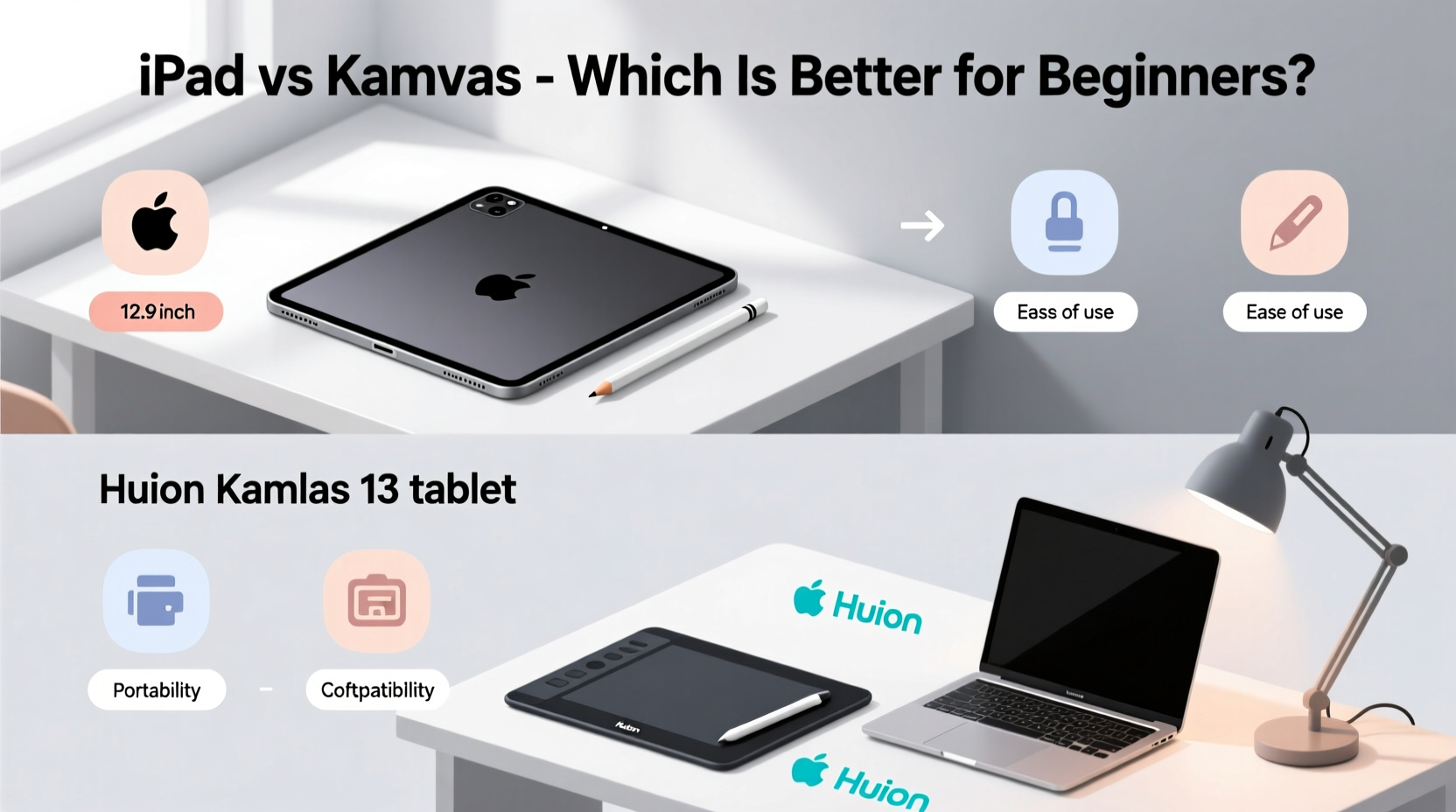
Before diving into technical specs, it's important to reflect on how you plan to use your tablet. Are you interested in casual doodling, comic creation, concept art, or photo editing? Do you want portability or a fixed workstation setup? Will you be using industry-standard software like Adobe Photoshop or Procreate?
The iPad excels in mobility and ecosystem integration, especially if you already own other Apple devices. It runs iOS apps exclusively, with Procreate being its crown jewel for artists. On the other hand, Huion Kamvas tablets connect directly to your computer and function as pen displays, giving you full access to desktop-grade creative software such as Photoshop, Clip Studio Paint, Krita, and Illustrator.
Display & Drawing Experience
The physical drawing experience is arguably the most critical factor for new artists. This includes screen texture, parallax (the gap between stylus tip and cursor), color accuracy, and pressure sensitivity.
iPad models, particularly the iPad Air and iPad Pro, feature high-resolution Retina displays with excellent color reproduction and brightness. When paired with the Apple Pencil (2nd generation for newer models), they deliver near-zero latency and precise input. However, there is still slight parallax due to the glass layer above the digitizer, which some users notice when drawing fine lines.
Huion Kamvas tablets, like the Kamvas 13, 16, or 22, are designed specifically for artists. They often come with anti-glare matte screens that mimic paper texture, reducing finger fatigue and enhancing grip. These displays have minimal parallax because the active area aligns closely with the visual layer. Additionally, many Huion models support 8192 levels of pressure sensitivity—on par with Wacom—and include customizable shortcut keys around the bezel.
“Reducing visual disconnect between hand movement and line output helps beginners develop better motor control.” — Daniel Reyes, Digital Art Instructor at Minneapolis College of Art and Design
Performance, Software, and Creative Flexibility
Software availability defines what kind of art you can create and how efficiently you can work. Here’s where the divide becomes starker.
The iPad runs on iOS, limiting you to mobile-optimized apps. While Procreate is widely praised for its intuitive interface, brush engine, and animation features, it lacks advanced layer management, vector tools, and CMYK support needed for print design. Other capable apps like Adobe Fresco and Affinity Designer exist, but none match the depth of desktop software.
In contrast, Huion Kamvas tablets operate as external monitors for Windows or macOS systems. You retain full access to powerful desktop applications. Want to animate frame-by-frame in TVPaint? Edit layers non-destructively in Photoshop? Create comics with panel guides in Clip Studio Paint? All are possible with a Kamvas. The trade-off is that you must own or purchase a compatible computer separately.
| Feature | iPad + Apple Pencil | Huion Kamvas (e.g., 16) |
|---|---|---|
| Operating System | iOS (closed ecosystem) | Works with Windows/macOS via USB-C/HDMI |
| Primary Art App | Procreate (one-time $9.99) | Any desktop software (Photoshop, CSP, etc.) |
| Pressure Sensitivity | 2048 levels (Apple Pencil) | 8192 levels (most models) |
| Screen Coating | Glossy (glass) | Matte (anti-glare film standard) |
| Portability | High – standalone device | |
| Setup Complexity | Simple – plug and play | Moderate – driver installation, cable routing |
Cost Comparison and Long-Term Value
Price is often the deciding factor for beginners. Let’s break down real-world costs.
A base-model iPad (10th gen, ~$450) plus the 1st-gen Apple Pencil (~$99) totals around $550. Add a decent case and optional keyboard, and you’re nearing $650. For this investment, you get a multifunctional device ideal for note-taking, media consumption, and light art creation.
Huion Kamvas tablets start lower: the Kamvas 13 costs about $349, while the Kamvas 16 averages $499. But remember—you’ll also need a computer capable of running creative software. If you don’t already own one, even a budget laptop adds $500–$700 to the total. So initial outlay could exceed $1,000.
However, from a long-term perspective, investing in a Huion setup may offer greater returns. As your skills grow, you won’t hit software limitations. You can transition seamlessly into freelance illustration, graphic design, or animation without upgrading hardware immediately. Plus, Huion offers replacement nibs and screen protectors at low cost, extending device life.
Real-World Example: Maya’s Journey from Sketching to Freelancing
Maya, a college student majoring in communications, wanted to learn digital illustration for social media posts and personal journaling. She started with an iPad 9th gen and Apple Pencil after seeing tutorials online. Within weeks, she fell in love with Procreate’s brush library and time-lapse recording feature. Her confidence grew quickly thanks to the iPad’s simplicity and instant feedback.
After six months, however, Maya began accepting small commissions for Instagram banners and logo sketches. Clients requested layered PSD files and vector exports—formats Procreate couldn’t fully support. She tried workarounds but found them frustrating. Eventually, she purchased a used HP laptop and upgraded to a Huion Kamvas 16. Though the learning curve was steeper, mastering Photoshop and Clip Studio Paint opened doors to more complex projects. Today, she earns part-time income through Fiverr and Etsy, crediting her switch to desktop-level tools as pivotal.
Her story illustrates a common trajectory: iPads are excellent launchpads; Huion setups empower growth beyond beginner status.
Step-by-Step Guide: Choosing the Right Tablet for You
Follow this practical timeline to make your decision confidently:
- Week 1: Define Your Goals – Ask yourself: Am I drawing for fun, school, or future career? Will I need file export flexibility?
- Week 2: Test Devices In Person (if possible) – Visit electronics stores to try both iPad drawing and Huion demo units. Pay attention to hand fatigue and screen clarity.
- Week 3: Audit Your Existing Tech – Do you already have a Windows/Mac computer with USB-C and sufficient RAM (8GB minimum)? If not, factor that into your budget.
- Week 4: Compare Total Cost of Ownership – Include accessories: cases, stands, extra nibs, software subscriptions.
- Final Decision – Choose iPad if you prioritize ease of use, portability, and quick results. Opt for Huion Kamvas if you aim for professional development and software versatility.
Frequently Asked Questions
Can I use a Huion Kamvas without a computer?
No. Unlike the iPad, Huion Kamvas tablets are pen displays that require connection to a separate computer via HDMI and USB. They do not run operating systems independently.
Is Procreate better than Photoshop for beginners?
It depends on context. Procreate has a gentler learning curve and feels more tactile, making it great for learning fundamentals. However, Photoshop offers deeper editing capabilities, batch processing, and industry relevance. Many professionals use both.
Do I need to replace the screen protector on a Huion regularly?
Yes, especially if you draw daily. The included matte film mimics paper texture but wears down over time. Replacement protectors cost $15–$25 and should be swapped every 6–12 months depending on usage.
Checklist: Before You Buy
- ✅ Determine primary use: hobby vs. professional development
- ✅ Check compatibility: Does your PC have HDMI/USB-C ports?
- ✅ Budget for all components: tablet, computer, software, cables
- ✅ Research return policies: Some retailers allow 30-day trials
- ✅ Watch real-user reviews focusing on lag, color accuracy, and driver stability
- ✅ Consider future needs: Will this tool scale with your skill level?
Conclusion: Make the Choice That Fuels Your Growth
There is no universal “best” tablet for digital art beginners. The iPad shines with its polished user experience, app simplicity, and mobility—perfect for those dipping their toes into digital creativity. The Huion Kamvas delivers professional-grade precision, software freedom, and long-term scalability, ideal for aspiring illustrators and designers committed to growth.
Your first tablet shouldn’t limit your potential. Think beyond today’s convenience and envision where you want to be in two years. Whether you choose the sleek iPad or the robust Huion Kamvas, what matters most is consistent practice and creative courage. Start creating, keep learning, and let your tools serve your vision—not define it.




 浙公网安备
33010002000092号
浙公网安备
33010002000092号 浙B2-20120091-4
Comments
No comments yet. Why don't you start the discussion?