
In today’s remote-first world, many people rely on tablets for work, learning, or entertainment. As screen time increases, so does the importance of maintaining healthy posture during prolonged use. Two popular solutions—tablet stands and lap desks—are often used interchangeably, but they serve different ergonomic purposes. Choosing between them isn’t just about convenience; it can significantly impact spinal alignment, neck strain, and overall musculoskeletal health. Understanding their strengths and limitations helps you make an informed decision that aligns with your daily habits and physical needs.
The Posture Problem in Home Workspaces
Most home environments weren’t designed with ergonomics in mind. Couches, beds, and low coffee tables encourage slouching, craning the neck forward, and rounding the shoulders—all postures linked to chronic back and neck pain. The average person spends over four hours a day looking down at screens, creating what medical professionals call “text neck,” a condition caused by excessive forward head tilt increasing pressure on the cervical spine.
According to Dr. Karen Jacobs, clinical professor of occupational therapy at Boston University, “Even small adjustments in device height and viewing angle can reduce muscle strain by up to 50%. Proper positioning is not optional—it’s preventive healthcare.”
This makes support tools like tablet stands and lap desks more than accessories—they are essential components of a sustainable digital lifestyle.
How Tablet Stands Promote Spinal Alignment
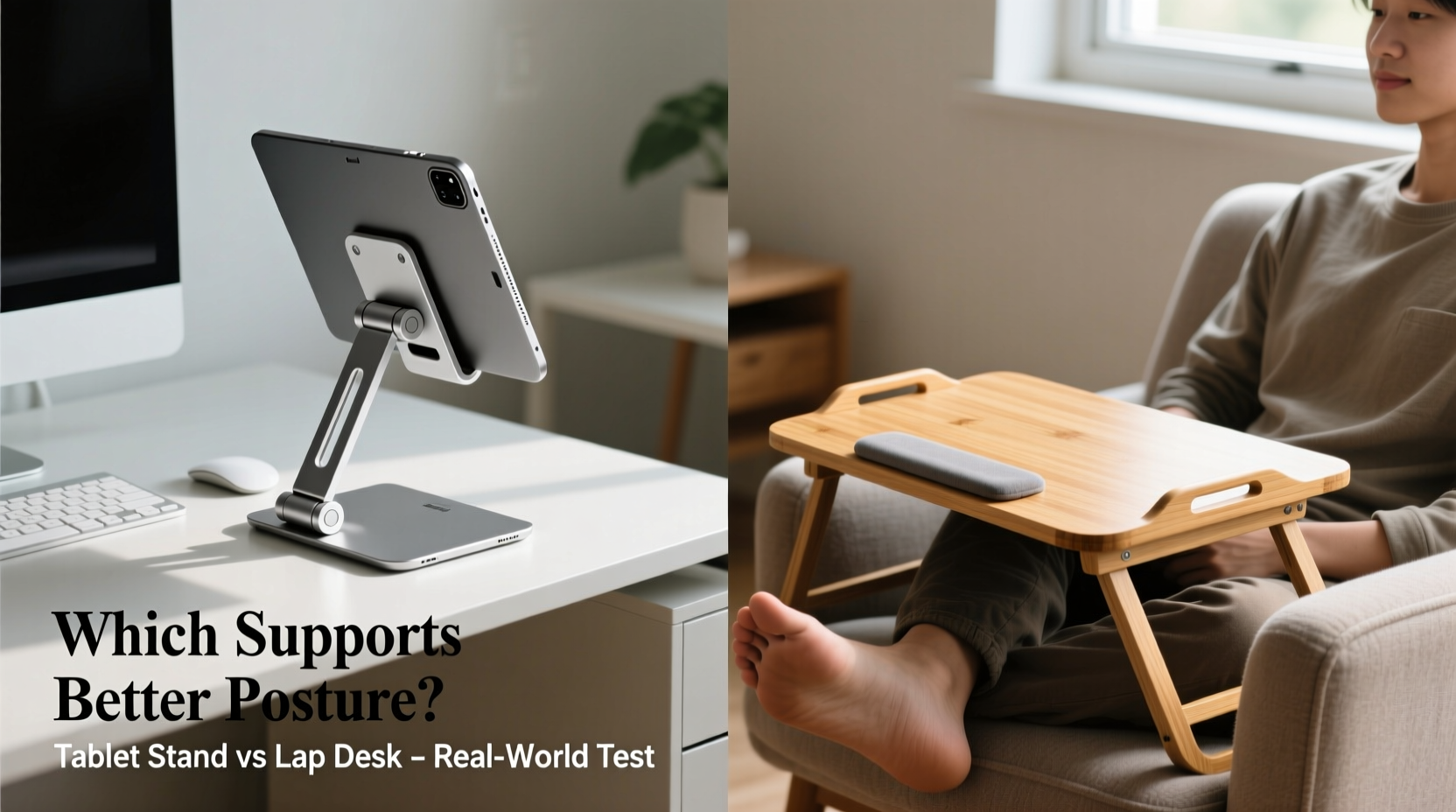
A tablet stand elevates your device to eye level or slightly below, allowing you to maintain a neutral spine while seated upright in a proper chair. Most adjustable models offer multiple angles and heights, enabling users to customize positioning based on task type—reading, typing, video calls, etc.
The key benefit lies in promoting a vertical line of sight. When your eyes meet the top third of the screen without tilting your head down, your neck muscles remain relaxed. This alignment reduces compression on vertebrae and prevents forward head posture, a leading contributor to tension headaches and upper back discomfort.
Tablet stands also encourage separation between input and display. When paired with a Bluetooth keyboard and mouse, they transform a tablet into a near-desktop setup. This configuration mimics standard office ergonomics: wrists straight, elbows at 90 degrees, and screen at arm’s length.
However, effectiveness depends heavily on environment. A tablet stand works best at a desk or table where stable surface support exists. On a couch or bed, most stands lack stability or adequate height adjustment, limiting their utility outside structured workspaces.
Lap Desks: Flexibility vs. Functional Trade-offs
Lap desks provide portability and versatility. Designed to rest on the thighs while sitting on a sofa, recliner, or bed, they allow screen use in relaxed settings. Many include cushioned bases for heat insulation and comfort, making them ideal for extended media consumption or light tasks.
While convenient, most traditional lap desks fall short in ergonomic design. They typically position the tablet too low, forcing users to bend forward and drop their shoulders. Over time, this leads to thoracic kyphosis (rounded upper back) and shoulder impingement. Even angled lap desks rarely achieve optimal screen height unless combined with additional elevation strategies.
That said, newer hybrid models now feature built-in risers, articulating arms, or fold-out legs that elevate the device closer to eye level. These advanced versions bridge the gap between mobility and posture support, though they tend to be heavier and less compact than basic foam-padded trays.
“Using a flat lap desk for hours is like reading a book on your lap—you’ll end up hunched. The solution isn’t avoiding comfortable spaces, but adapting them with smarter tools.” — Dr. Lena Patel, Physical Therapist & Ergonomic Consultant
Comparative Analysis: Key Features Side-by-Side
| Feature | Tablet Stand | Lap Desk |
|---|---|---|
| Postural Support | High – promotes neutral spine and eye-level viewing | Low to Moderate – varies widely by model; flat versions encourage slouching |
| Mobility | Low – requires stable surface; not suitable on soft furniture | High – usable on couches, beds, floors |
| Ease of Typing | Moderate to High – best with external keyboard | Moderate – limited wrist support unless equipped with tray |
| Heat Management | None (unless device overheats) | Good – padded base insulates from device heat |
| Setup Time | Fast – place on table and adjust angle | Instant – open and use immediately |
| Space Efficiency | Requires dedicated workspace | Minimal footprint; folds away easily |
| Long-Term Health Impact | Positive – reduces risk of repetitive strain injuries | Neutral to Negative – unless upgraded model with elevation |
Real-World Scenario: Sarah’s Transition to Better Posture
Sarah, a freelance writer working from her apartment, spent months using her iPad on a flat lap desk while lounging on the couch. Within six weeks, she developed persistent neck stiffness and numbness in her right hand. After visiting a physical therapist, she learned her habit of低头 (looking down) had compressed her C5-C6 vertebrae and irritated her brachial plexus.
Her therapist recommended switching to a dual-setup approach: a foldable aluminum tablet stand at her dining table for writing sessions, and a premium lap desk with an adjustable riser for occasional TV watching or email checks from the sofa. She also began setting hourly reminders to stretch and reset her posture.
Within three weeks, her symptoms improved dramatically. By aligning her tools with her body’s biomechanics, Sarah regained comfort without sacrificing flexibility.
Choosing Based on Your Daily Routine
Your choice should reflect how and where you spend most of your screen time:
- If you primarily work at a desk or dining table, a tablet stand offers superior posture support and consistency.
- If you frequently switch locations—bed, couch, floor—a high-quality lap desk with elevation features may be more practical.
- For hybrid users, owning both devices might be the optimal long-term investment.
Consider pairing either tool with additional aids: a portable keyboard, wrist rest pad, or lumbar cushion. These small upgrades compound into significant ergonomic gains over time.
Step-by-Step Guide to Optimizing Your Setup
- Assess your primary usage location: Do you sit at a desk, on a couch, or move around frequently?
- Determine your typical tasks: Are you typing extensively, watching videos, or doing quick browsing?
- Select the appropriate base tool: Choose a tablet stand for desk use or an elevated lap desk for soft surfaces.
- Adjust screen height: Ensure the top of the tablet is at or slightly below eye level when seated upright.
- Add peripherals if needed: Connect a lightweight keyboard and mouse to avoid reaching or awkward hand positions.
- Test and refine: Sit for 10–15 minutes and note any discomfort. Adjust angle, distance, or seating as necessary.
- Create usage boundaries: Limit continuous use to 45–60 minute intervals with short breaks involving movement or stretching.
Checklist: What to Look for in an Ergonomic Support Tool
- ✅ Adjustable height or tilt mechanism
- ✅ Stable base that resists tipping
- ✅ Compatibility with your tablet size and case
- ✅ Non-slip padding to secure the device
- ✅ Lightweight yet durable materials (aluminum, reinforced ABS plastic)
- ✅ Option to integrate with external keyboard/mouse
- ✅ Ventilation or heat-dissipating design (especially for lap desks)
- ✅ Easy storage and portability (if mobility matters to you)
Frequently Asked Questions
Can I improve my posture using only a lap desk?
You can, but only if it has an adjustable riser that brings the screen close to eye level. Standard flat lap desks do not support healthy posture during prolonged use. Look for models with extendable legs or hinge mechanisms that allow vertical positioning.
Is a tablet stand worth it if I already have a desk?
Yes, especially if your current setup forces you to look down. A tablet stand ensures your screen meets ergonomic standards: arm’s length away, top third at eye level, and free from glare. It turns any table into a posture-friendly workstation.
What’s the ideal viewing distance for a tablet?
The optimal distance is 18–24 inches (45–60 cm) from your eyes. At this range, text remains legible without leaning forward, and eye strain is minimized. Use zoom functions rather than moving the device closer.
Final Recommendation: Prioritize Posture, Not Just Convenience
While lap desks win in terms of comfort and casual usability, tablet stands are objectively superior for maintaining long-term postural health. If your routine involves focused work, reading, or video conferencing, investing in a sturdy, adjustable tablet stand—and using it consistently at a proper desk—is the smarter choice.
That doesn’t mean abandoning the couch entirely. Instead, reserve relaxed setups for leisure activities and limit session duration. For productivity and well-being, structure matters. Align your technology with your body’s natural mechanics, and you’ll experience fewer aches, greater focus, and sustained energy throughout the day.




 浙公网安备
33010002000092号
浙公网安备
33010002000092号 浙B2-20120091-4
Comments
No comments yet. Why don't you start the discussion?