
Sending a text message should be effortless, but when your message fails to go through, it can lead to missed appointments, miscommunication, or unnecessary worry. While modern smartphones are built for reliability, SMS delivery isn't immune to disruptions. From network hiccups to outdated settings, several factors can interfere with your ability to send texts. Understanding the root causes—and knowing how to address them quickly—can save time and frustration.
Common Reasons Text Messages Fail to Send
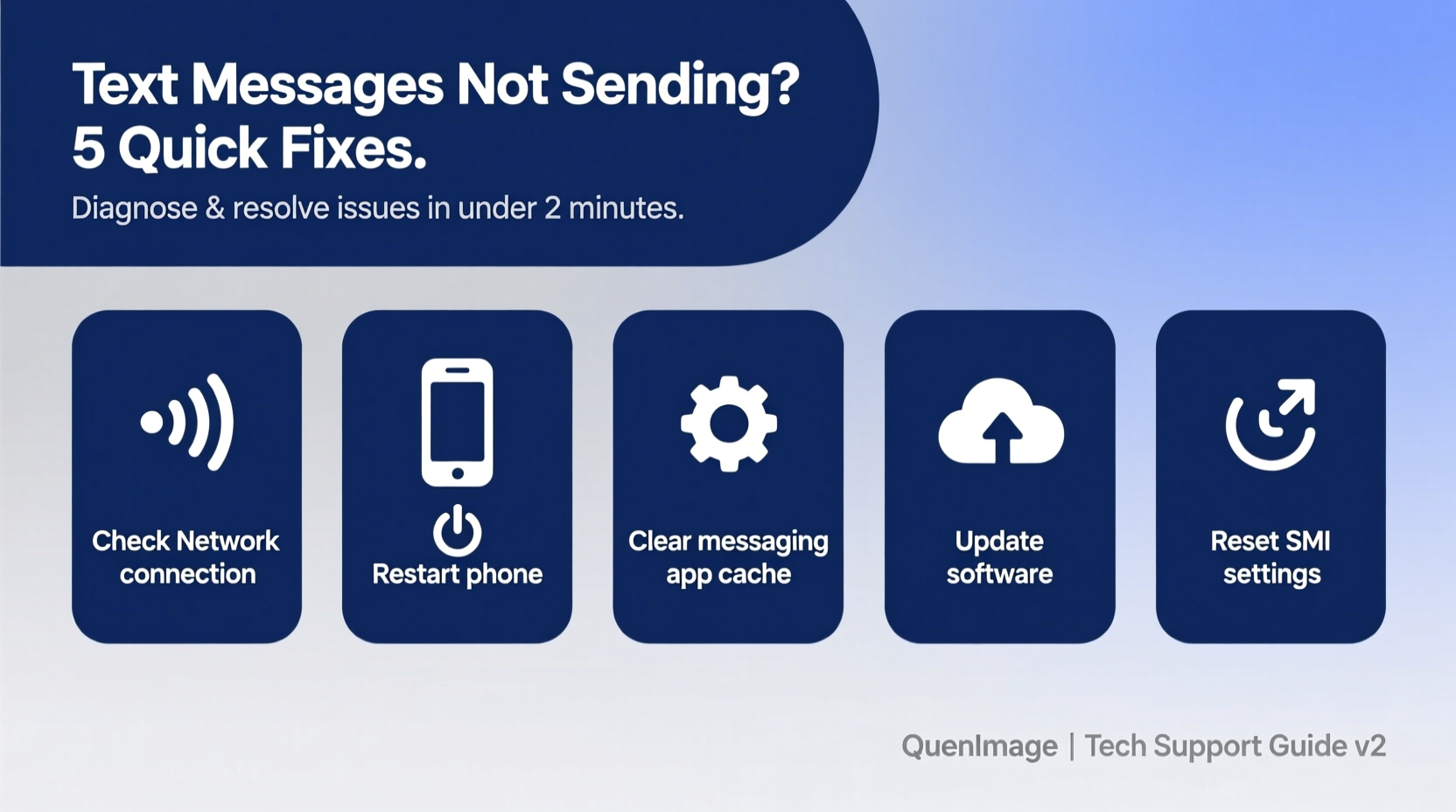
Before diving into fixes, it’s essential to identify what might be going wrong. The issue could stem from your device, carrier, network conditions, or even recipient-side problems. Here are the most frequent culprits:
- Poor or no cellular signal: Without adequate coverage, your phone cannot connect to the carrier’s network to transmit messages.
- Airplane mode enabled: This disables all wireless communication, including SMS.
- Incorrect message settings: MMS (multimedia messaging) requires mobile data, and if disabled, picture or group messages won’t send.
- Carrier service outage: Local or regional network maintenance or failures can temporarily block SMS delivery.
- Blocked contact or number: If you’ve blocked someone—or they’ve blocked you—messages won’t deliver.
- Outdated software: Bugs in older OS versions may interfere with messaging apps.
- Full message inbox: Some devices limit stored messages, which can prevent new ones from being sent or received.
- iMessage vs. SMS confusion (iOS): On iPhones, failed internet connections can cause iMessages to not fall back to SMS properly.
Step-by-Step Troubleshooting Guide
When a text doesn’t send, follow this logical sequence to isolate and resolve the problem efficiently.
- Check Signal Strength
Look at the top of your screen for full bars or “No Service.” Move to a window, higher floor, or outdoor area if signal is weak. - Disable Airplane Mode
Swipe down (Android) or up (iPhone) to access quick settings and ensure Airplane Mode is off. - Verify Message Recipient Number
Double-check for typos in the phone number. A single digit error prevents delivery. - Restart Your Phone
A reboot clears temporary glitches in the OS or messaging app. Hold power + volume down (or side button on iPhone) to restart. - Send a Test Message
Try sending a simple text to another contact. If it works, the original issue may involve the recipient’s device or number. - Check Carrier Settings
Ensure your plan includes SMS and that your account is active. Contact customer support if unsure. - Update Messaging App and OS
Go to Settings > Software Update (iOS) or System > Advanced > System Update (Android) to install pending updates. - Reset Network Settings
This restores Wi-Fi, Bluetooth, and cellular configurations. Note: You’ll need to re-enter saved Wi-Fi passwords. Found under Settings > General Management > Reset (Android) or Settings > General > Transfer or Reset [Device] > Reset Network Settings (iOS).
Troubleshooting MMS and Group Messages
Multimedia messages (photos, videos, group texts) rely on mobile data and proper APN (Access Point Name) settings. Unlike standard SMS, MMS uses data networks, so even strong signal bars won’t help if data is turned off.
| Issue | Possible Cause | Solution |
|---|---|---|
| Photo message fails to send | Mobile data disabled | Enable Data Usage in Settings > Mobile Networks |
| Group message not delivering | MMS not supported by carrier | Contact carrier to confirm MMS is active on your plan |
| “Message Failed” with media | Incorrect APN settings | Manually configure APN or reset to default |
| Large video won’t attach | File size exceeds carrier limit | Compress video or use cloud sharing link |
“We see a spike in MMS-related support tickets every quarter—most are resolved by toggling mobile data or updating APN settings.” — Jamal Reed, Senior Network Support Analyst at MetroNet Communications
Quick Checklist for Immediate Fixes
Keep this checklist handy the next time your texts won’t send. These actions take less than five minutes and solve the majority of cases.
- ✅ Ensure you have cellular signal (at least 1 bar)
- ✅ Turn off Airplane Mode
- ✅ Confirm recipient number is correct
- ✅ Toggle mobile data off and on
- ✅ Restart your phone
- ✅ Check for system or app updates
- ✅ Verify iMessage/SMS fallback settings (iPhone)
- ✅ Clear messaging app cache (Android: Settings > Apps > Messages > Storage > Clear Cache)
Real-World Example: When a Critical Text Didn’t Send
Sarah, a project manager in Chicago, relied on her phone to notify her team about a last-minute meeting change. She typed and hit send—but the message stayed in her outbox with a red exclamation mark. With no time to troubleshoot deeply, she followed a rapid diagnostic process: checked signal (strong), confirmed airplane mode was off, and restarted her phone. After rebooting, the message still wouldn’t send. Then she noticed her mobile data was disabled after a recent update. Turning it back on allowed her MMS-style group message (with agenda attachment) to go through immediately. The team adjusted their schedules, avoiding a costly delay.
This scenario highlights how small oversights—like an automatic setting change after an update—can disrupt communication. Being familiar with core settings makes recovery fast.
Frequently Asked Questions
Why do my texts send to some people but not others?
This often happens when the message is being sent as an iMessage (blue bubble) but the recipient’s Apple ID isn’t reachable due to poor internet. If the iPhone doesn’t automatically switch to SMS (green bubble), manually force it by tapping and holding the failed message, then selecting “Send as Text Message.” For Android users, this may indicate the recipient has blocked your number or their carrier filters flagged your message.
Can a full message inbox prevent sending?
Yes. Older phones and some budget models limit message storage (e.g., 1,000 messages). Once reached, new messages may fail to send or receive. Regularly archive or delete old conversations to maintain performance. Cloud backups can preserve important texts without occupying local space.
What should I do if none of the fixes work?
If basic troubleshooting fails, contact your carrier. They can verify account status, check for network blocks, and push updated service profiles to your device. For example, Verizon uses “Customer Profile Updates,” while AT&T and T-Mobile offer similar over-the-air resets. Also consider testing your SIM card in another device to rule out hardware failure.
Final Thoughts and Next Steps
Text messaging remains one of the most reliable forms of instant communication—but only when the underlying systems function correctly. Most sending issues are minor and resolvable within minutes using systematic checks. The key is to stay calm, avoid repeatedly resending failed messages (which can trigger spam filters), and methodically eliminate potential causes.
By understanding the difference between SMS and MMS, keeping your device updated, and knowing where to find critical settings like mobile data and APN, you gain control over your communication flow. Don’t wait for the next message failure to act. Take five minutes today to review your message settings, update your OS, and ensure your carrier services are active.




 浙公网安备
33010002000092号
浙公网安备
33010002000092号 浙B2-20120091-4
Comments
No comments yet. Why don't you start the discussion?