
Sending a text message should be instant and reliable. When your messages fail to send, it can disrupt communication with family, colleagues, or friends—especially during urgent situations. While the issue may seem technical, most causes are simple and solvable without visiting a technician. Whether you're using an iPhone or Android device, network problems, incorrect settings, or software glitches could be the culprit. The good news is that many of these issues can be resolved quickly with straightforward troubleshooting steps.
Check Your Network Connection First
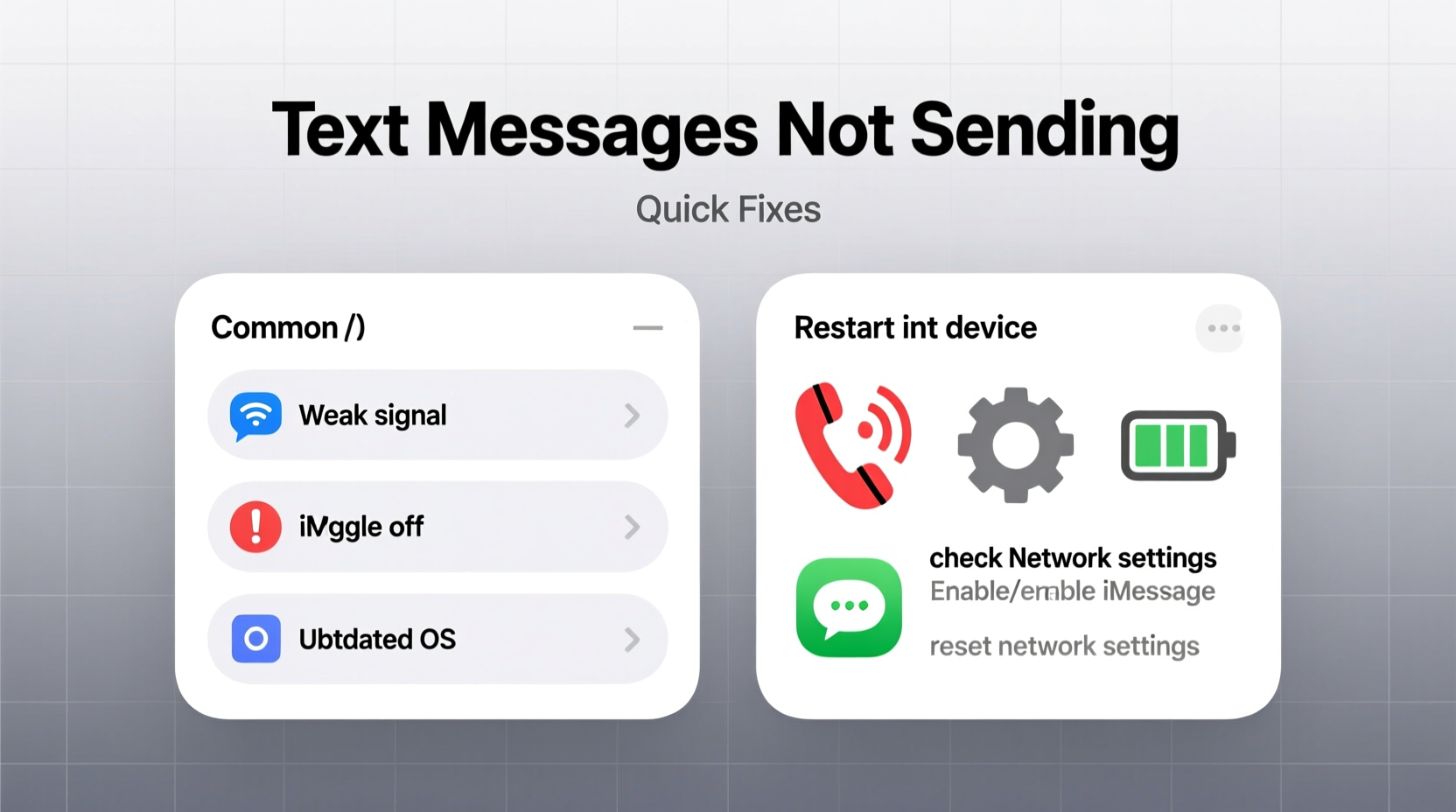
The most common reason for failed message delivery is poor or absent connectivity. Without a stable cellular or Wi-Fi signal, your phone cannot transmit data, including SMS or MMS messages.
Begin by verifying your signal strength. Look at the top of your screen for the signal bars or Wi-Fi icon. If you see “No Service,” “SOS Only,” or a red exclamation mark on your network symbol, your device isn’t connected properly.
Try toggling Airplane Mode on for 15 seconds, then turn it off. This forces your phone to reconnect to the nearest cell tower. On both iOS and Android, you can do this from the Control Center or Quick Settings panel.
If you rely on Wi-Fi for iMessage or RCS (Android’s enhanced messaging), ensure you’re connected to a working network. Open a browser to confirm internet access before assuming the issue is with your messaging app.
Verify Messaging Settings and Type
Not all messages use the same technology. Understanding the difference between SMS, MMS, iMessage, and RCS helps pinpoint where the failure occurs.
- SMS: Standard text-only messages limited to 160 characters. Works over cellular networks.
- MMS: Multimedia messages (photos, videos, group texts). Requires data or Wi-Fi.
- iMessage: Apple’s internet-based service (blue bubbles). Requires Wi-Fi or data and only works between Apple devices.
- RCS: Google’s upgraded messaging system for Android (similar to iMessage).
If your message appears in green (on iPhone) or fails when sending media, it’s likely falling back to SMS/MMS. Ensure MMS is enabled in your settings:
- Go to Settings > Messages (iPhone) or Messages app > Settings (Android).
- Enable options like MMS Messaging, Group Messaging, and Data Roaming (if traveling).
- On Android, confirm that SMS over IMS is active if supported by your carrier.
| Messaging Type | Required Connection | Common Failure Cause |
|---|---|---|
| SMS | Cellular signal | No coverage or disabled in settings |
| MMS | Data or Wi-Fi | Data turned off or APN misconfigured |
| iMessage/RCS | Internet | Wi-Fi/data down or service disabled |
Step-by-Step Guide to Reset Messaging Services
When basic checks don’t resolve the issue, follow this structured approach to reset and repair messaging functions.
- Restart your phone. A reboot clears temporary glitches affecting apps and network stacks.
- Update your carrier settings. On iPhone: Settings > General > About. If an update is available, install it. On Android: Check under Settings > System > Carrier Settings.
- Re-enter your SIM card. Power off, remove the SIM, inspect for damage, reinsert, and restart.
- Reset network settings. This clears saved Wi-Fi passwords and Bluetooth pairings but often resolves deep-seated connection issues. On iPhone: Settings > General > Transfer or Reset iPhone > Reset > Reset Network Settings. On Android: Settings > System > Reset Options > Reset Wi-Fi, mobile & Bluetooth.
- Reinstall the messaging app (Android). Go to Google Play Store > Manage Apps > Messages > Uninstall Updates, then reinstall the latest version.
Real Example: Maria’s Weekend Messaging Breakdown
Maria was on a weekend trip when she noticed her texts weren’t going through. She tried multiple times to confirm dinner plans with friends, but each message showed a red exclamation mark. At first, she assumed it was poor reception. However, calls worked fine, which ruled out total signal loss.
She opened her Messages app and saw that iMessage was still enabled, but her Wi-Fi connection had dropped after leaving home. Her phone wasn’t switching to cellular data for messages. After checking Settings > Messages, she discovered “Send as SMS” was turned off. Enabling it allowed undelivered iMessages to fall back to SMS instantly. All pending messages sent within seconds.
This case highlights how a single setting can silently disrupt communication—even when other services function normally.
Expert Insight on Carrier and Device Compatibility
“Many messaging failures stem from outdated carrier profiles or incompatible APN settings. Carriers push updates silently, but they don’t always install automatically—especially after switching phones.” — David Lin, Mobile Network Engineer at T-Mobile
APN (Access Point Name) settings tell your phone how to connect to your carrier’s data network. If misconfigured, MMS and data-dependent messages will fail even if calls work.
To check APN settings:
- iPhone: Usually automatic. Contact your carrier if MMS fails consistently.
- Android: Go to Settings > Network & Internet > Mobile Network > Advanced > Access Point Names. Tap the three dots and select “Reset to default.”
For MVNOs (like Mint Mobile, Consumer Cellular, or Ting), visit your provider’s website to manually input correct APN details if default settings don’t work.
Troubleshooting Checklist
Use this checklist to systematically eliminate possible causes:
- ✅ Confirm you have cellular or Wi-Fi signal
- ✅ Toggle Airplane Mode on/off
- ✅ Restart your phone
- ✅ Verify SMS/MMS settings are enabled
- ✅ Check that iMessage (iOS) or RCS (Android) is functioning
- ✅ Ensure date and time are set automatically
- ✅ Test sending to multiple contacts
- ✅ Remove and reinsert SIM card
- ✅ Reset network settings as last resort
- ✅ Contact carrier if problem persists
Frequently Asked Questions
Why do my texts fail only when sending photos?
This typically indicates an MMS issue. Photos require data transmission. Ensure mobile data is on and MMS settings are enabled. Also, confirm your plan includes MMS support—some budget carriers restrict it.
What does a red exclamation mark mean in iPhone messages?
A red exclamation point means the message failed to send. Tap it and choose “Try Again.” If it persists, check your connection, disable iMessage temporarily, or reset network settings.
Can a full message inbox prevent new texts from sending?
Rarely. Modern smartphones handle thousands of messages efficiently. However, extremely old Android models or corrupted databases might experience slowdowns. Archiving or deleting old threads rarely fixes sending issues but can improve app performance.
Conclusion: Take Control of Your Messaging Experience
Text messages not sending doesn’t have to mean a lost day of communication. Most issues stem from easily fixable settings, connectivity gaps, or minor software hiccups. By methodically checking your network, reviewing message types, and applying targeted resets, you can restore functionality in minutes—not hours.
Don’t accept persistent message failures as normal. Use the checklist, understand your device’s behavior, and know when to contact your carrier for backend support. A few quick actions today can prevent bigger frustrations tomorrow.




 浙公网安备
33010002000092号
浙公网安备
33010002000092号 浙B2-20120091-4
Comments
No comments yet. Why don't you start the discussion?