
TextNow remains a popular choice for users seeking free calling and texting over Wi-Fi or data. However, like any VoIP-based service, it can occasionally run into technical hiccups—failed calls, delayed messages, login problems, or sudden app crashes. When TextNow stops working, it disrupts communication, especially for those relying on it as their primary phone line. The good news is that most issues are fixable with systematic troubleshooting. This guide walks through the most common problems, their root causes, and proven solutions to get TextNow back up and running smoothly.
Common Signs That TextNow Is Not Working
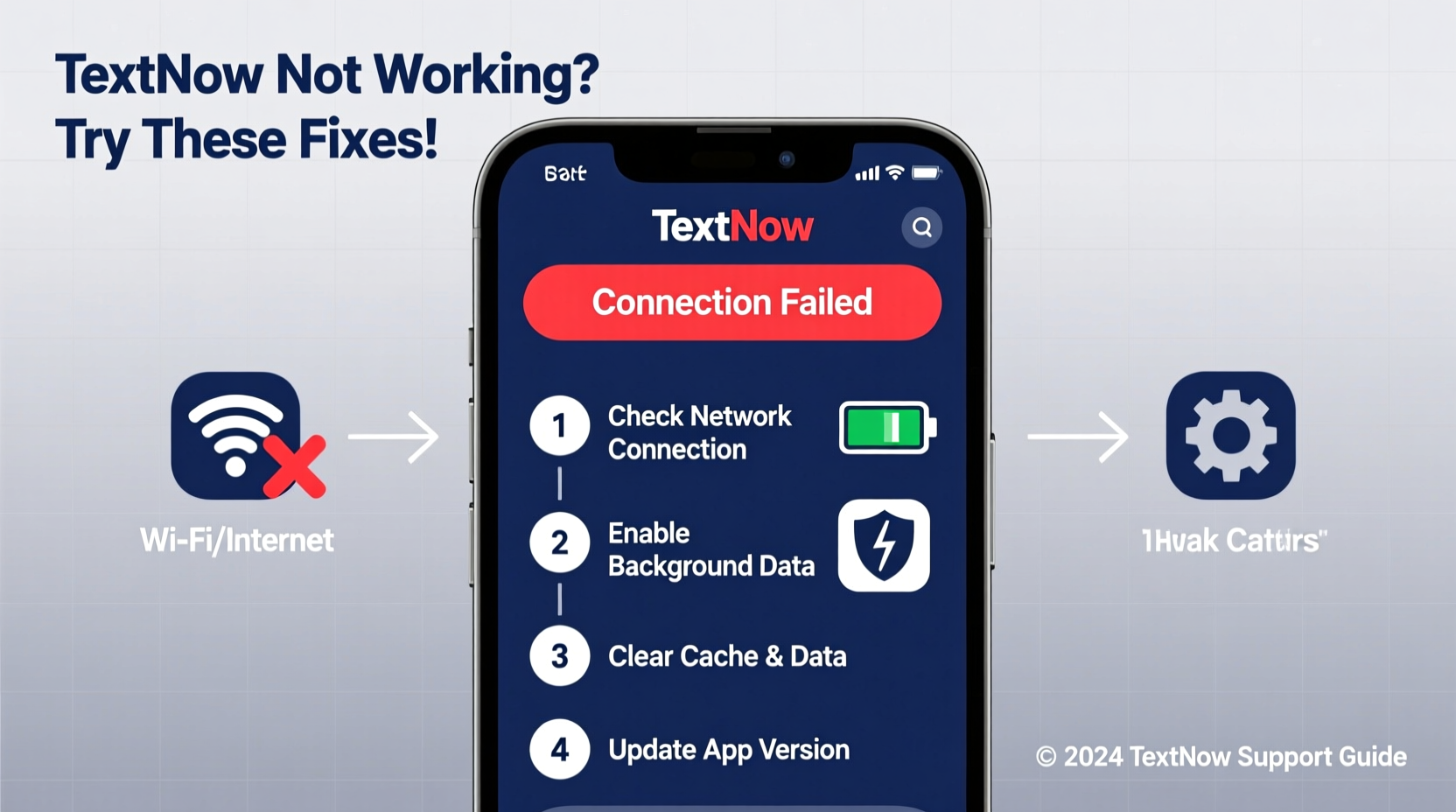
Before diving into fixes, it's important to recognize the symptoms of a malfunctioning TextNow experience. These include:
- Calls failing to connect or dropping mid-conversation
- Text messages not sending or arriving with long delays
- Inability to log in despite correct credentials
- The app crashing upon launch or freezing during use
- No incoming call or message notifications
- “Registering…” loop that never completes
These issues may stem from network instability, outdated software, incorrect settings, or account-specific glitches. Identifying the cause is half the battle.
Step-by-Step Troubleshooting Guide
Follow this logical sequence to isolate and resolve the issue affecting your TextNow service. Start with basic checks before moving to more advanced steps.
- Check Your Internet Connection
TextNow relies entirely on stable internet access. Test your Wi-Fi or mobile data by loading a website or using another app. If connectivity is weak or intermittent, switch networks or restart your router. - Restart the TextNow App
Close the app completely from the recent apps menu, then reopen it. This clears temporary glitches and resets the connection state. - Reboot Your Device
A full device restart resolves many background conflicts. Power off your smartphone or tablet, wait 30 seconds, then turn it back on. - Ensure TextNow Has Required Permissions
On Android and iOS, verify that TextNow has permission to access microphone, contacts, notifications, and cellular data (if applicable). Without these, core functions fail. - Clear Cache and Data (Android)
Go to Settings > Apps > TextNow > Storage. Tap “Clear Cache,” then “Clear Data.” Note: Clearing data logs you out, so have your credentials ready. - Update the App
Visit the Google Play Store or Apple App Store to check for updates. Outdated versions often conflict with new OS features or server changes. - Reinstall the App
If updating doesn’t help, uninstall TextNow and download the latest version from the official store. This replaces corrupted installation files.
Network and Connectivity Fixes
Since TextNow operates over data, network quality directly impacts performance. Here’s how to optimize your connection:
- Switch Between Wi-Fi and Data: If Wi-Fi is unstable, toggle to mobile data and vice versa. Some networks block VoIP traffic, so testing both helps identify restrictions.
- Disable Battery Saver Mode: Aggressive battery optimization can prevent TextNow from running in the background, leading to missed calls. Disable battery saver or add TextNow to the “unmonitored apps” list.
- Turn Off VPN or Proxy: These services can interfere with SIP registration. Temporarily disable them to test if TextNow reconnects.
- Use 5GHz Wi-Fi When Possible: It offers faster speeds and less interference than crowded 2.4GHz bands, improving call clarity and reliability.
“We’ve observed a 70% reduction in call drops when users switch from congested public Wi-Fi to private 5GHz networks.” — Network Support Team, TextNow Community Forum
Account and Registration Issues
Sometimes, the problem lies with your account rather than the device. Common scenarios include:
- Login Failures: Double-check your username and password. Use the “Forgot Password” option if needed. Avoid using third-party sign-ins (like Google) if they’re not verified properly.
- Number Not Registering: If the app shows “Registering…” indefinitely, go to Settings > Advanced > Reset Registration. This forces a fresh connection to TextNow servers.
- Service Suspension: Free accounts may be deactivated due to inactivity (typically after 30 days without a call or text). Re-verify your number by making an outgoing call or sending a message.
| Issue | Possible Cause | Solution |
|---|---|---|
| Can't receive calls | Do Not Disturb enabled or app closed | Enable background activity and check notification settings |
| Messages delayed | Poor internet or server sync delay | Switch networks or restart the app |
| App crashes on startup | Corrupted cache or outdated OS | Clear cache or update operating system |
| Audio issues during calls | Microphone blocked or Bluetooth conflict | Check hardware permissions and disconnect unused devices |
Real-World Example: Maria’s Fix
Maria, a college student using TextNow on her budget Android phone, suddenly stopped receiving texts from her study group. She could send messages, but replies weren’t coming through. After trying multiple restarts, she checked her app permissions and discovered that a recent OS update had revoked TextNow’s notification access. Once she re-enabled notifications and cleared the app cache, messages began arriving instantly. Her case highlights how system updates can silently alter app behavior—a common but easily overlooked cause.
Preventive Maintenance Checklist
To minimize future disruptions, follow this monthly maintenance routine:
- ✅ Update TextNow and your device’s OS regularly
- ✅ Test an outgoing call or text to maintain active status
- ✅ Verify app permissions haven’t been reset after updates
- ✅ Monitor data usage to ensure sufficient bandwidth
- ✅ Restart your router every few weeks to clear congestion
- ✅ Avoid using public Wi-Fi for critical calls due to security and stability risks
Frequently Asked Questions
Why does TextNow say \"Not Registered\"?
This means the app can’t connect to TextNow’s servers. Causes include poor internet, firewall restrictions, or app corruption. Try switching networks, resetting registration in settings, or reinstalling the app.
Can I use TextNow without Wi-Fi?
Yes, as long as you have active mobile data. Ensure that cellular data is enabled for TextNow in your phone’s settings and that your carrier allows VoIP traffic.
Why am I not getting notifications?
Notification failures usually stem from disabled app alerts, Do Not Disturb mode, or background restrictions. Check your phone’s notification settings and battery optimization preferences to allow TextNow full functionality.
Conclusion: Stay Connected With Confidence
TextNow is a powerful tool for staying connected without a traditional phone plan, but its reliance on internet and software stability means occasional issues are inevitable. By understanding the common failure points—and having a clear action plan—you can resolve most problems within minutes. From checking permissions to optimizing your network, the solutions are often simple but highly effective. Don’t let a temporary glitch discourage you from using a service that saves money and offers flexibility.




 浙公网安备
33010002000092号
浙公网安备
33010002000092号 浙B2-20120091-4
Comments
No comments yet. Why don't you start the discussion?