
Every time you browse the web, invisible data is being stored on your device—cookies. These small text files help websites remember your preferences, login status, and browsing behavior. While they enhance user experience, unchecked cookie accumulation can affect privacy, performance, and even security. Understanding how to access and manage them gives you control over your digital footprint. This guide walks through practical methods to view, edit, delete, and block cookies across popular browsers, empowering you to browse smarter and safer.
Understanding Browser Cookies: What They Are and Why They Matter
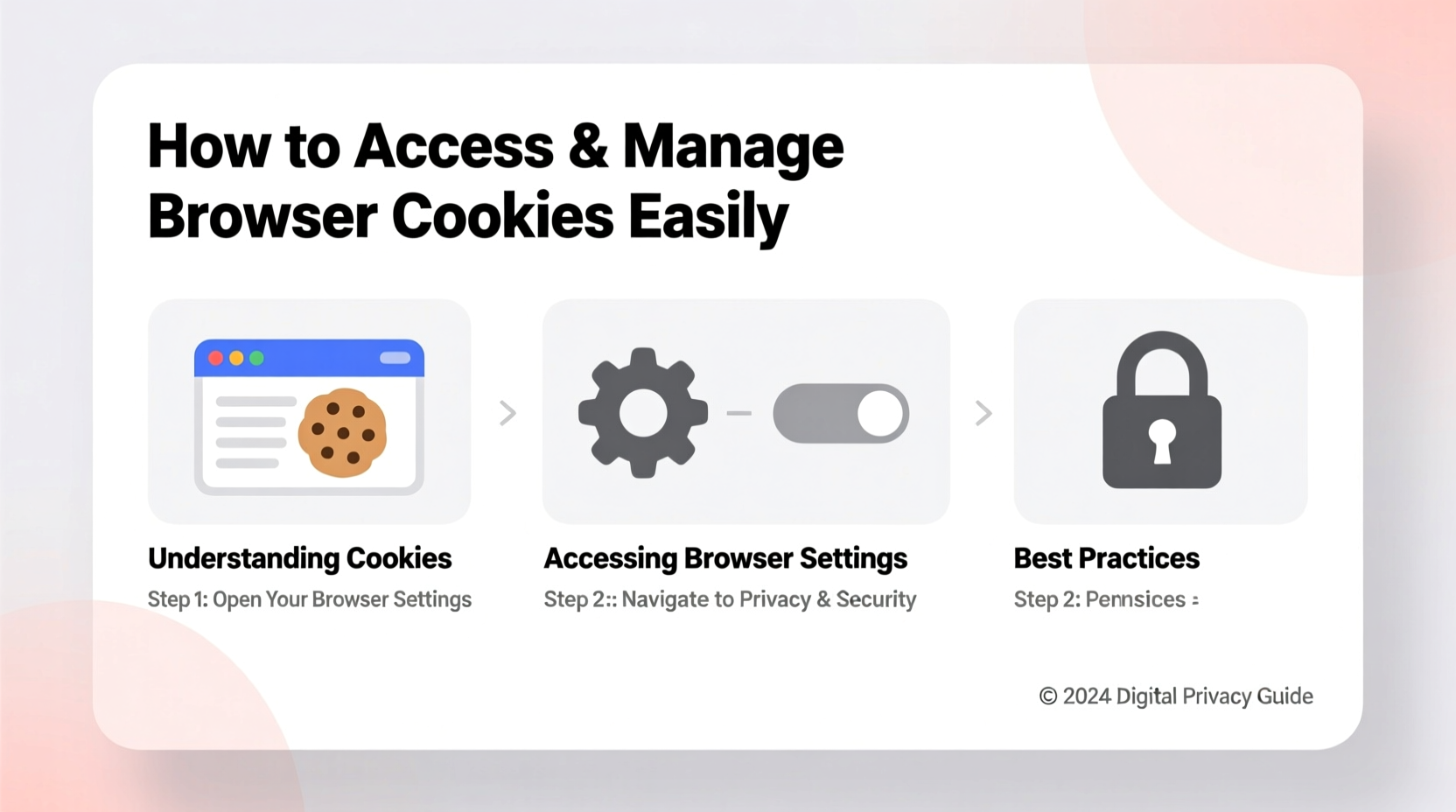
Cookies are simple data packets sent from a website to your browser and stored on your device. When you revisit that site, the browser sends the cookie back, allowing the server to recognize you. There are two primary types:
- Session cookies – Temporary files deleted when you close the browser. They maintain actions during a single visit, like items in a shopping cart.
- Persistent cookies – Remain on your device for days, months, or years. These remember login details, language settings, and personalized content.
Third-party cookies, often used for advertising, track your activity across multiple sites. While convenient, they raise privacy concerns. The European Union’s GDPR and California’s CCPA now require websites to disclose their use and allow users to opt out—making cookie management not just technical, but legal.
“Cookies aren’t inherently bad—they enable functionality we rely on daily. The key is transparency and control.” — Dr. Lena Torres, Cybersecurity Researcher at WebTrust Labs
How to Access Cookies in Major Browsers
Each browser provides tools to inspect and manage cookies. Below is a step-by-step breakdown for the most widely used platforms.
Google Chrome
- Open Chrome and click the three-dot menu in the top-right corner.
- Navigate to Settings > Privacy and security.
- Select Cookies and other site data.
- Click See all site data and permissions to view a searchable list of stored cookies.
- Use the search bar to find specific sites or scroll through the full list.
- To remove, hover over an entry and click the trash icon.
chrome://settings/cookies directly into the address bar to jump straight to cookie settings.
Mozilla Firefox
- Click the menu button (three horizontal lines) and go to Settings.
- Select Privacy & Security from the left panel.
- Scroll to Cookies and Site Data.
- Click Manage Data… to see all stored cookies by domain.
- Select one or multiple sites and choose Remove Selected.
Apple Safari
- Open Safari and go to Safari > Settings (or Preferences).
- Click the Privacy tab.
- Click Manage Website Data… to view all cookies.
- Search or scroll, then select entries to remove individually or click Remove All.
Microsoft Edge
- Click the three-dot menu and choose Settings.
- Go to Cookies and site permissions > Cookies and data stored.
- Click See all site data and permissions.
- Browse the list, search by site, and delete as needed.
Smart Cookie Management: Best Practices
Deleting all cookies might seem like a quick fix, but it comes with trade-offs—like losing saved logins and preferences. A balanced approach ensures convenience without compromising security.
| Action | Do | Avoid |
|---|---|---|
| Clearing cookies | Regularly clear third-party and tracking cookies monthly | Don’t delete all cookies unless troubleshooting issues |
| Blocking cookies | Enable “Block third-party cookies” in privacy settings | Don’t block all cookies—may break website functionality |
| Review permissions | Check which sites have stored data every few weeks | Don’t ignore unknown domains storing large amounts of data |
Using Browser Developer Tools for Advanced Control
For granular insight, use built-in developer tools. Press F12 or Ctrl+Shift+I (Cmd+Option+I on Mac) to open DevTools. Navigate to the Application tab (Chrome/Edge) or Storage (Firefox), then expand Cookies under the current site. Here, you can view, edit, or delete individual cookies—useful for testing or debugging.
Real-World Example: Recovering a Forgotten Login State
Sophia, a freelance designer, logged into her portfolio platform using a shared computer. After finishing, she closed the browser but forgot to log out. Later, she discovered the site still recognized her device days later. Concerned about security, she opened Chrome’s cookie manager and searched for the domain. She found a persistent session cookie labeled “auth_token” and deleted it. Immediately, the next visit required re-authentication, securing her account. This case shows how understanding cookies helps regain control—even after accidental exposure.
Essential Checklist for Effective Cookie Management
Follow this checklist monthly to maintain a clean, secure browsing environment:
- ✅ Review stored cookies in your primary browser
- ✅ Delete cookies from unused or suspicious websites
- ✅ Enable blocking of third-party cookies
- ✅ Use private browsing for sensitive tasks
- ✅ Clear cache and cookies after public or shared device use
- ✅ Check site permissions for auto-saving data
- ✅ Update browser regularly to benefit from enhanced privacy features
Frequently Asked Questions
Are cookies dangerous?
No, cookies themselves are not malicious. They cannot execute code or carry viruses. However, if intercepted by attackers (e.g., via unsecured Wi-Fi), session cookies could be exploited to impersonate you. Always use HTTPS connections and avoid saving logins on public devices.
Will blocking cookies break websites?
Sometimes. Many sites rely on first-party cookies for core functions like staying logged in or remembering your cart. Blocking all cookies may cause errors or reduced functionality. Instead, selectively block third-party trackers while allowing essential ones.
Can I export or backup my cookies?
Not natively in most browsers. However, developers and power users can extract cookies via browser extensions (like “EditThisCookie” for Chrome) or DevTools. Caution is advised—exported cookies contain sensitive data and should never be shared.
Take Control of Your Online Experience
Managing browser cookies isn't just a technical chore—it's a fundamental part of digital hygiene. Whether you're protecting personal information, improving page load times, or simply decluttering your browser, regular maintenance pays off. Modern browsers make it easier than ever to see what’s stored and decide what stays or goes. With the right habits and awareness, you can enjoy both convenience and privacy in balance.




 浙公网安备
33010002000092号
浙公网安备
33010002000092号 浙B2-20120091-4
Comments
No comments yet. Why don't you start the discussion?