
Safe Mode is one of the most powerful troubleshooting tools built into Windows. It starts your computer with a minimal set of drivers and services, allowing you to diagnose and fix problems that prevent normal operation. Whether your system freezes at startup, suffers from malware, or fails to boot after an update, Safe Mode can help you regain control. The challenge many users face isn’t knowing what Safe Mode does—but how to actually get into it when they need it most.
This guide covers every reliable method to enter Safe Mode across modern and legacy versions of Windows—no matter your situation. From standard boot procedures to emergency recovery techniques, you’ll learn how to access Safe Mode anytime, anywhere, even when your PC won’t start normally.
What Is Safe Mode and Why You Need It
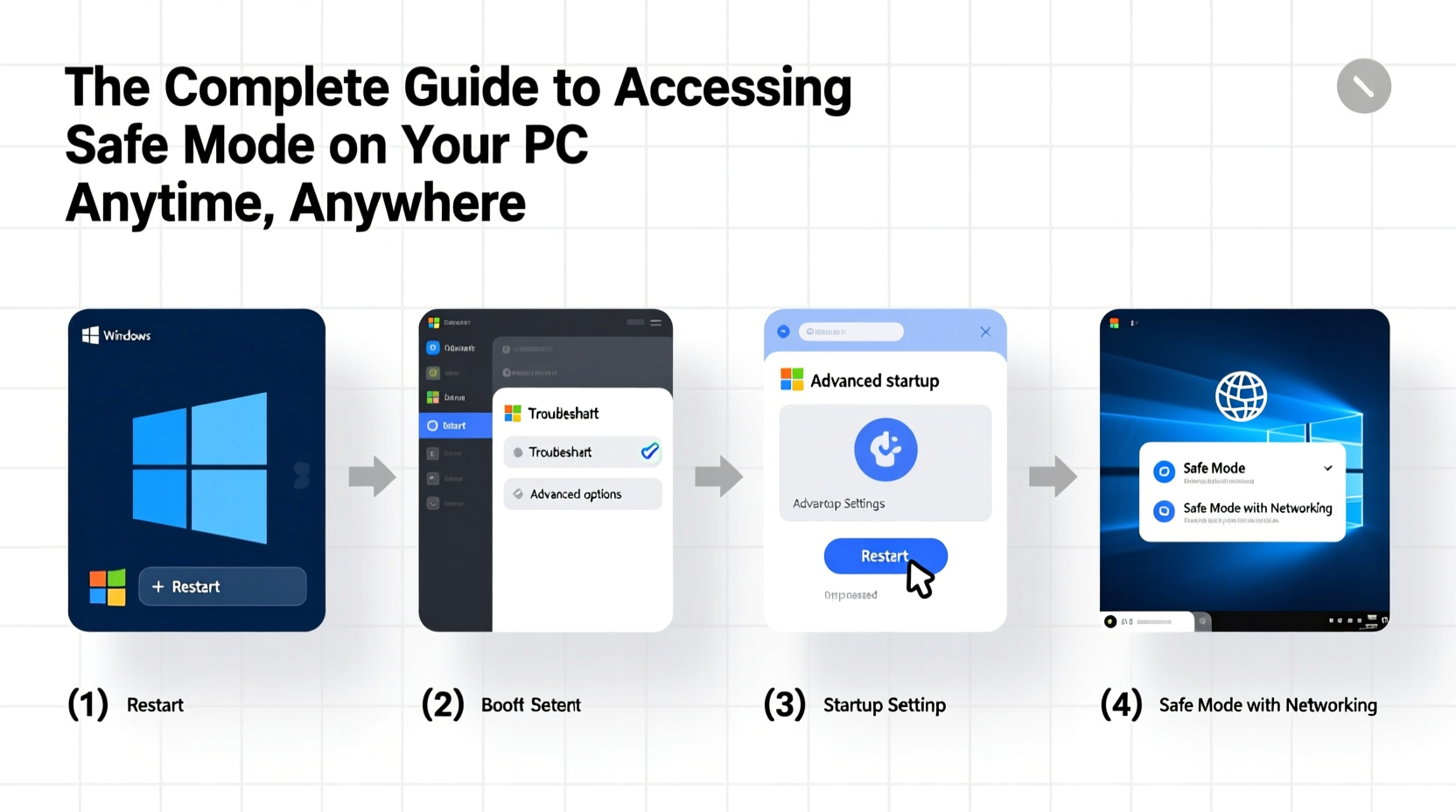
Safe Mode loads only essential system files and drivers, disabling third-party software, startup programs, and non-critical services. This stripped-down environment helps isolate issues caused by:
- Corrupted drivers
- Malware infections
- Failed Windows updates
- Incompatible applications
- Registry errors
Once in Safe Mode, you can run antivirus scans, uninstall problematic software, roll back drivers, or restore the system to a previous point. Microsoft Support notes that over 60% of boot-related issues can be resolved using Safe Mode combined with System Restore or Startup Repair.
“Safe Mode remains the first line of defense in diagnosing Windows instability. It’s not a workaround—it’s a diagnostic necessity.” — David Lin, Senior Windows Engineer at TechRescue Labs
How to Enter Safe Mode When Windows Boots Normally
If your PC starts up but runs slowly or displays recurring errors, entering Safe Mode proactively can prevent escalation. Here are two reliable methods:
Method 1: Using Settings App (Windows 10 & 11)
- Click the Start menu and go to Settings.
- Navigate to System > Recovery.
- Under “Advanced startup,” click Restart now.
- After rebooting, select Troubleshoot > Advanced options > Startup Settings > Restart.
- Press F4 to enable Safe Mode or F5 for Safe Mode with Networking.
Method 2: Using MSConfig (All Modern Windows Versions)
- Press Win + R, type
msconfig, and press Enter. - Go to the Boot tab.
- Check Safe boot and choose between Minimal, Network, or Alternate Shell.
- Click Apply, then restart your PC.
Accessing Safe Mode When Windows Won’t Boot
When your system gets stuck on the logo screen, loops during login, or shows a blue screen, traditional methods won’t work. In these cases, forced interruption triggers Windows Recovery Environment (WinRE).
Step-by-Step: Force Entry into Recovery Mode
- Power on your PC and immediately hold the power button for 5–10 seconds to force shutdown. Repeat this twice more.
- On the fourth automatic restart attempt, Windows detects startup failure and launches WinRE.
- From the recovery screen, navigate to Troubleshoot > Advanced Options > Startup Settings > Restart.
- Choose Enable Safe Mode (F4) or Safe Mode with Networking (F5).
This technique works even if BitLocker is enabled—though you may need your recovery key. It bypasses the login screen entirely and requires no external tools.
Using Installation Media as a Backup Option
If forced reboots fail (common on older hardware), use a Windows installation USB drive:
- Insert the USB and boot from it (may require changing boot order in BIOS/UEFI).
- Select language preferences and click Next.
- Click Repair your computer at the bottom left.
- Navigate to Troubleshoot > Advanced Options > Startup Settings > Restart.
- Press F4 or F5 as needed.
This method is especially useful for systems with corrupted system partitions or missing bootloaders.
Version-Specific Access Methods
Different Windows versions offer slightly different paths. Use the table below to quickly identify the right approach for your OS.
| Windows Version | Recommended Method | Alternate Path |
|---|---|---|
| Windows 11 | Settings > Recovery > Restart now | Shift + Restart from login screen |
| Windows 10 | Forced shutdown (3x) | MSConfig or installation media |
| Windows 8/8.1 | Hold Shift while clicking Restart | Charms bar > Settings > Change PC settings > Update & Security > Recovery |
| Windows 7 | Tap F8 during boot | Installation disc > Repair > Command Prompt > bootrec /fixmbr |
Real-World Example: Recovering from a Failed Graphics Driver Update
Jamal, a freelance video editor, installed a new NVIDIA driver to improve rendering performance. Upon reboot, his screen flickered and froze at the login screen. He couldn’t access Task Manager or Device Manager.
He powered off the machine, performed three forced shutdowns, and triggered WinRE. From there, he entered Safe Mode with Networking. Once inside, he opened Device Manager, located the display adapter, and rolled back the driver. After rebooting normally, his system functioned perfectly.
This scenario illustrates how Safe Mode enables precise interventions without requiring technical expertise or third-party tools.
Essential Checklist Before Entering Safe Mode
Before attempting any Safe Mode entry, follow this checklist to avoid complications:
- Save all open work and shut down properly if possible
- Charge your laptop to at least 50% to prevent unexpected shutdowns
- Have your BitLocker recovery key ready (if applicable)
- Ensure you have admin rights to make system changes
- Prepare a bootable Windows USB drive as backup access
- Write down any error messages seen during failed boots
Frequently Asked Questions
Can I connect to the internet in Safe Mode?
Yes—but only if you select “Safe Mode with Networking” when prompted. Standard Safe Mode disables network drivers, so browsing, updates, and cloud tools won’t work.
Why doesn’t F8 bring me to Safe Mode anymore?
Starting with Windows 8, fast startup and UEFI firmware replaced traditional BIOS sequences. The F8 boot menu is disabled by default for speed. Use the forced shutdown method or Settings app instead.
Is Safe Mode the same as System Restore?
No. Safe Mode is an operating state; System Restore is a feature that reverts system files and settings to an earlier point. However, System Restore is often run from within Safe Mode for better reliability.
Conclusion: Master Safe Mode for Total System Control
Knowing how to access Safe Mode transforms you from a passive user into an empowered troubleshooter. Whether your PC crashes unexpectedly or behaves erratically after an update, Safe Mode gives you the clarity and control to fix it yourself—without costly repairs or data loss.
The methods outlined here work across laptops, desktops, and hybrid devices, regardless of brand or age. Bookmark this guide, practice the steps on a stable system, and keep a Windows USB installer handy. When trouble strikes, you’ll be ready.




 浙公网安备
33010002000092号
浙公网安备
33010002000092号 浙B2-20120091-4
Comments
No comments yet. Why don't you start the discussion?